The Dropbox desktop app is basically the official program that connects your computer to your Dropbox account. Once installed, it creates a Dropbox folder on your PC or Mac, and anything you put there syncs automatically to the cloud and your other devices. It also adds right-click sharing, file history, and sync status right into File Explorer or Finder.
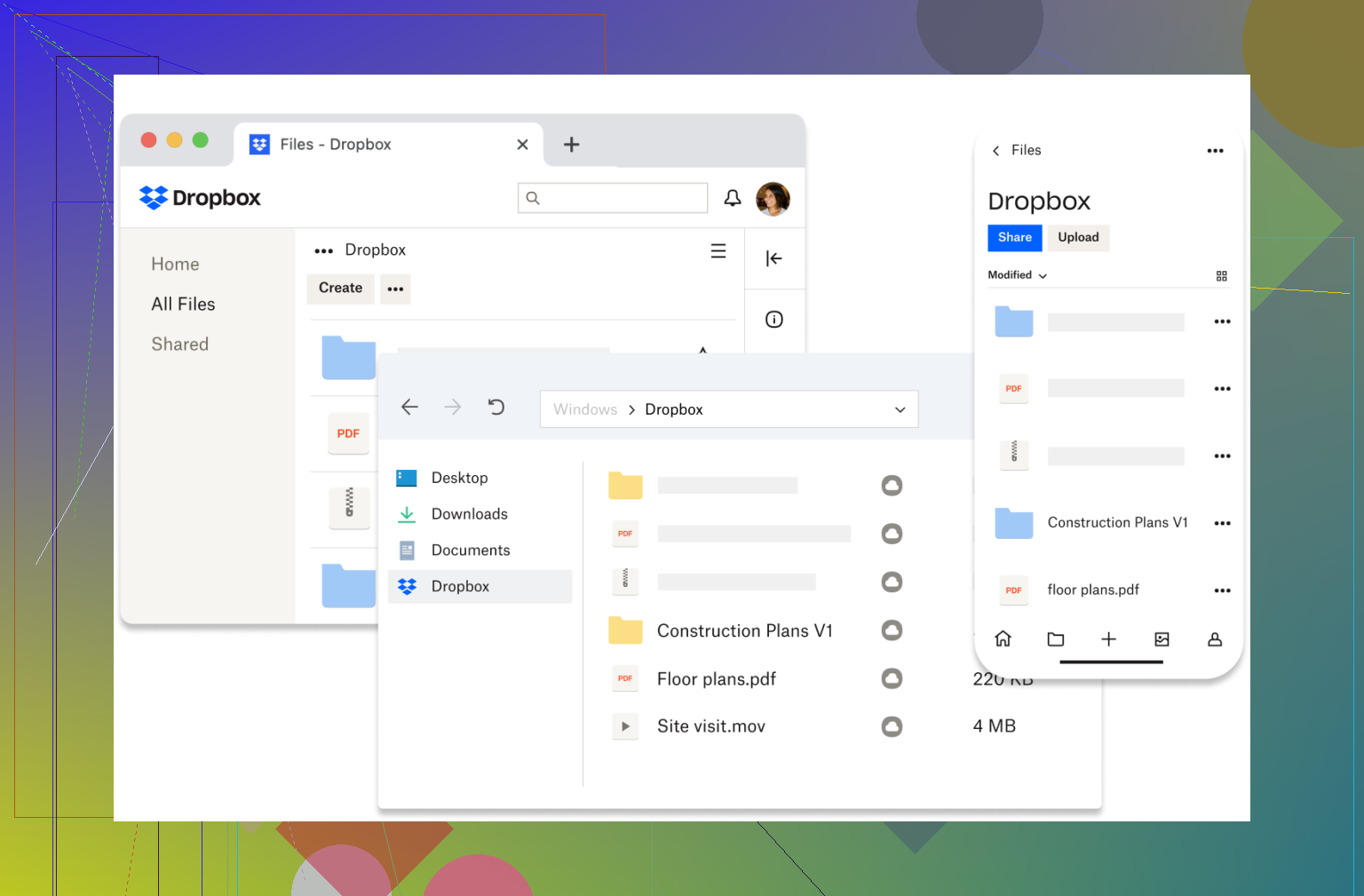
Here’s how it usually feels in real use.
What the Dropbox desktop app does well
The biggest advantage is how simple it is. You just treat the Dropbox folder like any other folder and it handles syncing in the background.
Some practical upsides:
-
Very reliable file syncing compared to many competitors
-
Smart Sync can keep files online-only to save disk space
-
Easy sharing from the desktop without opening a browser
-
Good version history if you mess something up
-
Works well across Windows, macOS, and mobile
Dropbox earned its reputation mostly because syncing tends to “just work,” which is honestly the main thing people want from cloud storage.
The downsides
It’s not perfect though.
Some common complaints:
-
The free plan (2GB) is tiny
-
The app can use noticeable RAM if you sync a lot of files
-
Sync conflicts can happen if multiple people edit files
-
Sometimes you end up with multiple cloud folders across different services
-
You may not want another background sync app running
Some users also dislike how cloud files sometimes become online-only, meaning they download only when opened, which can disrupt offline workflows.
What the “native app” means
When people say the native Dropbox app, they just mean the official desktop client from Dropbox itself. It’s designed to integrate directly into your operating system rather than working through a browser.
So instead of logging in on dropbox.com, you:
-
Access files from Finder or Explorer
-
Sync automatically
-
Share files from the right-click menu
-
Work offline with synced files
For most people this is the default way to use Dropbox.
Alternatives – CloudMounter (Windows and Mac)
If you use multiple cloud services, something like CloudMounter can be useful. Instead of syncing everything, it mounts your cloud storage as drives directly in Finder or Explorer so you manage them like normal folders.
Why people use it:
-
Connect Dropbox, Google Drive, OneDrive, FTP and others in one place
-
Access cloud files without syncing everything locally
-
Saves disk space because files download only when needed
-
Reduces the need to install separate cloud apps
-
Can encrypt files before uploading for extra protection
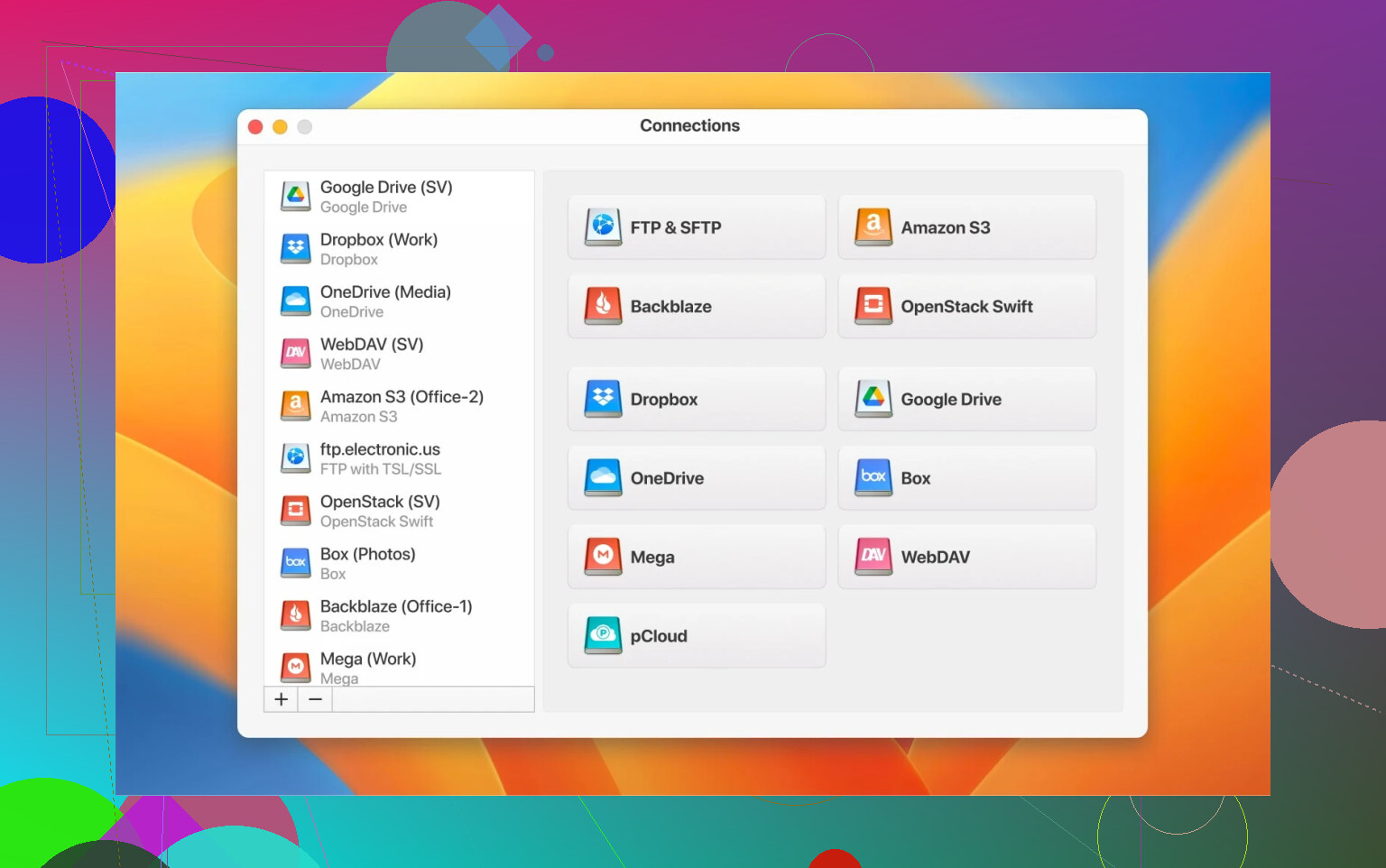
The idea is more about access than syncing. Instead of maintaining multiple background clients, you just mount everything like external drives.
To be fair, some reviews mention occasional connection or reliability issues depending on network quality, so it’s not perfect either.
For Mac users – Commander One as a full file manager
If you’re on macOS and want more than Finder offers, Commander One is more of a full file management tool than just a cloud connector.
What makes it interesting:
-
Dual-pane interface (see two folders at once for faster file moves)
-
Connect Dropbox and other clouds directly inside the app
-
Transfer files between clouds without downloading first
-
Built-in FTP/SFTP support
-
Archive handling without extra apps
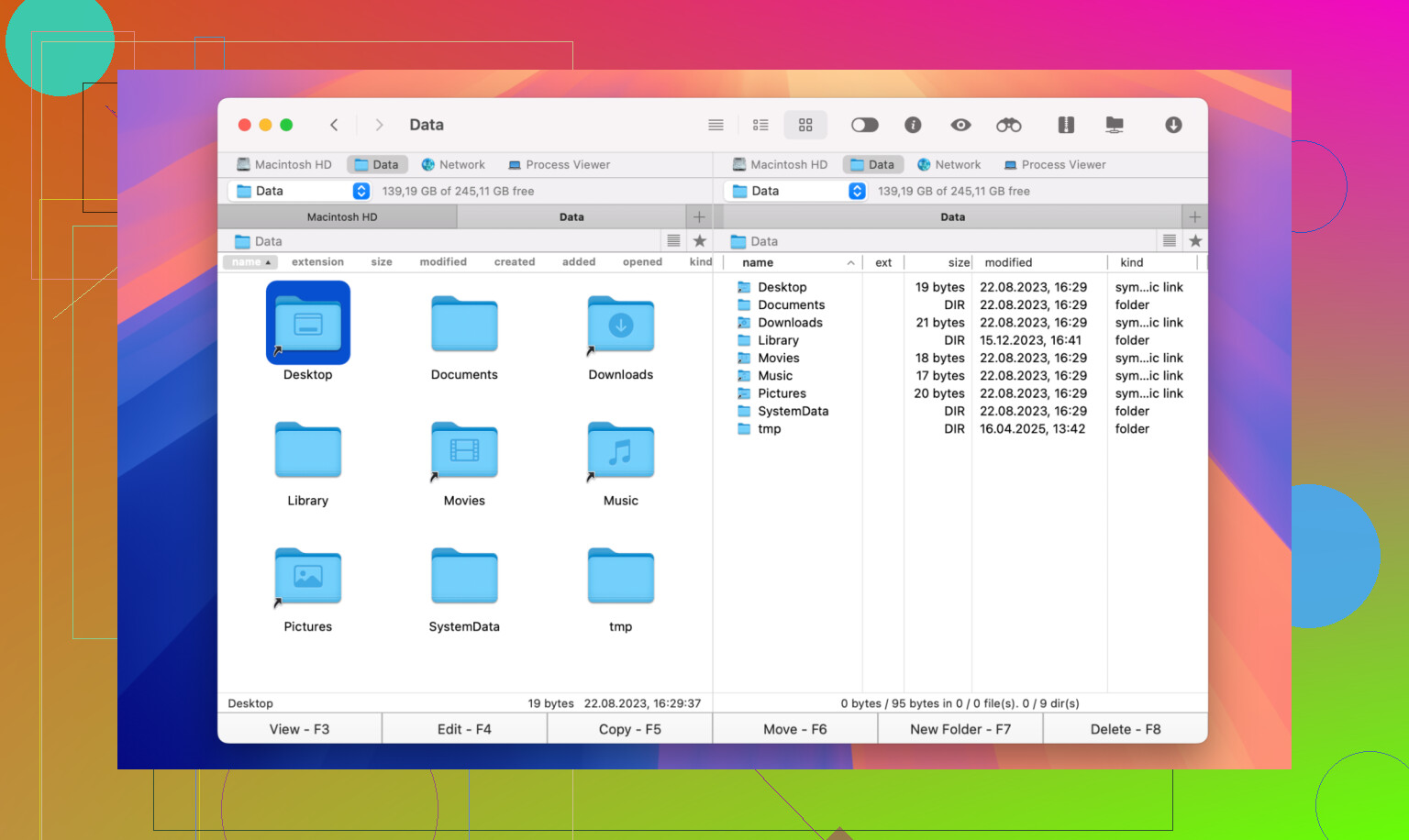
It’s especially useful if you regularly move files between local storage and cloud services or manage multiple accounts. Think of it less like a sync tool and more like a power-user Finder replacement.
How they fit different needs
In practice:
-
Dropbox desktop app → best if you just want simple syncing
-
CloudMounter → better if you use multiple cloud services and want one place to access them
-
Commander One (Mac) → good if you want a full file manager with advanced controls
If you only use Dropbox, the native app is usually enough. If you start juggling multiple clouds or want more control over how files are handled, that’s when the alternatives start making more sense.