I’ve been using Dropbox only through my browser and just discovered there’s a Dropbox desktop app. I’m confused about how it works compared to the web version and if I really need it on my computer. Does it store files locally, sync everything automatically, or change how I manage my folders? I’d appreciate a simple explanation of what the Dropbox desktop app is, how it works, and whether it’s worth installing for everyday file backup and sharing.
The Dropbox desktop app is basically the official program that connects your computer to your Dropbox account. Once installed, it creates a Dropbox folder on your PC or Mac, and anything you put there syncs automatically to the cloud and your other devices. It also adds right-click sharing, file history, and sync status right into File Explorer or Finder.
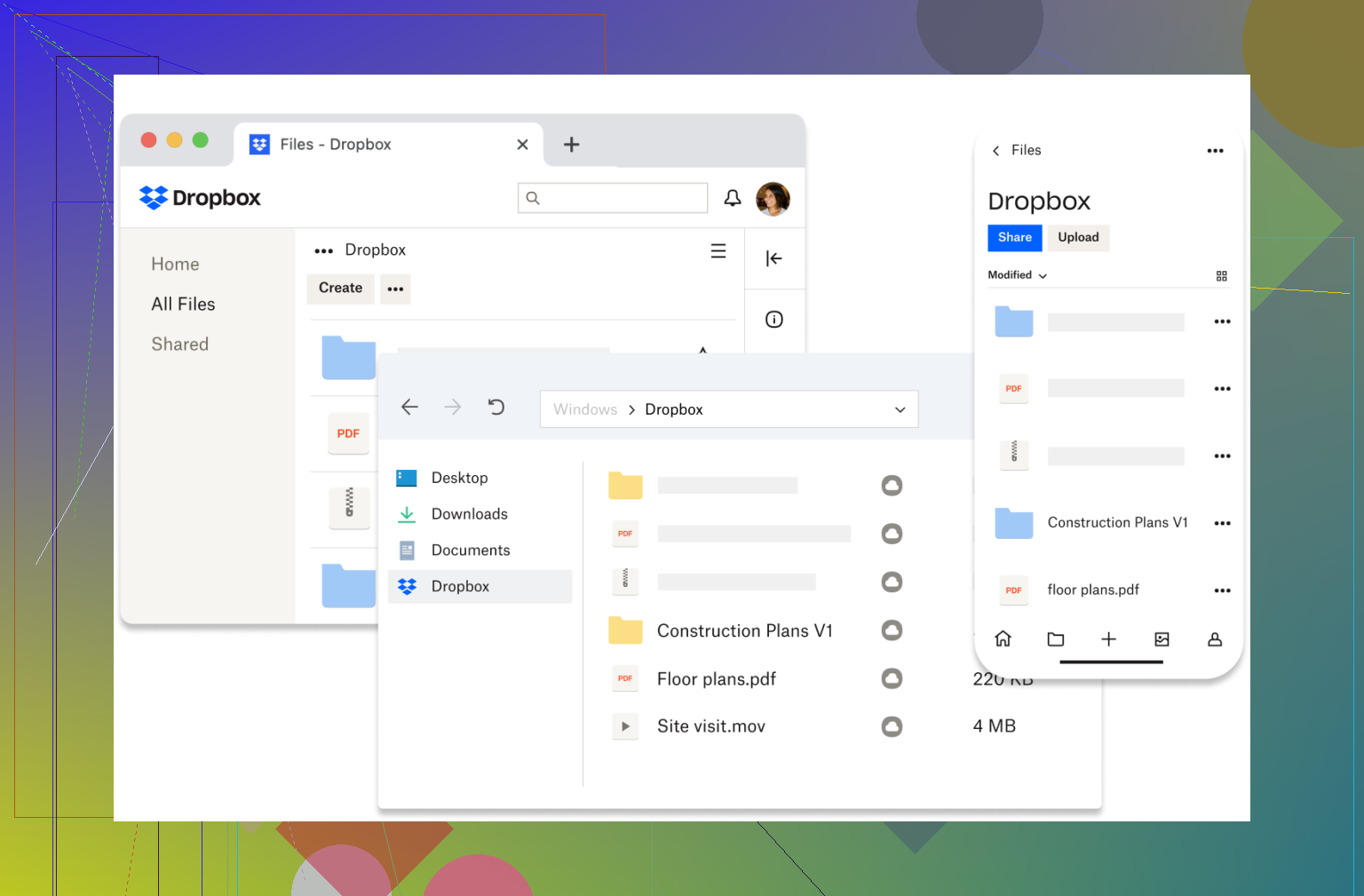
Here’s how it usually feels in real use.
What the Dropbox desktop app does well
The biggest advantage is how simple it is. You just treat the Dropbox folder like any other folder and it handles syncing in the background.
Some practical upsides:
-
Very reliable file syncing compared to many competitors
-
Smart Sync can keep files online-only to save disk space
-
Easy sharing from the desktop without opening a browser
-
Good version history if you mess something up
-
Works well across Windows, macOS, and mobile
Dropbox earned its reputation mostly because syncing tends to “just work,” which is honestly the main thing people want from cloud storage.
The downsides
It’s not perfect though.
Some common complaints:
-
The free plan (2GB) is tiny
-
The app can use noticeable RAM if you sync a lot of files
-
Sync conflicts can happen if multiple people edit files
-
Sometimes you end up with multiple cloud folders across different services
-
You may not want another background sync app running
Some users also dislike how cloud files sometimes become online-only, meaning they download only when opened, which can disrupt offline workflows.
What the “native app” means
When people say the native Dropbox app, they just mean the official desktop client from Dropbox itself. It’s designed to integrate directly into your operating system rather than working through a browser.
So instead of logging in on dropbox.com, you:
-
Access files from Finder or Explorer
-
Sync automatically
-
Share files from the right-click menu
-
Work offline with synced files
For most people this is the default way to use Dropbox.
Alternatives – CloudMounter (Windows and Mac)
If you use multiple cloud services, something like CloudMounter can be useful. Instead of syncing everything, it mounts your cloud storage as drives directly in Finder or Explorer so you manage them like normal folders.
Why people use it:
-
Connect Dropbox, Google Drive, OneDrive, FTP and others in one place
-
Access cloud files without syncing everything locally
-
Saves disk space because files download only when needed
-
Reduces the need to install separate cloud apps
-
Can encrypt files before uploading for extra protection
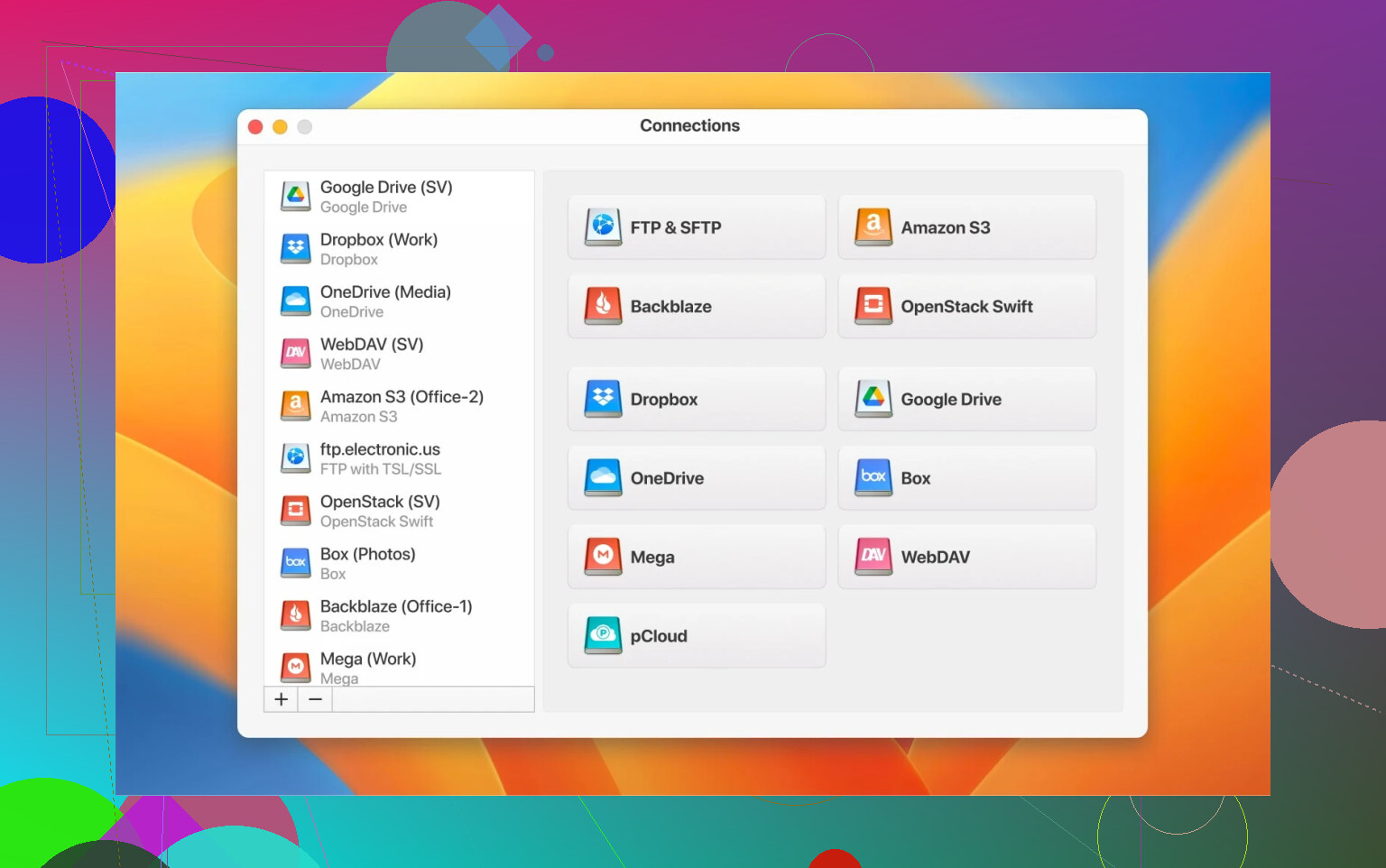
The idea is more about access than syncing. Instead of maintaining multiple background clients, you just mount everything like external drives.
To be fair, some reviews mention occasional connection or reliability issues depending on network quality, so it’s not perfect either.
For Mac users – Commander One as a full file manager
If you’re on macOS and want more than Finder offers, Commander One is more of a full file management tool than just a cloud connector.
What makes it interesting:
-
Dual-pane interface (see two folders at once for faster file moves)
-
Connect Dropbox and other clouds directly inside the app
-
Transfer files between clouds without downloading first
-
Built-in FTP/SFTP support
-
Archive handling without extra apps
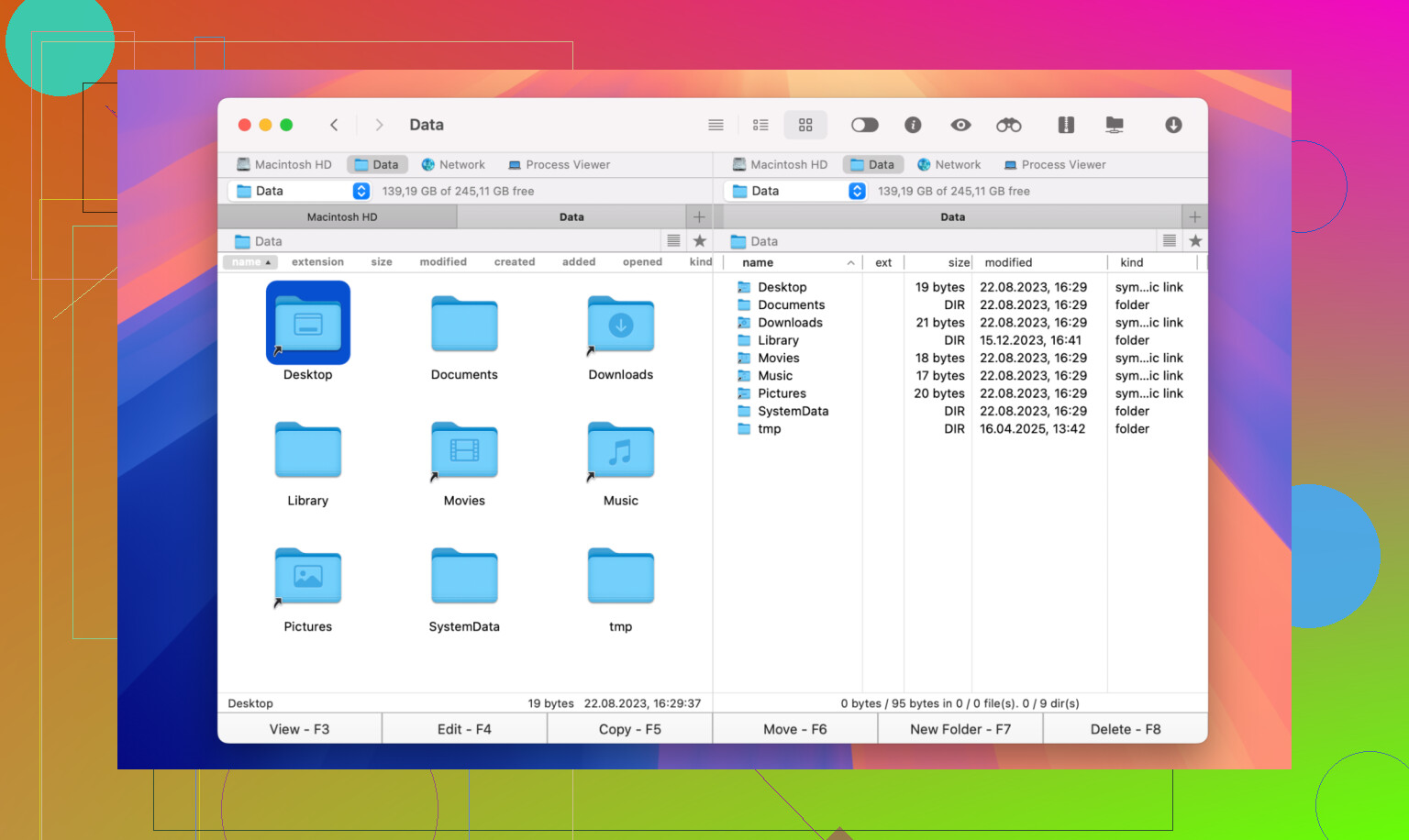
It’s especially useful if you regularly move files between local storage and cloud services or manage multiple accounts. Think of it less like a sync tool and more like a power-user Finder replacement.
How they fit different needs
In practice:
-
Dropbox desktop app → best if you just want simple syncing
-
CloudMounter → better if you use multiple cloud services and want one place to access them
-
Commander One (Mac) → good if you want a full file manager with advanced controls
If you only use Dropbox, the native app is usually enough. If you start juggling multiple clouds or want more control over how files are handled, that’s when the alternatives start making more sense.
112 Likes
The desktop app is a sync client. The web app is a remote file browser.
Here is what that means in practice.
- Where your files live
• With the desktop app, your Dropbox folder lives on your drive as a normal folder.
• Those files then sync to Dropbox servers in the background.
• With the website, your files stay online unless you manually download them.
So yes, the desktop app stores files locally, unless you mark them as online only with Smart Sync.
- How you work day to day
• Desktop app: You save, open, edit from the Dropbox folder like any other folder. Your apps do not care that it is “cloud”.
• Web app: You upload and download through the browser. You keep track of what is local yourself.
If you work in Word, Excel, Photoshop, coding tools, etc, the desktop app fits better. The browser part is more for occasional access or sharing.
- Offline vs online
• Desktop: Local copies exist, so you work offline. When the internet returns, changes sync.
• Web: No connection, no files, unless you downloaded them before.
This is where I disagree a bit with @mikeappsreviewer on Smart Sync being a pure win. It is helpful, but I have seen people mark big folders as online only to “save space”, then sit on a plane wondering why files will not open. You need to decide which folders must stay local.
- Do you “need” the desktop app
Ask yourself:
• Do you edit stuff often, not only view it?
• Do you move a lot of files around?
• Do you use more than one computer?
If yes to any of those, the desktop client saves you time. If you only log in once in a while to grab a PDF, the web site is enough.
- Disk space concern
You asked if it fills your disk. Short version: it can.
• By default, Dropbox syncs folders locally.
• With Smart Sync or selective sync you choose what stays local.
Typical setup: keep current projects local, archive folders as online only.
Example:
You have 500 GB in Dropbox and a 256 GB laptop.
• Keep 50 GB of “active” stuff local.
• Leave the rest as online only, visible but not taking space until you open it.
-
Performance and background stuff
The desktop app runs a background process.
• It watches file changes.
• It uploads and downloads diffs.
On a normal workload it sits quiet. On a massive tree with thousands of tiny files it eats more RAM and CPU. This matches what @mikeappsreviewer said. For huge dev repos or node_modules I usually exclude those from Dropbox. -
Sharing and version history
Desktop app adds right click menu entries.
• Create share links from Explorer or Finder.
• View previous versions or restore deleted files via the web interface.
The web interface does version history too, but the desktop flow is quicker once you set it up. -
If you use many cloud services
If you juggle Dropbox, Google Drive, OneDrive, maybe an FTP, you end up with several sync apps and a busy tray area. That is where a tool like CloudMounter helps.
CloudMounter mounts Dropbox and others as network drives, so you see them all in one place and pull files on demand. Less local storage use, fewer sync daemons. The tradeoff is that performance depends on your connection. If your Wi Fi is flaky, browsing big folders feels slow.
Simple guidance:
• Install the Dropbox desktop app if you:
- Edit or create files often.
- Want automatic backup of work.
- Move between devices and need things in sync.
• Stay with web only if you:
- Rarely touch your Dropbox.
- Use it mostly as a place to send or receive one off files.
- Have almost no free disk space and do not want to manage sync settings.
You can try the desktop app, point a test folder at it, and see how your disk, CPU, and workflow feel after a week. If it annoys you, uninstall and go back to pure web.
Think of Dropbox like this:
- The web site is a window into your stuff in the cloud.
- The desktop app is a robot that quietly keeps a folder on your computer the same as the stuff in the cloud.
A few clarifications that might fill in the gaps left by @mikeappsreviewer and @suenodelbosque:
-
Where files actually live
- With the desktop app, by default your files are stored in two places:
- Locally in a special “Dropbox” folder on your drive
- In your Dropbox account online
- So yes, it can fill your disk if you just dump everything in there and never tweak settings.
- Smart Sync / selective sync are basically “please don’t download this entire mountain of files to my tiny SSD.”
- With the desktop app, by default your files are stored in two places:
-
What changes compared to just using the browser
Browser only:
- You manually upload and download.
- If you forget to upload, your laptop dies, and you only had the file locally, Dropbox never saw it.
- Offline = you have nothing unless you pre-downloaded it.
Desktop app:
- You work in that Dropbox folder like any normal folder.
- The app auto‑uploads edits, renames, deletions.
- If your laptop dies, whatever was synced is already online without you thinking about it.
- You can still work offline on local copies; it syncs when you’re back.
This “no thinking about uploads” bit is the real reason people use the app, not because the app’s interface is amazing. The interface is just Finder / File Explorer.
-
Do you actually need it
Roughly:
- You probably want the desktop app if:
- You edit documents a lot (Word, Excel, design files, code, etc.).
- You use more than one computer.
- You care about having a near‑automatic backup of your working folder.
- You can skip it and stick to the website if:
- You only occasionally grab or share a file.
- You don’t want another app running in the background.
- Your disk is nearly full and you don’t feel like managing sync settings.
I don’t fully agree with the idea that “most non‑technical users just use the desktop app” and are fine. A lot of them get confused by Smart Sync or conflicted copies and then think Dropbox “lost” stuff. If you’re not going to spend 5 minutes learning the sync options, staying web-only is honestly safer.
- You probably want the desktop app if:
-
Privacy & control angle
One thing people forget to mention:
- With the desktop app, Dropbox is continuously watching that folder to see what changed.
- If you drop absolutely everything in there, then yes, a third party has pretty much your whole working life mirrored.
- Some folks keep only a specific “Work” or “Shared” subset inside Dropbox and leave personal / sensitive stuff outside. That’s not paranoia, that’s just sane.
-
When it starts to suck
- Very large trees with tons of tiny files: CPU & RAM spike while it scans.
- Really slow or metered internet: constant background syncing can be annoying.
- Shared docs: if two people slam “Save” at the same time, you get conflicted copies all over the place.
-
Alternatives if you’re juggling multiple clouds
If part of your confusion is that you’ve also got Google Drive, OneDrive, etc, then three different sync apps all fighting on the same laptop is annoying.
That’s where something like CloudMounter actually makes sense:
- It mounts Dropbox (and other clouds) as virtual drives.
- You see them like normal disks, but files stay online until you open or copy them.
- You cut down on local storage use and background sync daemons.
The tradeoff: if your internet is spotty, browsing big folders feels sluggish. It’s more “stream files from the cloud” than “keep a live mirror locally.”
Simple way to decide:
-
If Dropbox is basically a “once in a while” place where people send you a PDF:
→ Stay with the web, you’re fine. -
If you want Dropbox to behave like a real folder on your machine that just happens to be backed up and synced:
→ Install the desktop app, then use Smart Sync / selective sync so it does not eat your entire disk.
You can always try the desktop app for a week, point a single test folder at it, and if it feels like overkill, uninstall and go back to browser-only. No harm done, just don’t dump your entire drive into it on day one.
Think of it this way:
- Dropbox web = remote file cabinet you visit with a browser
- Dropbox desktop app = special folder on your machine that auto‑mirrors that cabinet
Others already nailed the basics:
- @suenodelbosque explained the “local vs online” part well.
- @yozora raised the smart concern about Smart Sync confusing people when they are offline.
- @mikeappsreviewer focused on the desktop app’s reliability and convenience.
I’ll add a slightly different angle: workflow and risk.
1. How it actually changes your day
Using only the website means:
- You decide when to upload, when to download
- If your laptop dies before you upload, that file never hits Dropbox
- You are always thinking “did I upload the latest version?”
Using the desktop app means:
- You work inside the Dropbox folder like any normal folder
- The app quietly handles copies and updates in the background
- The “risk of forgetting” is mostly gone, as long as the app is running and you are online at some point
So to your question “do I really need it”:
- If most of your Dropbox use is one‑off downloads or uploads, then no, you do not need it.
- If Dropbox is becoming your main working area, I’d strongly argue you do.
Where I disagree a bit with the others: some say “install it, then tweak Smart Sync.” I think many people are happier starting aggressively conservative:
Only put one or two key folders under Dropbox first, watch what happens to your disk, then expand.
2. Disk space risk in plain numbers
Example:
- Your laptop: 256 GB
- Free today: 80 GB
- Dropbox total online: 300 GB
If you install the desktop app and let it sync everything locally:
- Your free 80 GB will get eaten quickly
- Performance can tank when your OS drive gets near full
Safer pattern:
- Make one “Active” folder you keep local
- Mark big archive folders as online only / not synced
- Revisit settings quarterly as projects finish
This is where tools like CloudMounter become interesting if you ever add Google Drive, OneDrive, etc.
3. Where CloudMounter fits in (and where it does not)
CloudMounter is not a Dropbox replacement. It is more like a “cloud hub” that:
- Mounts Dropbox and other services as drives
- Lets you browse and open files on demand
- Keeps most data remote to save disk space
Pros:
- One app instead of several sync clients
- Great if you juggle Dropbox + Google Drive + others
- Big space saver on small SSDs
- Optional encryption layer before uploading
Cons:
- Heavily dependent on connection quality
- Slower than local files for big folders or large media
- Not a full backup mirror since it does not sync everything down
- Slight learning curve if you are used to simple sync folders
So if you:
- Mainly live in Dropbox and want automatic local copies
→ Desktop app is still the cleanest solution.
If you:
- Use several clouds and are hitting storage limits
→ Combining lighter Dropbox sync + CloudMounter for overflow can be smarter than running three sync apps all day.
4. Simple decision checklist
Use desktop app if:
- You regularly edit files stored in Dropbox
- You want an “always backed up” working folder
- You hop between two or more computers
Stay web only if:
- You just grab or share files occasionally
- Your disk is nearly full and you do not want to deal with sync settings
- You are fine manually uploading “final versions” only
Consider CloudMounter in addition if:
- You have multiple cloud accounts
- You care more about saving local space than offline access
- You are usually on solid internet and can tolerate cloud‑speed browsing
In short: the desktop app is not mandatory, but once Dropbox becomes part of your daily workflow, not using it is like remembering to hit “Save” twice. It works, but it is one more thing to babysit.
Recap. Desktop app is a sync client. Files live locally, then sync to Dropbox servers. Works offline. Web is a file browser. Files stay online until you download. Smart Sync marks items online to save space. Watch big trees for CPU and RAM. Click sharing and versions help. CloudMounter and Commander One mount clouds and reduce local storage.
Simpler path. Use a scheduled backup tool like Duplicati or Arq to Dropbox. Pick folers, run nighlty. You edit anywhere. The tool uploads changes only. Example, 50 GB set, first uplaod once, then ~200 MB per day. Fewer sync conflicts. Lower noise.