My iPhone keeps showing a memory full message even after I deleted photos, apps, and old texts. Storage fills back up fast, my phone is running slow, and I’m not sure what’s causing it or how to fix it. I need help figuring out what’s taking up space and the best way to clear it without losing important data.
I kept seeing the “iPhone Storage Full” alert even after I deleted a pile of stuff. What tripped me up was this, iOS usually isn’t talking about active memory. It’s talking about storage on the device.
What the alert means
On iPhone, storage and RAM are separate things. RAM is used while apps are open and running. Storage is where your photos, videos, apps, messages, and downloads sit. When iOS says the phone is full, it means storage is packed.
Why deleting files seems to do nothing
This is the part I missed the first time. In Photos, deleting an image or video does not wipe it right away. iOS moves it into Recently Deleted and keeps it there for 30 days. Those files still take up the same amount of space until you remove them from there too.
What I had to do:
- Open Photos
- Go to Albums
- Scroll to Recently Deleted under Utilities
- Tap Select, then Delete All
Before I did this, the warning kept coming back like nothing had changed. After I cleared Recently Deleted, I saw space open up for real.
Other spots where storage gets eaten
I’d check Settings > General > iPhone Storage and wait a bit for the graph to finish loading. If System Data or Other looks huge, a lot of it is cache files, temp junk, Siri voices, and leftover app data. A simple restart sometimes drops that number because iOS recalculates storage and dumps some temporary files.
Places I found hidden bloat:
- Messages. Open iPhone Storage, tap Messages, then check Review Large Attachments. Old videos in text threads pile up fast. Mine had a bunch of clips I forgot existed.
- Safari. Go to Settings > Safari > Clear History and Website Data. This wiped cached web data and gave me a bit back.
- Unused apps. In iPhone Storage, Offload Unused Apps removes the app itself but keeps its documents and settings.
About those fake warnings in Safari
If you see a storage warning inside a webpage, especially one with a timer, flashing text, or some nonsense about your SIM card being damaged, ignore it. That’s a scam ad. Real iPhone storage alerts show up as normal iOS system messages or inside Settings. I would not touch links in browser pop-ups claiming they’ll clean your phone.
Where the built-in tools fall short
Apple’s storage screen shows totals by app, which helps a little, but it doesn’t tell you which exact files are causing the mess. I couldn’t sort my photo library by file size. I also couldn’t quickly find duplicate or near-duplicate shots without digging through everything by hand, which got old fast.
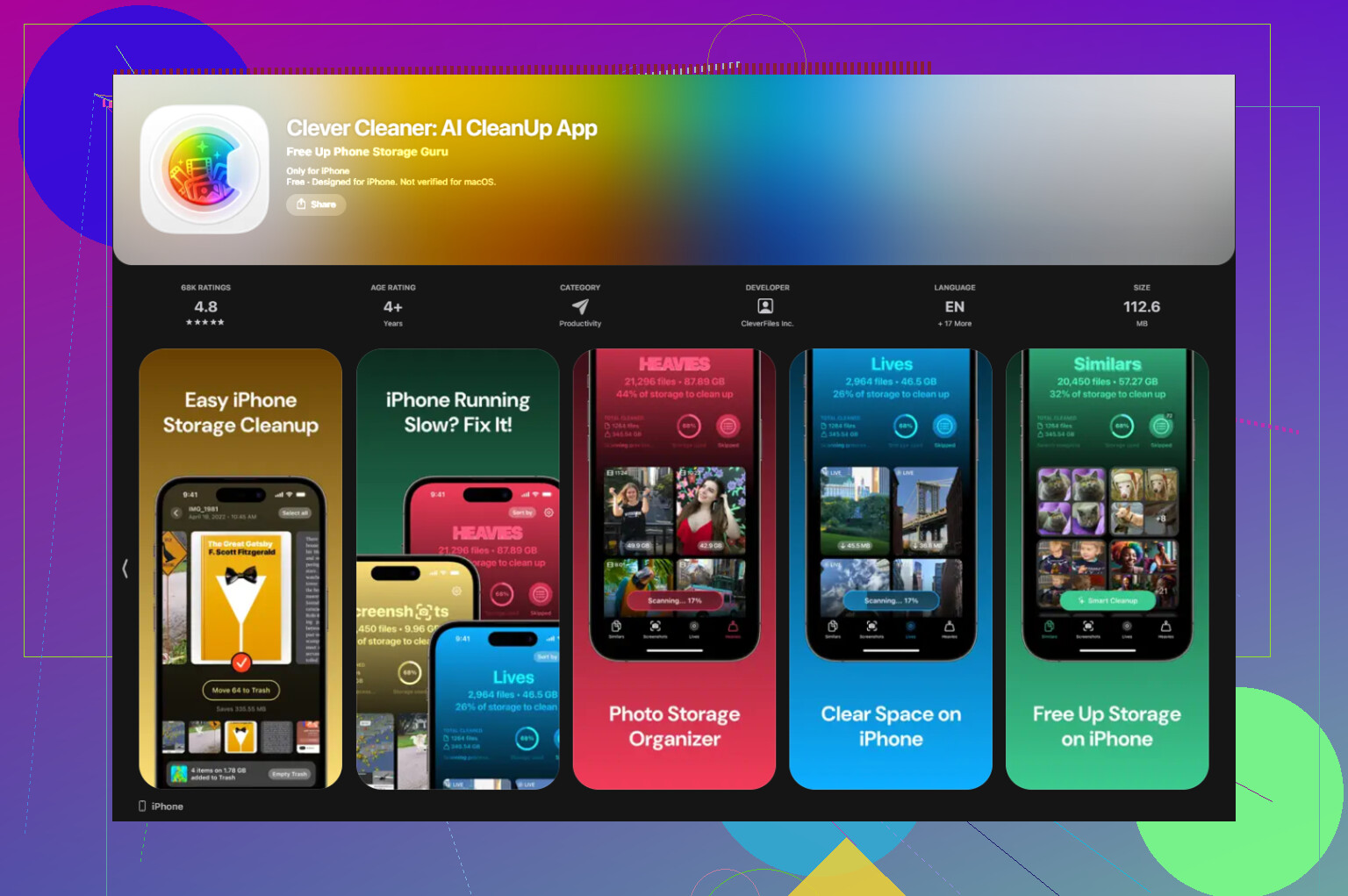
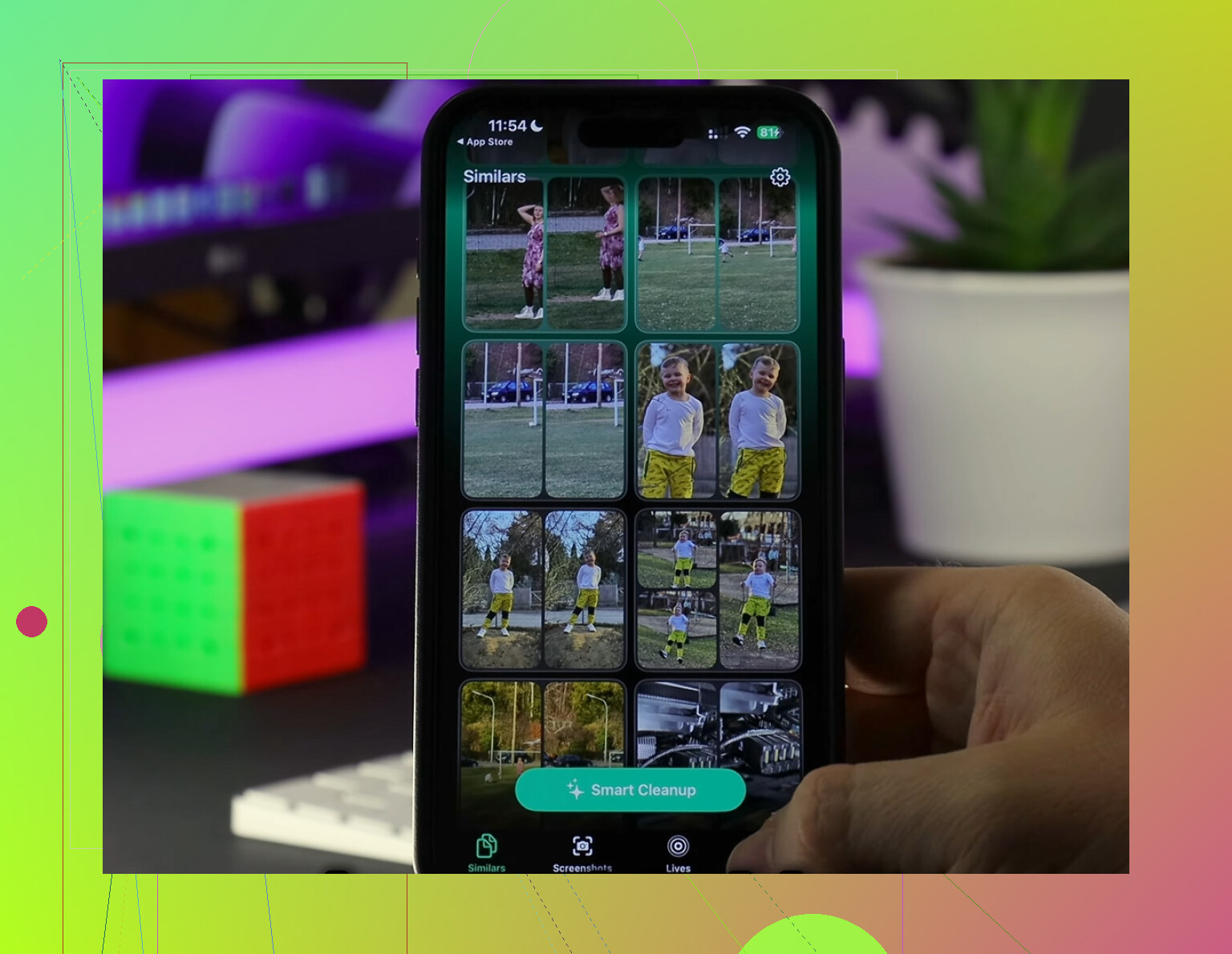
Clever Cleaner filled in that gap better than I expected. The Heavies section puts the biggest files first, so giant 4K videos and screen recordings show up immediately instead of hiding in the middle of a huge library. The Similars section groups near-matching photos and picks a Best Shot, which helped me wipe out burst photos and repeated attempts without scrolling for an hour. It shows file sizes before deletion, and the processing stays on the phone.
I cleared about 12GB with Clever Cleaner, then emptied Recently Deleted. After that, the warning stopped popping up and the phone felt less sluggish.
If the alert still shows up even when space is free
I’ve seen cases where Settings reports free space but the warning still hangs around. When that happens, it looks more like a sync or indexing bug than a real storage shortage. The last fix is annoying, though it tends to work. Back up the iPhone to iCloud or a computer, erase the device, then restore from backup. That forces iOS to rebuild its storage records from scratch and clears those fake full-storage readings that survive normal cleanup.
21 Likes
If storage fills back up fast, I’d look at sync sources first. @mikeappsreviewer covered local junk well. My take is a bit differrent. A lot of “I deleted stuff” cases come from data coming right back.
Check these:
- iCloud Photos. If Optimize iPhone Storage is off, full originals stay on your phone. Also, if another device dumps new photos into the same Apple ID, your iPhone fills again.
- Messages in iCloud. Delete a thread on one device, but large attachments and sync lag still chew space for a while.
- Mail app. Big attachments and offline mailboxes pile up. Removing the Mail account, then adding it back, often drops gigabytes.
- Streaming apps. Netflix, Spotify, YouTube, Podcasts. Downloads hide inside the app, not in your camera roll.
- Files app. “On My iPhone” and Downloads get ignored all the time.
One thing I disagree with a little, restart helps sometimes, but if storage keeps climbing daily, it’s usuallly synced media or app data growth.
Do this in order:
Settings, tap your Apple ID, iCloud, manage storage.
Then Settings, General, iPhone Storage, sort by biggest apps.
Open each fat app and delete downloaded content from inside the app too.
If your photo library is the mess, Clever Cleaner is useful for finding huge videos, duplicate shots, and space hogs faster. This review covers why it stands out as a truly free iPhone cleaner app:
see this truly free iPhone cleaner app review
Last thing, leave 5GB to 10GB free. iPhones run worse when storage gets too close to zero. That slowdown part is normal, annoyng, but normal.
What jumps out to me is this: if storage fills back up fast, it’s usually not the deleted stuff, it’s stuff being re-created.
@mikeappsreviewer is right about hidden photo trash, and @viajeroceleste is right about sync/downloads, but I’d also look at a few things people forget:
- App caches that grow insanely: TikTok, Instagram, Facebook, Reddit, Chrome, Maps. Some apps can bloat to several GB and iPhone Storage won’t always make it obvious what part is cache vs real data. Deleting and reinstalling the app is sometimes better than “offloading.”
- Corrupt storage indexing: sometimes the phone reports nonsense after updates. If your usage numbers look weird or don’t add up, that’s not you being crazy, that’s iOS being iOS.
- Voice memos, screen recordings, GarageBand files, downloaded editing assets. Sneaky space hogs.
One small disagreement with the usual advice: offloading apps is not always enough. If the app’s documents/data are the real problem, offload barely helps.
What I’d do:
- Update iOS first.
- Check if one app keeps ballooning in size over 24 hrs.
- Delete/reinstall the worst offenders.
- Turn off app background refresh for junk apps.
- If photos are the main mess, use Clever Cleaner to spot giant videos, duplicates, and similar shots faster.
- If storage still acts haunted, back up the phone and do a full restore.
Also, if you want a visual walkthrough, this is a decent step-by-step iPhone storage cleanup guide.
And yeah, when an iPhone gets near full, performance gets kinda awful. Annoyng but normal.
One angle the others only touched lightly: failed updates and logs. I don’t fully agree that it’s usually photos or sync. Sometimes iOS update files, crash logs, and analytics junk pile up after an interrupted update or low-space loop.
Check these less-obvious culprits:
- Settings > Privacy & Security > Analytics & Improvements > Analytics Data
If it’s packed with repeated panic/fullstorage logs, that points to a system issue, not just your files. - Downloaded iOS update
Sometimes an update package sits there eating several GB. Check Settings > General > iPhone Storage for an iOS entry. - Podcasts and voice notes
These get forgotten more than people think. - Third-party cloud apps
Google Drive, Dropbox, OneDrive can keep offline copies quietly.
Briefly, @viajeroceleste is right about sync coming back, @mike34 is right about hidden deletions, and @mikeappsreviewer is right about bloated app data. I’d add this: if storage use looks irrational, stop chasing files and assume index corruption.
My cutoff point is this: if you free 5 GB and it vanishes again within a day with no obvious app growth, back up and restore the phone. That fixes a weird number of “haunted storage” cases.
If photos are part of it, Clever Cleaner is handy.
Pros: finds large media fast, good for duplicates/similar shots, simpler than digging in Photos manually.
Cons: mostly useful for photo/video cleanup, not magic for system data, and not every “similar” suggestion should be deleted blindly.