My webcam doesn’t show up on the other computer, even though I can share files between them over Ethernet. I left it plugged into the computer at my desk and checked the camera selection menu on the other one, but it only lists its built-in camera. Does anyone else run into this when trying to share a webcam over Ethernet? I expected the wired connection to make this less of a hassle, not leave me swapping the USB cable.
Set up USB sharing on both computers before checking the camera menu again. Ethernet gives them a network connection, but file sharing doesn’t make USB peripherals available to the other computer. For that, you need software that presents the remote webcam as a locally connected device. I’d use USB Network Gate for this.
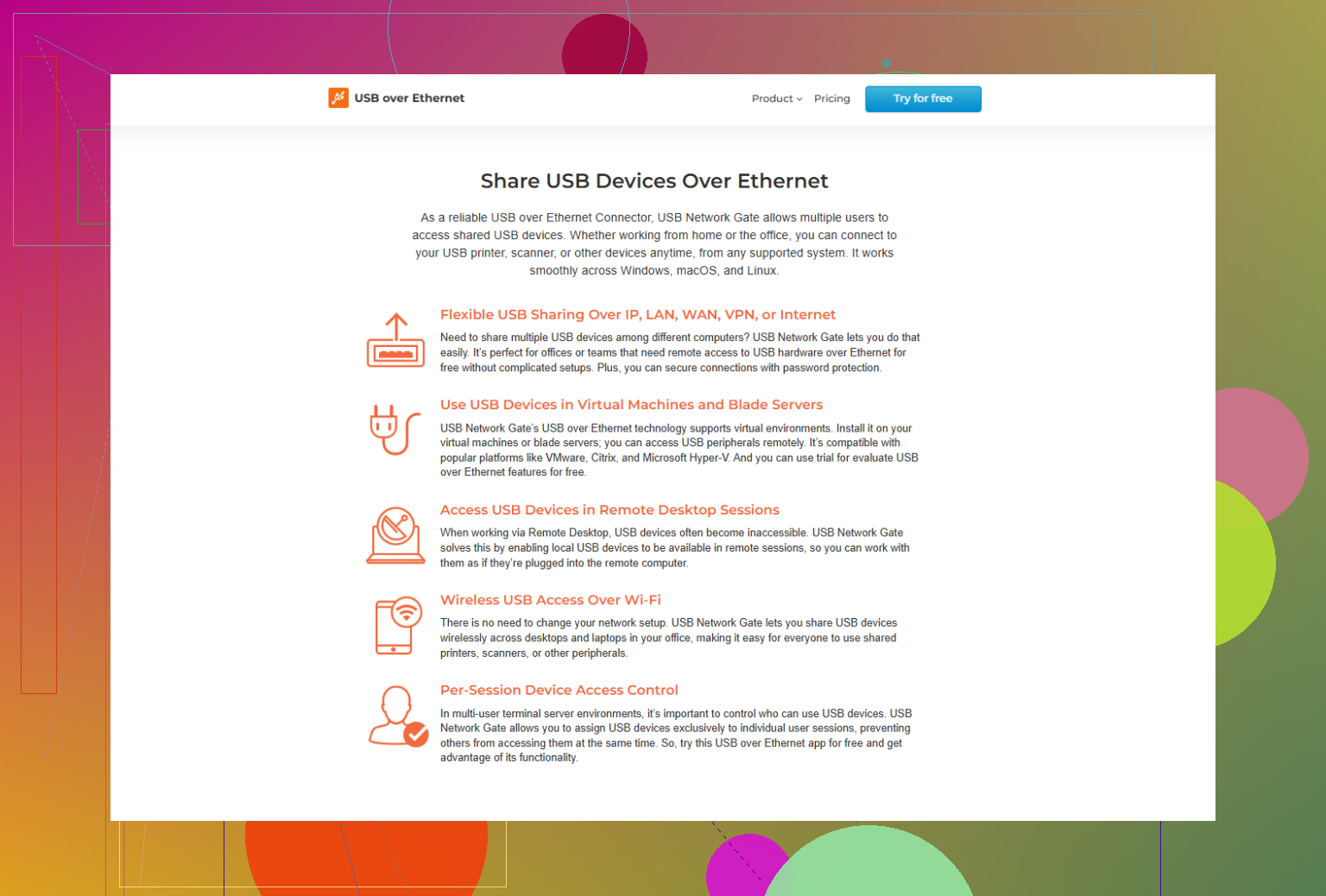
Install it on both machines, share the webcam from the desk computer, then open the remote-device list on the other computer and click Connect. That connection step comes before selecting the camera in your video app. The walkthrough on this setup page covers the same arrangement.
Treat this as moving the camera’s USB connection across the network, rather than broadcasting its video to everyone. USB Network Gate allows only one remote computer to connect to a shared device at a time, so it’s a fit for switching where you use the webcam, not feeding several computers simultaneously. (help.electronic.us)
10 Likes
Which operating systems are the two computers running? Before following @rocketlogic’s setup, I’d check the firewall permissions for the sharing software. A working file share doesn’t rule out a blocked connection for another service. USB Network Gate specifically needs its configured network port accessible, so an empty remote-device list can be a firewall issue rather than a webcam problem. Don’t disable the whole firewall to troubleshoot it. (help.electronic.us)
USB Network Gate’s automatic reconnection is a genuinely useful convenience here. On Windows, choose Connect in the app, rather than Connect once, and it will try to restore the USB connection after a network interruption. That saves manually reconnecting after every brief dropout. Get that connection established before troubleshooting the video app’s camera menu. (help.electronic.us)
You haven’t said whether you just want to watch the webcam’s picture on the other computer or use it as the camera for a particular app. Those are different jobs, and I wouldn’t commit to USB-sharing software until that’s clear.
@rocketlogic’s approach makes sense if the second computer needs to treat the webcam as an attached device. I’m less convinced it should be the default answer for simply viewing video. For that, sending a video feed across the network is another approach. The catch is that being able to watch a feed doesn’t automatically make it an option in a video app’s camera menu. If that menu is where you need it, a viewing-only solution could leave you right back where you started.
I’d choose based on what you’re actually trying to do:
- For watching what’s happening at the desk, look at sharing the video rather than the entire USB device.
- For using the webcam in an app on the second computer, check that the proposed setup can supply a camera that particular app accepts.
- For an occasional video call, consider whether running the call on the desk computer would avoid needing the extra setup altogether.
The file transfer working establishes that the computers can communicate, so the Ethernet connection itself isn’t the missing feature. What’s missing is a way to deliver the camera in the form you need. Before spending money or installing anything on both machines, name the app you want to use and whether viewing the picture would be enough. That could change the recommendation considerably.