First off, sorry to hear about your data loss—been there, done that, and it’s a headache for sure. Let me try to help you troubleshoot.
-
Hardware Check: Let’s rule out the hardware first. If your hard drive is physically damaged, software recovery might not cut it. You might need to consult with a professional data recovery service to actually get those files back. If your drive is clicking or making weird noises, stop using it immediately. Continuing to run software on a failing drive can cause more damage and make data recovery harder.
-
Corrupted File System?: It’s possible that the file system got corrupted when your computer crashed. If you’re seeing error messages about file systems or unrecognized formats, that’s a good clue.
-
Administrator Privileges: Make sure you’re running the recovery software with administrative privileges. Some software needs elevated permissions to access certain parts of your file system.
-
Check Partition: Could be your partition got messed up. Try using a tool that can not just scan for regular file structures but also get back partitions. Look at your drive through Disk Management on Windows to see if something looks weird.
-
Software Choice: Different software has different capabilities. Since you’ve tried a few, one I could recommend is Disk Drill
. It’s been reliable in many of my cases. What’s cool about it is, it can recover data from virtually any storage device—hard drives, SSDs, USB drives, you name it. Plus, it’s got this neat feature to scan deeply with different algorithms which might do the trick in getting those crucial documents back.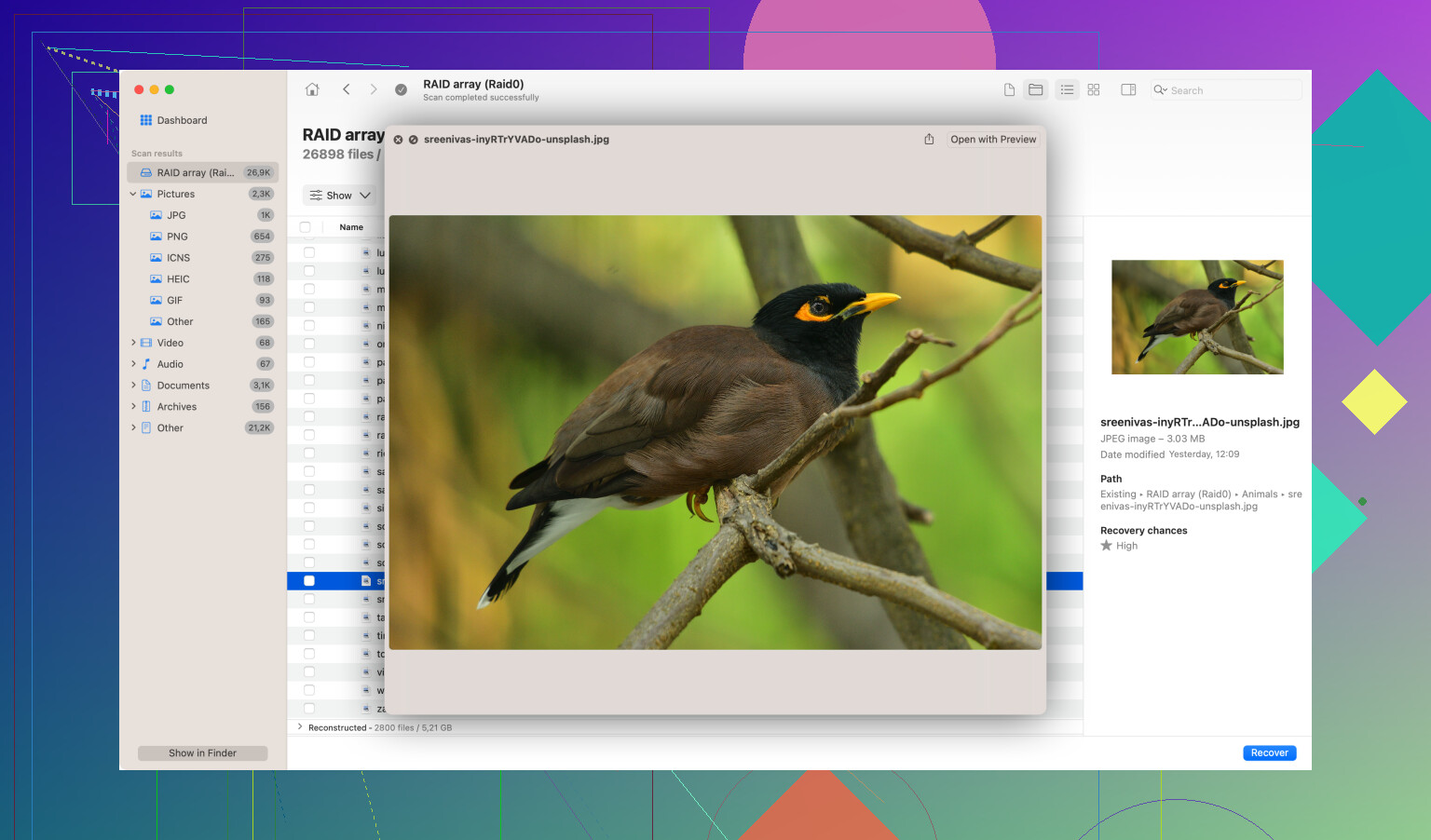
-
Save to a Different Drive: When you’re running recovery software, always save the recovered files to a different drive than where you’re recovering from. If you’re recovering from the C: drive, use an external or another partition. This helps prevent overwriting data you’re trying to recover.
-
Try Booting from Live CD: If the issue persists and you can’t boot into your OS properly, try booting from a Linux Live CD or USB. It sometimes bypasses the problems presented by Windows and might give you easier access to the files.
-
Read the Logs: Most recovery software will have logs or error messages. Don’t ignore them—they can tell you a lot about what’s going wrong.
Hope these pointers help you figure out why you’re hitting a wall. Fingers crossed you get those important files back!