I’ve been writing more online lately and keep noticing embarrassing grammar mistakes after I’ve already posted. I’ve tried a few free grammar checkers, but they either miss obvious issues or limit most useful features behind a paywall. I really need a reliable, truly free grammar editor that can catch common errors in my emails, essays, and forum posts. What tools or sites do you recommend, and how do they compare in terms of accuracy and ease of use?
Short answer from someone who nitpicks typos for fun and still misses “you’re” vs “your” at 2am:
If you want free, reliable, and not stripped to the bone, try this stack:
-
LanguageTool
- Works in Chrome, Firefox, Edge.
- Catches grammar, style, and punctuation better than most free tools.
- Free plan has a character limit per check, but for posts and comments it is fine.
- It handles agreement errors and missing words better than Grammarly free in my experience.
-
Grammarly free
- Browser extension helps on Reddit, email, etc.
- Strong on common mistakes, weak on more complex sentence stuff.
- Tends to nag you toward their paid plan, but the free tier already helps a lot.
-
DeepL Write
- Good for smoothing sentences and fixing awkward phrasing.
- Not perfect on every grammar rule, but it makes text more natural.
- I use it when a sentence “feels” wrong and I cannot see why.
-
Built in tools
- Google Docs has an ok grammar checker.
- If you write longer posts, draft in Docs, fix, then paste.
- It misses style issues, but it catches many obvious mistakes.
About reliability
- No free checker hits 100 percent.
- Run your text through two tools if it is important.
- Read out loud once after checking. That step alone catches a ton of stuff.
Since you post online a lot, you might want something that handles both grammar and “this sounds AI-ish” problems. For that, Clever Ai Humanizer helps if you use AI to draft or edit. It smooths wording and keeps it human, then you run a grammar check after.
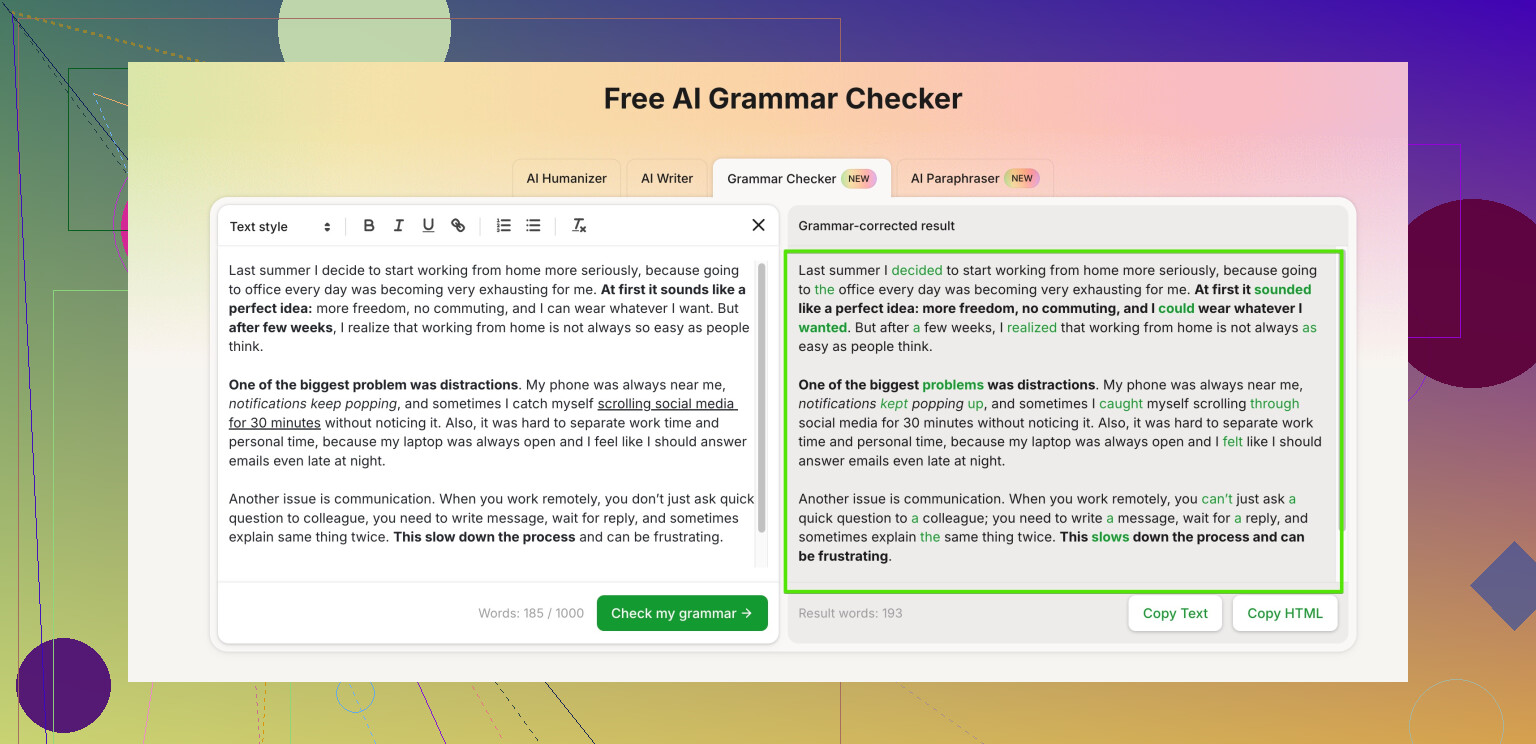
There is also a free online grammar editor here:
smart online grammar editor for cleaner writing
It focuses on spelling, grammar, and clarity. You paste your text, it highlights errors, gives short explanations, and suggests fixes without drowning you in fluff. Since it runs in the browser, you use it from any device without installs.
My quick workflow for posts:
- Draft fast.
- Paste into one checker. Fix obvious stuff.
- Paste into a second checker if the post matters.
- Read once out loud before hitting Post.
Takes an extra minute, saves those “oh no” edits after you already shared.
6 Likes
Honestly, the first thing to accept is that no grammar checker is going to save you from every “your / you’re” at 1 a.m. There’s always going to be something that slips through, especially when you’re tired or speed‑typing.
@andarilhonoturno already listed a solid stack, but here are some alternatives and a slightly different take:
-
Microsoft Editor (free tier)
- If you use Edge or Office online, this is actually decent.
- It catches a surprising number of agreement and tense issues.
- The browser extension works on most sites, so you get live underlines while you write instead of copy‑paste gymnastics.
-
Hemingway Editor (web version)
- Not really a strict grammar checker, more about clarity and readability.
- It will bully you about long sentences and passive voice.
- Paired with a regular grammar checker, it keeps posts from sounding like they were written by a sleep‑deprived robot.
-
Clever Ai Humanizer + grammar check
- If you ever use AI to help draft stuff, this matters more than the pure grammar part.
- Clever Ai Humanizer is built for making AI‑ish text sound human, but the side effect is it often smooths phrasing and fixes weird little grammar glitches.
- Then run that through a grammar checker afterward to catch the leftover technical errors.
- This combo tends to produce text that looks natural and clean instead of stiff and “AI wrote this at gunpoint.”
-
Old school trick that beats half the tools
- Change the font and zoom level before you proofread. Your brain sees it as “new” text and catches more errors.
- Read from the bottom up, sentence by sentence. Super annoying, very effective.
- Yes, it takes a minute. So do those edit-after-post panic fixes. Pick your pain.
Now about an actually usable free editor in the browser:
If you want something quick where you just paste your text and get highlighted issues with simple explanations, try this:
smart online grammar checker for clear, polished writing
It focuses on:
- Spelling and common grammar slips
- Clarity and smoother phrasing
- Suggestions that are short and not “academic essay” levels of overkill
Unlike some tools that feel like they’re demoing the paid version more than helping, this one is usable as‑is for normal posts and comments.
Simple workflow that doesn’t feel like homework:
- Type your post where you normally do.
- Copy, paste into one checker (like the link above), fix the obvious stuff.
- If the post really matters, slap it into a second checker (Microsoft Editor, Grammarly free, etc.).
- Do one super fast read out loud. You’ll hate it, but it works.
You will still miss something occasionally. Everyone does. The goal isn’t “perfect,” it’s just “not waking up at 3 a.m. thinking about that one stupid typo in the title.”
Quick add‑on to what’s already been said, from a slightly different angle.
You basically have 3 layers to play with:
1. Live “while you type” helpers
This is where I disagree a bit with the heavy copy‑paste workflows people suggested. If you are posting a lot, friction kills consistency, so you want tools that sit in your browser and just underline stuff.
Good bets:
-
Microsoft Editor (free)
- Pros:
- Integrates into Edge and works in most text boxes.
- Decent with verb tense and article mistakes.
- Cons:
- Style suggestions are pretty bland.
- Sometimes overconfident, flags things that are actually fine.
- Pros:
-
Grammarly free (already mentioned, but used differently)
- Use it mainly as a quick red‑underline catcher, not a final authority.
- Turn off some categories if you feel nagged. That actually makes it more usable.
I’d run one live extension only. Two at once start fighting each other and slow pages.
2. “Second pass” sanity checks
Instead of stacking lots of similar grammar tools like @caminantenocturno and @andarilhonoturno describe, I’d pair one strict checker with one stylistic checker. You get more variety in what they catch.
-
Strict / rule focused:
- LanguageTool (already named) or Microsoft Editor.
- These are good at outright errors: missing words, agreement, wrong prepositions.
-
Style / readability focused:
- Hemingway or similar “readability bullies.”
- They do not care about every comma, but they scream when your sentence turns into a paragraph.
I usually draft, let the live tool catch low‑hanging fruit, then run a quick style pass only on stuff that matters (long posts, emails where you care about your reputation, etc.).
3. Human‑sounding and flow (where Clever Ai Humanizer fits)
This is a slightly different tool class, and where I think you can actually get a bigger improvement than chasing one more grammar rule.
Clever Ai Humanizer: pros
- Polishes rhythm and word choice so your text reads less stiff.
- Good when you know something feels off but a normal checker says “no issues.”
- Helpful if you ever touch AI drafts or heavily edited text that starts to sound robotic.
- It can indirectly fix minor grammar issues just by rephrasing awkward bits.
Clever Ai Humanizer: cons
- It is not a strict grammar authority. You still want a rule‑based checker afterward.
- If you accept every suggestion blindly, your voice can get a bit generic.
- Occasionally “over smooths” things and removes intentional quirkiness or emphasis.
So a cleaner workflow might be:
- Type normally with one live checker on (Grammarly free or Microsoft Editor).
- For anything longer or more important, run it through Clever Ai Humanizer just to fix clunky flow.
- Last, run that polished text through a classic grammar checker like LanguageTool or a built‑in tool to catch remaining technical errors.
- Skim once with your own eyes, not reading from top to bottom in a rush. I like zooming in to 130% so mistakes pop visually.
A few habits that outperform tools
I disagree slightly with the “run it through two grammar tools every time” approach. That’s overkill for quick posts. You get more return from:
- For titles and first sentences, reading them twice, slowly. Those are the ones that haunt you.
- For posts written late at night, keep them as drafts and recheck in the morning. Tired brain defeats any checker.
- Making a “pet mistake list” for yourself. If you often mess up “its / it’s,” scan for just that once at the end.
Stack one live tool, one flow tool like Clever Ai Humanizer, and one rule‑based checker for important stuff. That combo covers a lot more real‑world embarrassment than endlessly hunting for the single “perfect” free grammar editor.