My iPhone photo library has gotten really messy after years of screenshots, duplicates, and random albums, and now I can’t find the pictures I actually need. I’m looking for the best way to organize photos on an iPhone, clean up storage, and keep everything easier to manage.
I hit this same wall a while back. My Recents folder had turned into a landfill. Family pics, receipts, screenshots I swore I needed, blurry dog photos, and ten versions of the same meal. My iPhone felt slow, apps hesitated, and the camera roll was painful to open. In my case, storage was the first thing worth checking. When the phone gets packed, iOS starts dragging its feet.
I tried paying for more iCloud space first. Bad fix. All I did was rent a bigger closet for the same junk. The part I missed was simple. Sorting does not work when most of what you own is trash. I had to delete first, organize later.
If your photo library is huge and you feel stuck, I’d start with a cleanup app and let it do the boring part. I tested a few, and the one I kept coming back to was Clever Cleaner. What sold me was the lack of nonsense. No paywall after three taps. No ad spam. No fake free trial. It also handles everything on the phone itself, so your photos are not getting shipped off to some server.
The two parts I used most were these.
The Heavies section was the fastest win. It sorts your media by file size, so the giant stuff floats to the top. I found old videos eating multiple gigabytes without me noticing. Deleting a handful of those made more difference than clearing 800 random screenshots.
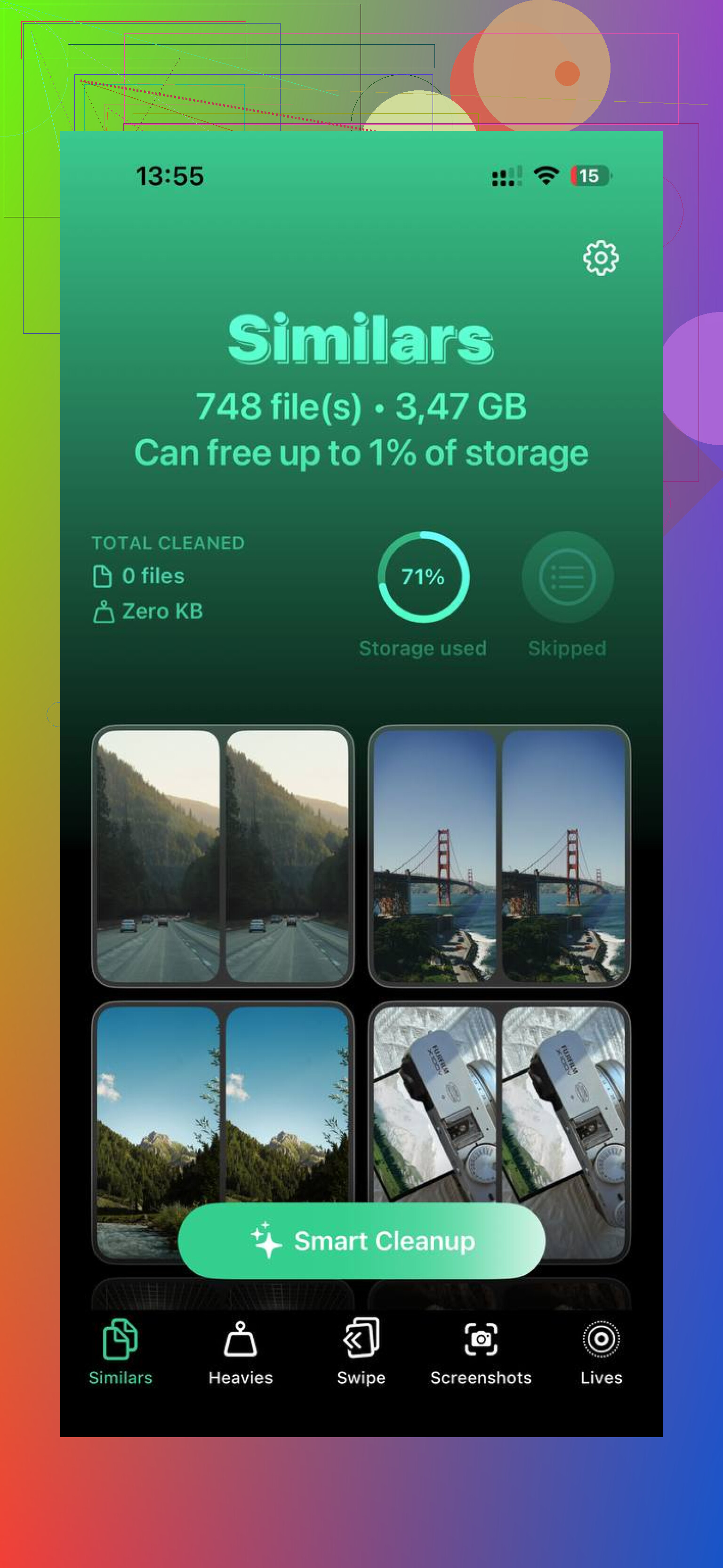
The Similars section helped with the usual camera-roll disease, three or four near-matching shots of the same thing because your thumb kept tapping. It groups them together, picks a best shot, and you dump the rest. It also shows file sizes, which helped me stop guessing and start cutting the stuff wasting the most space.
After I cleared the large files and duplicates, organizing stopped feeling impossible. This is the setup I stuck with.
- Use Recents like an inbox
This part took me too long to accept. On iPhone, moving photos into albums does not clean up Recents. They still stay there. Once I stopped fighting this, things got easier. I now treat Recents like email. Once a week, I spend about 10 minutes in there. I move worth-keeping photos into albums and delete the disposable junk.
- Name albums by date first
I started naming albums like 2024-06 Beach Trip or 2024-08 Birthday Dinner. It looks boring, which is why it works. Everything sorts itself in order. When you need an old trip or event, you do not scroll forever trying to remember what you called it three months ago.
- Search old photos in batches
Going through five years of photos in one shot is miserable. I had better luck using the search bar and pulling up one month at a time, something like July 2022. The phone narrows the pile, and the job feels less awful. I did this in chunks over a few nights and it was way easier than one giant cleanup session.
- Use Favorites for the stuff you mean to keep
If albums feel like too much work, use the heart. I did this on busy weeks when I knew I would not sort anything properly. The Favorites album becomes a quick shortlist of your best photos. I ended up with one rule for myself. If I would not tap the heart, I should think twice before keeping it.
- Stop treating your phone like cold storage
This one mattered more than I expected. Your phone works better when it is not carrying your whole digital life forever. Every so often, I move the best photos and videos somewhere else, an external drive, Google Drive, or Amazon Photos. Amazon Photos is unlimited for photos if you have Prime, which helped in my case. Once I knew the important stuff existed somewhere else, deleting from the phone got easier.
The first cleanup takes a bit. Mine was not quick. Still, once I removed duplicate shots and giant video files, the whole thing felt lighter. The phone ran better, and opening Photos stopped feeling like staring into a junk drawer. You end up seeing your real memories again instead of a pile of digital leftovers.
15 Likes
Stop building albums first. Fix retrieval first.
I differ a bit from @mikeappsreviewer on one point. Storage cleanup matters, but organization fails more from bad structure than from too many files. If you only delete, your library gets messy again in a month.
My setup is simple.
- Use three album types only.
Inbox, Reference, Events.
Inbox is for photos from the last 30 days you still need to sort.
Reference is for receipts, docs, serial numbers, screenshots you need later.
Events is for trips, birthdays, people, holidays.
-
Stop making random albums.
If an album has 8 photos and no date, it becomes clutter. Merge small albums. Keep fewer than 20 main albums if possible. -
Use built-in filters.
In Photos, filter by Screenshots, Videos, Edited, Favorites. Screenshots are usually the fastest cleanup. Most people have hundreds. I had 1,400. I kept 90. -
Add captions.
This is the most ignored trick on iPhone. Swipe up on a photo and add “passport,” “kitchen model,” “tax receipt,” “soccer 2023.” Search works way better after this. It takes secnds and saves time later. -
Use people and places.
Train the People album. Confirm faces. Fix wrong names. If you search by person or city, iPhone does a solid job. -
Archive outside the phone once a year.
Keep the best stuff on the iPhone. Move the long tail elsewhere.
If your library is a disaster, use Clever Cleaner first for duplicates and heavy files, then build the album system after. This review of Clever Cleaner for iPhone cleanup and photo organization sums up why people like it. That order matters. Clean, then label, then sort.
I’d do it a little differently than @mikeappsreviewer and @hoshikuzu. They’re right about cleaning first, but I think too many people overbuild album systems and then never maintain them. On iPhone, the best organization tool is honestly search, not folders.
My method:
- Delete in categories, not by date. Start with Screenshots, Screen Recordings, Duplicates, and Videos.
- Rename nothing unless it matters.
- Add captions only to photos you may need to find later, like receipts, warranty stuff, work images, docs.
- Use one album called “Keep” and one called “Need Later.” That’s it. Anything more gets messy agian fast.
Also, don’t ignore the built-in Utilities section in Photos. Hidden, Recently Deleted, Duplicates, Receipts if detected, all that stuff helps more than people think.
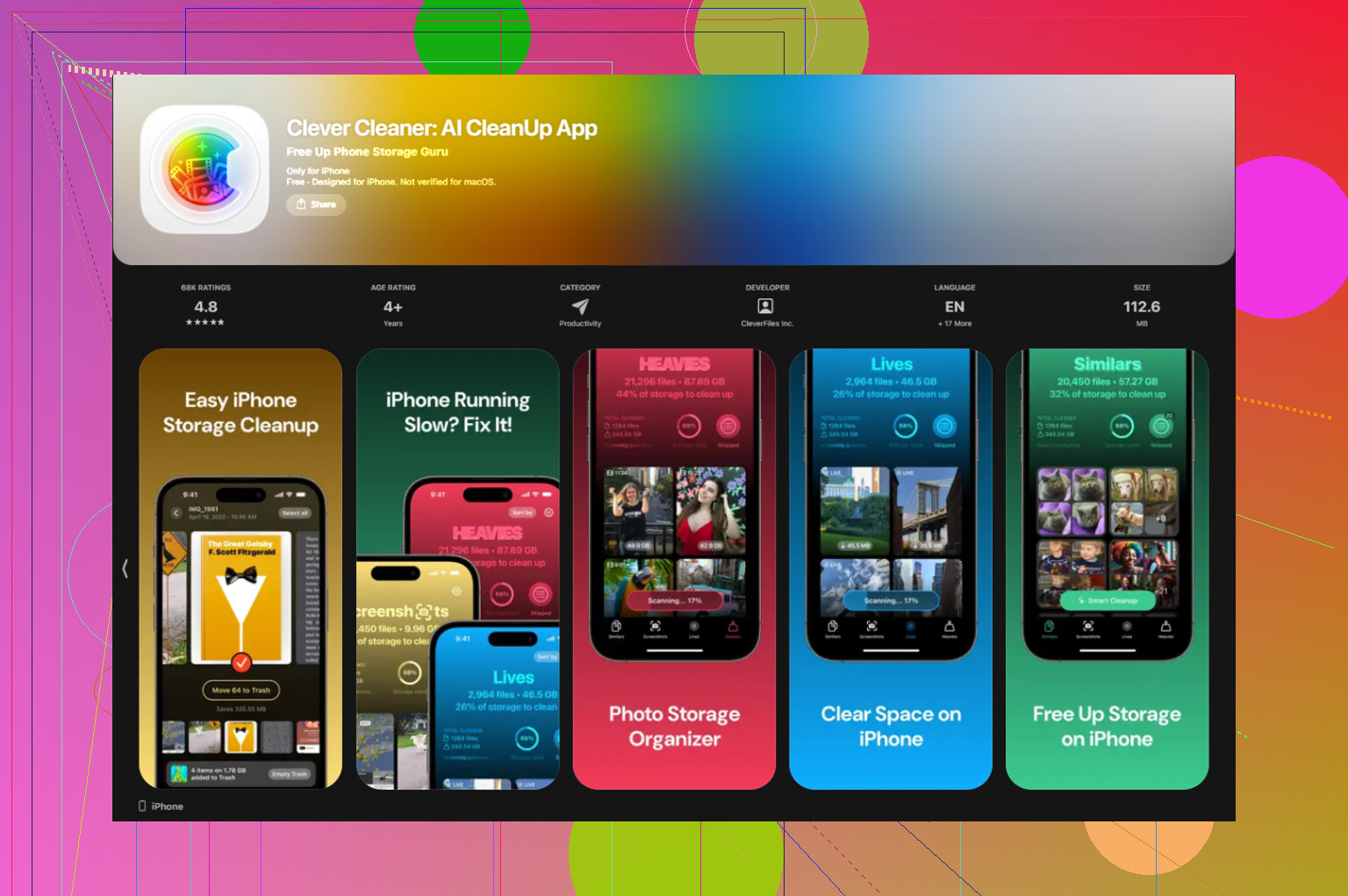
If your library is already out of control, Clever Cleaner is a solid first pass because it pulls out similar photos and large files fast. If you want a decent overview, this piece on a truly free iPhone cleaner app for photo cleanup explains why people use it.
Hot take: albums are overrated. If search can find “beach 2022” or “receipt,” you’ve already won.