I noticed a Synced Media section on my iPhone and I’m not sure what it means or where it came from. I recently connected my phone to a computer and now I’m worried some music, photos, or videos were added through syncing. I need help understanding what synced media is, how it affects iPhone storage, and whether it’s safe to remove.
I ran into this after iOS 17 too, and it took way too long to piece together what Apple changed.
What 'Synced Media' is
On newer iOS versions, Apple split storage into finer categories. Stuff downloaded straight on the phone through Apple services stays under its own app. Stuff you pushed from a Mac or PC through Finder or iTunes gets grouped under Synced Media.
For me, it covered:
- music copied from a computer
- movies and TV files synced over USB
- audiobooks
- older photo folders synced from a desktop
The confusing part is storage reporting. I saw media counted twice. Once in Music, then again in Synced Media. So the number looked way worse than the phone felt, though in some cases the space use was still high enough to hurt performance.
Why you usually can't remove it on the phone
If the files came from a computer sync, iPhone treats the computer as the source. So the normal swipe-to-delete behavior often does nothing, or the option never shows up.
What worked for me
- Sync from Finder or iTunes again
Plug the phone into your computer. On a Mac, open Finder. On Windows, open iTunes. Open your device page, then check the Music, Photos, TV, or Books sections. Remove the items or uncheck sync for the categories you want gone. Then sync again. - Use an empty folder for photos
This one felt dumb, but it worked. I made a new empty folder on my computer, then pointed photo sync to it. After syncing, the old synced photo library got replaced with nothing. Space came back. - Remove and reinstall the related app
I saw a few people fix stale Synced Media counts by deleting Music or Apple Books, then reinstalling. Looks like it forces some cached storage data to rebuild.
Be careful with iCloud Photos
This part bites people. If iCloud Photos is on, deleting a photo on your iPhone deletes it from iCloud too, which means it disappears from your other Apple devices as well. If your goal is to clear the phone while keeping the cloud copy, turn off iCloud Photos first and pick Remove from iPhone. I would not touch a mass delete until you know you have a backup somewhere else.
How it looked when storage got too full
My phone got slow in ugly ways. App launches dragged. Animations started hitching. I kept getting storage warnings. It felt less like 'old phone syndrome' and more like the OS had no room left to breathe.
After I got rid of most of the Synced Media mess, I found the next problem fast. Screenshots. Duplicate photos. Big videos I forgot I recorded. The synced stuff was only half the mess.
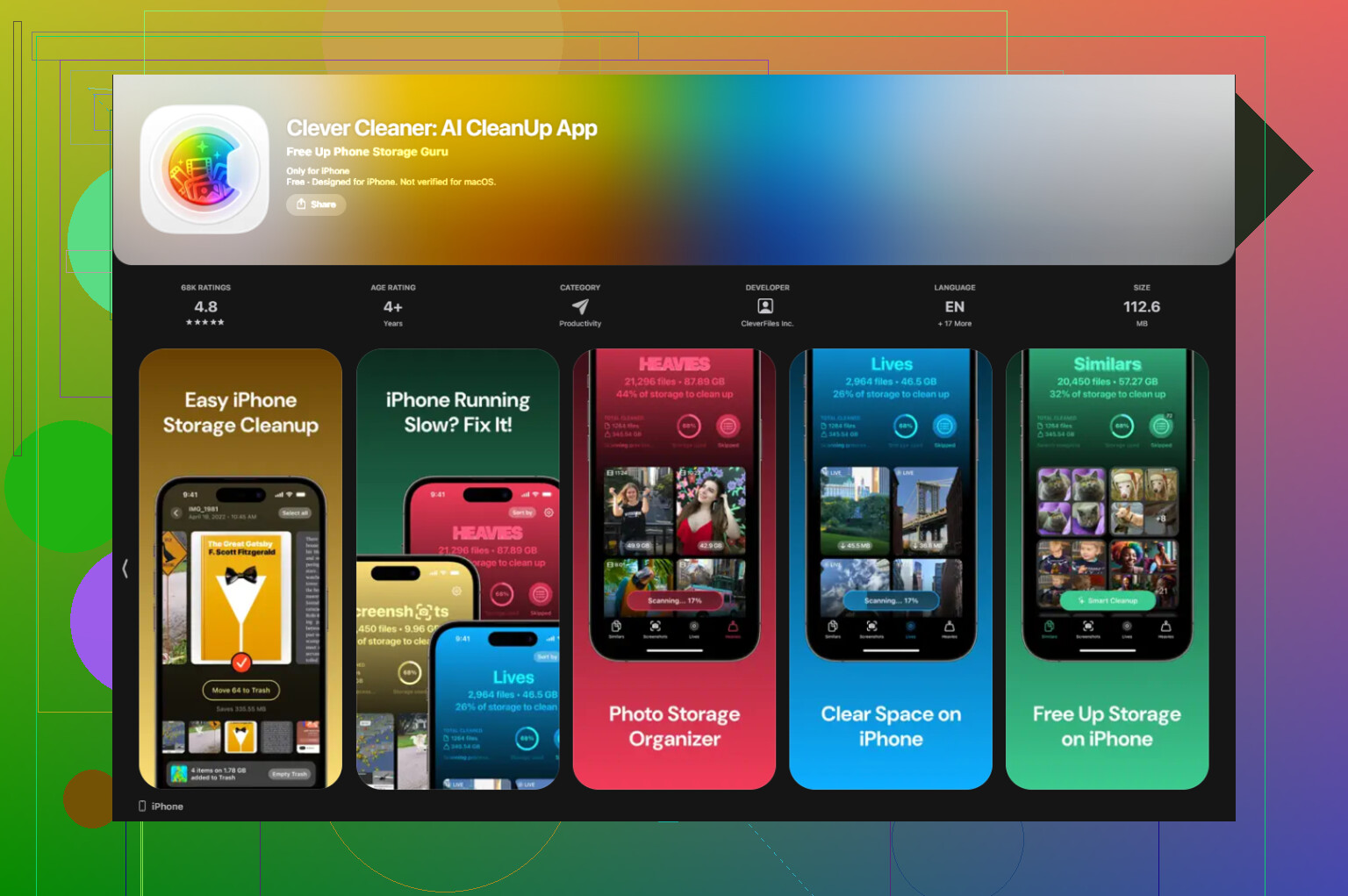
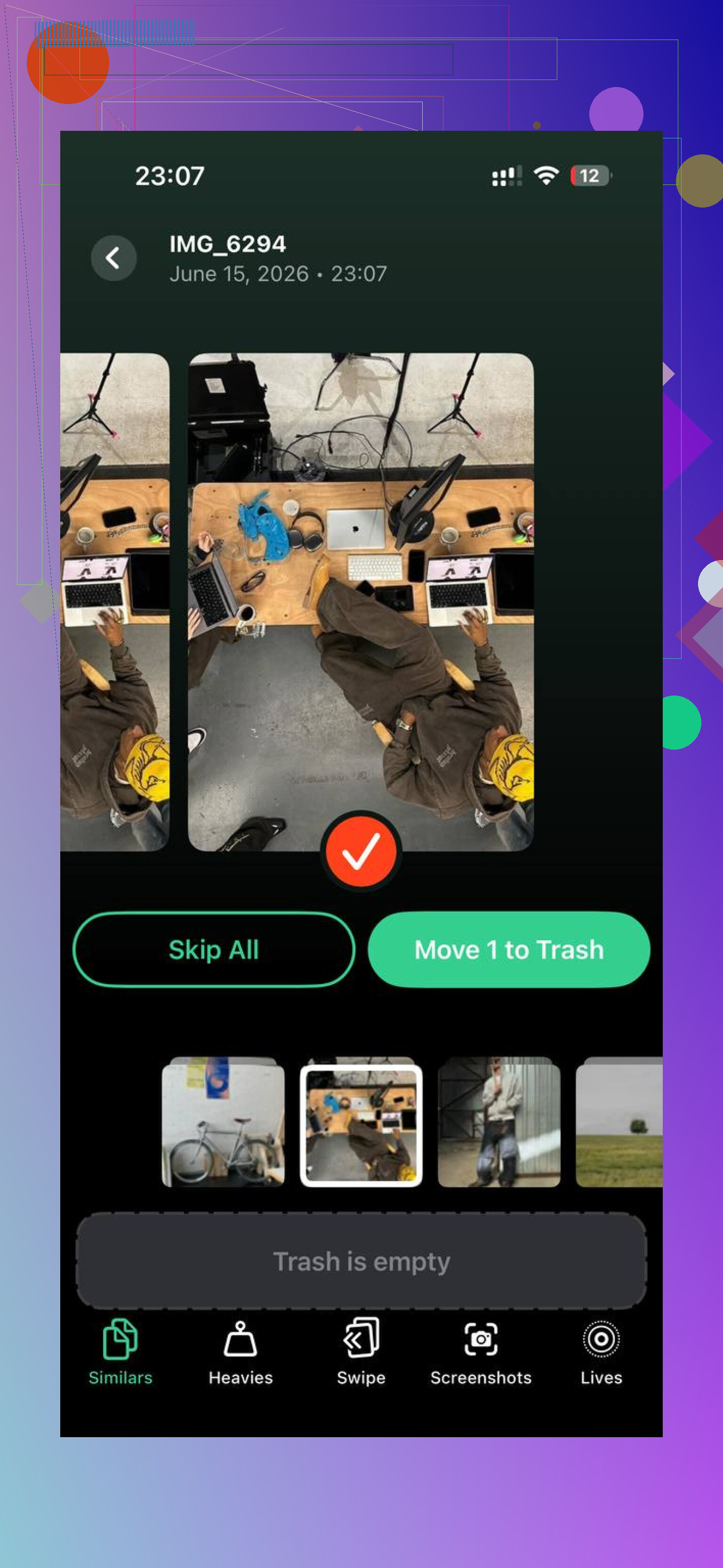
I tried cleaning the rest with Clever Cleaner. I kept it because it did the boring sorting without making me fight a subscription screen every two taps. It scans for similar shots, flags a best one, and helps surface huge files fast. I also liked one detail most people skip over, the processing stays on the phone.
The parts I ended up using most were:
- finding near-duplicate photos from burst shots
- sorting biggest videos first
- spotting screenshots by size so I could wipe out the junk fast
I went from basically full storage to something closer to usable again, around 60 percent used, and the lag stopped. If Synced Media is eating your space, I'd start with the empty-folder sync trick. After that, check your local photo and video pile, becuase there is a decent chance the phone is clogged from both ends.
18 Likes
Synced Media usually means content your iPhone sees as copied from a computer, not downloaded on the phone itself. If you connected to Finder on a Mac or iTunes on a PC, iOS might have matched old sync settings and listed those files there.
A quick way to check if anything was added:
- Open Settings, General, iPhone Storage.
- Tap Synced Media.
- Compare the size there with Music, TV, Photos, or Books.
- Open the Music app and TV app, look for albums or videos you did not put there.
I slightly disagree with @mikeappsreviewer on the double-counting part. Sometimes it looks doubled, but a lot of the time it is Apple’s storage UI being messy, not true duplicate files. Annoying, yep.
If you want proof from the computer side, reconnect your phone and open Finder or iTunes. Look at each media tab and see if sync is turned on. If “Automatically sync” or selected albums, movies, or photo folders are checked, that is where it came from.
If the storage number stays stuck after you remove the media, restart the phone first. That clears bogus storage reports more often than pepole think.
If your phone is full, clean local clutter too. Clever Cleaner is useful for duplicate pics, large videos, and screenshots. This short review covers it well: see how Clever Cleaner helps free up iPhone storage fast.
Short version, Synced Media is not spyware or some hidden dump. It is usually old-school computer synced stuff.
Synced Media is basically Apple’s label for stuff that did not originate on the iPhone itself. Usually it means media managed from a computer at some point, even if it was just one connect-and-trust session that reactivated old sync settings.
I mostly agree with @mikeappsreviewer and @cazadordeestrellas, but I’d push back on one thing: seeing “Synced Media” does not automatically mean new files were copied over right now. Sometimes iOS just re-categorizes existing computer-managed content after an update or after reconnecting to Finder/iTunes. So don’t panic yet.
What it can include:
- songs imported from a Mac or PC
- manually synced movies/home videos
- audiobooks or books
- photo libraries that were originally synced from a computer
What makes it confusing is that Apple doesn’t show a neat file-by-file list there. It’s more of a storage bucket than a normal app folder. If you tap it and it only shows a size, that’s normal. Annoying, but normal.
My suggestion is to verify change, not just the category:
- check your Music app for recently appearing albums
- check Photos for albums/folders that look like they came from desktop sync
- check TV/Books if you use those
- look at the “Date Added” sort where available
Also, if you connected to a family/shared computer, check whether that computer had old device sync prefs saved. Finder and iTunes can remember prior media selections, which is how people get ambushed by this stuff lol.
If storage is the bigger issue, Synced Media might only be part of the mess. Local duplicates, giant videos, and screenshots are usually the real hogs. That’s where Clever Cleaner can help a lot for iPhone storage cleanup, since it’s better for finding duplicate photos and bulky media than Apple’s built-in tools. I also found this write-up useful: see the full Clever Cleaner iPhone app review.
Short version: Synced Media = computer-managed media category, not malware, not hidden spying, and not neccesarily proof that random files were dumped onto your phone.
I’m with @cazadordeestrellas and @nachtschatten on the big picture: Synced Media is usually just computer-managed content. But I disagree a bit with the “it’s probably nothing” angle people sometimes take, because it can mean your iPhone is still obeying an old sync relationship you forgot existed.
The part Apple doesn’t explain well is this: Synced Media is more of a ownership label than a media type. It tells iOS, “this came from Finder/iTunes style syncing,” so the phone may not let you manage it like normal downloads.
A few things people miss:
- it can survive app changes and iOS updates
- it may stay listed even after visible files seem gone
- it sometimes reflects sync rules, not just fresh transfers
Best clue: if your photos or music look normal, but Synced Media still shows space used, check whether the phone was ever synced with a now-missing library on that computer. That stale link is often the real culprit.
One thing I would not do first is start deleting random stuff from Photos if iCloud Photos is on. That creates a different mess.
If your goal is just freeing space after fixing sync, then yes, something like Clever Cleaner can help with the leftovers.
Pros of Clever Cleaner
- easy for duplicate/similar photos
- good at spotting large videos and screenshots
- simpler than Apple’s storage menus
Cons
- won’t remove actual Finder/iTunes synced media by itself
- cleanup suggestions still need human review
- less useful if Synced Media is your only storage issue
So: Synced Media is not suspicious, but it is a sign your phone may still be tied to old desktop sync behavior, which @mikeappsreviewer also hinted at.