My iPhone storage is almost full, and the Media category is using way more space than I expected. I’m not sure what counts as media, where it’s coming from, or how to clear it without deleting important photos, videos, or messages. I need help figuring out what this storage means and the safest way to free up space.
iPhone storage reporting has annoyed me more than the low battery popup. I’d wipe out a pile of files, check storage again, and the Media bar looked untouched. Once it even looked bigger. Felt broken, but it’s mostly Apple grouping too much stuff into one label.
What Apple puts inside 'Media'
Most people read Media and think songs and movies. iOS treats it like a junk drawer. From what I saw on my phone, it pulls in all sorts of stuff:
- offline tracks from Apple Music, Spotify, and similar apps
- podcast episodes saved for flights, commutes, or no reason at all
- audiobooks stored in Books
- old voice memos and custom ringtones you forgot existed
- album art, thumbnails, and other app leftovers stored locally so scrolling feels faster
On iOS 17 and newer, there’s another chunk called Synced Media. This one tripped me up. It covers files copied from a Mac or PC through Finder or old iTunes syncing. Before, those files were easier to connect to the app using them. Now they get dumped into one big category. No useful breakdown. So your Music app might look empty while storage still says you’re packed.
Why the number keeps creeping up
Usually it’s caching and auto-downloads. Your phone keeps saving stuff behind the scenes. YouTube does offline recommendations if Smart Downloads is on. Podcast apps love grabbing fresh episodes the second they drop. Streaming apps keep artwork and previews on-device so they load faster later. You stop deleting one thing, and two more bits sneak in. Kinda maddening tbh.
Where Apple’s built-in tools stop helping
If you open Settings, then General, then iPhone Storage, you get a list of apps and broad categories. Fine for a quick glance. Bad for cleanup. It doesn’t point out the obvious space hogs in a useful way. You won’t see, in one clean view, the 2.8 GB video from a concert, the duplicate clips from the same moment, or the 14 almost-identical pet photos you spammed the shutter button for.
I tried doing it app by app. Slow. Annoying. Easy to miss the real problem files.
What ended up working for me
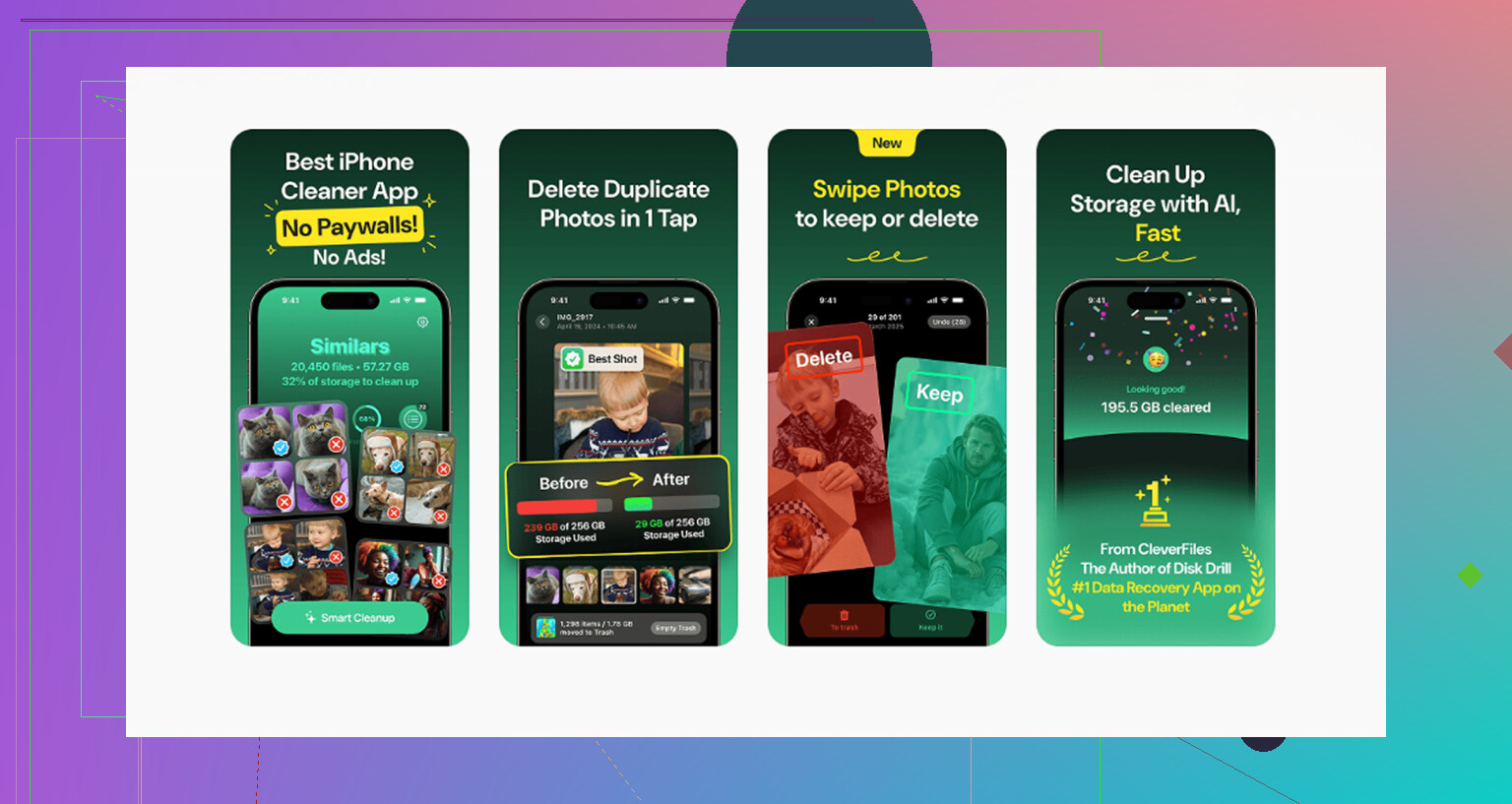
After messing with this for way too long, I quit trying to solve it only with iOS settings. I used Clever Cleaner. I went in skeptical because most cleanup apps feel sketchy or stop you halfway with a paywall. This one didn’t hit me with ads or a subscription wall while I was trying to finish.
The parts I found useful:
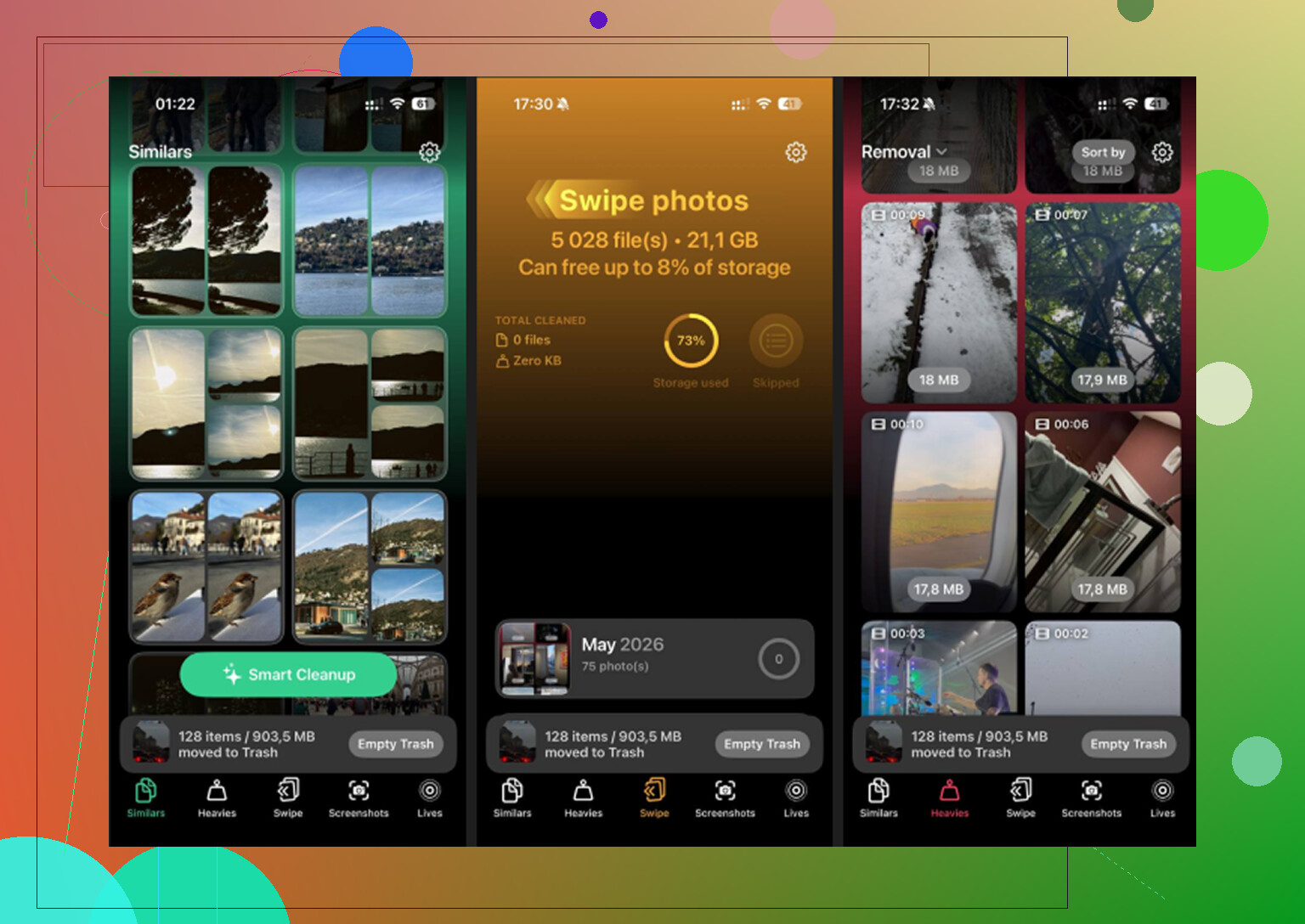
- It has a Heavies section, so you can sort out big videos and files by size. iPhone storage should do this better, but it doesn’t. I found one old 4K clip eating multiple gigabytes in about ten seconds.
- The Similars section grouped near-duplicate photos. Useful if your library is full of burst-ish shots where only one pic is worth keeping.
- The Screenshots section helped with the junk pile you stop noticing after a few months.
- Processing stays on the device, so your media isn’t being sent off somewhere else.
The part people skip
After deleting photos or videos, open the Photos app and clear Recently Deleted. If you don’t do this, the files sit there for 30 days and storage barely moves. I missed this once and thought my phone was lying to me. It sort of was, but still, emptying that folder fixed the “I deleted stuff and nothing changed” problem.
20 Likes
“Media” on iPhone storage is wider than Apple makes it sound. It often includes downloaded music, podcast files, voice memos, message attachments, app video caches, and synced files from a Mac or PC. On some phones, those caches are the real hog, not your photo library.
I agree with @mikeappsreviewer on Apple’s labeling being messy. I disagree a bit on one thing though. It’s not always “Apple grouping too much stuff” for no reason. A lot of apps bloat storage on their own, then iOS reports it in broad buckets.
What I’d check first:
- Settings > General > iPhone Storage. Wait 30 to 60 seconds for it to finish sizing apps.
- Open big apps one by one. Spotify, Podcasts, YouTube, Netflix, TikTok, Messages.
- Inside each app, remove downloads and offline content.
- In Messages, review large attachments. Old videos there eat space fast.
- If you sync media from Finder or iTunes, look for “Synced Media.” You might need to resync or remove it from a computer.
One stat worth knowing. A single minute of 4K/60 video is often around 400 MB. Ten minutes can eat 4 GB fast. That’s why storage fills up so qickly.
If you want a faster way to spot large files without poking through every app, Clever Cleaner is worth a look. Also, people on Reddit share useful feedback about free iPhone cleaner apps here, see what Reddit users say about Clever Cleaner for iPhone storage cleanup.
Big thing people miss, restart the phone after cleanup. iOS storage graphs sometiems lag.
“Media” is basically Apple’s lazy catch-all. Not just songs and movies. It can include downloaded audio, edited video exports, ringtone files, app-created media, Safari video cache, and sometimes stuff from apps that doesn’t show up clearly anywhere else. So yeah, the label is kinda usless.
I mostly agree with @mikeappsreviewer and @viajantedoceu, but I’d push back on one part: it’s not always caches gone wild. Sometimes the real problem is hidden duplication. Example: one video in Photos, the same clip attached in Messages, then a trimmed/exported copy in another app. iPhone storage counts all of it.
A few places people forget to check:
- Files app, especially Downloads and “On My iPhone”
- CapCut, iMovie, GarageBand, VN, or any editing app with exported drafts
- Safari downloads and Reading List offline saves
- WhatsApp/Telegram media storage
- Mail attachments from big PDF/image threads
Also, if you use iCloud Photos with “Download and Keep Originals,” that can make media balloon way faster than expected.
If you want to clean without blindly deleting stuff, check big files first instead of random photos. That’s where something like Clever Cleaner helps more than Apple’s storage screen, since it’s easier to spot oversized videos and junk images fast. This page gives a decent overview of how Clever Cleaner helps free up iPhone storage.
One more thing: storage bars can lag for hours. Annoying, but normal.
One thing I’d mildly disagree with @viajantedoceu, @chasseurdetoiles, and @mikeappsreviewer on: sometimes the big “Media” chunk is not the mystery itself, it is just delayed accounting. iOS can misreport storage after edits, especially after trimming videos, saving HDR copies, or downloading then removing streamed content.
What often hides in Media besides the usual suspects:
- edited versions of photos and videos kept alongside originals
- cinematic, slo-mo, and ProRes files, which are huge
- downloaded Apple TV rentals or Music videos
- shared album content cached locally
- project assets from apps that save into the Photos library
A sneaky one is Messages photo settings. If you send “Low Quality Image Mode” off and share lots of clips, attachments stack up fast even if your camera roll looks manageable.
My approach is less “delete everything obvious” and more “find formats with bad size-to-value ratio.” A few minutes of 4K, slo-mo, or screen recordings can outweigh thousands of regular photos.
Clever Cleaner is useful if you want a quicker visual sweep of heavy files.
Pros:
- easy to spot oversized videos
- helps catch duplicate or near-duplicate images
- faster than digging through app menus
Cons:
- won’t fix app-specific caches by itself
- still requires you to decide what is safe to remove
- storage totals in iOS may not update instantly after cleanup
So yes, “Media” is broad, but the real culprit is often high-bitrate video, edited duplicates, and stale local copies, not just songs or podcasts.