I checked my iPhone storage and noticed the Applications category is using a huge amount of space, even after deleting apps and photos. I’m not sure what counts toward Applications or why it stays so large. I need help figuring out what it includes and how to reduce it without losing important data.
I ran into the same mess on my iPhone, so here’s the plain version.
“Applications” in iPhone storage is not only the app file itself. It usually includes:
- the app’s installed files
- your account data and app settings
- cached stuff like images, video chunks, and temp files
- files stored under “On My iPhone” in Files
- Safari downloads and related saved data in some cases
So if that section looks huge, it does not always mean you installed too many apps. A few apps you use every day will swell over time. Instagram did this on mine. Safari too. Streaming apps were worse. A couple games ate space like crazy and I barely noticed until the phone started acting weird.
What I saw when storage got low:
- camera opened slow
- apps froze more
- random crashes
- keyboard lag
- system menus took longer than usual
From what I’ve seen, iPhones need some free storage left to stay smooth. Once mine got too close to full, performance dropped fast. I try to leave around 6 GB free now. Less headache.
If you want to shrink “Applications” without wiping your stuff, use Offload App.
Path:
Settings > General > iPhone Storage > pick an app > Offload App
Why I use it:
- it removes the app itself
- it keeps your documents and saved data
- the icon stays there with a cloud symbol
- reinstalling it puts you back where you left off
This worked well for apps I rarely opened but didn’t want to reset.
Another easy cleanup:
Go to Safari storage and remove website data. I got a few hundred MB back doing this once. Another time it was over 1 GB, which kinda surprised me.
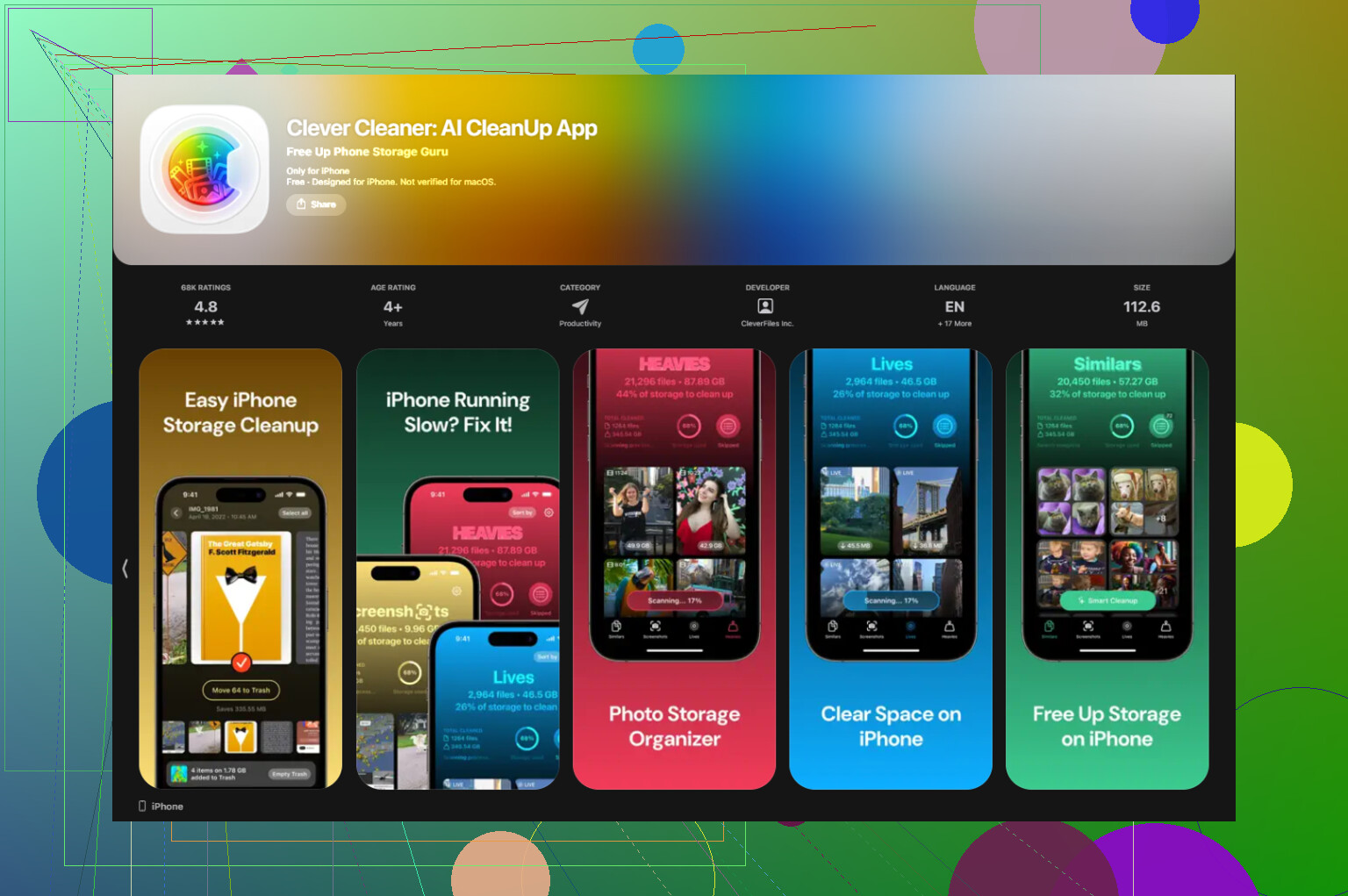
Apple’s built-in tools are decent, but for me they missed a lot of junk in photos and videos. I ended up using Clever Cleaner after my phone got laggy enough to annoy me daily.
What I liked:
- no paywall hit me halfway through cleanup
- no ads in my face
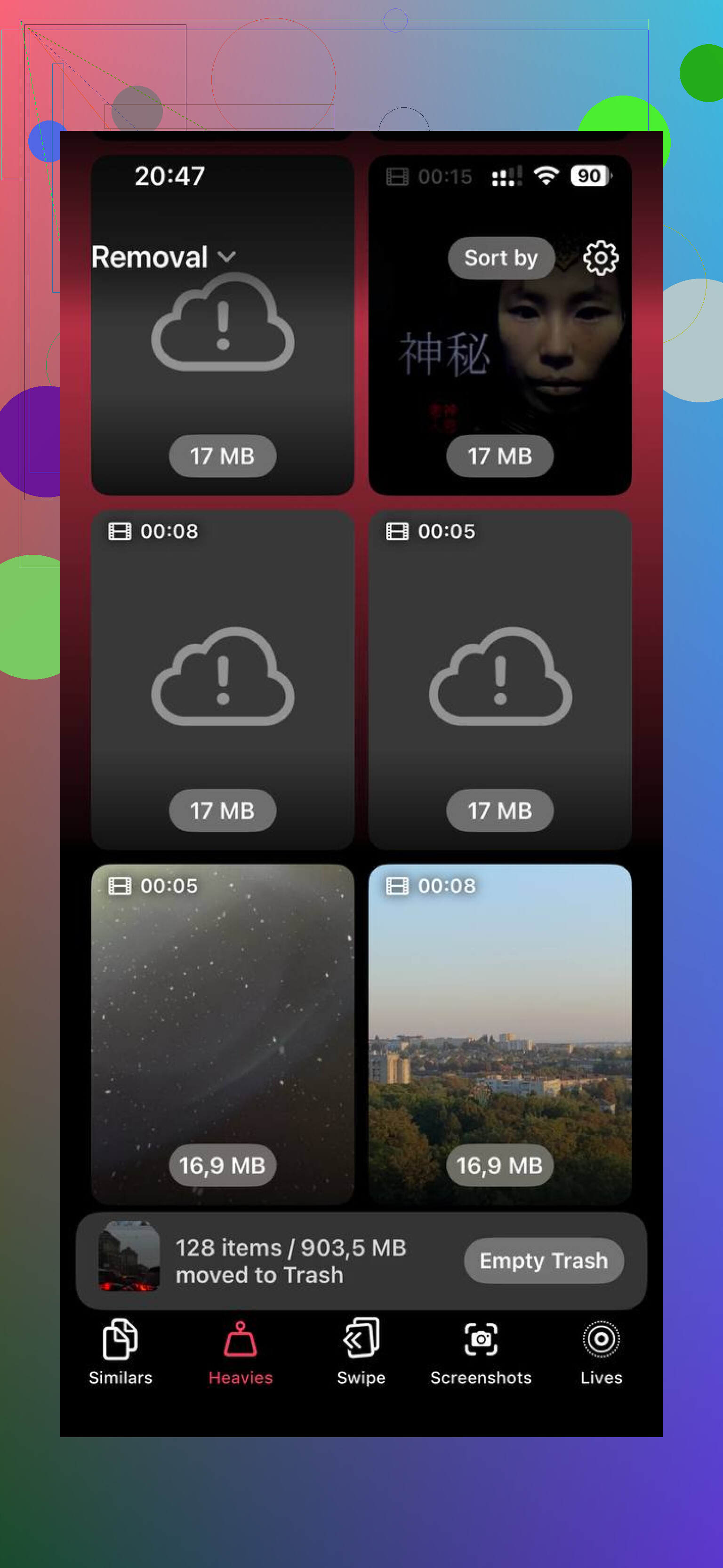
- the “Heavies” section made it easy to find giant videos and old screen recordings
- the similar photo finder helped me cut down duplicate shots fast
The privacy part mattered too. I checked because I don’t like photo tools sending stuff off-device. This one processes on the phone, which was a big reason I kept it.
After clearing a few GB from media clutter, my phone felt a lot better. Not magic. Still, the lag eased up enough for me to notice the same day.
What I’d do if your storage is cramped:
- Open iPhone Storage and sort out the biggest apps.
- Offload the ones you barely touch.
- Clear Safari website data.
- Check Files, especially “On My iPhone.”
- Clean out huge videos, screen recordings, and duplicate photos.
- Recheck storage once a month so it doesn’t pile up again.
If your “Applications” bar is huge, it’s annoying, but it’s normal. Most of the time it’s cached junk, saved files, and app data building up over months. That was the case on mine.
57 Likes
“Applications” is a catch-all bucket. iOS often throws app binaries, app documents, local caches, downloaded media, message attachments tied to apps, and some leftover container data into it. So yes, it stays big even after you delete photos.
One thing I’d add to @mikeappsreviewer’s post, the storage graph is not always instant. iOS sometimes takes hours, sometimes a reboot, before it recalculates. I’ve seen “Applications” look bloated after deleting stuff, then drop later. Annoying, but true.
A few places people miss:
-
Messages app data
Videos, voice notes, GIFs, stickers. These eat gigs. -
Netflix, Spotify, YouTube, Podcasts
Offline downloads sit inside app storage. -
Files app providers
Dropbox, Google Drive, Adobe, PDF apps. Local copies count. -
Mail
Big attachments and cached mail data build up fast.
If you want to pinpoint it, go app by app in iPhone Storage and compare “App Size” vs “Documents & Data.” If Documents & Data is huge, that app is the problem, not the phone.
For stubborn apps, delete and reinstall works better than offload. I disagree a bit there. Offload keeps the data, which is nice, but if the data itself is the junk, offloading won’t fix much. Reinstalling often clears the cruft.
If media clutter is mixed in, Clever Cleaner is worth a look. This full Clever Cleaner review for iPhone storage cleanup explains what it does in plain English. It’s useful for duplicate photos, large videos, and screenshots you forgot about. Kinda boring job, but it saves space fast.
Also check System Data separately. People mix those up alot. Applications and System Data are diff things, and iOS loves hiding the mess.
“Applications” is basically the junk drawer of iPhone storage. It’s not just apps you installed. It also pulls in app containers, saved files, offline content, some leftover support data, and sometimes stuff iOS does a terrible job labeling. So yeah, deleting photos won’t always move that bar much.
I mostly agree with @mikeappsreviewer and @cacadordeestrelas, but I’d push one extra point: sometimes the number is just wrong for a while. iOS storage reporting can be weirdly delayed or bugged. I’ve had it stay bloated until a charge cycle + restart.
What I’d check that they didn’t really stress:
- WhatsApp/Telegram signal media databases
- GarageBand, iMovie, CapCut project files
- downloaded voices in accessibility or Siri
- maps downloaded for offline use
- Books and PDF apps hoarding local copies
Also, deleting an app is better than offloading if that app’s “Documents & Data” is the real pig. Offload keeps that part, so it can be kinda usless for problem apps.
If the big space eater is media mixed across Photos, screenshots, and giant videos, Clever Cleaner is actually handy for spotting the obvious stuff fast. And if you want a solid video walkthrough, this is a pretty clear one: watch this iPhone storage cleanup video review.
Short version: Applications stays large because app data sticks around longer than people think, and iOS labels storage kinda badly tbh.
Big thing people miss: Applications can stay inflated because of snapshots and indexes, not just “live” app data. After updates, restores, or low-space events, iOS may hold temporary storage maps until housekeeping runs. That is why deleting stuff sometimes barely moves the bar at first. On this part I agree with @cacadordeestrelas and @hoshikuzu, but I think people over-credit caches. Sometimes it is just delayed accounting.
A different angle to check:
- App Clips you forgot used space too
- Shared iPhone analytics/logs tied to apps can linger
- Voice memos embedded in other apps
- Editing render files from photo/video apps
- In-app browser caches not cleared with Safari data
What helps is comparing storage after:
- charging overnight on Wi-Fi
- restarting
- waiting a few hours
If the number still looks fake, update iOS. Storage reporting bugs do get patched.
About Clever Cleaner:
Pros: easy way to spot oversized media fast, good for duplicates and big videos, simpler than digging through every app.
Cons: won’t fix bloated app databases, message attachments, or corrupt storage indexes. So it is useful, just not a cure-all.
@mikeappsreviewer was right to separate App Size from Documents & Data. That split tells the real story.
Try a backup and restore. It often clears stale app containers, broken indexes, and hidden temp files in one pass.
- Create an encrypted backup with Finder on Mac or Apple Devices on Windows.
- Confirm the backup finished.
- Go to Settings > General > Transfer or Reset iPhone.
- Erase All Content and Settings.
- Restore your backup during setup.
This takes time, but it avoids checking every app. I’ve seen it recover several GB when Applications stayed alot larger than the listed apps.
Before anyone runs off and deletes an app to clear its Documents & Data, check what that data actually is. On things like Spotify or a podcast app it’s mostly offline downloads you picked yourself, and reinstalling means pulling all of it back over the network. So the delete-and-reinstall trick that @cacadordeestrelas and @hoshikuzu like works great on a bloated cache, but it’s a bad move if the app is holding stuff you can’t easily get again or don’t want to redownload on cellular.
The thing people underrate is that a lot of ‘Applications’ weight is content you consciously saved and then forgot about. That’s boring to hunt down manually, which is where a tool like Clever Cleaner earns its keep for the media side, but it won’t touch an app’s own download folder. For that you’re still going into each app’s own settings and clearing downloads there. No shortcut around it.