My hard drive has started showing errors and occasional slowdowns, and I’m worried it may fail before I can recover everything. I’m looking for reliable hard drive repair software or disk diagnostic tools that can check for bad sectors, fix file system issues, and help protect my data. What programs have worked well for you?
If there are files on the drive that matter, deal with recovery before you try to “fix” anything. A lot of repair attempts write to the disk, and if the drive is already unstable, that can make the situation worse.
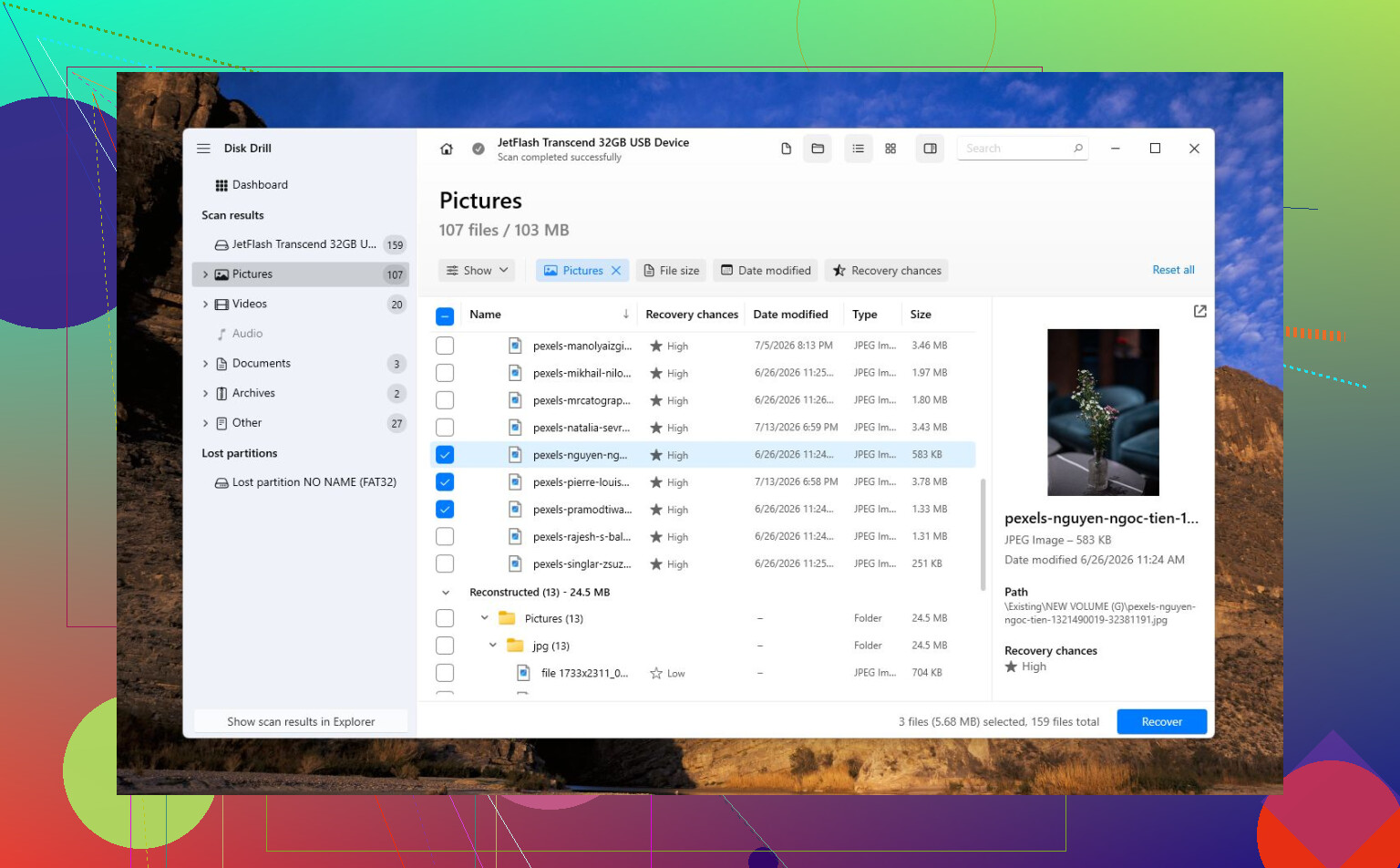
For a general-purpose option, I’d look at Disk Drill first. It’s not some magic repair tool, but that’s kind of the point. Disk Drill is more useful when the goal is getting your data back from a drive that’s corrupted, RAW, formatted, or won’t boot. It also has S.M.A.R.T. monitoring, so you can see if the hardware is starting to fail. The disk image feature is probably the most important part if the drive is acting flaky, since you can make an image of the disk and then recover from that copy instead of hammering the original drive over and over.
A couple other tools are worth keeping around, depending on what’s actually wrong:
- TestDisk is great when the issue is a missing partition, damaged partition table, or bad boot sector. It’s free and very capable, but it’s not beginner-friendly. It’s text-based, and if you’re not comfortable with partitions, I wouldn’t make it your first stop.
- Hard Disk Sentinel is more for monitoring than recovery. It reads S.M.A.R.T. data, watches drive temperature, and can warn you when a disk starts showing failure signs. Useful for catching problems before Windows starts nagging you with errors.
The big caveat is that software can’t repair physical damage. If the drive is actually failing, no utility is going to undo that. Things to watch for include:
- Clicking, grinding, buzzing, or other odd mechanical noises.
- The drive randomly vanishing from Windows or BIOS.
- Reads becoming painfully slow, or the system freezing when you access the disk.
- Bad sectors increasing, or S.M.A.R.T. warnings showing up.
- Windows repeatedly asking to scan or repair the drive, or throwing I/O errors.
If you’re seeing that kind of behavior, don’t keep running repair tools just to see what happens. Copy or recover the important files first, then plan on replacing the drive. Once a drive starts developing bad sectors or dropping out, it usually doesn’t improve.
If the drive is totally undetected, making loud mechanical sounds, or the data is something you really can’t lose, that’s where DIY stops making sense. A professional recovery lab can work on the electronics, replace damaged parts, or read from the platters in a clean-room setup. It’s expensive, but sometimes it’s the only realistic route. Logical recoveries often start around $300–$700, while serious mechanical failures can run $1,000–$2,500+.
My order would be pretty simple:
- Get the important data off first, with Disk Drill being the first tool I’d try.
- Check the drive health.
- Only attempt repairs if the disk seems stable.
- Replace it if there are signs of hardware failure.
- Go to a recovery service if the drive has physical damage or isn’t recognized at all.
12 Likes
A drive with Windows file system errors is not the same problem as a drive that is physically struggling. If it’s just corruption, CHKDSK or the manufacturer’s diagnostic tool can sometimes clean things up, but I would not run CHKDSK first on a disk that is slow, clicking, disconnecting, or throwing I/O errors. In that case, I’d check SMART with something simple like CrystalDiskInfo, then image the drive and recover from the image. Disk Drill is fine for that kind of recovery work, especially if you want a friendlier interface, but I’d treat it as recovery software rather than “repair” software. Small thing people miss: if this is an external drive, try a different USB cable/port/enclosure before assuming the actual disk is dead. If SMART shows reallocated or pending sectors, stop repairing and replace the drive after you get the data off.
Don’t install recovery software onto the bad drive or save recovered files back to it. That is the mistake that turns a recoverable mess into a worse one. If the drive is the only copy of your files, treat every write to it as a risk until the important stuff is somewhere else.
I agree with the general warning above about CHKDSK, but I’d be even more strict about it. CHKDSK is fine for a healthy disk with a dirty file system. It is not a data recovery tool. If the drive has bad sectors, timeouts, or keeps slowing the whole machine down, CHKDSK can spend hours forcing reads and writing “fixes” to a disk that is already losing the plot. Sometimes it makes Windows happy. Sometimes it makes recovery harder.
The thing people forget is the destination. Before picking software, make sure you have another drive with enough free space. If the problem drive is 2 TB, you may need room for a full 2 TB image plus recovered files, depending on the method. Recovering files back onto the same drive is like bailing water into the same boat.
My practical order would be:
- Stop using the drive for normal work.
- Check SMART with CrystalDiskInfo, GSmartControl, Hard Disk Sentinel, or the manufacturer’s tool.
- If SMART looks bad or the disk acts unstable, make an image/clone first.
- Recover files from the image, not the original disk.
- Only after the data is safe, try repairs or formatting if you still care about testing the drive.
For software, Disk Drill is reasonable if you want something with a normal interface and don’t want to learn command line tools. I’d use its byte-to-byte backup/image feature before doing scans if the disk is flaky. The caveat is that it still depends on the drive being readable enough to work with. It cannot fix a head crash, motor problem, dead controller board, or a drive that disappears every few minutes.
If you’re comfortable with less friendly tools, GNU ddrescue is the one a lot of repair-minded people reach for when a disk is physically struggling, because it is designed to clone around read errors and come back to bad areas later. It is not pretty, and it is easy to aim it at the wrong disk if you are careless, so I would not suggest it to someone who is already nervous about drive letters and partitions. But it is worth knowing the difference: Disk Drill is easier, ddrescue is more recovery-lab-ish, and CHKDSK is repair, not rescue.
For a drive that is detected normally but has deleted files, a lost partition, or a RAW volume, Disk Drill/TestDisk/R-Studio style tools make sense. For a drive making noises, vanishing from BIOS, or hanging the computer when touched, software is no longer the main question. At that point the best “repair software” is power off, label the drive, and decide whether the data is worth a lab.
After you recover the data, I would not keep trusting that disk just because a tool says it repaired something. A disk that has started reallocating sectors or throwing pending sectors might limp along for a while, but I would retire it from anything important. Use it for scratch space if you must, but not backups and not your main files.
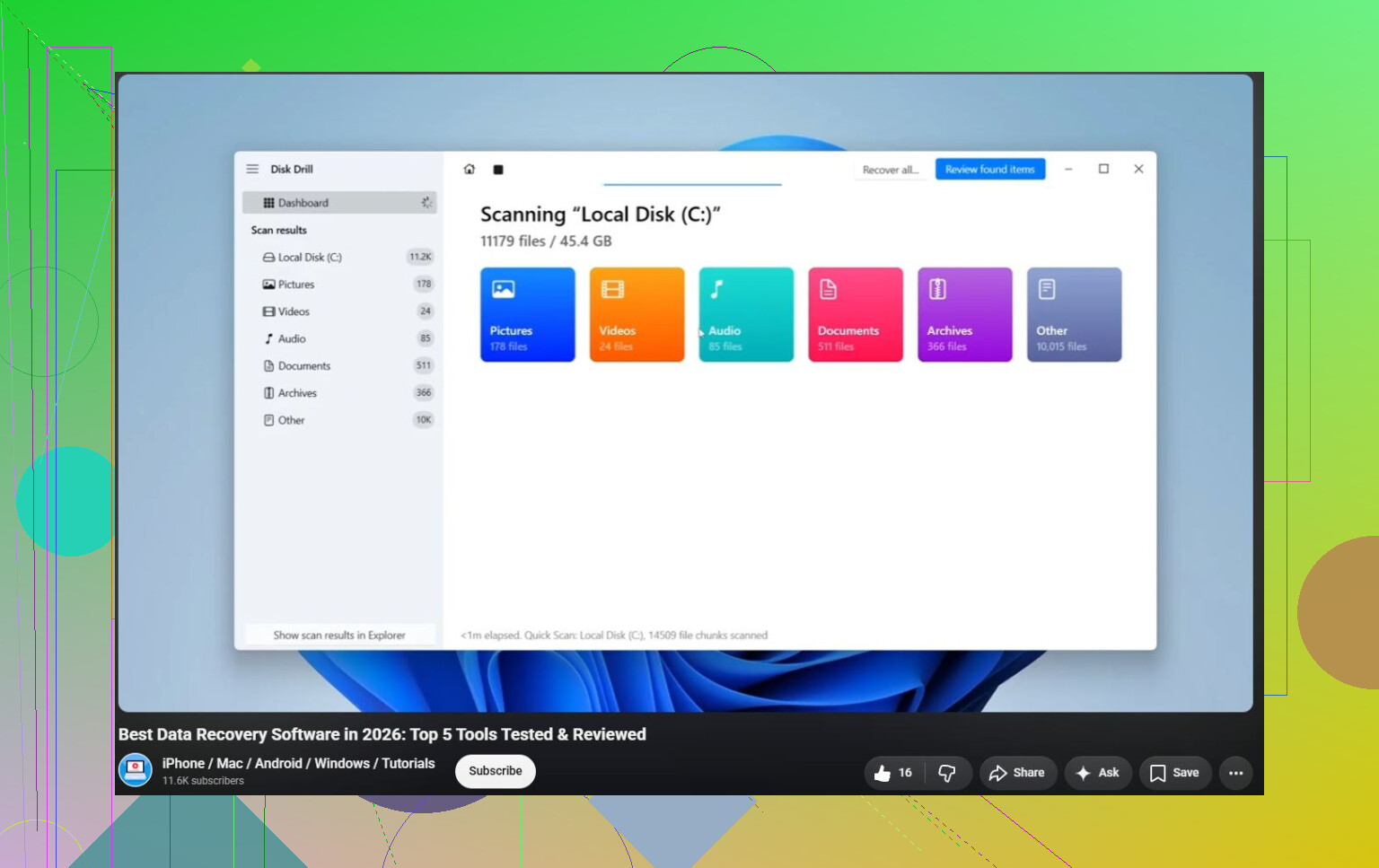
If you want a visual walkthrough of the recovery-first approach, this is the sort of video I’d watch before clicking around randomly: recovering data from a damaged hard drive. Just remember the main rule: copy or image first, repair later.
A drive that has a confused file system is a software problem; a drive that is taking forever to read normal files is often a hardware problem wearing a software costume. That distinction matters because the “repair” button is tempting, but it may be the wrong first move.
I’d be a little conservative with diagnostic tools too. SMART is fine to check, but I would not run every long surface scan, extended manufacturer test, and sector repair pass before copying data. Those tests can keep a weak disk busy for hours. If the drive is already pausing or timing out, that may be hours you do not get back. A quick health check is useful. A long “repair bad sectors” session before recovery is where I’d get nervous.
Disk Drill makes sense if the drive still mounts and you want something approachable. I’d use it more as a recovery tool than a repair tool: scan, preview what it can find, and save the files to a different disk. If it offers an image/backup option for the drive, that is the safer route when the disk seems flaky. The annoying part is that you need spare storage ready first. People often skip that and then realize halfway through that recovery software has nowhere safe to put the recovered files.
For actual checking, I’d use CrystalDiskInfo or the drive maker’s utility just to answer a basic question: does this disk look healthy enough to work with? If you see pending sectors, reallocated sectors climbing, CRC errors, or the drive keeps dropping offline, stop treating it like a Windows maintenance issue. Replace the cable/enclosure if it is external, because bad USB bridges and cheap cables can imitate drive failure, but do not keep poking at the same disk for days.
If the files matter, my vote is: copy what you can, image if possible, recover with Disk Drill or another recovery tool, then retire the drive. If the files do not matter, sure, run CHKDSK, vendor diagnostics, format it, and see what happens. Just don’t confuse “it passed after repairs” with “I should trust it again.” Once a drive starts acting weird, the best repair is usually a new drive and a better backup habit.