I turned on Optimize iPhone Storage to save space, and now some of my photos seem lower quality or take time to load. I’m worried about whether my original iPhone photos are still safe in iCloud and what happens if I turn the setting off. I need help understanding exactly how Optimize iPhone Storage affects photo quality, storage, and backups.
I’ve run into this more than once, and it always hits at the worst time. You go to record a video, install iOS, or save a file, then the phone throws up the “Storage Almost Full” alert.
What “Optimize iPhone Storage” does is pretty simple. Your iPhone stops keeping every full-size photo and video on the device all the time. The originals stay in iCloud, and the phone keeps smaller local copies so you save space.
When you scroll through your library, those lighter versions usually look normal. If you open something, edit it, or need the full file, the phone pulls the original down from iCloud. So no, your photos aren’t gone. The full versions sit in iCloud, and your iPhone hangs onto reduced versions until you need more.
If you want to switch it on, go here:
Settings
Your name
iCloud
Photos
Then turn on “Sync this iPhone” and pick “Optimize iPhone Storage.” If your library is huge, give it time. I’d leave it on Wi-Fi and plugged in overnight. Mine didn’t clear space right away either.
If you already enabled it and storage is still packed, I’d check three things first.
1. Your iCloud storage is full. The free 5GB tier fills fast, esp if you shoot lots of video.
2. Optimization doesn’t compress everything on command. iPhone usually waits until space gets tight.
3. Photos often aren’t the main problem. System Data, app cache, downloads, and leftover junk eat space quietly.
I hit this wall on an iPhone 13 a while back. The phone got sluggish. Camera opened slow. Apps dumped me out. Typing had lag. I didn’t connect it to storage at first, but low free space messes with temp files and the whole phone starts feeling off.
I tried cleaning manually and hated it. Going through thousands of screenshots, duplicate pics, burst shots, and random videos is a pain. I ended up using Clever Cleaner, mostly because I wanted something faster and this one didn’t hit me with ads every ten seconds.
The part I kept using was the Similars section. It grouped near-duplicate shots into sets, stuff like six photos of the same receipt or a bunch of sunset pics where only one was worth keeping. I swiped through and dumped the extras fast.
Another useful part was Heavies. This showed the biggest files first. Apple Photos still makes this harder than it should be. I found old videos I forgot about, some were taking up 1GB to 2GB each.
One thing I cared about was privacy. From what I saw, the scanning happens on the phone, not by shipping your library off somewhere else. After clearing around 15GB, old screenshots, duplicates, chunky videos, the lag on my phone stopped. It felt normal again. Maybe not magic, but close enough.
If your storage keeps filling up, I’d do both. Turn on optimization for the long-term cleanup, then go after the junk in your library. For most people, this works out cheaper than buying a new iPhone or paying for more iCloud space you might not need.
And yeah, don’t forget the Recently Deleted album. If you skip it, the files still sit there for 30 days, which is annoyng when you’re trying to free space right now.
17 Likes
Optimize iPhone Storage keeps your originals in iCloud. Your iPhone stores smaller device-sized versions when space is low. So yes, the full-res photos are still safe, if iCloud Photos sync finished and you have enough iCloud storage.
The blurry look is normal at first. Tap the photo, and your phone downloads the full file from iCloud. If your Wi-Fi is slow, or you have weak cell service, it takes a bit. That delay freaks people out, but it does not mean the photo is damaged.
One place I slightly disagree with @mikeappsreviewer, optimization is not always enough if your library is messy. It saves local space, but it does zero cleanup. Duplicates, screen recordings, giant videos, and junk screenshots still live in your library and still count in iCloud.
If you turn Optimize off, your iPhone tries to download every original back onto the phone. If you do not have enough device storage, it will fail or stall. So dont switch it off unless you want full-size files stored on the phone all the time.
Best check:
- Settings, Photos, confirm iCloud Photos is on.
- Check iCloud storage free space.
- Leave phone on Wi-Fi and charging for a while.
- If space is still bad, clean the library.
For cleanup, Clever Cleaner is solid for duplicate photos and large files. Also, this guide on the best iPhone cleaner apps for freeing up storage is worth a look.
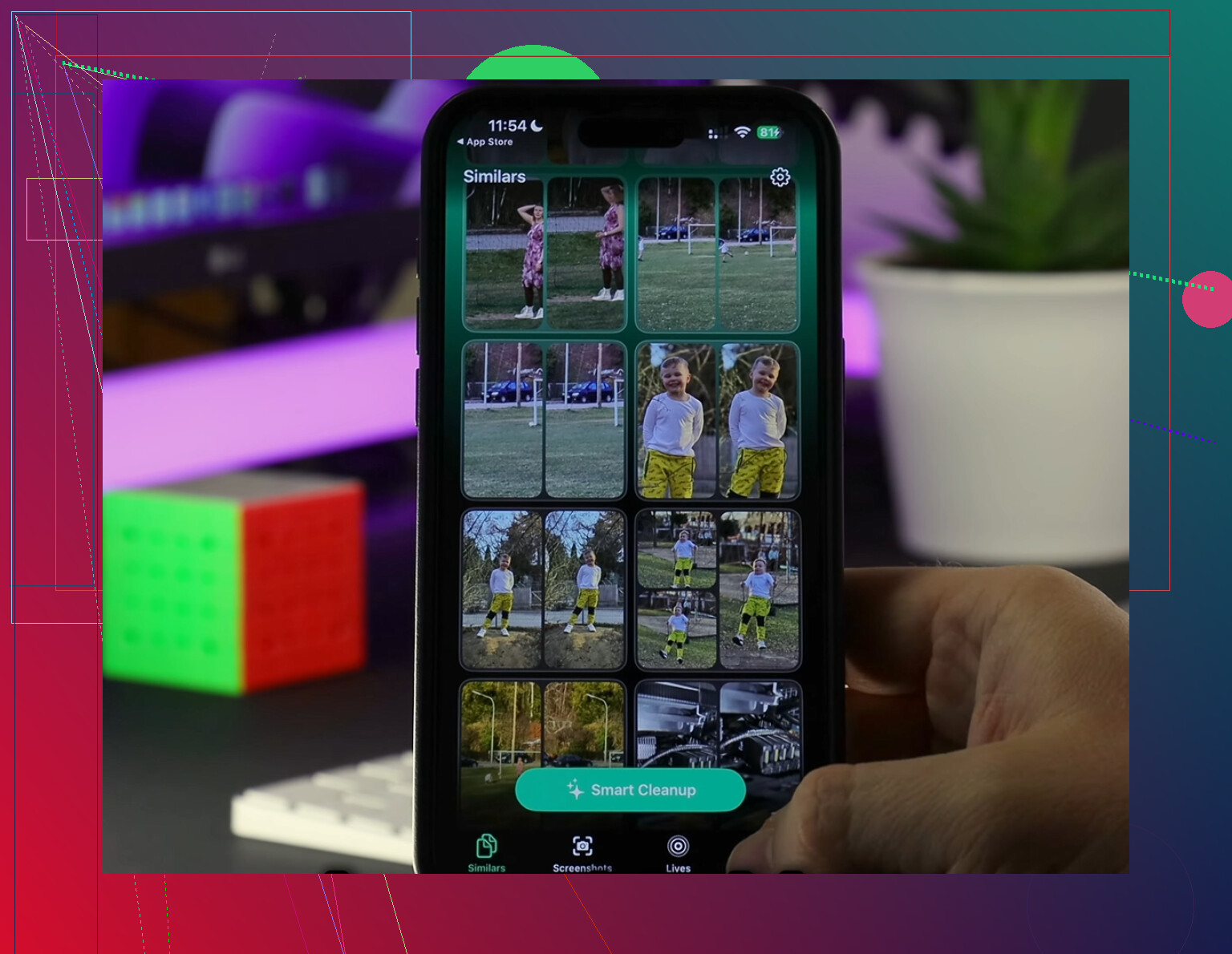
What you’re seeing is basically the tradeoff Apple makes to save local space. With Optimize iPhone Storage on, your phone may keep a smaller preview/device-sized version on the iPhone, while the original full-res file stays in iCloud. So the photo can look soft for a second, then sharpen once the original downloads.
One thing I’d add to what @mikeappsreviewer and @espritlibre said: “safe in iCloud” is only true if sync actually completed. That’s the part people skip over. If your phone was low on battery, low on signal, or your iCloud storage filled up mid-sync, not everything may have uploaded yet. I’d verify that before trusting it blindly.
Also, if you turn Optimize off, nothing gets deleted from iCloud just because of that. Your iPhone simply starts trying to pull full originals back onto the device. If you don’t have enough free storage, it can get stuck or partially download stuff. Annoying, but normal.
Practical check:
- Open a few older photos while on Wi-Fi
- See if they sharpen after a moment
- Check whether recent photos appear on another Apple device or on iCloud Photos in a browser
- Make sure iCloud storage isn’t maxed out
If your storage issue is also caused by tons of duplicates and giant videos, Clever Cleaner helps more than Optimize alone, since optimization saves space on the phone but does not organize your library worth a darn.
If you want a visual walkthrough, how to optimize iPhone storage and protect full-resolution photos explains it pretty well.
Short version: lower quality on-device does not usually mean the original is gone. It usuallly means the original is in iCloud and your phone is being cheap with storage.
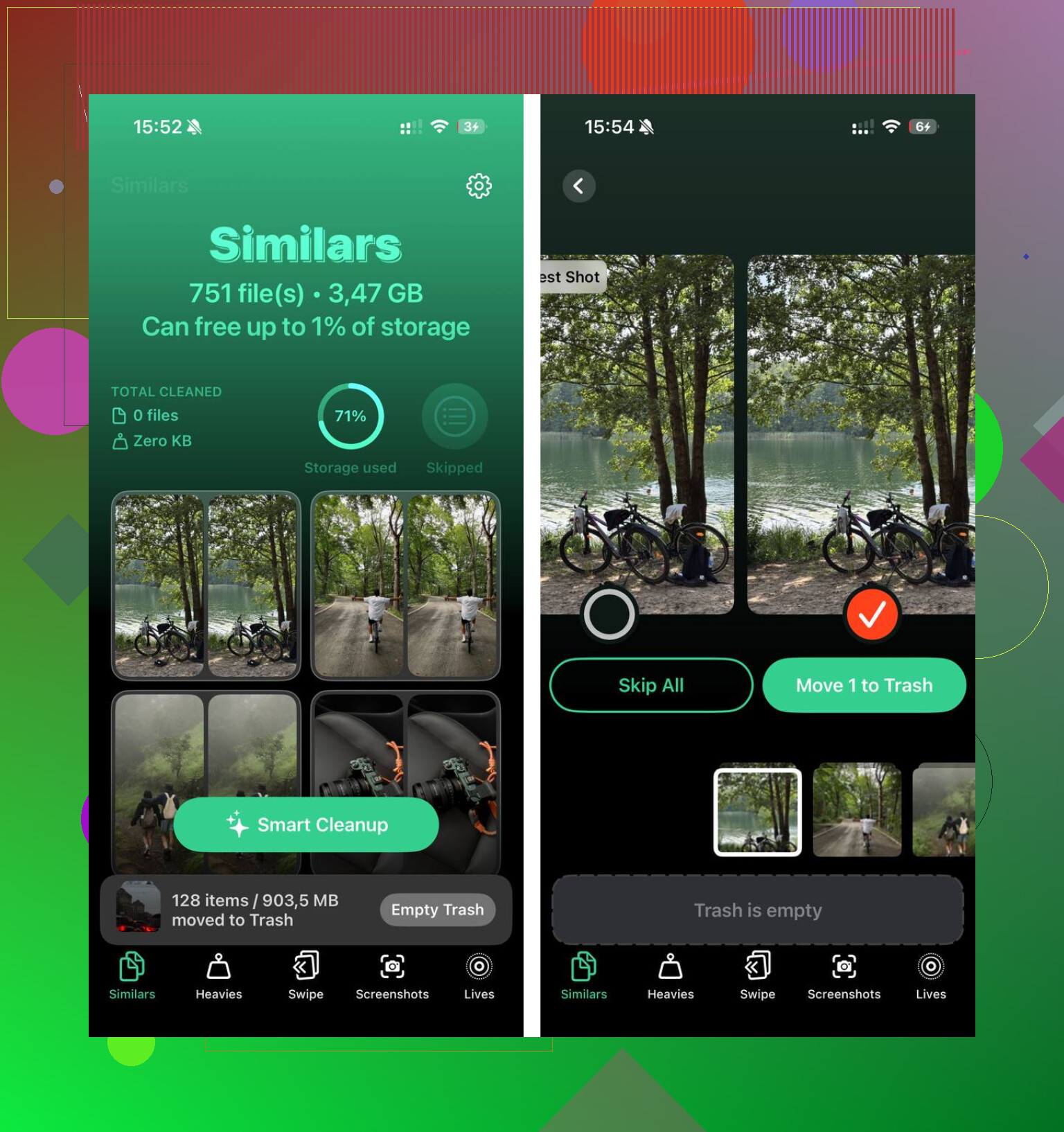
The part I’d slightly push back on from @espritlibre, @sognonotturno, and @mikeappsreviewer is the word “safe.” Optimize iPhone Storage is convenient, but it also makes your library more dependent on iCloud access. If you’re offline, on bad service, or dealing with a huge video, you may not get the original instantly when you need it. That’s not data loss, just a real downside people gloss over.
What it actually does:
- Full originals stay in iCloud Photos
- iPhone keeps smaller local versions when space is tight
- Opening or editing a photo can trigger the original download
So the temporary blur is normal. The bigger concern is whether upload finished in the first place. Also, if you ever turn off iCloud Photos entirely, that’s when people get confused. Optimize is not the dangerous switch. Disabling sync without checking what’s downloaded locally is.
One more thing: optimized photos can be annoying for editing apps that expect the full file right away.
If storage is still ugly after optimization, the issue is often junk in the library, not the setting itself. Clever Cleaner can help there.
Pros of Clever Cleaner:
- good at duplicates and big files
- fast way to cut clutter
- helps local storage pressure
Cons:
- won’t replace iCloud backup
- you still need to review before deleting
- less useful if your problem is mostly app cache, not photos
So: Optimize saves space, but it’s not a backup plan, and it’s not instant-access magic either.