I just switched to a Mac for work and feel overwhelmed by all the app options. I’m looking for must‑have Mac apps you personally rely on for productivity, file management, note‑taking, and basic system utilities. What do you recommend, and why do those specific apps stand out compared to the built‑in macOS tools?
Here are the apps I keep installing first thing on any new Mac, after years of trial, error, and mild regret. These are the ones that actually stuck and replaced the built‑in stuff for me long term.
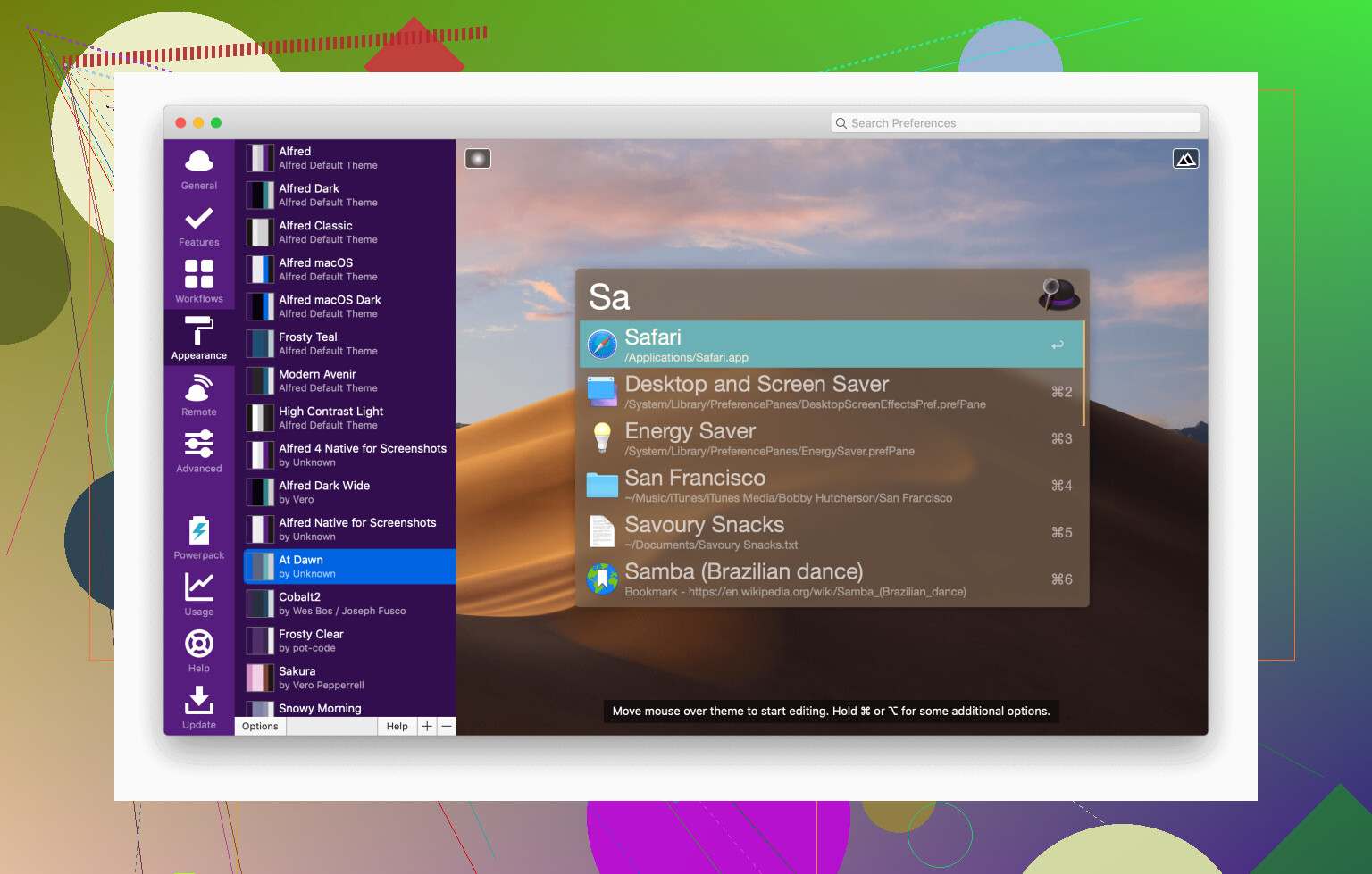
1. Raycast / Alfred: The “why am I still clicking icons?” moment
At some point I realized I was using Spotlight basically as a worse version of what Raycast and Alfred do.
Once you set one of these up with a keyboard shortcut, it stops being “an app” and turns into a command center you flick open constantly:
- Launch apps faster than you can find them in the Dock
- Jump to files without digging through Finder
- Do quick math, unit conversions, or word lookups
- Search your clipboard history when you paste the wrong thing for the third time in a row
- Trigger custom scripts (like “open today’s notes” or “start work timer”)
The big win is the ecosystem of extensions / workflows. With those, you can:
- Toggle Wi‑Fi / Bluetooth / Do Not Disturb without hunting menus
- Control music playback
- Search GitHub issues, PRs, or repos from the keyboard
- Trigger Jira / Notion / Linear actions without touching the browser
Once your brain adapts, going back to only Spotlight feels like trying to use your phone with boxing gloves on.
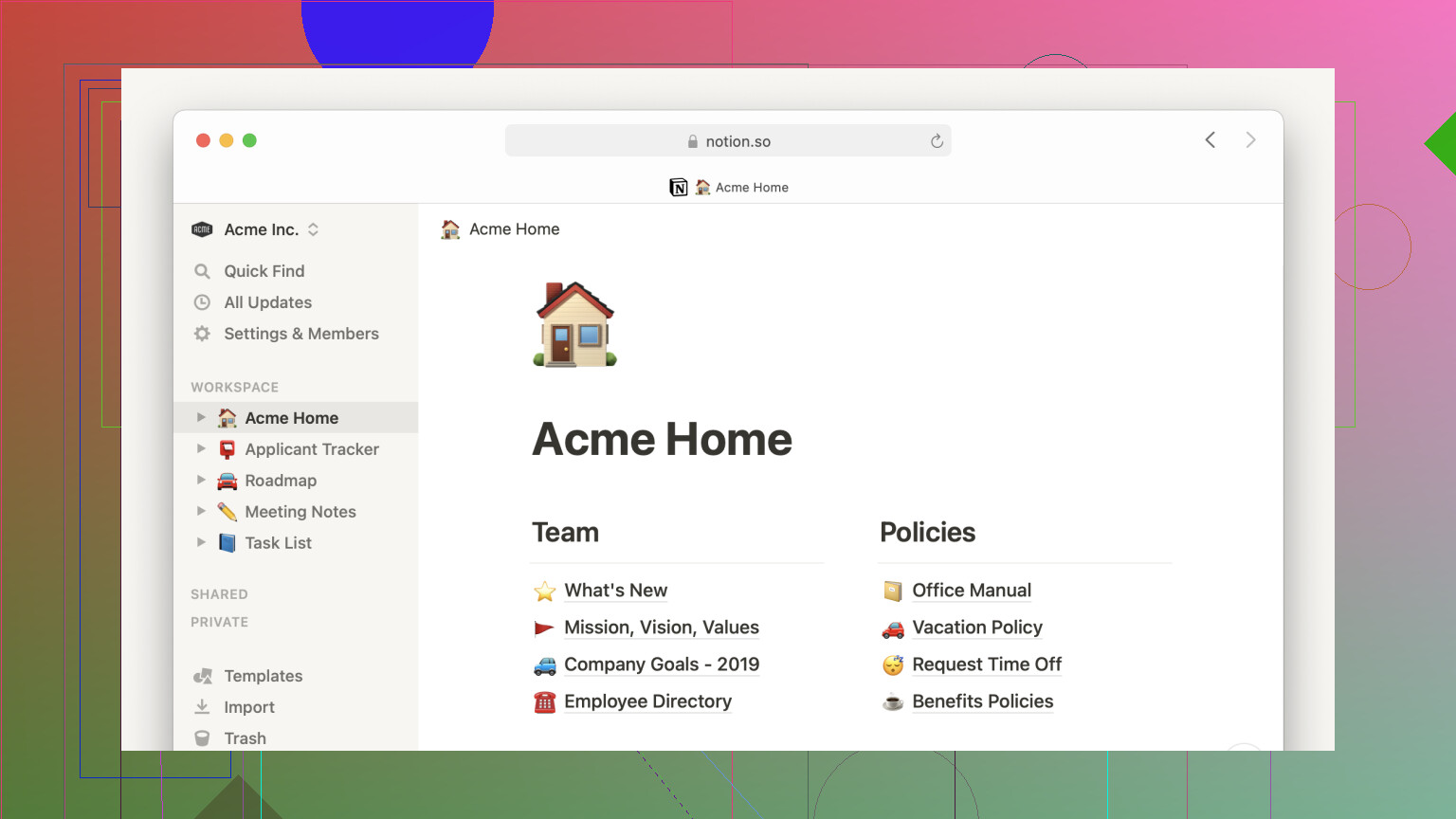
2. Notion: The “where did I put that?” problem, solved-ish
I fought Notion for a while, then one random weekend I rebuilt my whole system in it and never looked back.
It’s basically a blank, Lego-style workspace where you can mix:
- Regular notes
- Databases (tables, boards, calendars, galleries)
- Nested pages
- Embedded files, links, and media
Stuff I actually use it for:
- Personal wiki (how I do X, recurring tasks, checklists)
- Meeting notes that actually link back to projects
- “Second brain” style knowledge base
- Reading list / watch later / ideas backlog with tags and filters
- Lightweight project tracking without having to commit to a full-blown PM app
The catch: it can absolutely become a mess if you overbuild. But if you stick to a few sane templates, it replaces like 5–10 separate tools and keeps everything in one place instead of scattered in random .txt files and lost Google Docs.
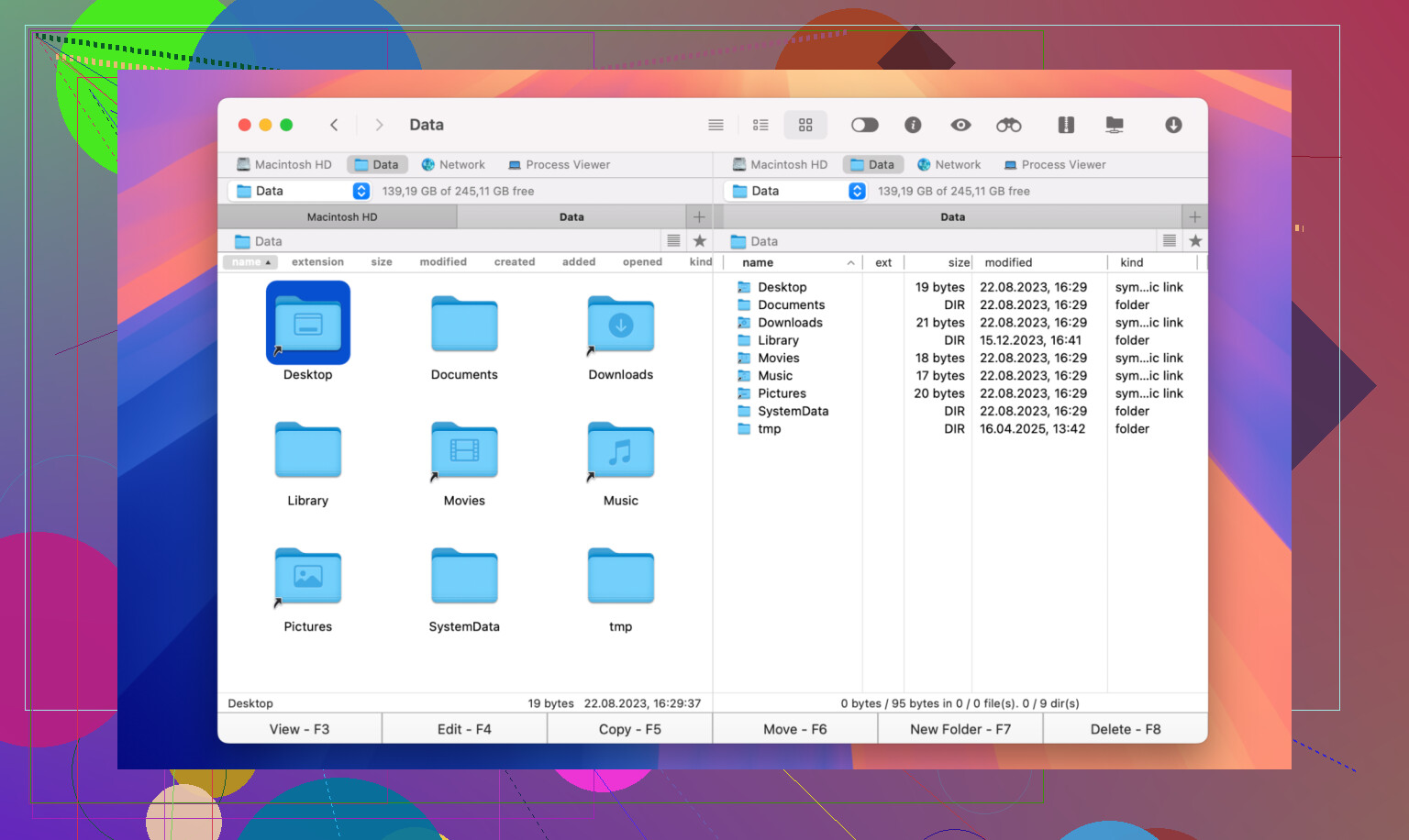
3. Commander One: For people who think Finder is… fine, but not actually good
If you grew up on Total Commander, Directory Opus, or any dual-pane file manager, Finder feels like using oven mitts.
Commander One steps in as that “proper” file manager:
- Two folders shown side by side, all the time
- Super fast copy/move/compare between locations
- Way less annoying than juggling 3 visible Finder windows and 5 buried ones
Where it really shines is when you upgrade and start treating remote stuff as if it’s just another folder:
- Connect via FTP / SFTP
- Mount cloud services like Google Drive as if they’re local
- Drag files between local / remote / external without thinking about “upload” vs “download”
If you deal with servers or multiple cloud accounts at all, this is miles better than bouncing between a browser, Finder, and some random upload dialogs.
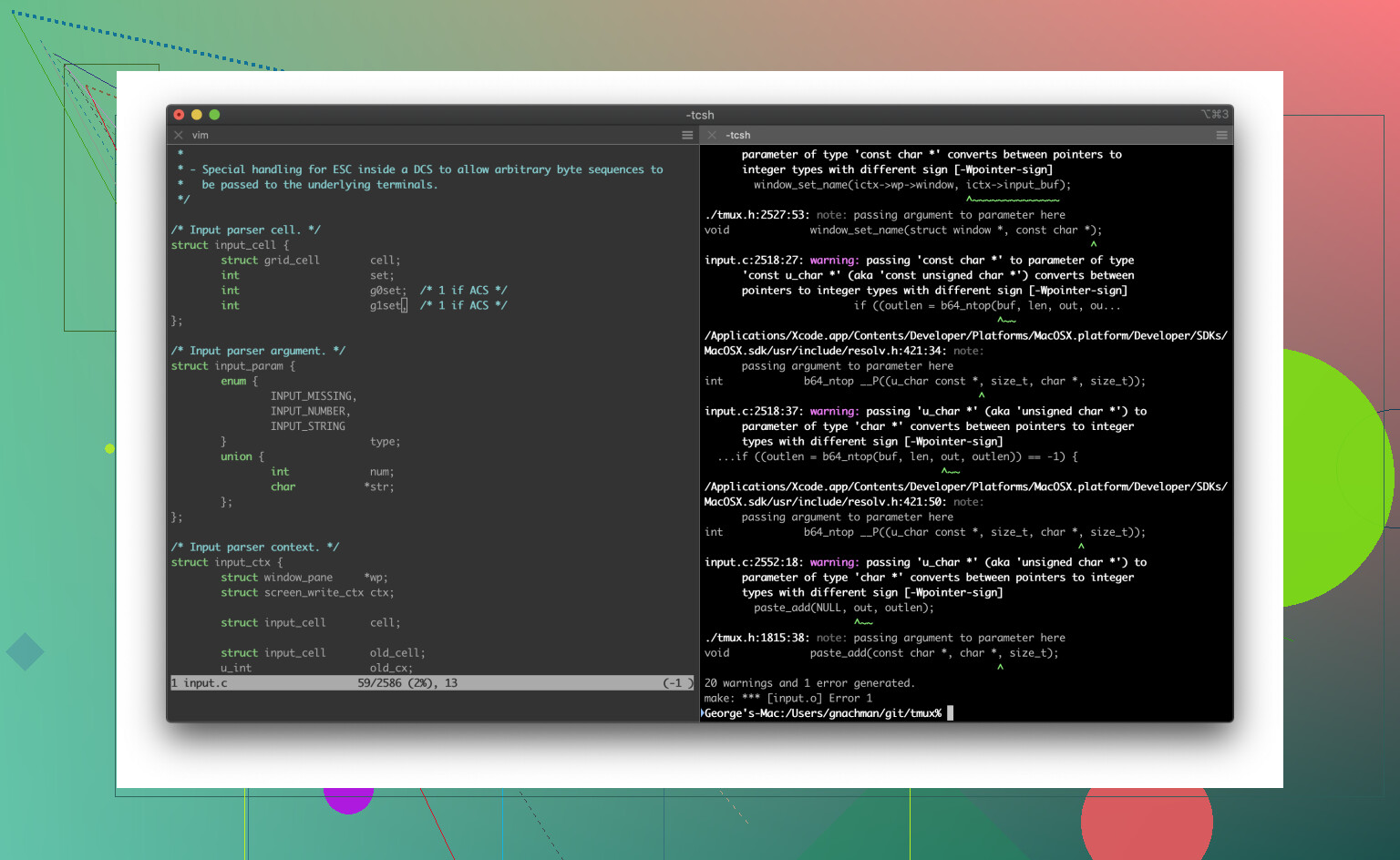
4. iTerm2: Terminal, but actually livable
The built‑in Terminal works. It’s just… bare minimum.
If you spend more than 10 minutes a day in the shell, iTerm2 is one of those “oh, I should have done this years ago” switches.
Stuff that makes a difference in day‑to‑day use:
- Split panes, so you can run logs in one, commands in another, SSH in a third
- Profiles and color schemes that make long sessions easier on the eyes
- Session restore, so you can reboot and your setup comes back instead of having to reconnect and re-run everything
- Search within the terminal output like it’s a regular document
- Triggers, key mappings, and other tweaks that remove a lot of repetitive annoyances
It doesn’t magically make you better at the command line, it just stops the terminal itself from being the bottleneck.
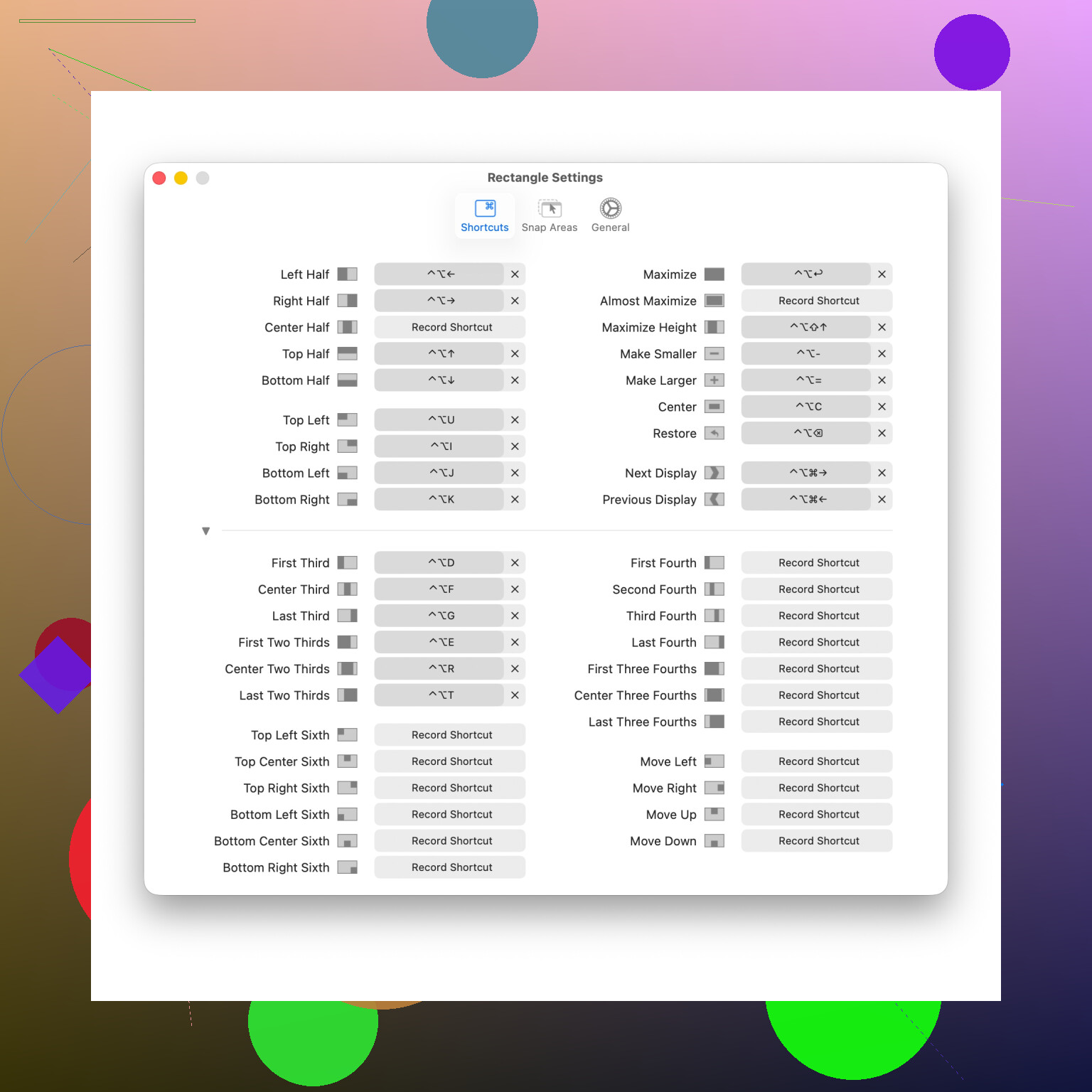
5. Rectangle: Because dragging windows with a mouse is a waste of time
macOS still treats window management like it’s 2005. You can resize manually and you get a few full-screen / tile options, and that’s about it.
Rectangle steps in as “keyboard Tetris for windows”:
- Simple shortcuts like:
- Left half / right half
- Top / bottom
- Quarters
- Centered or maximized without going full-screen
- You can toss a window to the left half with a quick combo, snap another to the right, and now your workspace actually looks intentional
Typical setup for me:
- Left: editor or writing app
- Right top: browser
- Right bottom: terminal, Slack, or reference notes
No more pixel-perfect dragging, no more weird half-off-screen windows. It’s one of those tiny utilities that quietly saves you a ridiculous amount of friction over a week.
6. MacDroid: The “why is Android file transfer still this painful?” fix
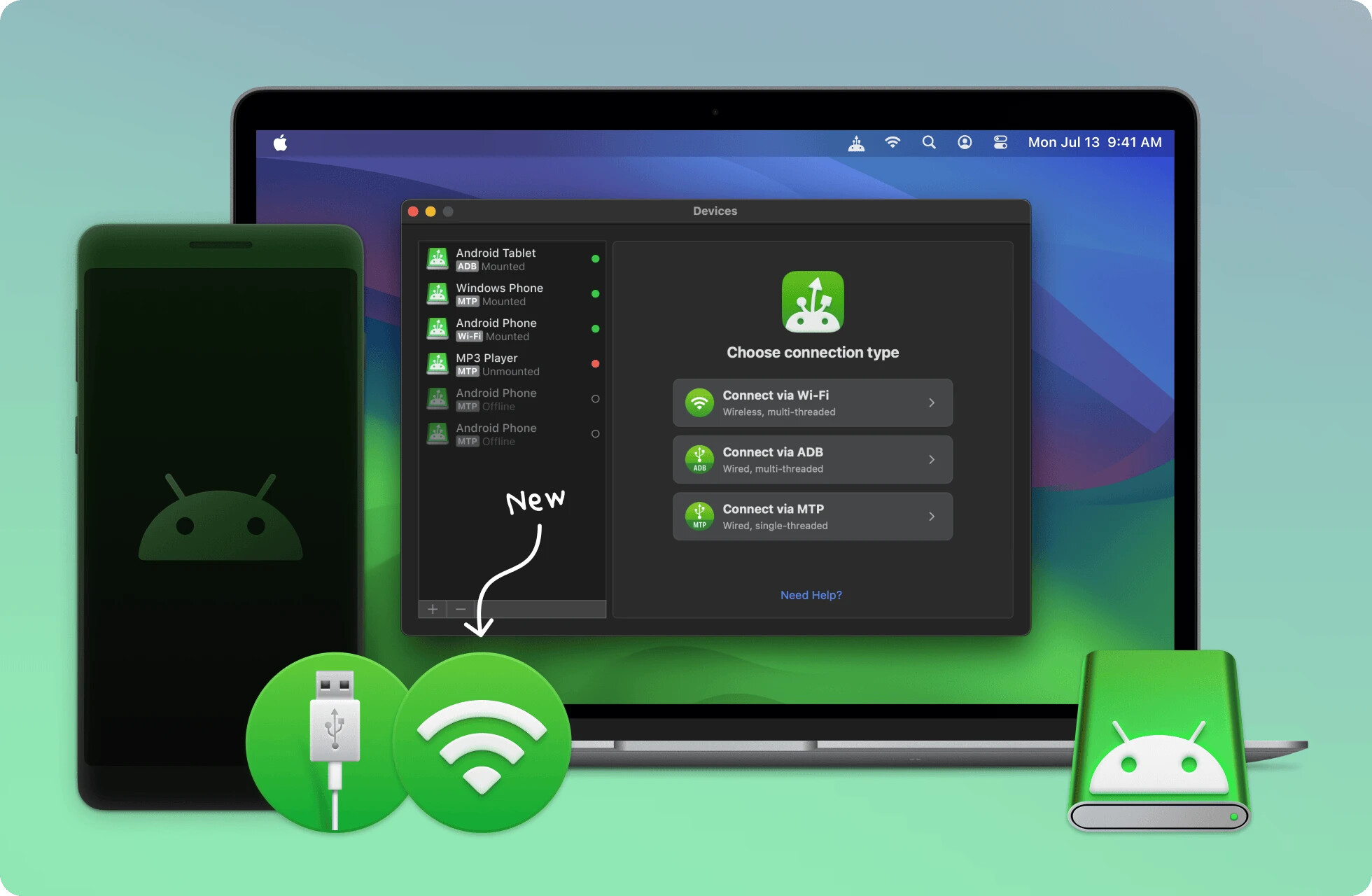
Connecting an Android phone to a Mac still somehow feels like a side quest Apple never wanted to support properly.
MacDroid fixes that whole mess by basically making your Android device behave like a normal drive inside Finder.
What makes it useful:
- Mount Android phones directly in Finder
- Drag and drop files without weird sync apps
- Transfer photos, videos, music, or folders like it’s a regular external drive
- Works over both USB and wireless connections
The biggest thing is that it removes friction. No random failed transfers, no ancient Android File Transfer app freezing halfway through moving a folder, no “device not detected” roulette.
If you move files between Android and macOS even semi-regularly, it turns an annoying process into a boring one - which is exactly what you want.
7. Shottr: The screenshot tool Apple should have built
macOS screenshots are okay until you need to do literally anything beyond “capture rectangle, save file.”
Shottr is one of those tiny apps that quietly becomes part of your muscle memory after about two days.
Why it’s great:
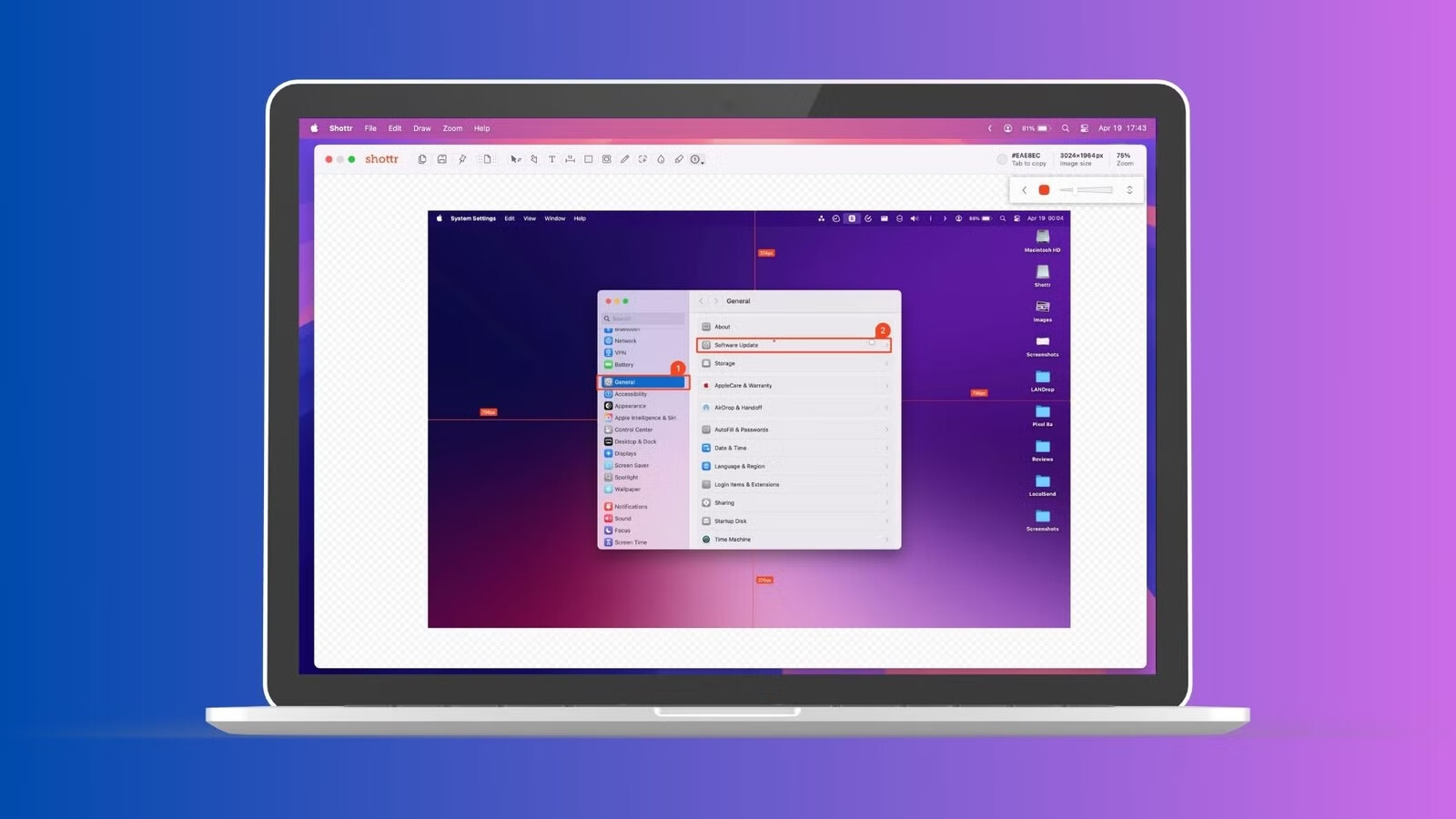
- Ridiculously fast screenshot capture and editing
- Scroll capture for long webpages or chats
- Blur sensitive info in one click
- Add arrows, boxes, text, and highlights without opening another app
- OCR that lets you copy text directly from screenshots
The speed is the thing that sold me. You hit a shortcut, annotate something in five seconds, paste it into Slack or docs, and move on with your life.
Once you get used to that workflow, Preview suddenly feels weirdly heavyweight for basic screenshots.
8. Elmedia Player: The “I’m tired of QuickTime” solution
QuickTime is fine for about 10% of what you actually need to watch. The moment you download an MKV, a FLV, or some obscure format from five years ago, it just gives up and tells you it “can’t open this file.”
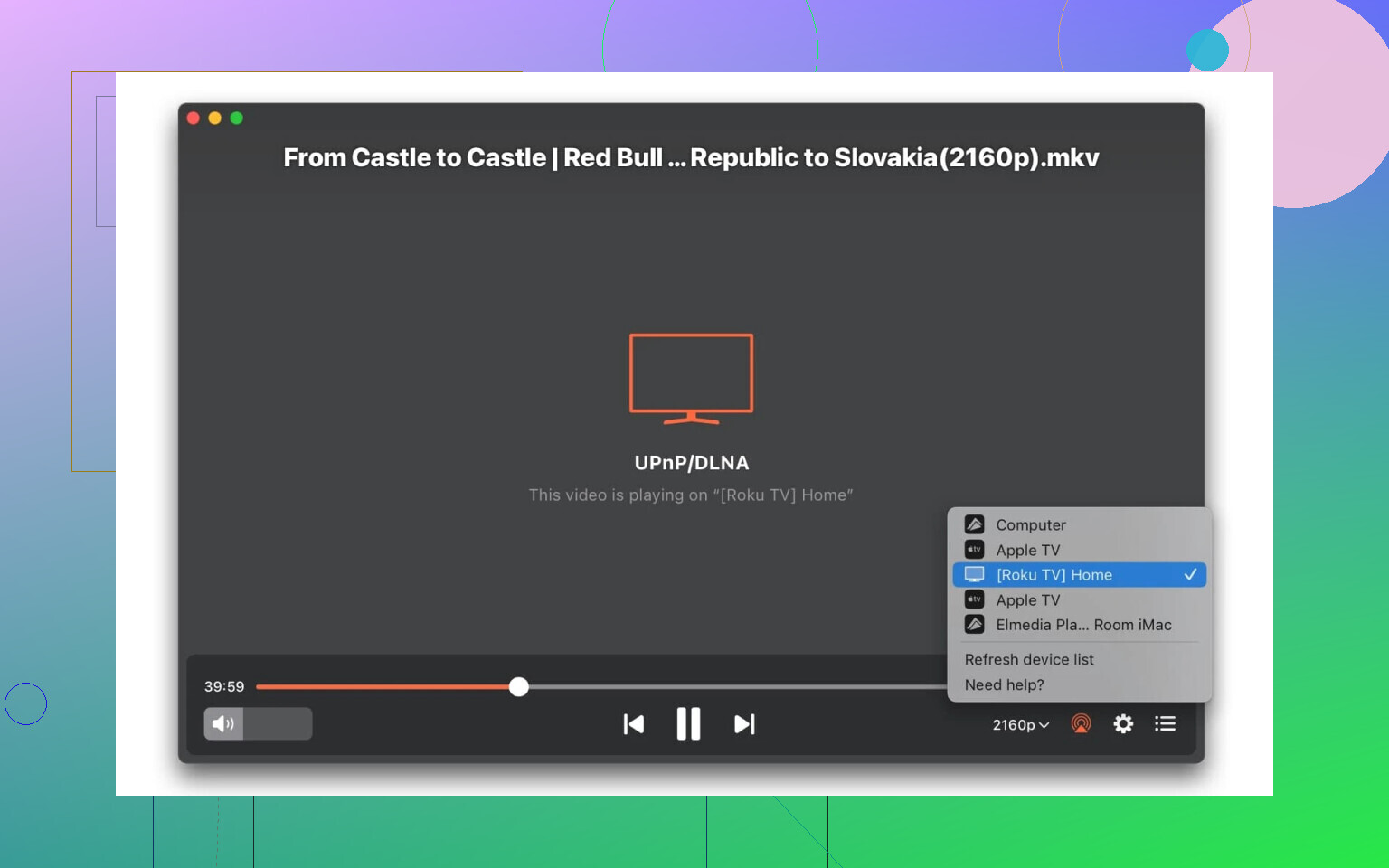
Elmedia Player is the Swiss Army knife that steps in when Apple’s native player hits a wall. It’s built for people who just want to watch their media without entering codec hell:
Plays literally anything: MKV, AVI, WMV, FLV—it doesn’t matter. You throw a file at it, and it plays. No “converting” required.
Casting that actually works: If you’ve ever tried to get a local video file from your Mac to a Chromecast, Roku, or a Smart TV without an Apple TV, you know the struggle. Elmedia handles the streaming/DLNA stuff natively.
Control over the chaos: It lets you fix those annoying “audio is 2 seconds behind the video” issues on the fly and has proper subtitle support that doesn’t look like it was designed in 1998.
It basically turns your Mac into a proper media hub instead of a one-trick pony that only likes .mov files.
9. Dropover: The “temporary pile of stuff” your Mac weirdly never had
Dragging files around on macOS gets annoying fast when you’re juggling multiple folders, uploads, attachments, or reference images at the same time.
Dropover solves this with an idea that feels obvious the second you use it: a temporary shelf that appears wherever you need it.
You just shake your cursor a bit, a floating shelf pops up, and you can throw files, images, text snippets, or links onto it while you work.
Where it becomes genuinely useful:
- Collecting files before uploading them somewhere
- Moving stuff between deeply nested folders
- Staging screenshots for Slack, email, or docs
- Keeping temporary references nearby without cluttering the desktop
- Combining files from multiple locations before dragging them elsewhere
It sounds tiny, but it removes a surprising amount of “open folder → drag file → wrong window → try again” friction from everyday work.
After a while, it starts feeling less like a utility and more like an extra layer the Finder should have had all along.
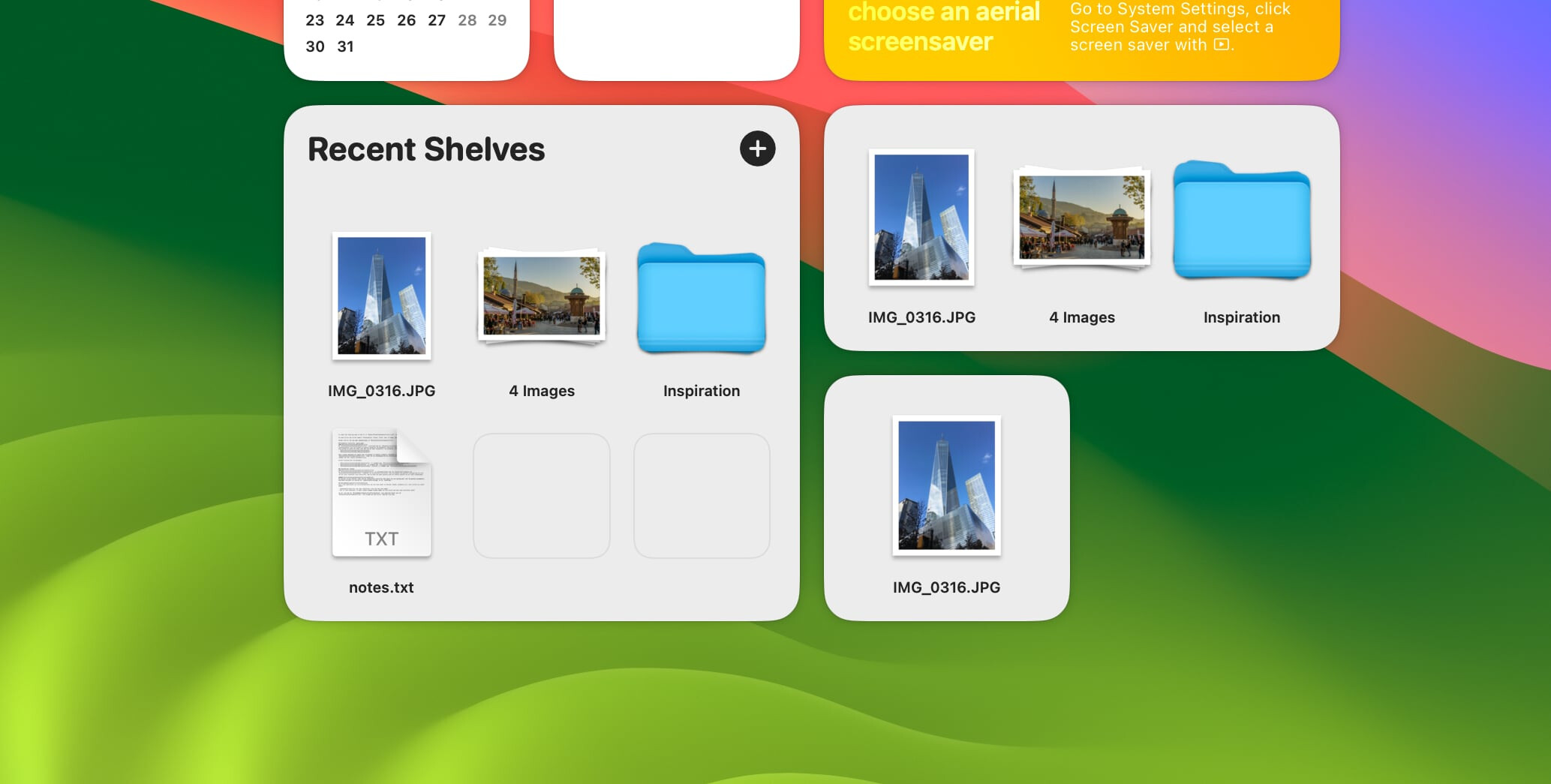
If you’re curious for more apps like these, it’s worth browsing around a bit - there are plenty of other places sharing great recommendations too.
959 Likes
I’ll second a lot of what @mikeappsreviewer said, but my “install on every Mac” list is a bit different and a little more bare‑bones.
1. Window management:
Rectangle is solid, but I actually like Magnet a bit more. It’s super simple, lives in the menu bar, and the shortcuts are easy to remember. If you’re not a shortcut person, Magnet’s drag‑to‑edge snapping feels more intuitive.
2. File management:
For actual heavy file work, Commander One is the one that stuck for me too. Finder is fine for casual stuff, but if you’re moving folders between cloud storage, servers, and external drives all day, a dual‑pane file manager just wins. Commander One basically becomes your “control center” for files: left pane local, right pane remote, drag and drop, done. It also makes SFTP and cloud mounts feel like normal folders, which is huge if you’re in dev or content work.
3. Notes & writing:
Notion is powerful, but I honestly burned out on tweaking it. I use this combo instead:
- Apple Notes for quick capture, inbox-style stuff
- Obsidian for structured notes and longer-term knowledge. It’s just Markdown files on disk, so you’re not locked in, and the search is fast. Plugins are nice, but you can ignore them at first.
4. Clipboard & small utilities:
- Paste or Maccy for clipboard history. This is one of those things you don’t realize you need until you use it for a week and can’t go back.
- Hidden Bar to hide half the junk in your menu bar. macOS gets cluttered fast with work apps.
- AppCleaner to properly remove apps instead of leaving random files everywhere.
5. Productivity / focus:
- Todoist for tasks, just because it’s cross‑platform and survives boss‑mandated tool changes.
- Be Focused or Session for a light Pomodoro style timer if you like working in sprints.
- Bartender used to be my go‑to for menu bar management, but recent macOS versions made me feel like it’s overkill, so I dropped it.
6. Terminal & dev‑ish stuff:
I don’t actually love iTerm2 as much as everyone else. It’s great, but a bit overstuffed. I moved to Warp for daily work. Nice command palette, fast search, good defaults. If you prefer minimal, stick to Apple’s Terminal with a better font and theme and call it a day.
If you’re overwhelmed, I’d honestly start tiny:
- One launcher (Raycast or Alfred, like @mikeappsreviewer said)
- One window manager (Rectangle or Magnet)
- Commander One for file work
- One notes app you’ll actually open every day (Apple Notes or Notion or Obsidian)
Everything else can wait. The biggest trap is installing 20 “productivity” apps and then spending your productivity configuring them instead of, you know, working.
I’m gonna zig a bit where @mikeappsreviewer and @sternenwanderer zag, just so you’re not reading the same list three times.
Here’s what actually survives on my Mac after the honeymoon phase with shiny apps ends.
1. Launcher / “do stuff fast” layer
I agree with them that Spotlight is weak, but I’m not all-in on Raycast for everyone.
- Raycast if you live in integrations and love tinkering. It can become a whole workflow engine.
- Alfred if you want something powerful but slightly less “startup SaaS” feeling.
- Honestly: if you’re new to Mac and already overwhelmed, try Alfred first. Easier to keep under control than turning Raycast into a part-time job.
I use Alfred all day:
- launching apps
- quick web searches with custom keywords
- clipboard history
Haven’t opened Launchpad in… years.
2. File management
Here I’m 100% with them: Finder is OK until you start doing real work.
- Commander One is my daily driver. If you want something SEO-friendly to google later: Commander One dual pane file manager for Mac. That combo of words will get you to the right place.
- Two panes side by side, keyboard-first, treat cloud / remote stuff like regular folders.
Typical setup:
- Left pane: local project folder
- Right pane: SFTP to a server or mounted Google Drive
- F5 / F6 for copy / move, Tab to jump panes, no mouse if I can help it
If you move files a lot, Commander One basically becomes your “desktop” and Finder turns into that thing you open only when macOS forces you.
3. Notes and writing
Notion is great until you realize you spent 40 minutes adjusting a database property instead of actually writing.
What stuck for me:
- Apple Notes
- Fast, built in, syncs well enough.
- Meeting notes, random brain dumps, screenshots with markup.
- Obsidian
- For more serious stuff: long term notes, docs, anything I may want 2 years from now.
- It’s just Markdown on disk, so you’re not hostage to a cloud service.
Flow:
- Dump everything in Apple Notes during the day.
- Once or twice a week, promote “keepers” into Obsidian, organized by project or topic.
I tried to live 100% in Notion. It was cool until search got slow and offline use annoyed me.
4. Window management
Rectangle and Magnet both do the same basic job. I slightly disagree with both of them here:
- Magnet felt too limited for me.
- Rectangle is more customizable, but I found myself over-tweaking.
What I landed on:
- Rectangle, but with like 6 shortcuts only:
- Left half
- Right half
- Top half
- Bottom half
- Center
- Maximize (not full-screen)
That combo covers 99% of what I actually do, and I stopped messing with it.
5. Terminal
Here I’m the boring one:
- Apple Terminal with a decent font (JetBrains Mono / Fira Code) and a dark theme. That’s it.
- iTerm2 is great, Warp is shiny, but if you’re not living in 10 SSH sessions at once, Terminal + tmux/zellij gets you plenty.
I tried Warp, liked it, but I hate depending on sign-in accounts for basic tools, so I went back to simple stuff.
6. Clipboard & tiny utilities
The stuff that doesn’t look sexy, but quietly saves your day 20 times:
-
Maccy
- Lightweight clipboard manager, free / cheap, lives in the menu bar.
- I hit a shortcut, search text I copied 3 hours ago, paste, done. Once you have this, going back feels broken.
-
AppCleaner
- Delete an app properly with its junk.
- Use it whenever you uninstall all the apps you regretted installing after reading threads like this one.
-
Hidden Bar
- Minimal menu bar hider.
- I agree with dropping heavy tools here. Hidden Bar gives 80% of Bartender’s value with like 5% of the complexity.
7. Tasks and focus
Honestly, this is where people waste the most time.
I’ve tried Todoist, Things, OmniFocus, ClickUp, etc. What actually stuck:
-
Reminders
- Yeah, the boring built-in one.
- It’s good enough, integrates with Siri, works on phone and Mac.
-
Plain timer
- Instead of a fancy Pomodoro app, I just use a basic timer or Focus mode on Mac.
- Less tooling, more doing.
8. How I’d start if I were you
If you just switched to Mac and feel buried in options, I’d do this in order:
- Launcher: Install Alfred or Raycast. Learn 3–4 core shortcuts.
- File manager: Install Commander One and force yourself to use it instead of Finder for a week. Learn Tab, F5, F6, and basic navigation.
- Notes: Pick ONE main app (Apple Notes or Notion or Obsidian). Don’t stack three at once.
- Window manager: Install Rectangle, set a couple of easy shortcuts, stop dragging windows by hand.
- Clipboard manager: Maccy or Paste. Keep the default config, don’t obsess over it.
Everything else is optional and honestly more about taste than must-haves.
The bigger trap is installing every “productivity” app Reddit loves, then realizing the only thing you produced this week was a very organized app graveyard.
Since a lot of the “obvious” picks are already covered by @sternenwanderer, @sognonotturno and @mikeappsreviewer, here’s what I’d add or slightly disagree on, focusing on everyday use rather than tinkering for its own sake.
1. File management: Commander One vs the rest
If you’re feeling Finder fatigue, Commander One is genuinely worth trying, but it is not magic for everyone.
Pros of Commander One:
- True dual‑pane view all the time
- Keyboard‑driven: Tab to swap panes, function keys for copy/move, easy navigation
- Handles remote stuff (SFTP, FTP, cloud drives) almost like local folders
- Good when you juggle big folder trees and need to see “source vs target” constantly
Cons of Commander One:
- Steeper learning curve if you are used to dragging things around in Finder
- Interface can feel “busy” compared to Apple’s minimalism
- Some features locked behind paid tiers
- Overkill if your file life is mostly “Downloads and Desktop”
I’d say:
- If your work involves servers, archives, and lots of project folders, lean into Commander One.
- If you’re mostly office docs and occasional zips, enhance Finder a bit and stop there.
Competitors worth mentioning (very briefly, since others already did a deeper dive):
- @sternenwanderer leans a bit more on built‑in tooling plus a few power add‑ons, which is saner for new Mac users.
- @sognonotturno has a more opinionated workflow approach, good if you like structure.
- @mikeappsreviewer clearly lives in “power user” territory and is all in on replacing almost every default.
2. I slightly disagree on “replace all the built‑ins”
You absolutely do not need a third‑party app for every category on day one. Stuff I recommend keeping stock at first:
- Mail: Apple Mail is fine unless you live in Gmail filters all day.
- Calendar: The built‑in Calendar + work’s calendar account is enough for 90% of people.
- Reminders: Lightweight, syncs with iPhone, and avoids the “yet another inbox” problem.
Only upgrade these once you actually hit a wall instead of pre‑optimizing.
3. Where I do install replacements immediately
a) Clipboard manager
Nobody mentioned this strongly enough: a clipboard history tool is almost cheating.
- My pick: Maccy or Paste.
- Use it to get back something you copied 20 items ago.
- Tiny learning curve, big daily payoff.
This pairs nicely with Commander One when you are copying file paths, commands, and bits of text all day.
b) Screenshots & quick annotations
The built‑in screenshot tool is fine, but if you are doing frequent bug reports or design feedback:
- CleanShot X or Shottr give you quicker markup, blur sensitive info, etc.
- Saves a surprising amount of time vs manually opening Preview.
4. Note‑taking: don’t multiply systems
I think Notion is powerful but also a rabbit hole. My suggestion:
- Pick exactly one of: Apple Notes, Notion, or Obsidian.
- Use it for at least a month before adding another.
Simple pattern that works well:
- Apple Notes for daily scratchpad and “I just need to write” moments
- Once a week, curate important stuff into a more structured system if you choose Notion or Obsidian
The others already gave good breakdowns, so the only thing I’ll add is: fragmenting notes across three apps is worse than using a “less perfect” single app.
5. Window management without overthinking it
Rectangle is already heavily recommended. My tweak:
- Limit yourself to 4 or 5 shortcuts:
- Left half
- Right half
- Maximize (without full screen)
- Center
- Optional: top or bottom half
The goal is muscle memory, not a full window‑tiling simulator.
6. Practical starter pack
If I were setting up a new work Mac today and wanted to stay sane:
- Commander One for serious file work
- One launcher (Raycast or Alfred, not both)
- One notes app (do not install three)
- Clipboard manager (Maccy or similar)
- Rectangle for window snapping
- AppCleaner for uninstalling all the experiments you regret later
Everything else can wait until you feel a very specific pain. That approach will keep your Mac feeling like a tool instead of a hobby.
Do one setup pass instead of hunting for apps.
- List your work tasks for a week. Example: writing docs, joining meetings, reviewing PDFs, moving files, messaging.
- For each task, use the built in app first for 3 days. Notes, Mail, Calendar, Preview, Finder.
- Only add a new app when the built in one blocks you. One new app per week.
- Uninstall anything you did not open in the last 2 weeks.
You get a lean setup that matches your real work, not a wishlist.