I was checking my iPhone storage and noticed some apps are using a lot of space under Documents and Data, but I do not understand what that includes or why it keeps growing. I need help figuring out what Documents and Data means on iPhone, what kinds of files are stored there, and whether it is safe to clear it to free up storage.
I hit this mess on my own iPhone, so I get why it looks wrong at first. You open Storage, see an app listed at 300 MB, then 'Documents and Data' is sitting there at 20 GB like it pays rent. It feels broken, but most of the time it’s old app residue.
What lives in 'Documents and Data' is all the stuff around the app, not the app file itself. Cached photos, streamed video chunks, downloaded thumbnails, cookies, saved sessions, site data, login leftovers, search history, drafts, attachments. All the junk apps keep so they open faster next time. Instagram, Facebook, TikTok, YouTube, Spotify, Chrome, Safari, all of them pile this up fast if you use them a lot.
From what I saw, social apps are usually the worst. Scroll for 30 minutes and your phone has saved piles of media in the background. You don’t notice it day to day. Then one week later your free space is gone.
Apple made this part more annoying than it should be. There isn’t one clean cache button for most apps. So you end up doing it app by app.
For Safari, the path is simple. Open Settings, go to Safari, then tap 'Clear History and Website Data.' If one app has its own browser settings, check inside the app too. Facebook, for example, has browser data and cookie options buried in its own menus.
What worked best for me on heavy apps was the blunt method. Delete the app. Reinstall it. Sign back in. Bit of a pain, yep, but it clears far more junk than offloading. Offloading only removes the app binary. Your stored data stays put, which defeats the whole point if storage is the problem.
Photos confuses people the most. I ran into this too. I had deleted a ton of images and the storage number barely moved. The reason was 'Recently Deleted.' iPhone keeps those files around for roughly 30 days. Until you empty that folder, they still count. Shared albums and old synced image caches also seem to hang around longer than people expect.
Once my phone got near full, performance dropped in ways I could feel. Camera took longer to open. Typing had little pauses. Apps reloaded more often. Random storage alerts kept popping up. iOS needs breathing room. If your free space is tiny, the phone starts acting tired.
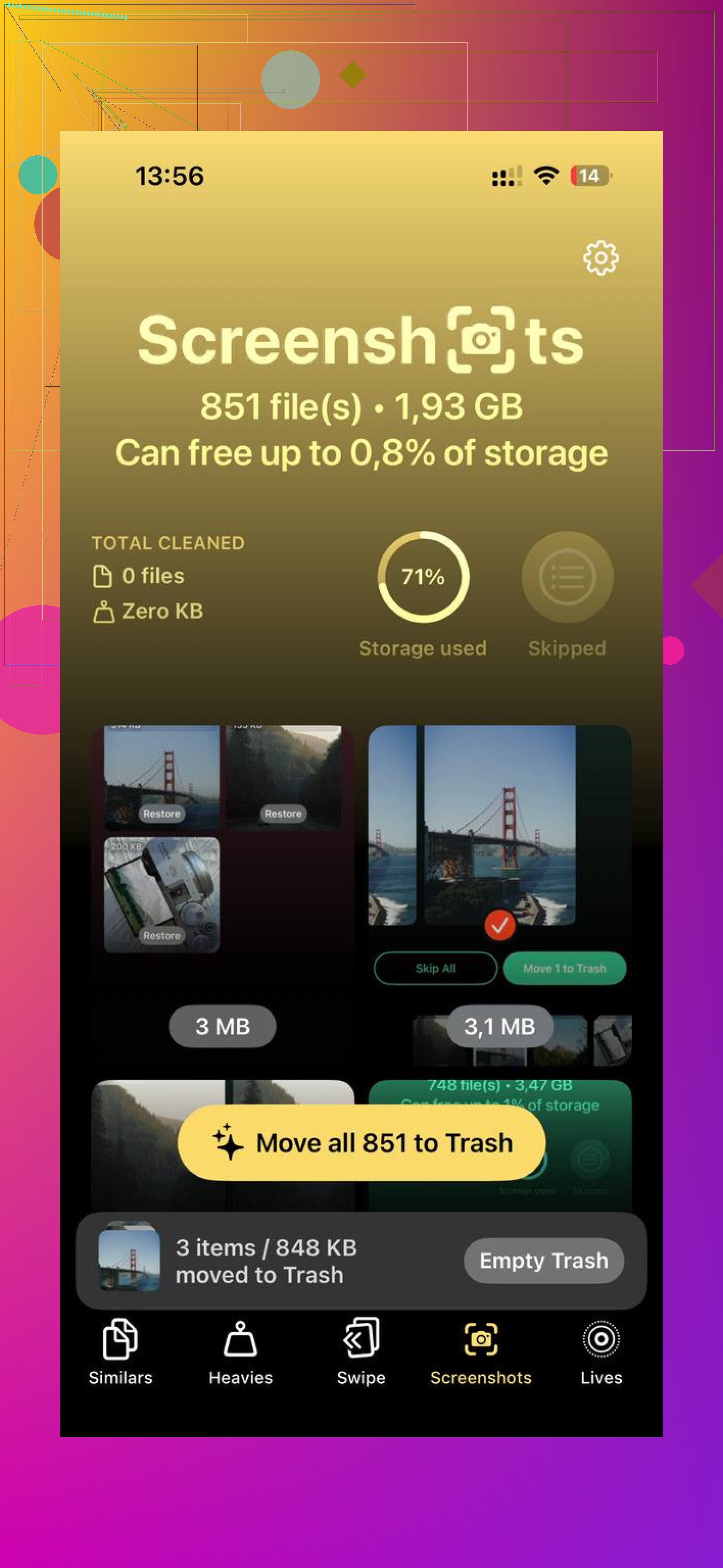
For me, photos and videos were the main problem, not the apps themselves. I tried cleaning manually and gave up fast. Too many duplicates, too many nearly identical shots, too many giant videos I forgot about. I ended up using Clever Cleaner because I wanted something fast without the usual App Store nonsense.
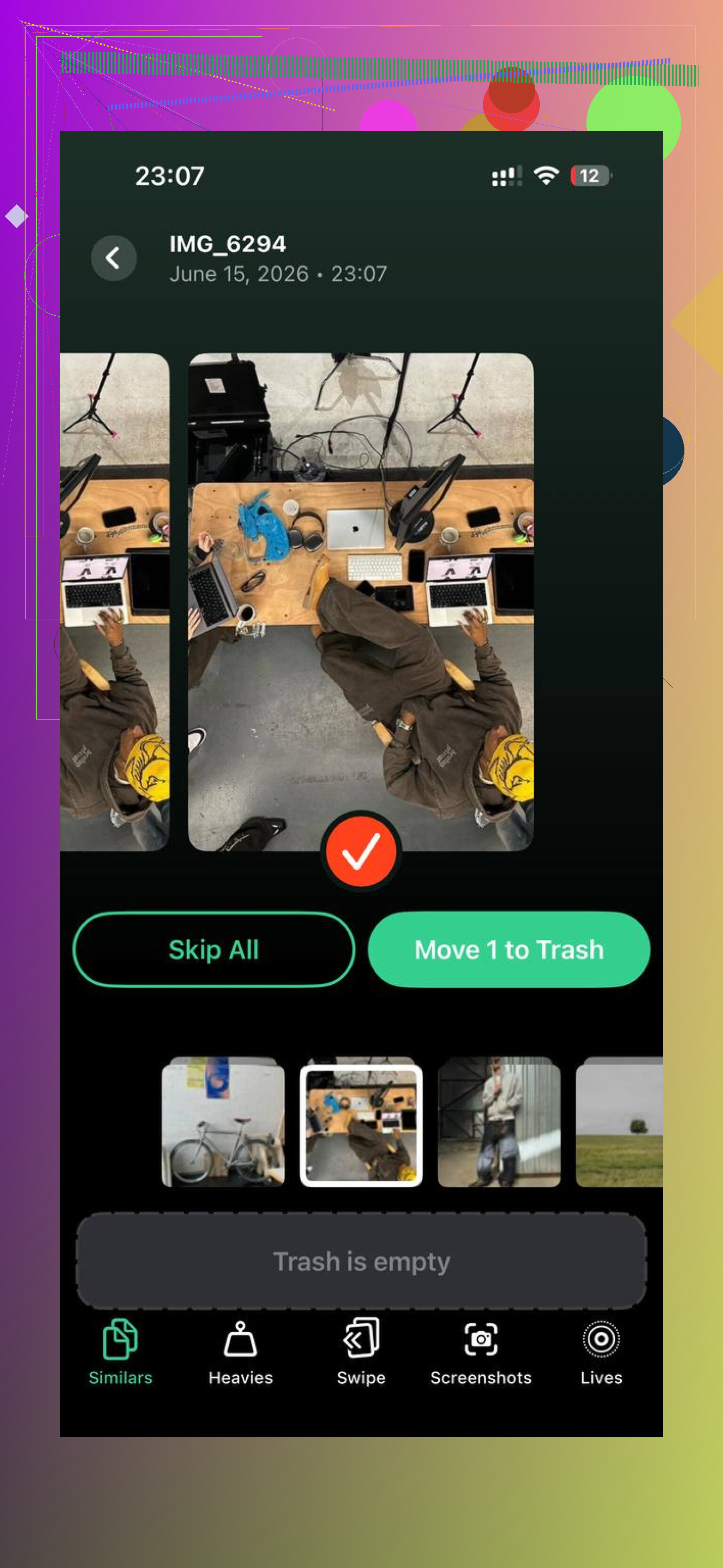
The part I found useful was the 'Heavies' section. It shows the biggest files first, which is what matters when you need space now, not later. One old 4K clip can eat more storage than hundreds of normal photos. The 'Similars' section helped too. I had whole batches of the same pic with tiny differences, and clearing those added up more than I expected.
I also liked seeing file sizes before deleting stuff. Makes the choice easier. You know what saves 12 MB and what saves 1.4 GB. And from my use, photo processing stayed on-device, which mattered to me since I didn’t want my library sent off somewhere.
After I cleared around 10 GB of large videos, screenshots, and duplicate shots, the Photos storage dropped fast and the phone stopped feeling clogged. Not magic. More like finally taking the trash out.
So yes, clearing it is safe in most cases. The tradeoff is small. You might need to log back in. Some pages or media take a second longer the first time. But if your iPhone is packed and sluggish, cleaning cached junk is one of the first things I’d do.
A short checklist, since this stuff gets buried:
1. Check Settings and review iPhone Storage.
2. Clear Safari history and website data.
3. Look inside big apps for cache or browser cleanup options.
4. Delete and reinstall the worst offenders if their data is huge.
5. Empty 'Recently Deleted' in Photos.
6. Check 'Recently Deleted' in Files too.
7. Find large videos and duplicate photos, then remove those first.
If your storage graph looks absurd, it usually isn’t one mystery file. It’s a pile of small leftovers plus a few huge media files hiding in plain sight. That was the pattern on mine, anyway.
22 Likes
Documents and Data is the app’s stuff, not the app itself. Think saved files, offline downloads, message attachments, databases, cache, temp files, indexes, logs, and account data. On newer iOS versions, Apple often labels this as “Documents & Data” inside an app’s storage total, even when part of it is cache.
Why it grows:
- Streaming apps keep media chunks.
- Chat apps store photos, videos, voice notes.
- Browsers save site data.
- Maps save offline areas.
- Photo and editing apps keep exports, previews, undo history.
- Some apps leak storage over time. Yep, bad app cleanup is a thing.
One small disagreement with @mikeappsreviewer. Reinstalling is not always the best first move. For apps like Messages, WhatsApp, Podcasts, Netflix, Spotify, or Lightroom, you might wipe useful offline content or local project files you wanted. Check the app’s own storage menu first.
What to look at by app type:
- Messages: large attachments
- WhatsApp/Telegram: media and chat backups
- Spotify/Netflix/YouTube: downloads
- Safari/Chrome: website data
- Files: local downloads, ZIPs, PDFs
- Photo editors: exported copies and cache
- Mail: downloaded attachments
Best way to inspect it:
Settings, General, iPhone Storage, tap the app. If the app is 150 MB and storage used is 8 GB, your bloated part is user data or cache.
Best cleanup moves, without repeating the usual ones:
- In Messages, review large attachments.
- In WhatsApp, open Manage Storage.
- In Spotify or Netflix, remove downloads from inside the app.
- In Files, sort by size and check On My iPhone.
- In Mail, removing and re-adding an account often clears old attachment caches.
- For editing apps, delete old projects after exporting them.
Also check iOS recommendations in iPhone Storage. They’re not perfect, but “Review Large Attachments” and “Offload Unused Apps” help more than people think.
If your main problem is Photos clutter, not app data, a cleaner app saves time. Clever Cleaner is one of the few people keep bringing up for duplicate photos, similar shots, and large videos. This page gives a solid overview of Clever Cleaner for iPhone, a free AI-powered storage cleanup app.
Short version: Documents and Data means the working storage around an app. It grows with usage. Some of it is useful. Some of it is junk. The trick is figuring out which app is hoarding files, then clearing data inside the app before you go nuclear and delete it. Somtimes Apple hides this stuff way too well.
“Documents and Data” is basically the app’s backpack. The app itself is the shell. Documents and Data is all the stuff it carries around: downloaded songs, cached videos, thumbnails, chat attachments, databases, drafts, cookies, logs, and sometimes junk it forgot to throw away.
Where I kinda disagree a bit with @mikeappsreviewer is that huge Documents and Data does not always mean “trash.” Sometimes it’s legit useful stuff like offline playlists, downloaded Netflix episodes, or message history. @shizuka was closer on that part.
The annoying part is iOS lumps good data and useless cache together, so the number looks scarier than it is. If it keeps growing, that usually means:
- you use the app a lot
- the app caches everything
- the developer was lazy with cleanup
- media files are being stored locally
One thing people miss: some apps sync less than you think. Delete them carelessly and poof, local files gone. So before deleting anything, check whether the app stores files only on-device.
Also, if “System Data” is mixed into your confusion, that’s different from Documents and Data. Apple’s labels are kinda messy tbh.
If Photos is the real hog, not app cache, then a cleanup app is faster than manually digging forever. Clever Cleaner is decent for finding duplicates, similar pics, and big videos without a ton of fluff. Also, this video on how to free up iPhone storage and clean photo clutter is worth a look.
Short version: not a virus, not fake storage, just app leftovers plus saved content. Some is needed. Some is cruft. Apple just hides the line between them reallly badly.