Please Help, How To Recover Data From A Corrupted SD Card?

My SD card suddenly stopped working after I removed it from my camera, and now my computer says it needs to be formatted before use. It has important photos and videos I haven’t backed up, so I really need advice on safe ways to recover data from a corrupted SD card without making things worse.

I’ve had SD cards go sideways at the worst time, right after a long shoot, right before a file handoff, once in a hotel lobby with a deadline breathing down my neck. It feels bad fast. Still, the first thing I do is stop touching the card. No retry loop. No plugging it back into the camera to “see if it shows up now.” If you keep writing to it, you risk wiping the stuff you want back.

What usually breaks first is the file system, not the raw data itself. So my rule is simple. Recover first. Repair later. A lot of people skip straight to Windows fixes, formatting, or random commands from old forum posts. I did that years ago and made one card worse. Since then I pull files off first, then I mess with repairs.

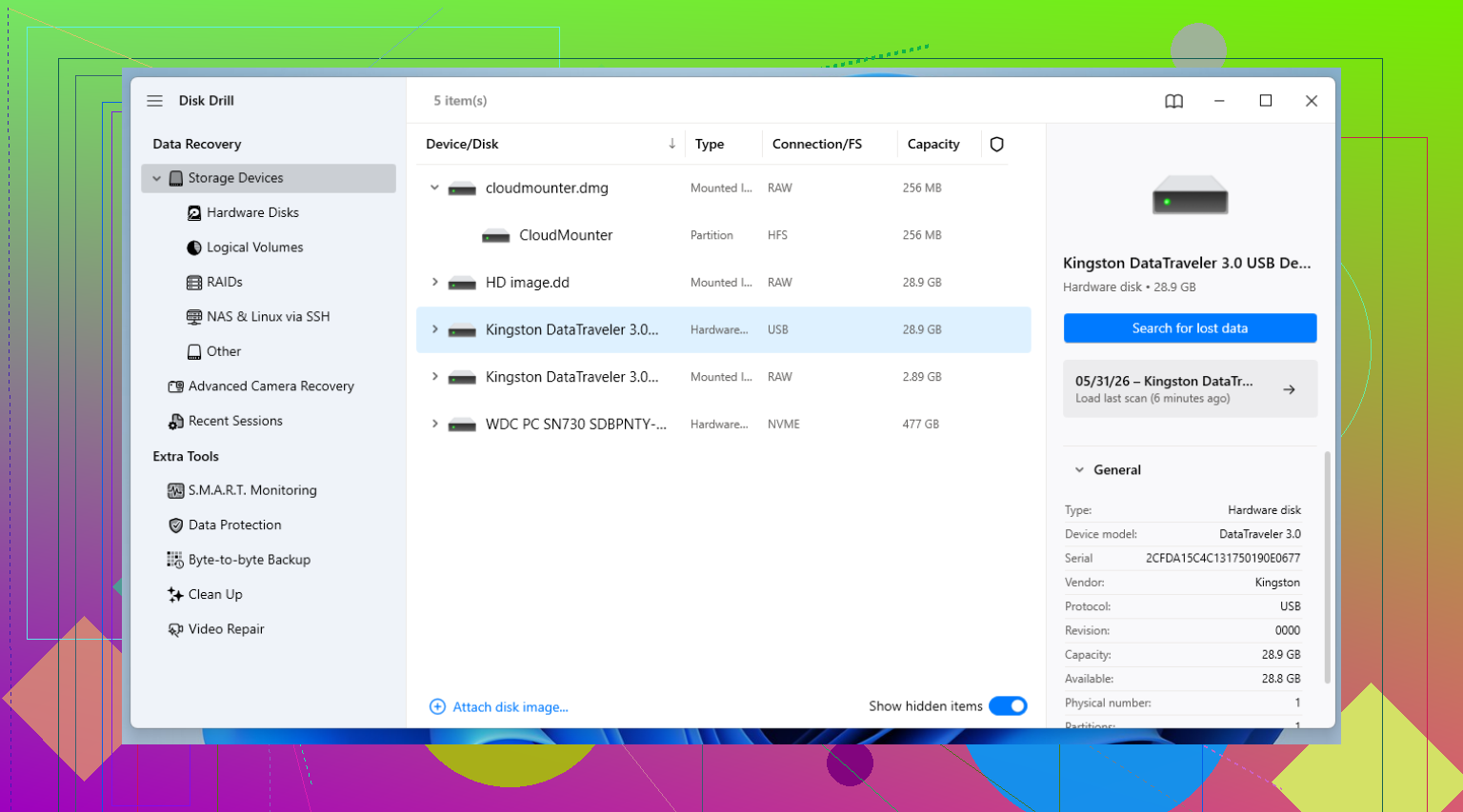
If the files matter, I’d start with recovery software instead of repair tools. I’ve had decent results with Disk Drill, mostly because it doesn’t bury the useful stuff. The big feature for damaged cards is the byte-to-byte backup.

This part matters more than people think. When a card starts failing, every read adds more strain. With Disk Drill, you can clone the whole card into an image file, sector by sector. Then you work from the copy on your computer instead of hammering the original card over and over. I’ve had one card die halfway through testing, so yeah, I’d do the image first if the data has any value.

What I usually do after recovery

Once the files are safe, or once you’ve decided the card is disposable, then move on to fixing it.

1. Check the boring stuff first

Sounds dumb. Still worth doing. Try another USB port. Try another reader. Those tiny adapters bundled with microSD cards fail all the time. I keep one cheap reader around as a spare, and it has caused more false alarms than the cards themselves. If your laptop has a built-in slot, test with a separate USB reader too. A flaky connection looks a lot like corruption.

2. Look in Disk Management

On Windows, open Disk Management from the Start button menu. If the SD card shows up there but has no drive letter, Windows might not know how to mount it in File Explorer. Right-click the card, pick “Change Drive Letter and Paths,” then assign a free letter. I’ve seen cards come back online from this alone. Weird, but it happens.

3. Run the built-in repair check

If the card appears in File Explorer, right-click it, open Properties, go to the Tools tab, then hit Check. This is the safer first pass. It looks for file system damage and tries to patch it. I treat it like a low-risk cleanup step, not a miracle fix.

4. Use CHKDSK if the simple repair does nothing

Open Command Prompt or Terminal as Administrator and run chkdsk X: /r, swapping X for the card’s drive letter. The /r switch tells Windows to scan for bad sectors and try to recover readable data. On bigger cards this drags. I’ve had it run long enough for me to forget I even started it. Also, I don’t run this before recovery if the files matter. Learned that one the annoying way.

5. Try TestDisk if the partition vanished

If the card shows as unallocated, empty, or missing its partition, TestDisk is worth a look. It’s open source and ugly in the old-school utility way, but it’s legit. Better for people who don’t mind text menus and reading carefully before pressing Enter. If your card looks blank even though you know it isn’t, this tool has saved a lot of people.

6. Format it if you’ve given up on repair-by-repair fixes

If none of the above helps, formatting resets the file system. If a normal format fails, a low-level format tool is the next thing I try. Afterward, I usually pick exFAT for SD cards because it works across most devices and doesn’t choke on large video files.

One thing I stopped doing

If a card corrupts once, I stop trusting it for important work. Maybe it was a bad eject. Maybe the flash memory is wearing out. Doesn’t matter much when you’re staring at missing files. I’ll reuse those cards for throwaway transfers or testing, but not for photos I’d care about. For anything serious, I replace it with a fresh card from a decent brand like SanDisk or Kingston.

Also, yeah, use Eject. Every time. I skipped it plenty of times when I was rushed, and a few of those cards bit back later. Small habit, less pain.
Do not format it. Do not run repair first. I agree with @mikeappsreviewer on the recovery-first part, but I’m less sold on jumping into CHKDSK early. CHKDSK is fine for a throwaway card. For photos and video you care about, it sometimes “fixes” the file system by dropping damaged entries, which means fewer files left to recover later. Been there, it sucks. What I’d do: 1. Clean the contacts with a dry microfiber cloth. 2. Try a different card reader, not the camera. 3. Test on another computer. Different OS helps. 4. If the card shows the right size in Disk Management or Disk Utility, make an image of it first. 5. Scan the image, not the card. Disk Drill is good here because it handles SD cards well and lets you scan the backup image instead of stressing the original media. If your camera shot JPEG plus MP4 or MOV, look for a deep scan or signature scan mode. That often pulls media even when the file system is toast. If the card reads as 0 bytes, disconnects randomly, or gets hot fast, stop. That points more to hardware failure than file system damage. At that point I’d skip home repair stuff and go to a lab if the files are irreplaceable. Also, after you get the files back, retire the card. Corruption tends to come back. For a step-by-step video, this helped: watch how to recover files from a corrupted SD card.
Please Help, How To Recover Data From A Corrupted SD Card?
Don’t click Format, and don’t put it back in the camera. I mostly agree with @mikeappsreviewer and @espritlibre on recovery-first, but I’m gonna disagree a little on one thing: I wouldn’t even bother with Windows repair checks if the photos are truly important. Windows tools are fine when the card is expendable. Your data isn’t. What I’d add: - Check the little lock switch on the SD adapter if you’re using microSD. Sounds silly, but that switch causes weird behavior all the time. - If the card mounts for even a minute, copy the entire DCIM folder first before trying full recovery. - On Linux or macOS, sometimes a card that Windows wants to format will still show enough to image properly. - If you hear disconnect-reconnect sounds nonstop, stop messing with it. That’s often physical failure, not just corruption. Best route is: make a disk image, then recover from the image. Disk Drill is a solid pick for that because it can create the backup and scan it without beating up the original card over and over. Recuva is usually too limited for this kind of mess, IMO. Also, if recovered videos won’t play, don’t assume they’re dead. Sometimes they need repair after recovery because the container got damaged. Extra reading here: smart tips for recovering data from a corrupted SD card And yeah, once you get anything back, retire that card. It’s probly done.
Please Help, How To Recover Data From A Corrupted SD Card?
I’m with @espritlibre, @suenodelbosque, and @mikeappsreviewer on one big point: recovery first. Where I slightly disagree is the “copy DCIM first if it mounts for a minute” idea. If the card is unstable, I’d rather spend that brief window making a full image than cherry-picking folders. You only get so many good reads before a dying card gets worse. A couple things nobody’s stressed enough yet: - Check whether the card shows the correct capacity in a tool like CrystalDiskInfo alternatives or your OS storage panel. If capacity is wildly wrong, that can point to controller failure, not just file system corruption. - Avoid file recovery tools that “sort of” preview files but don’t verify recovery quality. Photos opening is one thing, videos are the real test. - If the card came from a phone, drone, or action cam, some files may be fragmented in ways basic undelete tools miss. In that case, a deeper scan matters more than a quick deleted-file pass. Disk Drill makes sense here mostly because imaging and scanning the image is the right workflow. Pros: - easy byte-to-byte backup - good media file signature scan - simple enough not to make a bad situation worse Cons: - not the cheapest option - deep scans can return messy filenames/folder structure - on severe hardware failure, software won’t save you anyway One more thing: if recovered videos are important, test them fully, not just the first few seconds. Corrupted tails are common. After recovery, bin the card. Not “maybe reuse later.” Bin it.