I accidentally deleted my Outlook PST file while cleaning up old files, and now I can’t access important emails, contacts, and folders. I need help figuring out the best way to recover a deleted PST file in Outlook without making things worse or losing more data.
I did this once with an Outlook PST and the error hit me right in the stomach. “File cannot be found” looks small on screen, but it usually means Outlook lost the one file you did not mean to touch. Most of the time it happens after cleaning Documents, Downloads, or an old backup folder.
First thing, stop using the PC more than you need to. When Windows deletes a file, it often removes the pointer first and leaves the data sitting there until something else takes its place. If you keep installing stuff, downloading files, or even filling browser cache, you raise the odds of overwriting the PST.
What I’d do first
Start with the dumb checks. They save time.
1. Check Recycle Bin and cloud trash
Look in Recycle Bin. If you pressed Delete, the PST might still be there. If you used Shift+Delete, it skipped the bin.
Then check any sync service tied to Documents or Desktop. OneDrive and Dropbox both keep deleted items for a while. Dropbox also keeps version history, which helped me once with a mangled archive. Sign into the web dashboard and check there, not only the local app.
2. Try Windows previous versions
This one is hit or miss. Open the folder where the PST used to live, often:
C:\Users\YourName\Documents\Outlook Files
Right-click the folder, choose “Restore previous versions.” If Windows had shadow copies turned on, you might see an older snapshot. Open one of those and copy the PST out to another location. Do not restore blind if you’re unsure what else sits in the folder.
If it’s gone gone
Then you’re in recovery-tool territory. Annoying, but still worth a shot.
3. Run a recovery scan
The most practical route is a file recovery app. I’ve seen people get PSTs back this way after a full delete. One tool people mention a lot is Disk Drill.
If you go this route, do it like this:
Install it on a different drive if you have one. A USB stick is fine too. The point is to avoid writing new data onto the same drive where the PST used to be.
Scan the system drive, usually C:.
Filter results by PST, or search for *.pst.
Do not grab the first result you see. Check file size.
This part matters more than people think. Outlook often creates a new empty PST after it loses the old one. Those fresh files are tiny, often around 265 KB. Your real archive, the one with years of mail and custom folders, is often much larger. I’d expect hundreds of MB, sometimes multiple GB.
If you find a large PST, recover it to Desktop or another safe folder. Not back into the original Outlook folder yet. I know, it feels slower. It avoids making the mess worse.
4. If Outlook already made a blank replacement
This trips people up. Outlook loses the old data file, then quietly makes a new empty one with a generic name. So you open Outlook and see an empty tree, or a stripped-down folder list, and it looks like everything vanished. The mail may still be recoverable. Outlook is simply pointing at the wrong file.
After recovery, open Outlook and use:
File > Open & Export > Open Outlook Data File
Browse to the recovered PST on your Desktop and open it. If the recovery worked, your old folders should show up in the left pane. Check a few folders before changing account settings. Once you know the data is intact, go into Account Settings and switch the default data file back to the recovered PST.
One detail people miss
5. IMAP accounts are a mixed bag
If your mail account used IMAP, such as Gmail or Comcast, the inbox itself often lives on the server too. Re-adding the account in Outlook usually rebuilds a new OST and pulls mail back down. That part is the good news.
The bad part is local-only stuff. If you kept archives, custom local folders, or mail rules tied to a PST stored only on your machine, those were not living on the server. Those items depend on recovering the deleted PST.
So if your inbox returns after re-adding the account, don’t assume you’re done. Check old project folders, saved receipts, local archives, and anything under “On My Computer” or separate data files. I’ve seen people miss this and notice two weeks later when they need one old thread.
After the panic part
If you get the file back, move it somewhere safer. I’d keep the PST in a location backed up by cloud sync, or export a copy to an external drive on a schedule you will stick to. Weekly is boring. Weekly works.
Outlook does a poor job of warning you when one deleted file wipes out your mail history, folder layout, and years of saved junk you suddenly need on tax day. So the safety net has to come from you.
If the scan finds a large PST, your odds are decent. If all you see are tiny new files, things get rough fast. Still, I’d check every recovery result before giving up. I missed the right file on my first pass becuase the name looked wrong.
12 Likes
If Outlook lost the PST, I’d check one thing before doing more file recovery work. Search Windows for .pst and sort by Date Modified. Outlook often points to the wrong file after a delete, or the PST got moved instead of erased. I’ve seen old archives sitting in AppData, old profile folders, or on a second drive.
Also check Outlook itself. File, Account Settings, Data Files. If the entry is there but broken, note the full path. That tells you where to search and what size range you’re after.
I agree with @mikeappsreviewer on one point, Disk Drill is a solid option when the file is gone from normal search results. I disagree a bit on Desktop as a recovery spot, I’d restore to an external drive if you have one. Less risk, less mess.
If you do get a PST back, run scanpst.exe on the recovered file before opening it in Outlook. Microsoft’s Inbox Repair Tool fixes index damage and header issues. Path is often under Office install folders, and file size matters. A 2 GB PST with repairable errors is worth more than a fresh 300 KB empty file.
If mail was POP, the PST mattered a lot. If it was Exchange or IMAP, your server mail returns after profile rebuild, but local folders, old contacts, calendar items, and auto-archive stuff do not. People miss that part all the time.
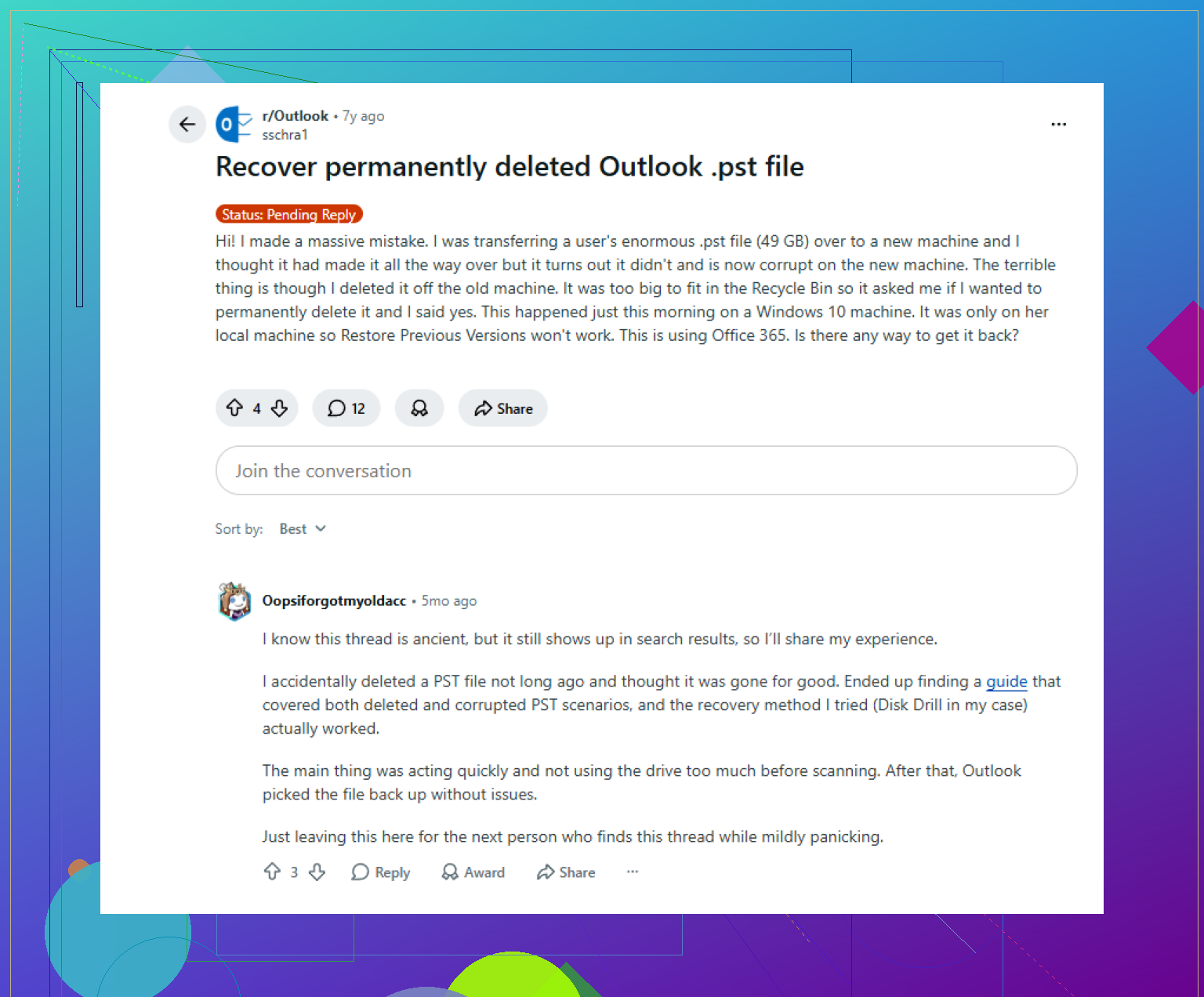
This thread on recovering a permanently deleted Outlook PST file has some useful real-world cases too. It’s a solid read if you want extra examples beofre trying anything.
One thing I’d add to what @mikeappsreviewer and @ombrasilente said: check whether the PST was ever indexed or attached to a different Outlook profile. A lot of people jump straight into recovery software, but Outlook profiles can get weird and still “remember” old data file paths even after the file gets moved.
Open Control Panel > Mail > Show Profiles and see if there’s an older profile that still points to the original PST. I’ve seen this happen after Office updates or profile corruption, and it looks like the file is deleted when it’s really just orphaned. Kinda dumb, but very Outlook.
Also, if you use File History or Windows Backup, don’t just restore the whole folder. Restore the PST copy to a separate location first, then test it. Restoring over the top of a newer profile setup can create a second mess.
I slightly disagree with the “recover it and open it right away” approach. If the file was partially overwritten, opening it in Outlook too soon can sometimes trigger more errors or reindexing junk. Better move is:
- Recover the PST to another drive
- Make a copy of that recovered file
- Run ScanPST on the copy
- Only then test it in Outlook
If the file is truly deleted and not in backups, Disk Drill is one of the more practical ways to recover a deleted Outlook PST file because it can find lost PST files by type and size, which matters when Outlook has already made a tiny replacement file. For a quick overview, this guide to Disk Drill features for Outlook PST recovery is worth a look.
One more thing people miss: AutoComplete addresses are not your contacts. So even if mail comes back from IMAP or Exchange, those cached addresses might not. Same with old calendar entries stored only in the local file. That’s why the PST itself matters more than ppl think.
One angle missing from what @ombrasilente, @mike34, and @mikeappsreviewer covered is this: check whether the deleted PST was ever copied into Outlook’s AutoArchive location or an old export folder. Outlook users forget they exported mail years ago, then panic over the “main” PST while a nearly complete backup is sitting in Documents, an external drive root, or a dated backup folder.
I’d also avoid chkdsk or any “drive repair” tools before recovery. Slight disagreement with the usual shotgun approach there. If the file system is flaky, those tools can change metadata and make file recovery harder.
If the PST is truly deleted, Disk Drill is a reasonable choice because it tends to surface PST files by signature, not just filename.
Pros of Disk Drill
- Good file-type filtering
- Usually easy to spot large PSTs
- Preview and recovery workflow is simple
Cons
- Recovery quality depends on overwrite damage
- Deep scans can return lots of junk
- Best features are not always fully free
One more Outlook-specific trick: if you had Cached Exchange Mode off, some items may have lived more directly on the server than you think. But if you had manual archives, old personal folders, or exported contacts, only the PST recovery brings those back.
Best practice after recovery:
- duplicate the recovered PST
- test the copy in Outlook
- export critical folders into a fresh new PST afterward
That reduces the chance of trusting a half-damaged file long-term.