My USB flash drive was formatted as exFAT and suddenly became corrupted. Windows asks me to format it, but I need to recover important files before doing anything that could make things worse. What are the safest steps or tools for exFAT USB file recovery?
Stop using the exFAT drive right away. That’s the main thing. Don’t copy new files to it, don’t let Windows format it, and don’t run CHKDSK or other repair tools yet. Deleted or formatted exFAT data often isn’t wiped immediately. The space usually just gets marked as free, and the files may still be recoverable until something overwrites them.
exFAT shows up on a lot of removable storage, like USB drives, SD cards, external SSDs, and external hard drives, so this is a pretty common situation. If it’s an external hard drive or SSD and the files were deleted through Windows, check the Recycle Bin first. With USB flash drives and SD cards, deleted files usually skip the Recycle Bin, so it may be empty even if the files were just deleted.
After that, recovery software is usually the next step. This list is a good place to start: recovery software.
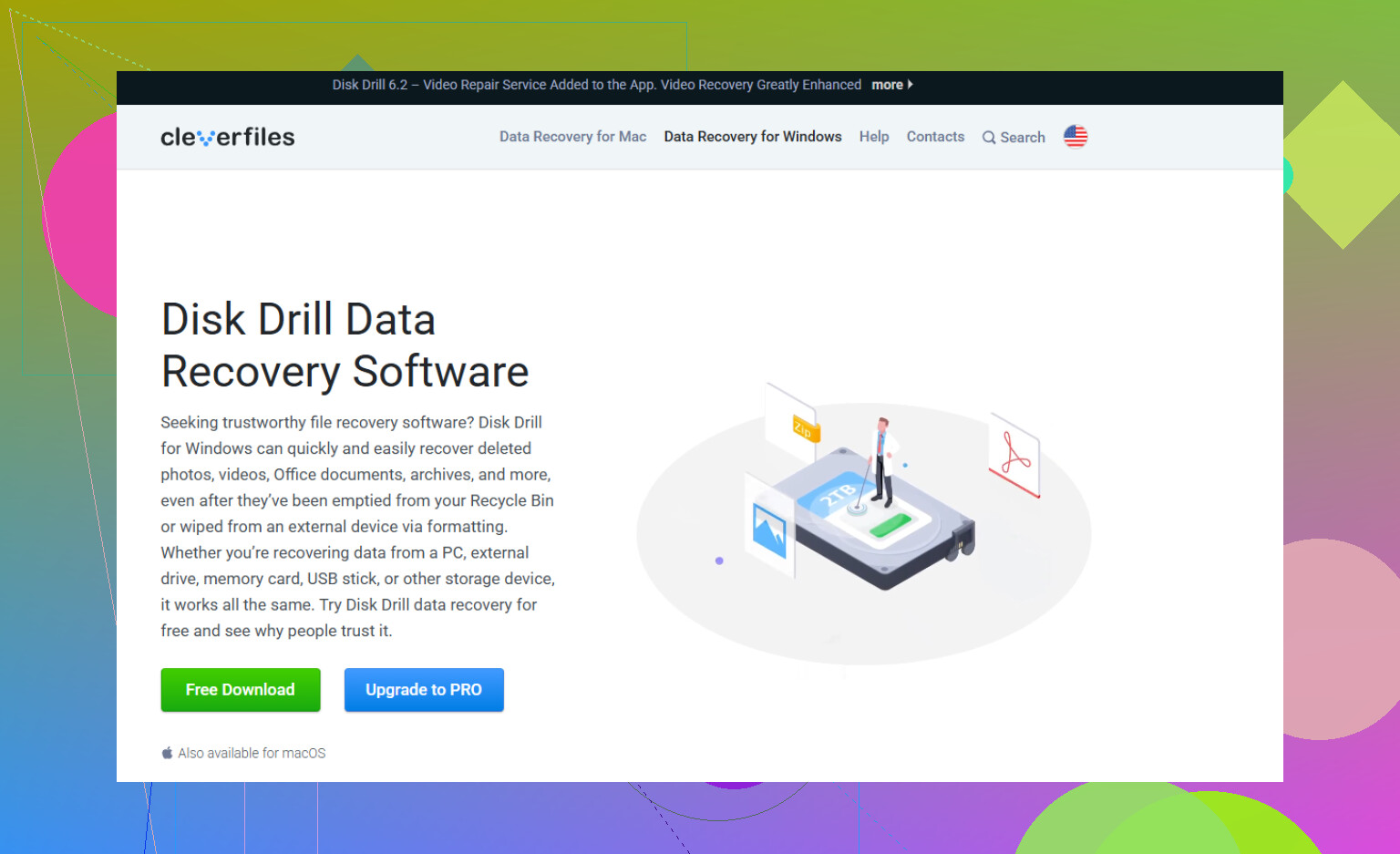
I’d personally try Disk Drill first if you want something straightforward. It handles deleted files, formatted drives, and corrupted exFAT volumes pretty well without making you fight the interface.
- Install Disk Drill somewhere other than the exFAT drive you’re trying to recover.
- Plug in the exFAT drive and wait for it to show up in the app.
- Run a scan. Universal Scan is usually the one to use.
- Let it finish, or start checking found files while it’s still scanning.
- Preview the files before recovering them.
- Recover them to a different drive. Do not save anything back to the original exFAT device.
If you’d rather use a free tool, TestDisk is worth a look. It’s not as friendly and it’s more technical, but it can be very good when the issue is a missing or damaged partition instead of simple file deletion. It’s helped plenty of people get exFAT partitions back without reformatting.
The one big catch is SSDs. If the exFAT device is an SSD, TRIM can affect whether recovery is possible. TRIM tells the SSD which blocks are no longer needed after deletion. Once the SSD clears those blocks internally, recovery software usually can’t get the files back. Internal SSDs commonly use TRIM, so deleted files may be gone pretty quickly. External SSDs over USB are a bit less predictable because TRIM may not pass through properly, so recovery can still be possible sometimes. Regular hard drives, USB flash drives, and most SD cards don’t work the same way, so the odds are often better there.
If the drive clicks, drops connection, doesn’t show up on any computer, or looks physically damaged, I’d stop DIY recovery attempts. That sounds more like hardware failure, and repeated scans or power cycles can make the situation worse. At that point, a professional data recovery service is the safer route.
If it’s only a file system or deletion issue, exFAT recovery can go pretty well. The key is acting fast, avoiding writes to the drive, and saving recovered files somewhere else.
11 Likes
Do not let any recovery program “repair” the USB before you have copied the files or made an image of the drive. A lot of people see a button that says fix, rebuild, repair, initialize, or format and click it because it sounds harmless. On a corrupted exFAT volume, that can turn a recoverable mess into a worse mess.
I agree with the no-CHKDSK advice above, but I’d be a little more cautious about scanning the flash drive directly if the files matter a lot. USB sticks can fail while being read, and recovery scans are read-heavy. If the drive is still detected with the correct size, the safer route is to make a sector-by-sector image of it to another disk first, then run recovery against the image. Tools like ddrescue are good for that, though not very beginner-friendly. Some recovery apps can create disk images too, so check for that option before starting a long scan.
If you just need the simplest practical path, use Disk Drill or another recovery tool in read-only scan mode, preview what it finds, and recover to your computer or a different external drive. Do not recover back to the same USB stick. After your data is off, then you can test the flash drive, reformat it, or throw it away if it keeps acting flaky. For important files, I would not trust that USB stick again even if it formats successfully.
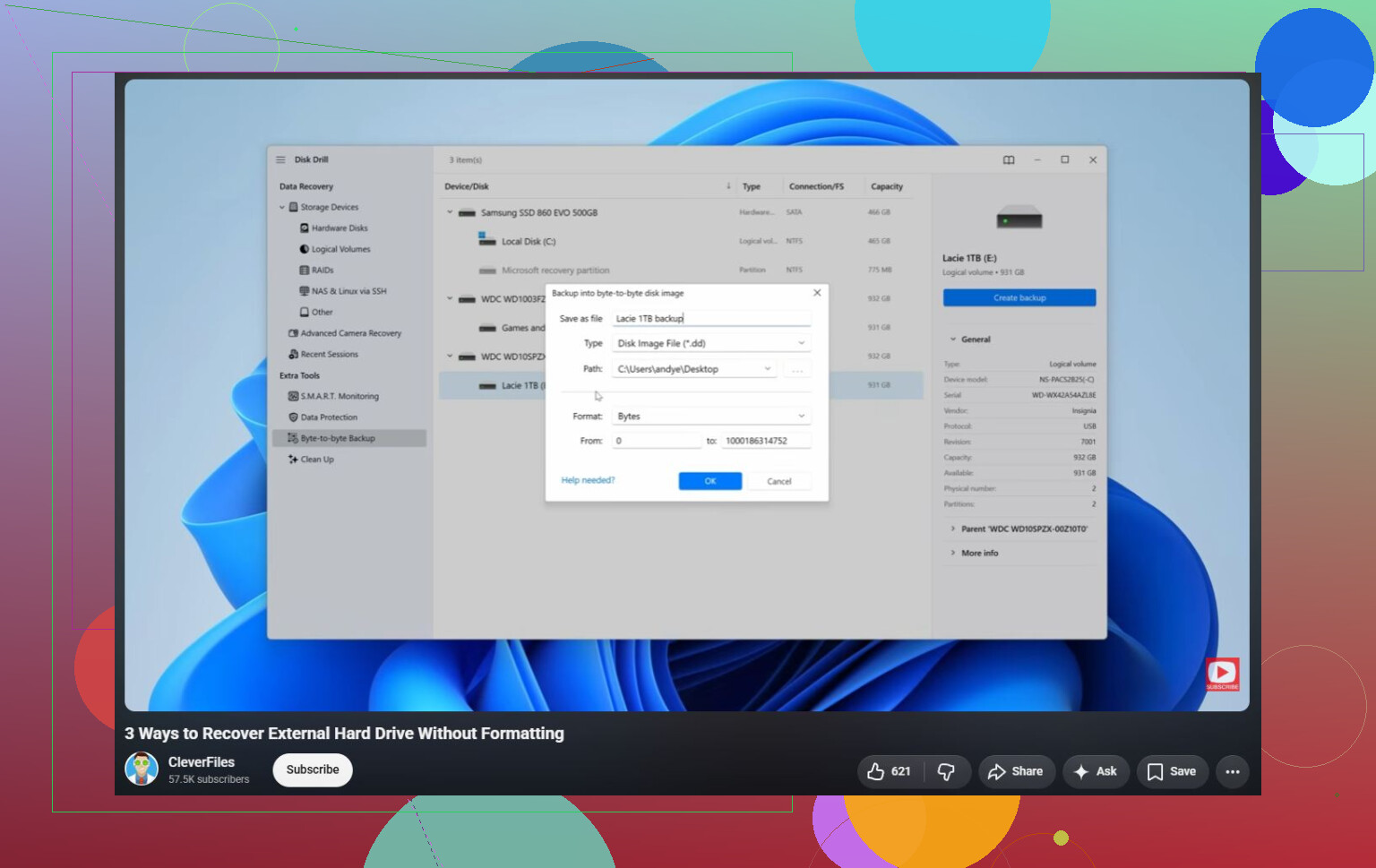
Do not keep unplugging and replugging it over and over hoping Windows will suddenly mount it. Cancel the format prompt, then check Disk Management first. If the USB shows the correct capacity, recovery software has something to work with, and Disk Drill or similar can scan it, preferably after making an image. If it shows 0 bytes, no media, or keeps disappearing, stop there because that is probably not an exFAT problem anymore. That is the point where repeated scans can waste the remaining life of the stick, and a lab is the safer option if the files are worth paying for.
Do not initialize it.
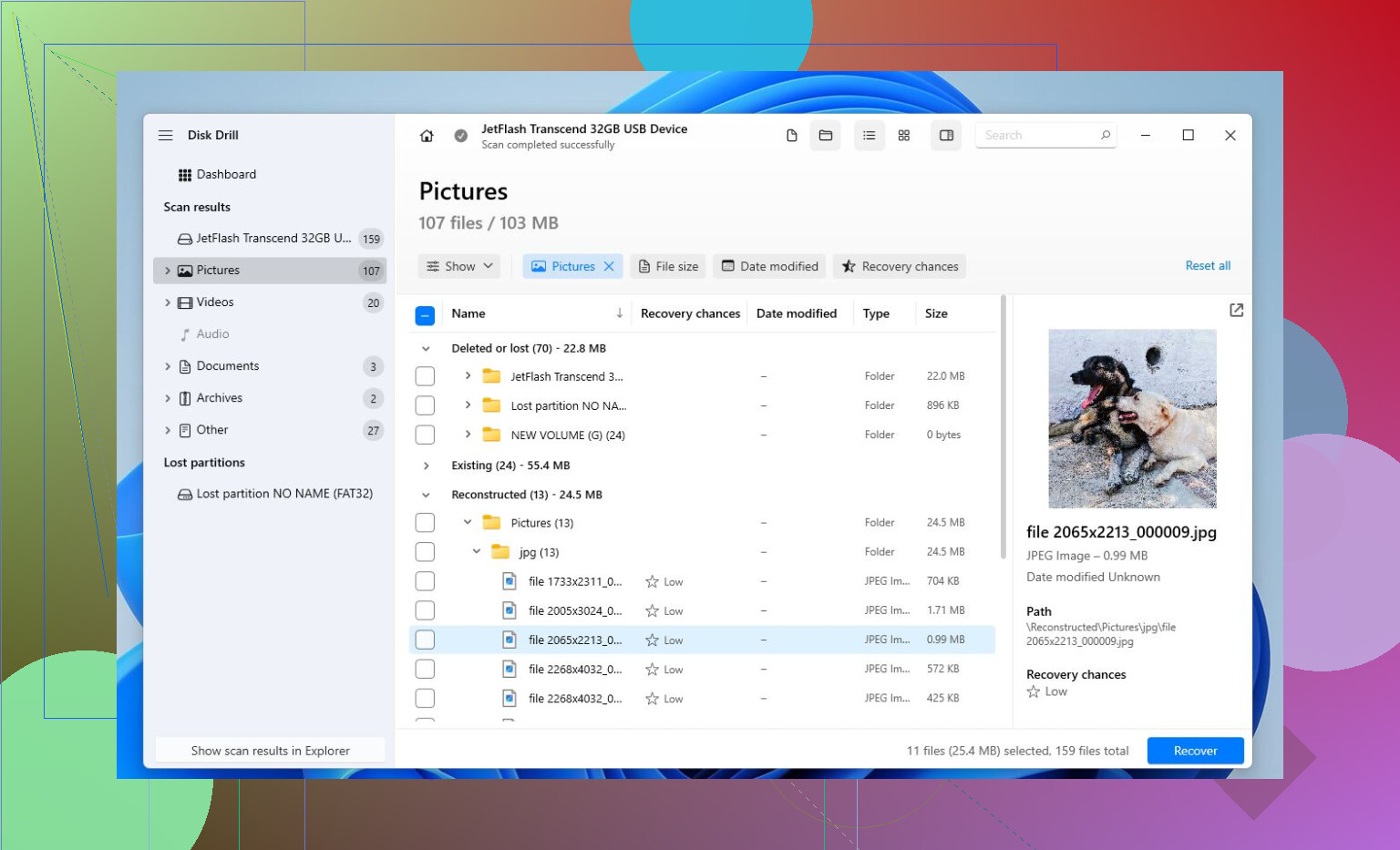
Windows may call the volume RAW, ask to format it, or sometimes suggest fixing it. Treat all of those as write operations until proven otherwise. The annoying bit with exFAT is that if the directory structures are damaged, a recovery scan may find your photos/docs/videos but not always with the original folders or filenames. So if a tool shows two groups like “existing/lost partition” and “found by signature,” check the first one carefully before grabbing a giant pile of renamed files.
I agree with the image-first advice, but if you don’t have another drive large enough, don’t turn this into five different full scans with five different apps. Pick one sane attempt, recover the most important stuff first to a different disk, then experiment later. Disk Drill is fine for that if it can preview the files before recovery, but don’t use any option that says repair, rebuild, or write changes back to the USB.
After recovery, assume the stick is disposable. Even if it formats and passes a quick test, a USB flash drive that randomly flips to “needs formatting” is not where I’d put the only copy of anything important again.