My WD My Passport external hard drive suddenly stopped showing up on my Windows PC, and I can’t access important files stored on it. It powers on, but it’s not appearing in File Explorer or Disk Management. I need help with safe WD My Passport data recovery steps to figure out if this is a connection issue, drive failure, or something I can fix without losing my data.
I’ve dealt with a few WD My Passport scares, and yeah, it sucks when one starts acting off. Most of mine were fine for years, then one day a drive went weird and the stress hit fast.
First thing I’d do, stop using it now. If files were deleted by mistake, or the drive is lagging, disconnecting, freezing Explorer, any extra activity raises the odds of overwriting data or pushing weak hardware further.
Open Disk Management from the Start button menu. Look for the Passport there. If it shows up with the right capacity, even if Windows labels it RAW or Unallocated, I’d treat it as a decent DIY recovery case. If it does not appear there at all, or you hear clicking, grinding, repeated spin-up sounds, I’d stop and think lab recovery, not home fixes.
What I’d do first for recovery
If the system still detects the drive, I’d start with recovery software. I’ve tried a pile of them over time, and for this kind of WD external, I keep coming back to Disk Drill.
Main reason, it handles the file systems these drives usually show up with, NTFS, FAT32, and exFAT, without much fuss. For a normal user, the workflow is easier than most tools I tested.
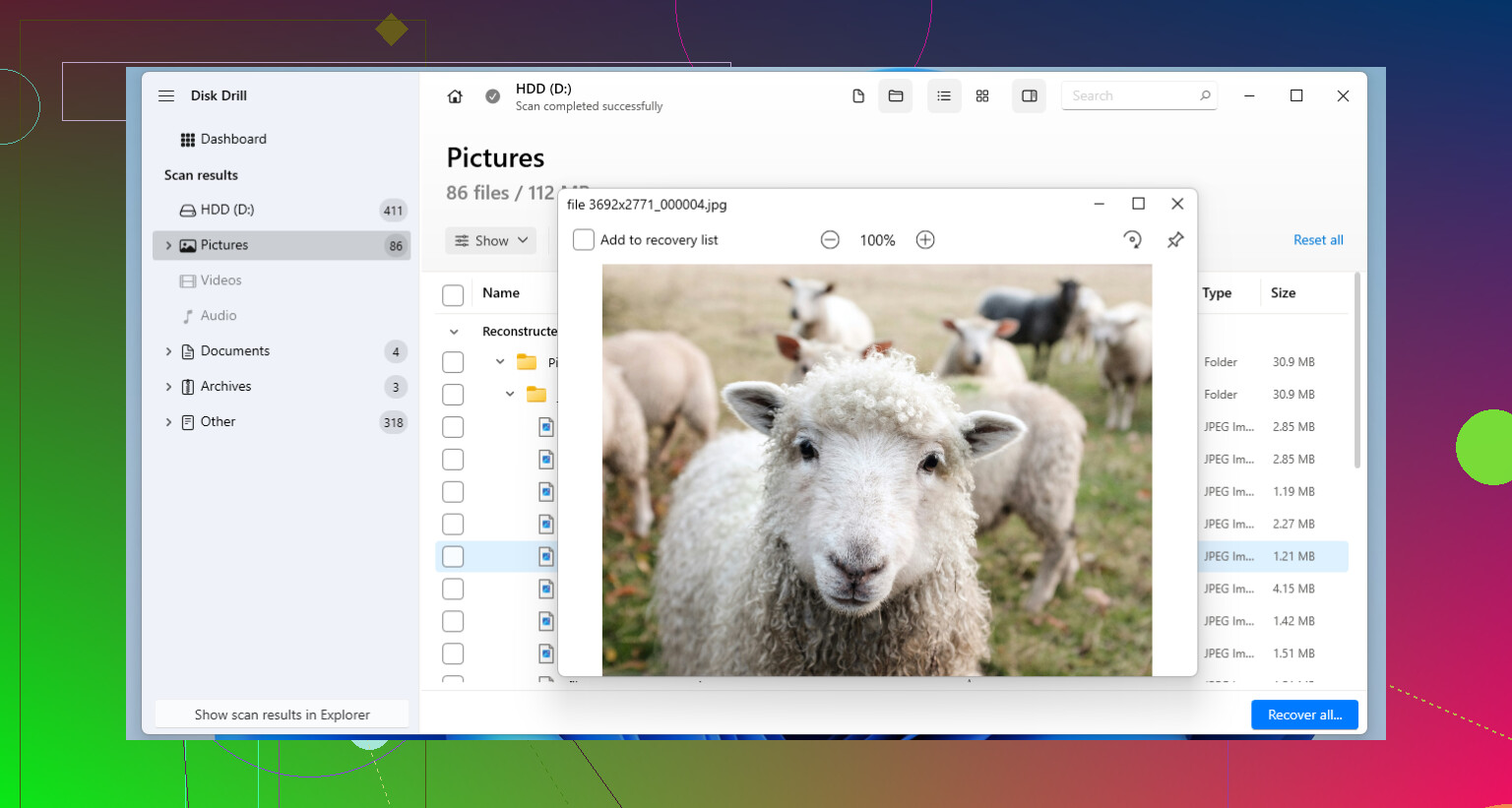
One thing I learned the hard way. If the Passport is slow, drops offline, or hangs during reads, make an image first. Inside Disk Drill, use the byte-to-byte backup option. Scan the copy, not the original disk. Long scans on a weak drive are rough on it, and I’ve seen borderline drives get worse mid-scan.
Other tools people usually try
For a plain deleted-file mess, Recuva is still worth a shot. Old interface, sure. Still useful for simple mistakes. If your drive is healthy and you removed a few files by accident, I’d test this before going into heavier tools.
If you know your way around storage tools and the issue looks more like a missing partition or an uninitialized disk, TestDisk is one of those old forum favorites. It’s free, it works in cases where Windows lost the partition layout, and sometimes it restores access without a full carve scan. I would be careful, though. It’s easy to press through the wrong option if you’re tired or rushing.
One WD My Passport thing people miss
Don’t pull the drive out of the enclosure unless you know the encryption situation. A lot of My Passport models use hardware encryption through the USB board in the case. I saw one person remove the disk, hook it up another way, and Windows showed nonsense. Looked empty. The data was still there, but unreadable through a different path. If the USB port on the enclosure is damaged, board repair by someone who knows microsoldering is the safer route.
If you turned on WD Security and set a password, you need that password. No cute workaround here. The AES-256 hardware encryption on these units is serious, and recovery tools won’t read your files until the drive is unlocked with WD’s software.
After you get your files back, set up some kind of backup, anything you’ll stick with. WD points people toward Acronis True Image now. Fine. I’ve also done the low-effort version, copy the stuff you care about to another drive and keep a cloud copy for the irreplaceable parts. Saved me later, no joke.
17 Likes
If it does not show in Disk Management at all, I would spend less time on file system fixes and more time on detection checks. I differ a bit from @mikeappsreviewer there. Recovery apps help only after Windows sees the device at some level.
Try this first.
- Use a different USB cable, if your model has one.
- Plug it into a rear USB port on the PC, not a hub.
- Test on a second computer.
- Open Device Manager, look under Disk drives and Universal Serial Bus controllers.
- Also check View, Show hidden devices.
If Device Manager flickers when you plug it in, the USB bridge board is at least doing somthing. If nothing changes on two PCs, the enclosure board or drive has likely failed.
One trick people skip. In Disk Management, go to Action, Rescan Disks. Then open an admin Command Prompt and run:
diskpart
list disk
If it appears in diskpart but not Explorer, Disk Drill is worth trying for recovery. If scans freeze, stop. If the drive clicks, stop faster.
Also check WD SES driver issues. Older My Passport units sometimes show weird behavior on Windows after updates.
For a quick visual guide, watch how Disk Drill recovers files from an external drive.
If the data matters more than the drive, don’t keep rebooting and replugging it 40 times. That part gets ppl in trouble fast.
If it’s not in Disk Management at all, I’d spend less time on partition/file system ideas and more on whether Windows is even seeing the USB device chain. @mikeappsreviewer and @shizuka already covered the obvious checks, so I’d look one layer lower.
Open Event Viewer and check:
- Windows Logs > System
- filter for Disk, Ntfs, Kernel-PnP, stornvme, USBHUB, usbstor
Plug the Passport in and watch for fresh errors. If you see repeated reset / I/O / bad block events, that tells you more than Explorer ever will.
Also try USBDeview or DeviceCleanup to remove stale USB storage entries, then reconnect. Windows sometimes gets weirdly stuck on old device records after updates. Rare, but I’ve seen it.
Another thing people miss: power delivery. Some Passports light up and spin, but still brown out during enumeration. On a desktop, try a powered USB hub just for testing. Sounds backwards, but it can help identify a weak port issue.
If the drive briefly appears anywhere, clone first and recover from the clone. That’s where Disk Drill makes sense, not before. If you want a broader tool roundup, this data recovery software comparison guide for external drives is a decent starting point.
One place I kinda disagree with @mikeappsreviewer: I would not keep trying software if the drive is vanishing mid-read. That’s usually the point where DIY turns into making the lab bill worse. If the data is truly important, stop messing with it after a couple tests. Seriosuly.
One angle not covered enough: check whether the drive is exposing the wrong size in Device Manager or wmic diskdrive get model,size,status. If it shows 0 bytes, absurd capacity, or no model string, that points more to bridge firmware or failing internal drive comms than a Windows issue.
I slightly disagree with pushing too many USB cleanup tricks early. Past 1 or 2 tests, repeated reconnects can make a weak Passport worse.
Also, WD My Passport models often have onboard encryption through the USB-SATA bridge, so do not shuck it casually.
If it appears even briefly, clone/image first, then try Disk Drill.
Disk Drill pros:
- easy imaging workflow
- good NTFS/exFAT support
- simple for preview/export
Cons:
- not magic if Windows never detects the device
- deep scans can stress unstable hardware
- paid for full recovery
@shizuka, @voyageurdubois, and @mikeappsreviewer are right to focus on detection first. My cutoff is simple: if it clicks, disappears mid-read, or reports nonsense size, stop DIY and go to a lab.