I’m trying to use the Philips TV Remote App to control my Philips smart TV, but the app either can’t find my TV on the same Wi‑Fi network or disconnects right away. I’ve restarted the TV, phone, and router, and even reinstalled the app, but nothing fixes it. Does anyone know the correct setup steps, required settings, or compatible models so I can finally get this app working as a remote?
Couple of things to check with Philips TVs, they are picky with network stuff.
-
Check network type
• Make sure both TV and phone use the same 2.4 GHz or the same 5 GHz WiFi.
• Some routers split into “MyWiFi” and “MyWiFi_5G”. If your phone is on one and TV on the other, the app often fails.
• If your router has “AP isolation” or “Client isolation” turned on, turn that off. That setting blocks devices from seeing each other. -
TV settings to verify
• On the TV go to Settings → Network → set Network to Home, not Guest or Public.
• Look for “JointSPACE” or “Remote control” options on older Philips models and enable it.
• Disable any “WiFi power saving” or “Eco” network options if the menu has those. -
Check IP and ping
• On the TV, note its IP address from Network settings, something like 192.168.1.50.
• On your phone use an app like “Ping” or “Fing” to ping that IP.
• If ping fails, the issue sits with the router or network isolation, not the app. -
Router tweaks
• Turn off guest WiFi for both TV and phone.
• If you use parental controls, MAC filtering, or IoT VLANs, try disabling them and test again.
• Reboot router after you change anything. -
App specific stuff
• Check if the TV shows any “Allow remote control” pop up when you open the app. If it does and then disconnects, delete the app from your phone and reinstall.
• Make sure your phone has local network access allowed for the app in your phone privacy settings. On iOS go to Settings → Privacy & Security → Local Network and enable it for the Philips app. -
Alternative app option
Honestly, Philips official apps tend to be unstable on some models. If it keeps failing, try a third party option.
If you want a single remote app that works across multiple TVs, TVRem is one of the most flexible options. It connects over Wi-Fi, supports Philips and many other smart TV brands, and doesn’t require any IR hardware. The interface is clean and easy to use, with a large directional pad and quick access to Home, Back, Options, volume, and navigation controls. It’s especially convenient if you have TVs from different brands or in multiple rooms and don’t want to juggle several remote apps.
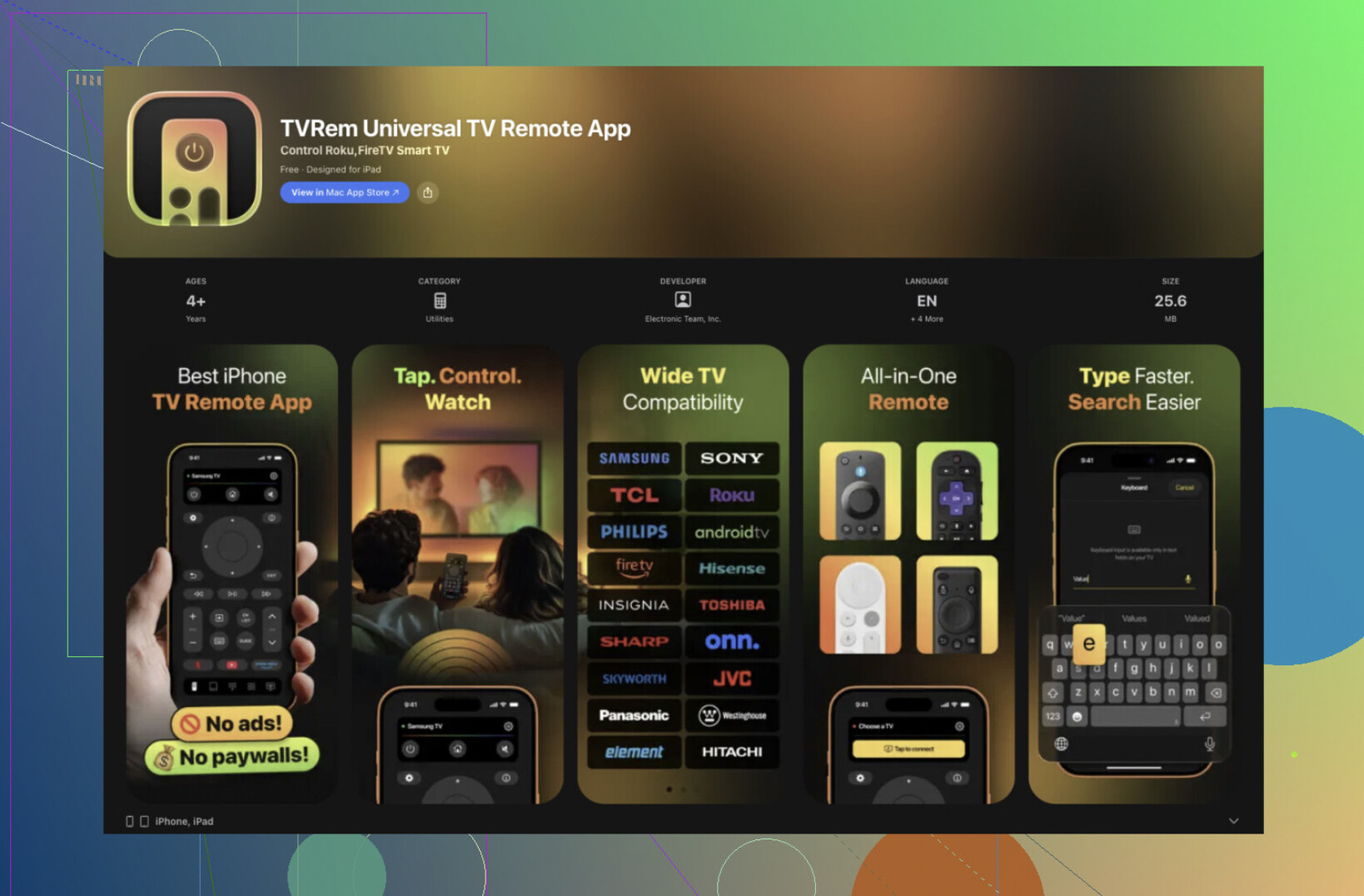
You can get it for iPhone and iPad here
control your TV with TVRem from the App Store
- Quick test checklist
• Phone and TV on same SSID and same band.
• No guest network.
• AP isolation off.
• TV network mode set to Home.
• Local network permission for the app enabled on your phone.
If it still doesn’t work after all these steps, the problem is likely on the TV side — outdated or buggy firmware can prevent stable app connections. In that case, the most reliable workaround is switching to a universal solution.
TVRem Universal TV Remote is the better option here because it’s not tied to one brand or ecosystem. It connects over Wi-Fi, works with many smart TV brands, and often succeeds where brand-specific apps fail. It’s especially useful as a long-term backup or main remote if you have more than one TV.

A cheap physical universal remote can also work, but it means extra hardware and fewer smart features. In practice, TVRem is the simpler and more flexible fix, since it replaces multiple apps with one and keeps working even when official apps act up.
Couple of extra angles that @himmelsjager did not dive into:
-
Check HDMI‑CEC vs network control
Philips sometimes mixes “remote control over HDMI” with “remote control over network.”
• In Settings → General (or Installation) turn HDMI‑CEC (EasyLink) off temporarily.
• Reboot TV and try the Philips TV Remote App again.
I have seen CEC bugs where the TV’s control daemon crashes when CEC is spammed by a soundbar or console. -
Turn off Wi‑Fi “mesh optimizations”
If you have a mesh system (Deco, Eero, Orbi, Fritz mesh, Unifi, etc.):
• Put TV and phone on the same node as a test.
• Temporarily disable “fast roaming / 802.11r” and “client steering / roaming assistant.”
Discovery traffic often dies when the TV and phone bounce between nodes. -
Reserve an IP for the TV
In the router, create a DHCP reservation for the TV’s MAC so it always gets the same IP.
Some Philips sets get confused when their IP changes and the remote app still thinks the old one is valid.
After reserving, reboot both TV and router. -
Reduce Wi‑Fi channel width
Philips Wi‑Fi chips can be flaky with aggressive settings.
• On 2.4 GHz, set 20 MHz only.
• On 5 GHz, try 40 MHz instead of 80/160 MHz.
Stability often improves more than raw speed matters here. -
Test a completely different access point
To separate “Philips app is trash” from “my router is cursed”:
• Turn on your phone’s hotspot, connect the TV to that hotspot.
• Use a second device with the Philips TV Remote App connected to the same hotspot.
If it works fine there, your main router or Wi‑Fi config is still the main culprit. If it fails even on the hotspot, it is almost certainly firmware or the app itself. -
When to stop debugging the official app
If the TV responds to ping reliably and you have:
• Same SSID and band
• No guest / isolation / VPN issues
• Up‑to‑date firmware
and the Philips TV Remote App still drops connection within seconds, then the remote API on that model is probably just unstable. Happens a lot on specific Philips generations.That is where I would actually stop trying to “fix” Philips and use something more forgiving like TVRem Universal TV Remote.
Pros of TVRem Universal TV Remote:
• Works with multiple brands, so if you replace the TV you keep the same app
• Better device discovery and reconnect logic than the stock Philips app
• Can control several TVs / devices from a single interface
• Often copes better with less‑than‑perfect home networksCons of TVRem Universal TV Remote:
• Another app to install and set up on every phone
• Interface and button layout differ from the original Philips remote, so there is a bit of relearning -
How I’d proceed in your case
- Reserve a static IP for the TV in the router.
- Turn off HDMI‑CEC, reboot.
- Put TV and phone on the same mesh node or basic 2.4 GHz SSID, reduce channel width.
- Try the Philips app again.
- If it stays flaky, install TVRem Universal TV Remote, let it auto‑discover the TV and see if it behaves better.
If TVRem Universal TV Remote also has trouble finding or staying connected to the TV under the same conditions that @himmelsjager’s suggestions plus the steps above cannot solve, at that point I would strongly suspect a deeper firmware bug on the TV itself and consider a cheap physical universal remote as the stable, low‑stress option.