I lost my Hisense TV remote and need a free iPhone app that actually works to control the TV. I tried a couple of remote apps from the App Store, but they either would not connect or wanted a paid upgrade. Looking for the best free Hisense TV remote app for iPhone and any setup tips that might help.
If you’re trying to find a free Hisense TV remote app for iPhone, the first thing I’d check is your TV’s system. Hisense sells sets with more than one platform, so the app pick changes fast depending on what you own.
I ran into this the hard way. One Hisense worked fine with one remote app, another one in the same house didn’t. The reason was simple. They weren’t running the same OS.
Hisense TVs show up with VIDAA, Roku TV, Google TV, Android TV, and Fire TV. So if an app fails, it isn’t always the app being bad. Sometimes it’s the wrong match.
These are the three I’d look at first.
This one made the least fuss in my testing. It covers a wide spread of Hisense setups, including Roku TV, Google TV, Android TV, and Fire TV. It’s free, and I didn’t hit ads or a paywall during setup, which is rare enough to mention.
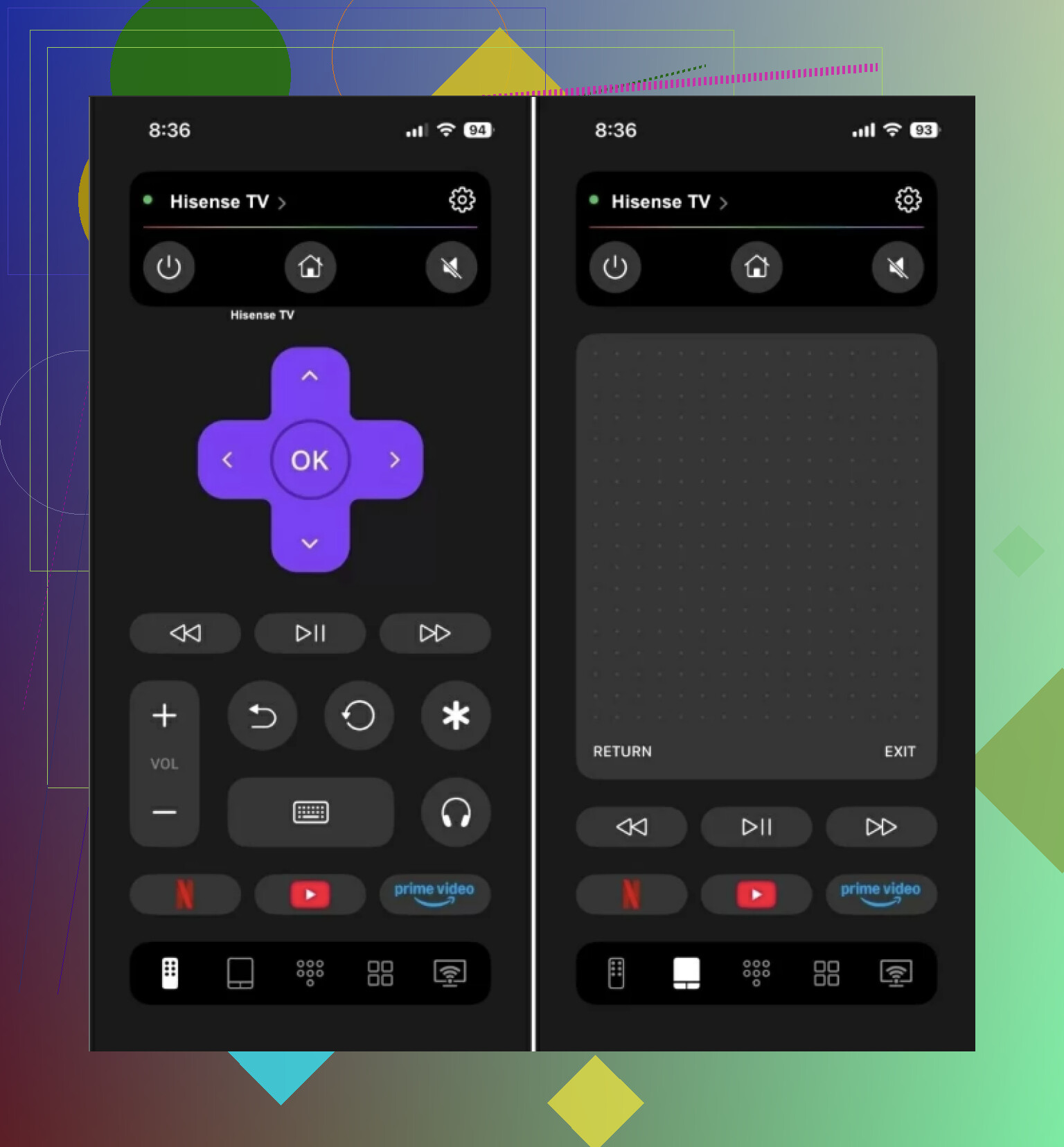
If your Hisense TV is not running VIDAA, this is usually the cleanest place to start.

What you get:
Volume control
Channel control
Touchpad navigation
Phone keyboard input
Voice search
Shortcuts for YouTube, Netflix, and other apps
Auto-detect for nearby devices
Why I’d put it first:
A lot of remote apps say free, then lock half the buttons. This one didn’t do tht. It also works beyond Hisense, so if you’ve got a Samsung in one room and a Roku box in another, you’re not stuck juggling five apps. It also supports Samsung, LG, Roku, Fire TV, and Apple TV devices.
- VIDAA
If your Hisense TV runs VIDAA, I wouldn’t overthink it. Use the official VIDAA app first.
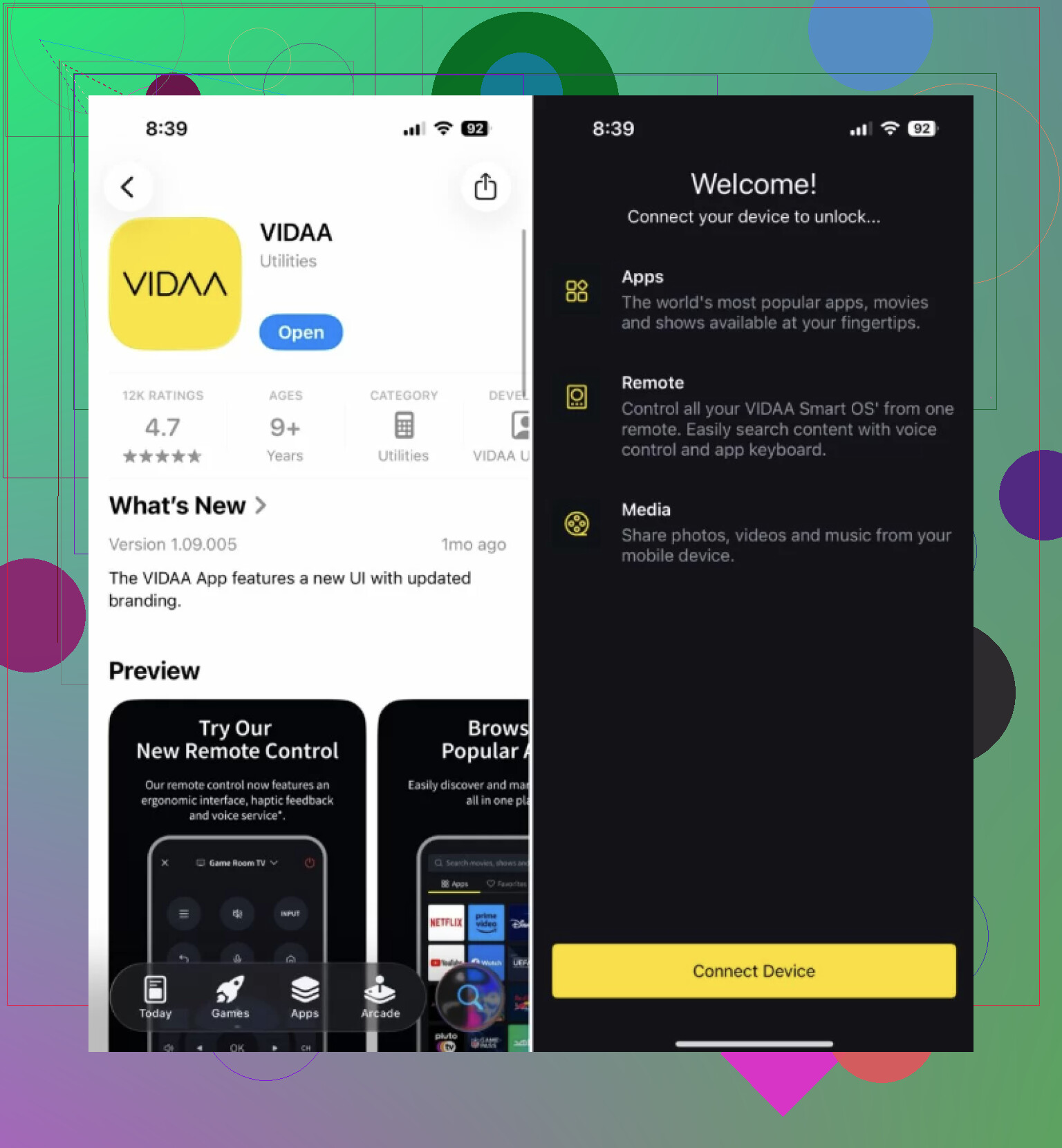
This is the direct fit for Hisense sets on VIDAA, which you’ll see a lot outside the U.S. I found it better for basic control than random third-party apps trying to cover everything at once. Pairing is usually simpler, and keyboard entry from the phone helps a lot when you’re typing passwords.
Main stuff included:
Official VIDAA support
Standard remote controls
Navigation
Keyboard input
Content suggestions
Best match:
Anyone with a Hisense TV on VIDAA OS.
- Remote for Hisense TV
This one is more narrow and feels aimed at people who want a Hisense-only option instead of a universal remote app.
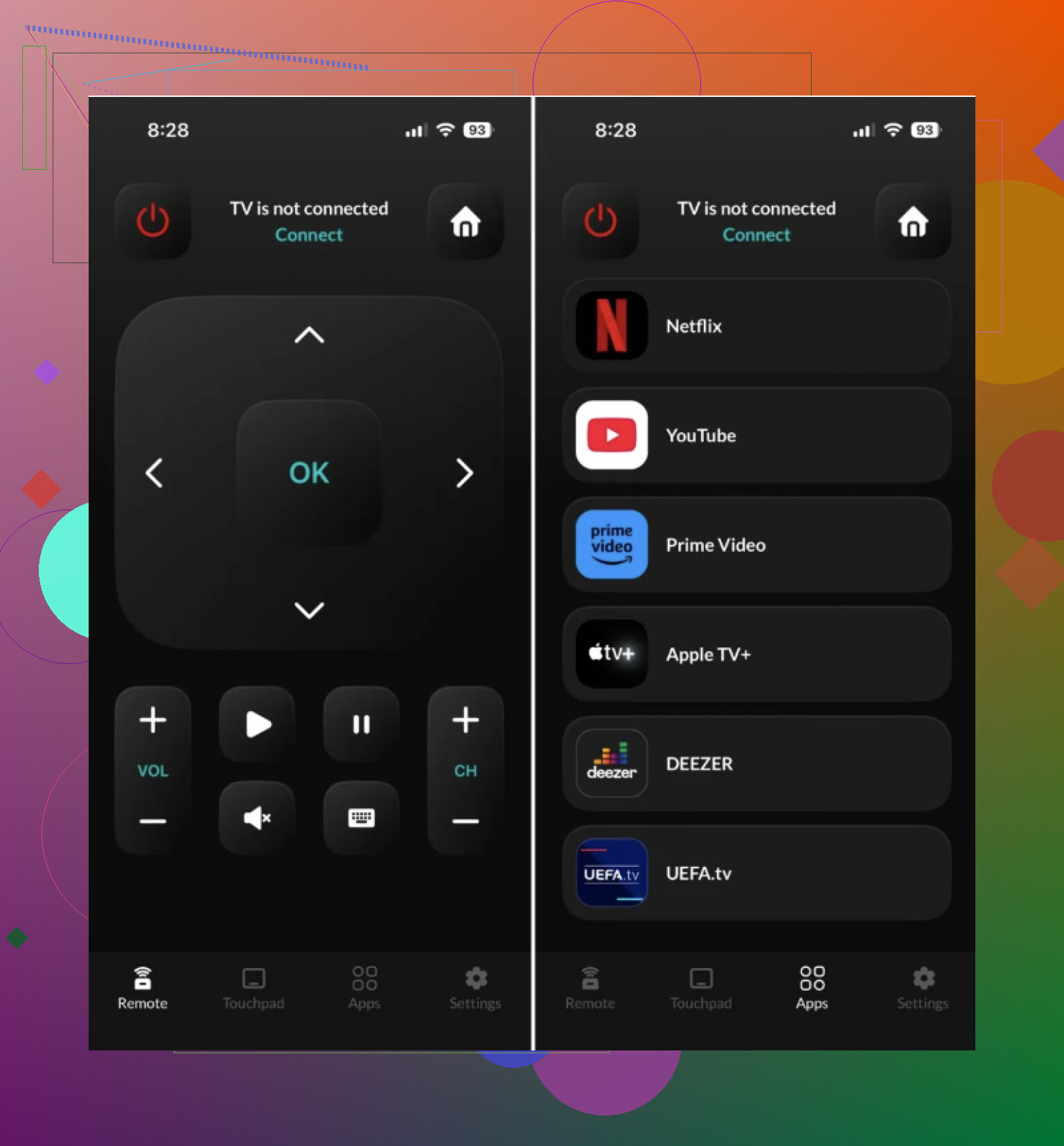
Per its App Store listing, it works with VIDAA, Android TV, and Roku-based Hisense TVs. It also includes keyboard input and shortcuts for apps, which matters more than people think once you get tired of pecking letters with arrow keys.
Included features:
Power control
Volume control
Full keyboard
Streaming app shortcuts
Apple Watch support
Who it fits:
People who want an app built around Hisense TVs instead of a broader TV remote.
Which one I’d pick
If your Hisense TV uses Roku TV, Google TV, Android TV, or Fire TV, go with TVRem – Universal TV Remote.
If your TV uses VIDAA, use VIDAA first.
My short take
For most iPhone owners, TVRem is the best free Hisense TV remote app. It covers more Hisense platforms, it’s easy to set up, and it doesn’t start nagging for money two taps in.
If your TV is on VIDAA, the official VIDAA app is still the safer pick.
If you want one remote app for Hisense plus other TV brands around your place, TVRem feels like the better all-around option.
5 Likes
Check your Hisense model first. Go to the sticker on the back, or open the TV menu with the side button if your set has one. The key part is the OS.
My take is a little different from @mikeappsreviewer. I would not start with a third-party remote app unless you know your TV platform. Hisense is messy here.
Best free-first picks on iPhone:
-
Roku app
If your Hisense says Roku TV, use the official Roku app. It is free. It gives you a full remote, keyboard, voice search, and private listening. In my expereince, it connects faster than most universal apps. -
Google TV app
If your Hisense runs Google TV or Android TV, use Google TV on iPhone. Free. Stable. You pair it with a code shown on the TV. This worked better for me than Hisense-branded apps. -
Amazon Fire TV app
If your Hisense is Fire TV edition, use Amazon’s Fire TV app. Free. No paid wall junk. -
VIDAA app
Only for VIDAA sets. If your TV menu shows VIDAA, use this first.
One catch people miss. Your iPhone and TV need the same Wi-Fi network. If the TV is on guest Wi-Fi, or ethernet with AP isolation, pairing fails and it looks like the app is broken.
If none of those connect, buy a cheap replacement IR remote from Amazon or Walmart. Costs less than wasting an hour on bad apps tbh.
I’d do one thing neither @mikeappsreviewer nor @cazadordeestrellas really leaned on enough: check whether your Hisense even supports network remote control in settings. A lot of these apps fail not because they’re fake, but because the TV has options like “TV Remote App,” “Network Wake,” “Wake on Wi‑Fi,” or “Control by Mobile Apps” turned off by default.
If you can still use the little joystick/button under the TV, go into settings and look for that first. On some Hisense sets, turning on Quick Start/Fast Power On also matters, otherwise the app only works when the TV is already on. Kinda annoying, but real.
Also, if your iPhone has no luck with Wi‑Fi remotes, try pairing a cheap USB keyboard or mouse to the TV temporarily if your model supports it. Sounds dumb, works surprsingly often, and lets you navigate enough to enable the right settings.
So my actual advice:
- first verify the TV OS
- then enable mobile/network control on the TV
- then use the matching official app if possible
- if that still fails, the issue is probly the TV settings or network, not the app
Honestly, “free remote app” is hit or miss, but the hidden setting thing gets overlooked allll the time.
I partly disagree with @mikeappsreviewer on one thing: I would not keep burning time on “Hisense-only” apps first unless you already know they match your TV. A lot of App Store remote apps are just wrappers with ads.
What I’d do differently is check for Apple TV support on your Hisense. Some newer Hisense models that support AirPlay/HomeKit can be added in Apple Home, and while that does not replace a full remote, it can at least confirm the TV is visible on your network and narrow down whether the problem is app compatibility or network discovery.
For a free option, TVRem – Universal TV Remote is worth trying if you want one app that may handle multiple Hisense platforms without making you guess too much.
Pros for TVRem – Universal TV Remote
- broad device support
- cleaner than many fake-free remote apps
- useful if you have more than one TV brand
Cons
- still depends on your Hisense OS/network setup
- universal apps can miss a few model-specific functions
@cazadordeestrellas and @viajantedoceu are right that platform matters, but my extra tip is this: if the TV was ever connected to Wi-Fi before, check your router admin page or mesh app to see whether the TV is actually online. If it is offline, no iPhone remote app is going to magically find it. At that point, a physical replacement remote is usually the faster fix.
Try a basic USB keyboard. Plug it into the TV’s USB port, then use the arrow, Enter, Escape, and volume keys to control menus. Many Hisense models recognize wired keyboards with no setup.
Use it to reconnect the TV to your home Wi-Fi. After the TV is online, pair the correct official iPhone app for its OS. A cheap keyboard often costs under $10, or borrow one for five minutes. This avoids paywalls, pairing loops, and buying another remote. Bluetooth keyboards might work too, but wired is easer.
Honest question worth checking before any app: was your old remote Bluetooth or IR? Some Hisense VIDAA remotes pair over Bluetooth, and a phone app won’t behave the same way, especially for turning the TV on from cold. That’s the gap most of these apps quietly have, no matter how many buttons they show.
The Wi-Fi network point from @cazadordeestrellas is the real one though. Nine times out of ten a ‘broken’ remote app is just the phone and TV sitting on different subnets. @nexthub4539’s keyboard trick is a solid backup for getting back online too. TVRem is fine as a first try if your set is Roku or Google TV based, but I’d honestly grab a $6 universal IR remote as a fallback either way. Cheaper than an hour of pairing loops.