I installed Google Drive on my Mac but it doesn’t show up in Finder like other folders. I’m trying to access and sync my Drive files directly from Finder for work, but I can’t get it to appear in the sidebar or as a mounted drive. I’ve checked settings and reinstalled once, but nothing changed. Can someone walk me through the correct steps or tell me what I might be missing so Google Drive shows up properly in Mac Finder?
The built‑in, “official” solution for tying Google Drive into the macOS file system is still the Google Drive for desktop app. That’s the one Google maintains, and it behaves like a regular drive plugged into your Mac, just with some quirks you have to get used to.
Getting Google Drive to show up in Finder
Here is basically what I do on a fresh Mac:
- Grab the installer from Google’s page for Google Drive for desktop (they keep moving the link around, but it is always on the Drive help/download pages).
- Run the installer and launch the Google Drive app.
- Sign in with your Google account like you normally would in a browser.
- After the setup finishes, check Finder’s sidebar. Under “Locations,” you should see something like “Google Drive” listed there.
At that point, it behaves a bit like an external volume. You click it, and your folders/files show up in Finder.

How the files actually behave
Here is where people get confused the first time they use it: not everything is stored locally on your disk by default.
- If you see a cloud icon, that file is “online only.” It is basically a placeholder. When you open it, it streams/downloads on demand.
- If you see a green checkmark, that file is stored on your Mac as well as in the cloud. You can open it offline and it syncs later when you reconnect.
You can treat that Google Drive item in Finder like any other folder:
- Open, copy, move, rename files
- Save directly from apps (Word, Photoshop, whatever) into that Drive location
- Let it sync in the background without thinking about it
It really is just: use Finder > use your apps > Google quietly pushes the changes to the cloud.
When the official app is not enough
If you want more control or different behavior than what Google Drive for desktop gives you, there are third‑party tools that hook into macOS in their own way. One example people bring up a lot is CloudMounter.
CloudMounter is not limited to Google Drive. You can mount different cloud accounts as if they were separate drives in Finder. So instead of “here is the Google app’s special folder,” it is more like “here is a new volume for each service, sitting next to your external disks.”
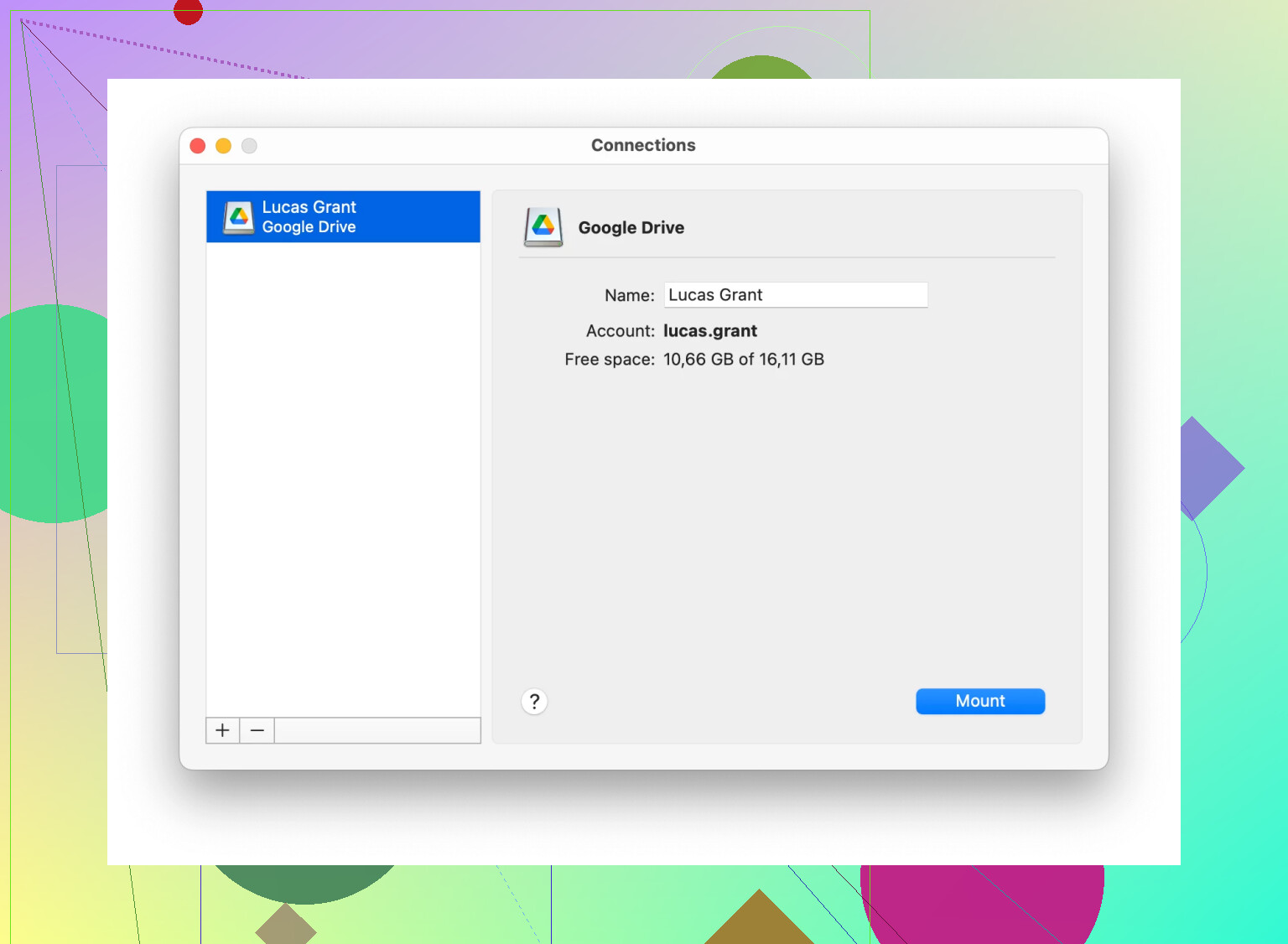
A few practical points about that approach:
- Each cloud service shows up like a mounted disk in Finder.
- You still use the standard Finder actions: drag and drop, copy/paste, rename, etc.
- To your Mac, it looks like a local or network drive, even though the data lives in the cloud.
About security and encryption
One thing CloudMounter does that the official Google Drive app does not really focus on is client‑side encryption for your files before they ever hit the provider.
You can:
- Mark certain folders or items to be encrypted.
- Use a password / key so that even if someone gets into your cloud account, the raw data is unreadable without that key.
- Keep more sensitive stuff (IDs, contracts, financial records) in those encrypted areas rather than leaving them as plain files on a cloud drive.
So the basic split is:
- If you just want “Google Drive in Finder, minimal thinking required,” install Google Drive for desktop and you are done.
- If you want multiple cloud services in one place plus extra security tricks like encryption of specific folders, something along the lines of CloudMounter adds those options on top of what macOS and Google give you by default.
18 Likes
Couple things to check before you nuke the install and start over:
-
Make sure Drive is actually mounting a volume
- Click the little Google Drive icon in the menu bar (top right).
- Open Preferences > Google Drive.
- Under “Mirroring / Streaming” or storage options, it should say something like:
- “Stream files from the cloud” or
- “Mirror files”
- If that’s set correctly, it should be mounting a volume named Google Drive or Google Drive for desktop under
/Volumes/. - Open Finder > Go > Computer and see if it shows up there.
If it shows there but not in the sidebar, the app is working and it’s just a Finder sidebar issue.
-
Fix the Finder sidebar specifically
Sometimes Google Drive is there but Finder is just hiding it:- In Finder, go to Finder > Settings… > Sidebar.
- Under Locations, make sure “External disks” and “Connected servers” are checked.
- If you see Google Drive in that list, explicitly check it.
- If you do not see it, but you saw it under
/Volumes/, then:- In Finder, choose Go > Go to Folder…
- Type:
/Volumes/ - Drag the Google Drive volume from that window into the sidebar.
That pins it like a normal folder.
-
Check if macOS blocked the extension
Sometimes first run gets silently blocked:- Go to System Settings > Privacy & Security.
- Scroll to the bottom and look for anything like “System software from Google, Inc. was blocked” or File Provider extensions.
- If there is an Allow button, click it.
- Quit Google Drive, then re‑open it.
- You may need to reboot once for the file provider to hook properly.
-
Confirm the File Provider extension is enabled
Recent macOS versions use File Provider for this stuff:- System Settings > Privacy & Security > Extensions > File Provider.
- Make sure Google Drive is enabled there.
- If it was disabled, enable it and reopen Finder.
-
Reset Google Drive’s mount location
Sometimes it mounts somewhere weird:- Click the Drive menu bar icon.
- Preferences > Google Drive.
- Look for an option like “Default mount location” or folder path.
- Set it to the default or somewhere simple, like
/Volumes/GoogleDrive. - Apply, quit Google Drive, relaunch.
-
Reinstall cleanly (only if the above fails)
I slightly disagree with @mikeappsreviewer on just “install it and you’re done.” In theory, yes. In reality, the cached settings occasionally get corrupted.- Quit Google Drive.
- Delete the app from Applications.
- Remove:
~/Library/Application Support/Google/DriveFS
- Reinstall Google Drive for desktop from Google again.
- Sign in, then walk through 1–4 above once more.
-
If you want something more consistent or multi‑cloud
If the official app keeps being flakey or you want multiple services in Finder (Drive, Dropbox, OneDrive, S3, etc.), this is where CloudMounter helps a lot:- It mounts Google Drive as a standard volume visible in Finder.
- You can have several cloud services side by side.
- It also supports client‑side encryption, so you can encrypt a folder locally before it ever hits Google’s servers.
- From Finder’s perspective it acts like a normal disk, so dragging files, saving from apps, etc. is straightforward.
So in short:
- If Drive is not visible anywhere in Finder, check File Provider / security settings.
- If it’s visible under
/Volumes/but not in the sidebar, that is just Finder config. - If the official app keeps misbehaving, CloudMounter is a more predictable “mount cloud as drive” option.
Couple more angles you can try that @mikeappsreviewer and @reveurdenuit didn’t really dig into:
-
Check if Finder is just confused, not Drive
Sometimes Finder caches old File Provider info and refuses to show new “locations” properly.- Open Terminal and run:
Finder will restart.killall Finder - Then click Finder > Settings > Sidebar again and see if Google Drive finally appears under “Locations.”
- Open Terminal and run:
-
See if Drive is visible from any app’s file dialog
This is a weird one, but it helps narrow it down:- Open something like TextEdit.
- Go to File > Open.
- In the left column of the Open dialog, check under Locations and Favorites.
Sometimes Google Drive shows up there even when it doesn’t appear in a normal Finder window.
If it does appear there, you can: - Right‑click it and choose Show in Finder, or
- Drag it from that Open dialog into the Finder sidebar to “pin” it.
-
Check you’re not logged into the wrong account
I’ve seen people logged into a work Google Drive account in the menubar app, but Finder is still bound to an older personal account profile that’s half‑set‑up.- Click the Google Drive menu bar icon.
- In the account list, make sure the one you actually want is:
- Signed in
- Not paused
- Not showing any “account disabled” or “needs admin approval” warnings
If it’s a corporate Google Workspace account, your admin can disable desktop mounting and it’ll never show as a Finder volume no matter how much you yell at it.
-
Try switching between “Stream” and “Mirror”
I slightly disagree with the idea that it doesn’t matter which mode you pick. On some macOS versions, changing it forces Drive to remount.- In Google Drive preferences, switch:
- From Stream files to Mirror files, or vice versa.
- Let it finish reconfiguring, then check:
/Volumes/in Finder- The Sidebar settings again
Half the time, just flipping the mode makes the volume reappear.
- In Google Drive preferences, switch:
-
Spot conflicts with other sync apps
If you also run Dropbox, OneDrive, Box, etc., occasionally two file provider extensions collide and one silently fails.
Try:- Quit other sync apps temporarily.
- Quit Google Drive.
- Reopen Google Drive first, wait a minute, then reopen the others.
If Drive suddenly mounts after that, you’ve found a conflict.
-
When you just want it to behave like a normal drive
If you’re mainly trying to work out of Finder and the official Drive app keeps playing hide and seek, this is where CloudMounter can actually be nicer:- It mounts Google Drive as a true drive in Finder, like an external disk.
- You can have multiple clouds at once in Finder: Google Drive, Dropbox, OneDrive, S3, etc.
- It has client‑side encryption for sensitive folders before they hit the cloud.
In practice, it feels simpler: open Finder, see a CloudMounter “drive,” use it like any other folder, no guessing what File Provider is doing.
So, if I were in your spot right now:
- Restart Finder with
killall Finder. - Check if Drive appears in any Open/Save dialog and drag it into the sidebar if it does.
- Flip Stream/Mirror in Drive preferences to force a remount.
- If it still refuses, consider skipping the drama and mounting Drive via CloudMounter so it just always shows up as a normal volume.
Skip the Finder sidebar.
Click the Google Drive icon in your Mac menu bar. Click the folder icon labeled Open Drive folder. Google Drive opens directly in Finder. Google lists this as an official access method.
Then Control-click the Google Drive folder, choose Make Alias, and move the alias to your Desktop or Dock. You’ll get one-click acess even if the Finder sidbar stays broken.
If you’re on macOS Monterey 12.3 or newer, half the /Volumes advice above is chasing a ghost. Google switched Drive for desktop over to Apple’s File Provider system a while back, and once that happened it stopped mounting as a disk under /Volumes/ entirely. So checking Go > Computer or dragging something out of /Volumes/ like @reveurdenuit suggested won’t find anything, because there’s nothing there to find on current systems. That advice was solid two or three macOS versions ago.
Where it actually lives now is ~/Library/CloudStorage/. Open Finder, hit Go > Go to Folder, and type that path. You should see something like GoogleDrive-youremail@gmail.com sitting in there. That’s your real mount point. Once you find it, drag it into the sidebar and you’re done. This is also why it shows up under ‘Locations’ for some people and not others, because the sidebar entry is tied to the File Provider extension being enabled, not to a mounted volume.
Which brings me to the one step in this thread I’d actually put first instead of last: the File Provider toggle in System Settings > General > Login Items & Extensions (or Privacy & Security on older builds). If Google’s extension there is off, Drive will run happily in the menu bar, sync in the background, and still never show its face in Finder. People burn an hour reinstalling when it’s a single switch. @dima22’s alias trick is the honest fallback here, because ‘Open Drive folder’ from the menu bar opens that CloudStorage location directly regardless of what the sidebar is doing.
On the managed account point, that’s real and worth taking seriously. If this Mac is issued by work and the Drive account is Workspace, your admin can block desktop access outright, and no amount of remounting fixes a policy. Check the menu bar account for any ‘contact your administrator’ flag before you spend time on the technical stuff.
CloudMounter genuinely sidesteps this whole File Provider mess because it mounts Drive the old-fashioned way, as its own volume in Finder, so it behaves the way people expect /Volumes to behave. That’s a fair reason to reach for it if the official app keeps hiding. Just know it’s a paid tool doing a workaround, not a fix for the underlying app, so I’d try the CloudStorage path and the extension toggle first before paying for anything.