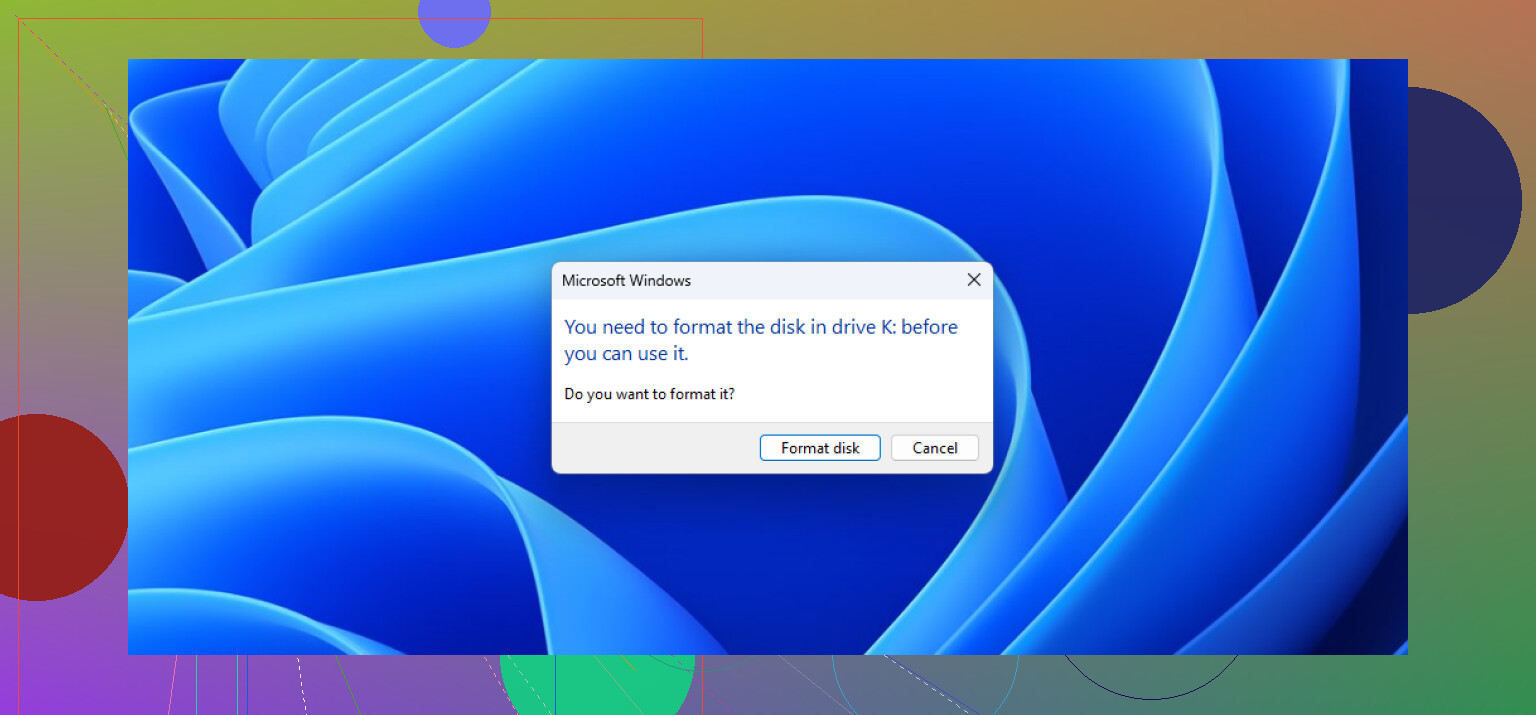
Every time I plug in my USB drive, Windows says it needs to be formatted before I can use it. The drive contains important files, so I haven’t formatted it yet. Is there a safe way to recover the data and repair the USB drive without losing anything?
Don’t format the USB yet. That Windows message usually means the file system is corrupted or unreadable, not necessarily that your photos, documents, and videos are gone. It can happen after a power loss or when a drive is unplugged while data is still being written.
The safer approach is to recover the files first, then format the drive afterward. I use Disk Drill for this.
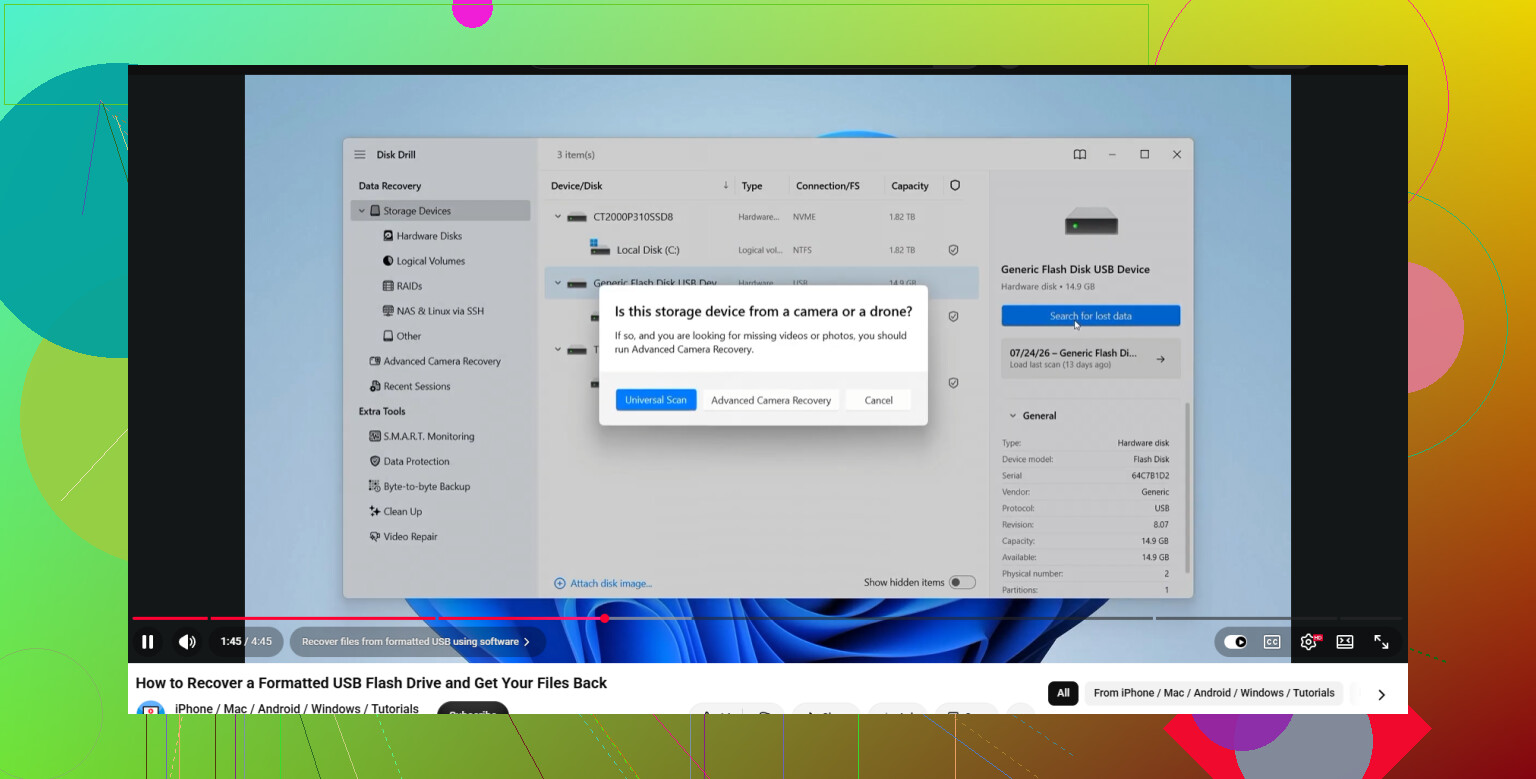
Before scanning anything, create a byte-to-byte backup of the USB if possible. A format warning can sometimes point to bad blocks or failing hardware, and repeatedly scanning the physical drive may put more stress on it. Disk Drill can make a full disk image, which you can load through “Attach Disk Image” and scan instead of working directly from the USB.
Select the USB or attached disk image, then click “Search for lost data.” Let the Universal Scan finish if you can. It looks for file signatures rather than relying entirely on the damaged file system, so it can still find files when Windows shows the drive as RAW or unreadable. It supports roughly 400 file types, including photos, documents, and video files.
You can also click “Review found items” before the scan finishes. Browse categories such as Pictures and Documents, then use the eye icon to preview anything important. A file that previews correctly is usually a good sign that it can be recovered intact.
Choose the files you want and click “Recover.” Save them somewhere else, preferably your computer’s internal drive or another healthy storage device. Never recover files back onto the same USB, since that could overwrite data you still need.
Once you’ve confirmed that the recovered files are safely stored on your computer, you can format the USB and make it usable again. exFAT is a practical choice when the drive needs to work across different devices, while NTFS may make more sense if it will mainly be used with Windows.
The order matters here: make an image if possible, recover the data, verify the files, and only then format the drive.
20 Likes
Don’t assume the USB is damaged yet. If it was last used with a Mac, Linux computer, camera, recorder, or another device, Windows may simply not understand its file system. Try it in the original device or operating system and copy the files off there before doing anything else.
If Windows Disk Management shows the drive as RAW but reports the correct capacity, @yara’s image-first approach is sensible. Disk Drill can scan the image for recoverable files, but treat it as recovery software, not a repair button. Avoid CHKDSK for now because it writes changes to the file system and can make later recovery harder.
If the USB reports the wrong size, keeps disconnecting, becomes unusually hot, or cannot be imaged without errors, stop retrying it. That points more toward hardware failure, where professional recovery may be the safer option. Format or run repair tools only after the important files have been copied and checked.
Don’t trust that USB again, even if formatting makes the warning disappear.
Recover from the image as @yara suggested, but expect that a deep scan may return files with generic names and no original folder structure. Previewing a few files is useful, though you should open the recovered copies afterward and check larger documents, photos, and videos all the way through. A thumbnail or preview does not guarantee the entire file is intact.
Once the data is safe, you can format and test the drive, but I would retire it from anything important. Flash drives are cheap, and file-system corruption can be the first sign of worn-out memory or a failing controller. At most, keep it for temporary transfers where another copy already exists.
A full byte-for-byte image needs free space equal to the USB’s total capacity, not just the amount of data stored on it. A 256 GB stick therefore needs roughly 256 GB available on another healthy drive. Make sure you have that space before starting, since saving the image onto a nearly full system disk can create a second problem.
I agree with avoiding CHKDSK and formatting, but I wouldn’t pay for recovery software before confirming it can see anything useful. Let Disk Drill finish scanning the image, then preview several important files of different sizes. If the results are mostly broken previews or random fragments, buying a license will not magically improve the scan.
Keep the original USB untouched until the recovered copies have been opened and backed up somewhere else. If creating the image produces constant read errors or the drive repeatedly vanishes, stop there rather than running several different scanners against it. Repeated attempts are cheap with logical corruption, but risky when the flash memory or controller is failing.
Do not click “Initialize Disk,” “New Simple Volume,” or anything that writes a new partition when you open Disk Management. Those choices are just as capable of complicating recovery as the Format button.
After making the image recommended above, I would try a file-system-aware recovery before falling back to a raw signature scan. @jeff is right that deep scans can produce generic filenames, but that usually happens when the software has to carve files from their contents. If the partition metadata or directory records are still partly readable, a tool may recover the original filenames and folder layout instead.
TestDisk is a free option for checking this. Run its analysis against the image, not the USB itself, and see whether it finds the missing partition or lets you list the files. If it can list sensible folders, copy the files to another drive. Be careful with its “Write” function. Rebuilding a partition table can sometimes make a volume accessible again, but it changes metadata and should not be your first move when the only copy of the files is at stake.
If the file system cannot be reconstructed, then use a signature-based scan such as PhotoRec or the deeper scan in Disk Drill. That approach ignores much of the damaged directory information, so photos and documents may be recoverable even though their names, dates, and folder structure are gone. It can also return old deleted files, duplicates, thumbnails, and partial files. Plan for enough destination space and expect some manual sorting.
Check the image size before trusting it, too. It should match the reported capacity of the USB. If imaging stops early, fills the log with read errors, or produces a much smaller file than expected, you may be dealing with unstable hardware rather than ordinary file-system corruption. Keep the original drive unplugged while reviewing the recovered copies, and do not attempt any repair until you have the important data in at least two other locations.
Do not keep unplugging and reconnecting it hoping the warning will disappear. Use one direct USB port on the computer, not a hub or front-panel extension, and avoid moving the stick while it is being read. A loose connector or unstable power can make an otherwise recoverable drive vanish halfway through imaging.
The image-first advice is sound if the drive stays connected and reports the correct capacity. If it only appears briefly, prioritize the few irreplaceable files rather than repeatedly launching full scans. After recovery, formatting may make it readable again, but it does not prove the flash memory is healthy. A full write-and-read test would erase the drive, so run that only after the files exist elsewhere, and replace the stick if it shows any further errors.
If that USB shows up with the wrong capacity or keeps dropping out mid-scan, skip all the software steps and treat it as failing hardware, like @vim_dave89 said. Imaging first only makes sense while the drive stays stable. On a stick that keeps vanishing, every retry is another chance to lose the one file you actually cared about.
An encrypted USB and a corrupted USB can produce the same format prompt. If it used VeraCrypt, BitLocker, or workplace encryption, try unlocking it with the original software and key before scanning, since recovery tools will otherwise see encrypted noise. If it was never encrypted, stick with the image-first recovery plan above.
Had two drives throw that exact prompt on me over the years. One was genuinely corrupted flash. The other turned out to be a flaky card reader, and the drive read perfectly on a different machine with zero recovery software involved. So before imaging anything, try it on a second computer, a different reader, or a straight rear port like @swiftbyte6215 said. Rules out the cheapest failure first. If the prompt follows the stick everywhere and the capacity looks right, then yeah, image it and let Disk Drill scan the copy. It’s a fine first pass for seeing what’s actually salvageable, just don’t buy in until a preview proves it can read your files.