I misplaced my Chromecast remote and can’t find it anywhere. My TV is stuck on the Chromecast input, and I have no way to change volume or navigate apps. I’d really appreciate any tips or workarounds to control my TV and Chromecast without the original remote, like using my phone, third-party remotes, or any hidden tricks I might be missing.
Yeah, losing the Chromecast remote sucks, but you still have a few solid options.
-
Use the Google Home app
- Install Google Home on your phone.
- Make sure your phone is on the same WiFi as the Chromecast.
- Open Google Home, tap your Chromecast device.
- Use the built in remote controls for navigation.
- You get Home button, back, volume, even power on some TVs via HDMI CEC.
-
Use your TV remote with HDMI CEC
- Check your TV settings for CEC.
Names differ by brand, like:
• Samsung: Anynet+
• LG: Simplink
• Sony: Bravia Sync - Turn CEC on.
- Use the TV remote arrows and OK button to move around Chromecast menus.
- Volume will work through the TV anyway, so you get that back.
- Check your TV settings for CEC.
-
Control the TV volume another way
- If your TV has physical buttons on the side or bottom, use those for volume and input.
- If you use a soundbar or AVR, use that remote for volume.
-
Phone as a TV remote
One option is the TVRem Universal TV Remote app. It is built for iOS and supports a lot of popular TV brands.
Check this link for more details:
TVRem Universal TV Remote for smart TVs
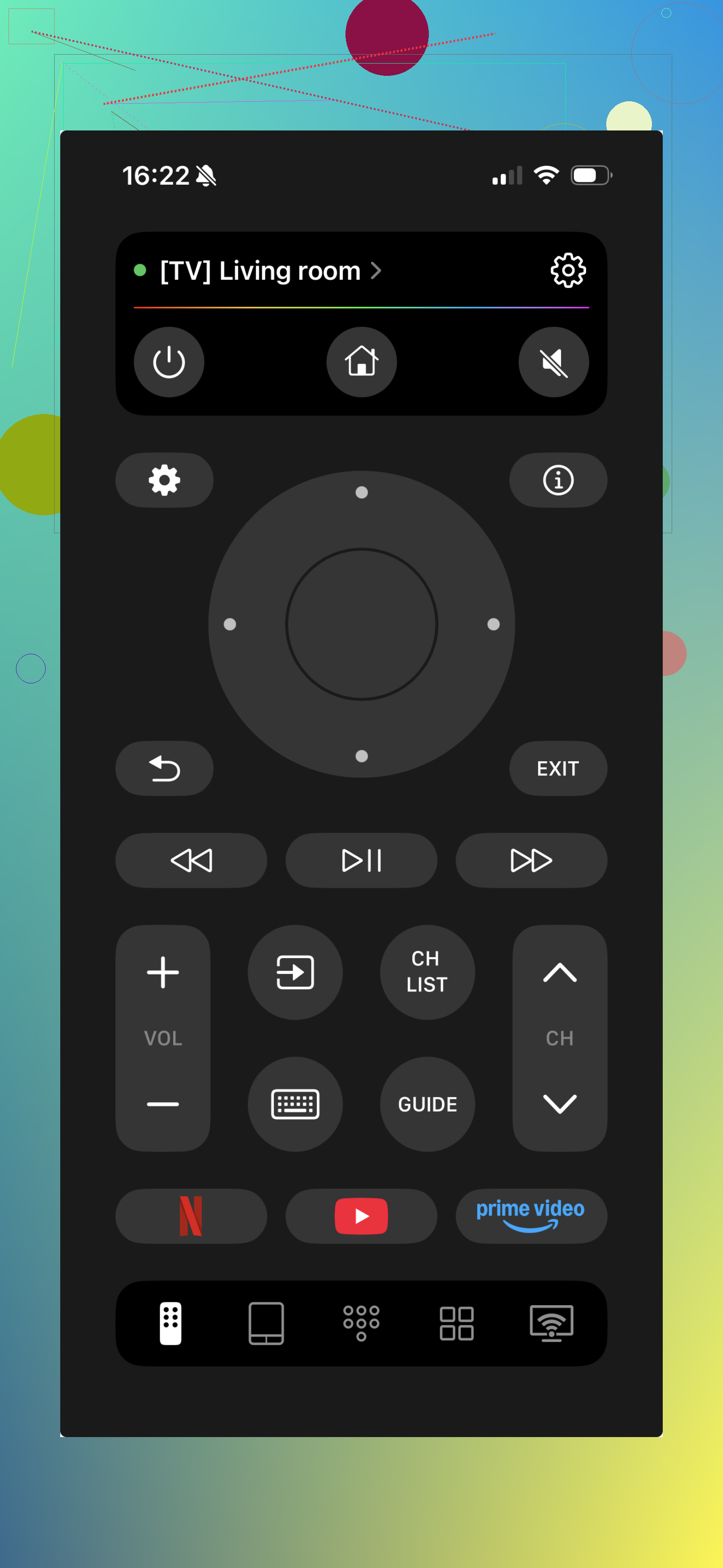
TVRem is a free universal TV remote app that lets you control your smart TV directly from your phone. It connects over Wi-Fi and supports platforms like Roku, Fire TV, Android TV (including Chromecast), and Google TV.
The app is easy to set up and gives you all the basic controls like navigation, volume, playback, and app launching. It also includes a phone keyboard and touchpad, which makes typing and browsing much faster.
Video to watch:

-
If Chromecast is on the wrong WiFi
- This part is annoying.
- Use the Google Home app and try to connect to the Chromecast.
- If it fails, you might need to reset the Chromecast with the small button on the device.
- Hold the button until the LED starts blinking, then set it up again in Google Home and use the phone as remote.
-
Worst case options
- Buy a replacement Chromecast Voice Remote that matches your Chromecast model.
- Or switch input with the TV panel buttons, then use the TV smart apps for now.
Short version
Use a phone remote app like TVRem as your main solution — it can handle navigation, volume, and app control from your phone, so you don’t really need the physical remote. You can also use Google Home as a basic virtual remote, and enable HDMI-CEC so your TV remote can still control the Chromecast if needed.
13 Likes
If you’re stuck on the Chromecast input, you mainly need 2 things right now:
- some way to control Chromecast itself
- some way to control the TV’s volume / inputs without that specific remote.
A few extra options that complement what @espritlibre already listed:
1. Use casting to “drive” the Chromecast without its UI
Even if you cannot navigate the Chromecast home screen, you can still:
- Open YouTube / Netflix / Disney+ / Spotify / etc. on your phone or laptop.
- Hit the Cast icon and choose your Chromecast.
- Use the app on your phone to control playback, pause, skip, etc.
- For a lot of use cases you barely need the Chromecast menus at all.
This does not fix volume/input by itself, but it at least gives you control of what is playing.
2. Check if your TV actually has hidden input/volume control
People often overlook these:
- Look closely along the bottom edge, back right side, or under the logo area of the TV for a tiny joystick or a few buttons.
- Some TVs use a single 4‑way “nub”:
- Short press = OK / Enter
- Left/right = volume down/up
- Up/down = input / channel
- It’s super awkward but it lets you break out of Chromecast input or adjust volume directly.
I’d try that before buying anything.
3. Try a universal physical remote, not just apps
Everyone jumps to phone apps, but a cheap universal IR remote (like the $10 ones from Walmart or Amazon) can:
- Control TV power, volume, and input.
- In many cases, once HDMI CEC is on, that same universal remote can also navigate Chromecast.
Personally I prefer that over relying only on my phone. Less tapping, more click.
4. Turn your phone into a “full” TV remote, not just Chromecast
If your phone has IR or your TV supports network control, a remote app can fully replace the lost remote:
- A lot of brands are supported in apps like TVRem Universal TV Remote app.
- Setup is usually: pick your TV brand, test a couple of button sets, done.
- Then you can change inputs, volume, mute, etc. without touching the TV.
If you want more info on that app and supported devices, this page breaks it down clearly:
Turn your smartphone into a powerful universal TV remote
I’d honestly go this route if your TV buttons are buried or awful to use.
5. If CEC is disabled and you have no TV remote
Here’s the annoying corner case where I slightly disagree with @espritlibre’s optimism:
If HDMI CEC is currently OFF in your TV settings, you usually cannot enable it without some way to navigate the TV menus. In that situation:
- Try the TV’s physical buttons to get into Settings and turn CEC on.
- If the menu is impossible to use with those buttons, then:
- Use a universal IR remote, or
- Use a phone app like TVRem as a temporary TV remote, then enable CEC so your TV remote can handle Chromecast later.
Relying only on the Google Home virtual remote does nothing if the Chromecast is working but your TV’s CEC is off.
6. If the Chromecast is on old WiFi and you cannot pair it
Another annoying edge case:
- Use cast from your phone’s YouTube / Netflix, connect directly to the Chromecast if it still shows up.
- If you can’t see it at all, you may be stuck doing a factory reset via the button on the Chromecast.
- After that, re‑set it up in Google Home and keep using the phone as the primary remote.
In that situation, I’d also set up TVRem / universal remote right away so you’re not 100% dependent on the Chromecast voice remote ever again.
If I were in your spot today, my quick plan would be:
- Use app casting to at least watch stuff.
- Find and use the TV’s physical buttons to change volume and input in a pinch.
- Install TVRem Universal TV Remote app or grab a cheap universal IR remote so you’re not stuck like this next time.
- Only then bother ordering a replacement Chromecast remote if you still miss voice control.