I accidentally deleted some important files and emptied the Recycle Bin before realizing it. I’m looking into Recuva for deleted file recovery, but I’m worried about safety, malware, and whether using it could overwrite the files I’m trying to get back. Has anyone used Recuva safely, and what should I do first to improve my chances of recovery?
People ask this all the time, and I don’t think the answer fits into a clean yes or no. If you want the short version, yes, Recuva is safe in the malware sense. It is not a virus. It is not built to wreck your PC. But 'safe' means a few different things here. You need to separate malware risk, privacy tradeoffs, and the risk of making your deleted files harder to recover.
I’ve tested a pile of recovery apps over the last year, and Recuva sits in a weird spot. It’s harmless enough to run, but it’s also old, limited, and easy to misuse if you’re in a panic.
About the old malware scare
A lot of the fear around Recuva comes from the 2017 CCleaner mess. Same company lineage, same cloud hanging over it. Piriform, the original developer, got hit in a supply chain attack and the official CCleaner build was infected. Millions got caught up in it.
So yeah, people still bring it up. Fair.
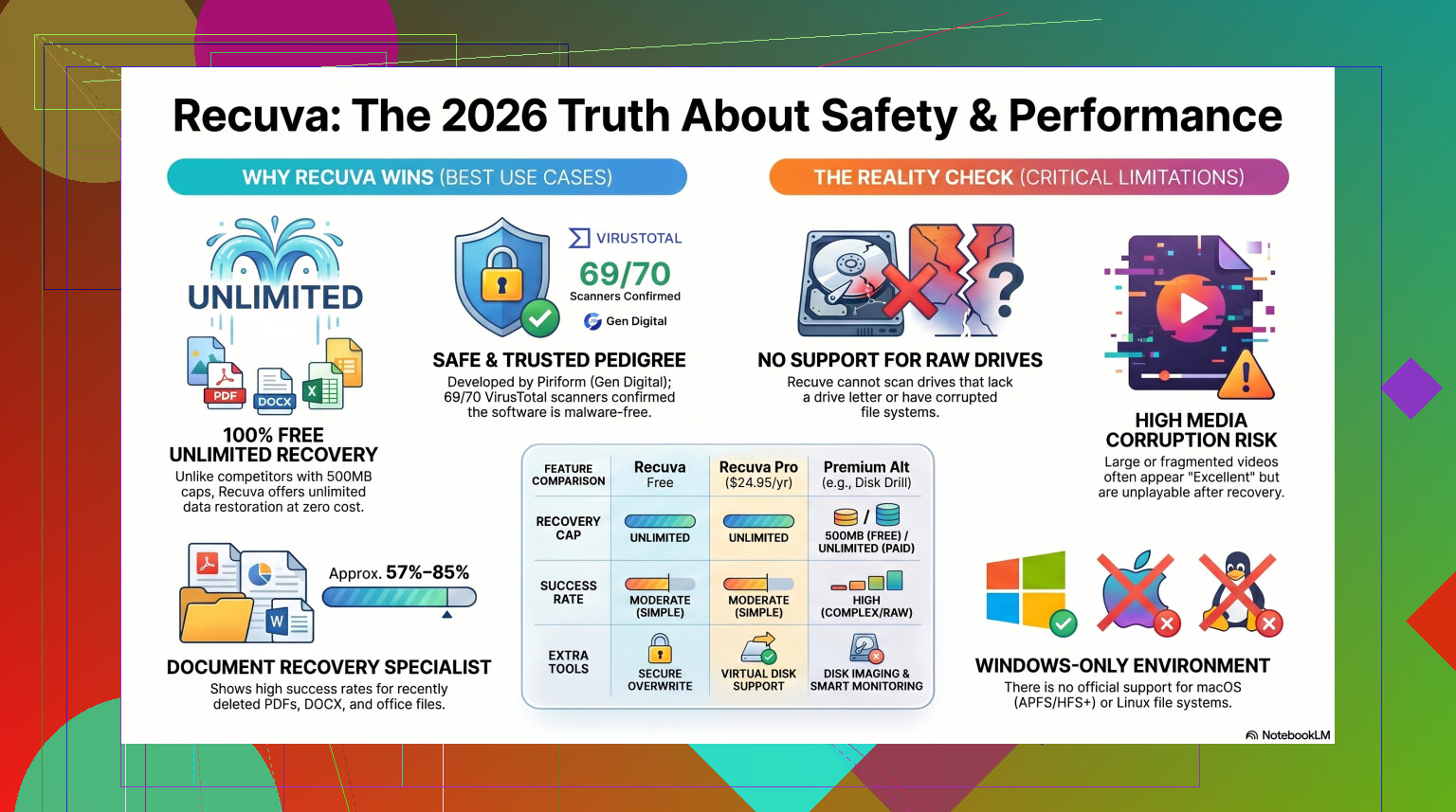
But in 2026, the current Recuva installer from the official source is generally clean. Piriform ended up under Avast, and later under Gen Digital, which also owns Norton. If you check the installer with VirusTotal, you’ll usually see a clean result or one stray detection from some tiny antivirus engine. I saw the same thing on a few system tools. Deep disk access tends to trip heuristic scanners.
If you download it from the official site, the malware risk is low. That part does not worry me much.
Privacy is a separate issue
This is where people mix things together. Safe from malware does not mean private.
Gen Digital’s policy is not hidden. They collect routine stuff like IP address, device identifiers, operating system details, and location data tied to licensing or fraud checks. Some users won’t care. I do, at least enough to turn off what I can.
After install, open Options, then Privacy, then disable the usage data setting. I did this right away. You should too if you don’t want extra telemetry leaving your machine.
One detail worth knowing, IP addresses are kept for up to 36 months before anonymization. If you’re using a free utility and expecting zero data collection, you’re not getting that here.
The part people screw up, protecting the deleted files
Recuva itself is not what usually destroys recovery chances. The user does it.
The big rule is simple. Do not install Recuva onto the same drive where your lost files were sitting.
When you delete a file in Windows, the data often stays there for a while. The system mostly removes the reference and marks the space as free. If you then download and install software onto that drive, you risk writing over the exact sectors you were hoping to recover. I’ve seen people lose photos this way. They were trying to fix the problem and ended up sealing it.
The safer move is the portable version. Put it on a USB drive, run it from there, and scan the affected drive without writing more junk to it. Same rule after recovery, do not save restored files back onto the drive you are scanning. Use another disk, external storage, anything else.
How well it works now
Here’s the blunt part. Recuva feels old because it is old.
The core design has barely moved in years. There were maintenance updates to keep it working on newer versions of Windows, sure, but this is still mostly an undelete tool from another era. If your mistake was simple, like emptying the Recycle Bin ten minutes ago on a healthy Windows drive, it still does fine. It launches fast. It’s light. It costs nothing. No recovery cap, which is rare now.
Past that, things get shaky.
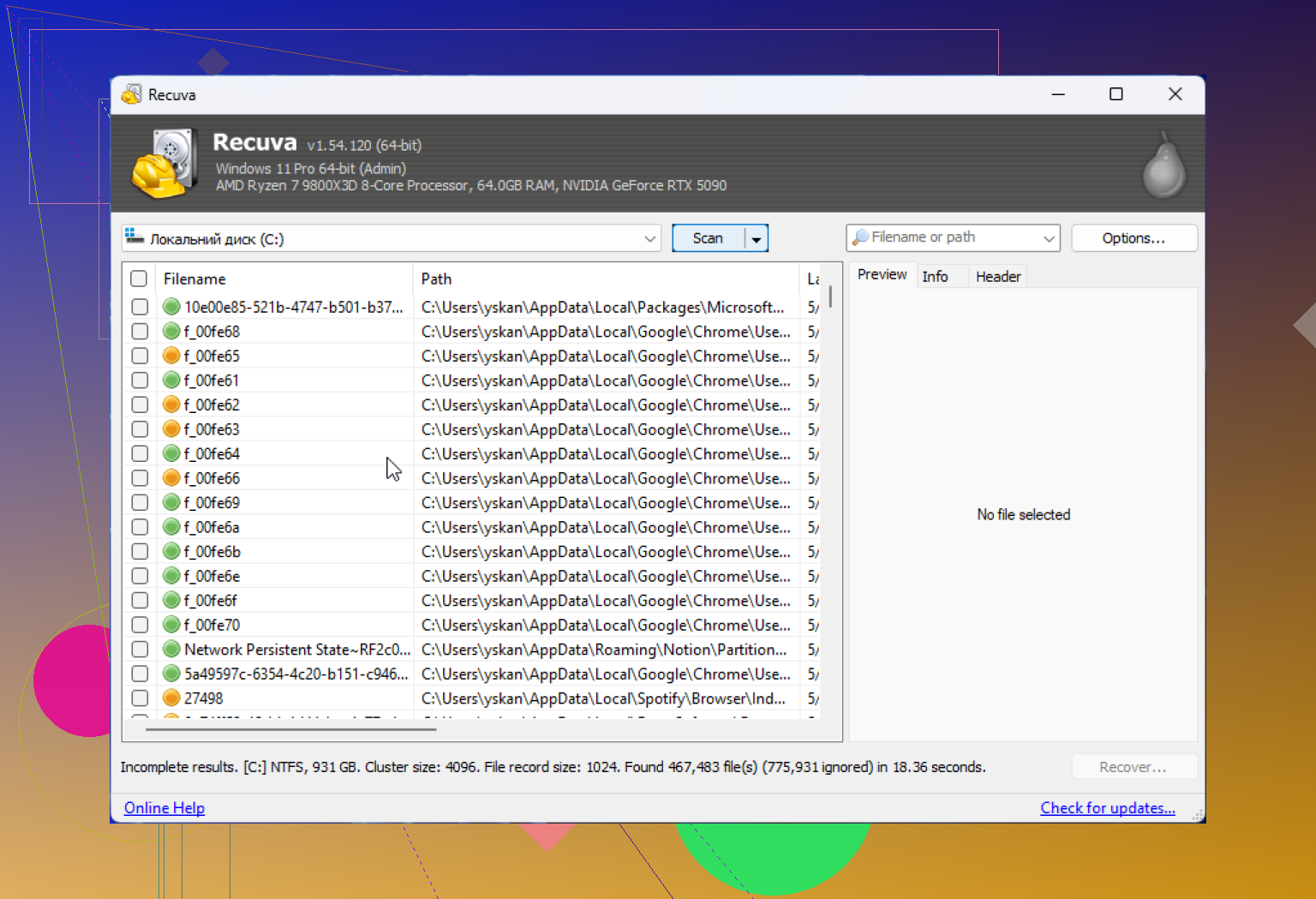
If Windows sees the drive as RAW, or asks you to format it before use, Recuva often won’t help much. It usually wants a visible, readable partition. On formatted USB drives, success rates tend to land somewhere around 63% to 67% in testing. And those numbers can look better than the end result feels, because found files are not always usable files.
I’ve had Recuva list image files as recoverable, even mark them in good condition, then the JPG would refuse to open. Same old story with broken headers or partial data. Folder structure is another weak point. Sometimes you recover a mountain of files with generic names and no original organization. If you pull back 10,000 photos into one folder named like random scraps, good luck sorting it out. Been there. Not fun.
When free stops being worth it
I still think Recuva is fine as a first shot when the case is small and the files are not critical. If you deleted homework, a PDF, some phone pics copied to your PC yesterday, fine, try it.
If the missing files are important, I wouldn’t spend long with it. Wedding photos, tax records, client docs, research, raw footage, stuff with no backup, I’d move faster to something stronger. Every extra scan puts more load on the drive. If the hardware is failing, your window gets smaller.
For harder jobs, I’ve had better results with Disk Drill. Recuva feels stuck in old Windows habits. Disk Drill handles RAW volumes, busted partitions, and mixed recovery cases with a lot less drama. Recovery rates on formatted media are often much higher, more in the 95% to 97% range from the tests and cases I’ve looked through.
The feature I wish Recuva had is byte-to-byte disk imaging. Disk Drill lets you clone the failing drive first, then scan the image instead of hammering the original hardware. That matters. If the drive dies during the scan, at least you still have the clone. Without that, you’re taking more risk every minute.
Media files are another sore spot. Recuva struggles with fragmented video and many camera RAW formats. If you shoot Nikon or Canon files, or you’re trying to recover larger video clips, results get rough fast. More advanced tools usually do better with those file signatures.
For a side by side look, this video review walks through both tools in a hands-on way if you want to see them compared directly.
My take
If you need the plain answer, here it is.
Recuva is safe to download and run if you get it from the official source. It is not some hidden malware trap. But it is not the best pick for every recovery job, and it is not private by default.
If you use it, do these first:
- Get it from the official site only.
- Use the portable build if you can.
- Turn off usage sharing in the privacy settings.
- Save recovered files to a different drive.
- Do not expect miracles on damaged or formatted drives.
If Recuva finds nothing, or gives you broken files, stop writing to the drive. Don’t keep poking at it out of frustration. At that point you’re past basic undelete territory, and a stronger tool or a proper disk image is the safer move.
So yeah, safe enough to try. I’d call it a decent first swing for simple mistakes on a healthy Windows system. For anything serious, I wouldn’t hang my last copy of a file on it. taht’s the honest version.
26 Likes
Recuva is safe in the malware sense if you get it from the official source. I don’t agree with the panic takes people post about it like it’s some threat by itself. It isn’t. The bigger risk is user error and disk activity after deletion.
Since you emptied the Recycle Bin, stop using the drive now. No downloads, no installs, no browser cache, no copying files around. Every write lowers your odds. This part matters more than the brand of recovery app.
I do agree with @mikeappsreviewer on one point, Recuva is old. Where I differ is this, for a simple recent delete on a healthy Windows drive, old does not mean useless. It still works fine for plenty of basic cases. If the files are high value, I’d skip trial-and-error and move to Disk Drill sooner. It handles tougher cases better and gives you a stronger shot at recovering deleted files from SSDs, USB drives, and damaged partitions.
One more thing people miss. If your deleted files were on an SSD, TRIM might have wiped the blocks already. In thar case, Recuva, Disk Drill, or anything else may return filenames with broken content or nothing at all.
Best move:
Use a different PC or a USB stick.
Run a portable tool.
Recover to another drive.
If nothing solid shows up, check this guide to top data recovery software options.
Short answer, yes, Recuva is safe. Your drive usage after deletion is the real danger.
Yes, Recuva is generally safe to use if you download it from the official source. It’s a legit Windows file recovery tool, not malware. The thing I’d push back on a little from @mikeappsreviewer and @shizuka is that people sometimes frame Recuva like it’s almost too old to bother with. I don’t totally buy that. For a plain ‘oops I deleted files and emptied the Recycle Bin’ situation, it can still be perfectly fine.
The real danger is not Recuva itself. It’s what happens after deletion. If you installed stuff, copied files, updated Windows, or even kept using that same drive a lot, you may have already reduced your recovery chances. That’s true with any recovery app, not just this one.
Also, if the deleted files were on an SSD, TRIM may have already cleared the data. In that case Recuva might show file names but recover junk or nothing. That part kinda sucks, but it’s normal.
If you want a quick read on the tool itself, here’s a decent overview of how Recuva file recovery software works.
My take:
- Safe from a malware standpoint, yes
- Safe for privacy, eh, average at best
- Safe for your deleted files, only if you avoid writing to the same drive
If the files are really important, I honestly wouldn’t mess around too long. Try Recuva once, sure. But if results look bad, switch to Disk Drill fast. Disk Drill is usually the better option for deeper scans, damaged partitions, and more serious deleted file recovery cases. Recuva is more like the quick first try. Disk Drill is the ‘ok, now I actually need this stuff back’ option.
So yeah, safe enough. Just don’t keep poking the drive and make things worse. Thats the part people always regret.
Yes, Recuva is safe in the “not malware” sense if you grab it from the official source, but I slightly disagree with the idea that safety is the whole question. The bigger issue is whether it’s the right tool for your exact loss.
For a recent Recycle Bin empty on a normal hard drive, Recuva is still a reasonable first pass. Lightweight, simple, free. But if this was an SSD, or the files matter a lot, I would not spend too much time with it. TRIM and background writes can kill recovery chances fast.
Where I agree with @shizuka, @viajeroceleste, and @mikeappsreviewer is that people often blame the app when the real problem is the drive kept being used after deletion.
My different take:
- Recuva is safest when used for quick triage, not prolonged experimenting
- If scan results look messy, stop early instead of running endless rescans
- If the drive is making noises, disconnect it and skip software attempts entirely
About Disk Drill:
Pros:
- better interface
- stronger deep scan results in many cases
- useful for partitions and tougher recoveries
Cons:
- not fully free for actual recovery on Windows
- can feel heavier than Recuva
- more features can confuse beginners
So: Recuva is safe enough to try once. If results are weak, move to Disk Drill quickly rather than poking the same drive over and over.
I’d check existing copies beofre trying another recovery app.
If your files synced to OneDrive, use your phone or another computer to open its website. Check Recycle bin, select your files, and choose Restore. Personal accounts retain deleted items for 30 days unless you empty the online bin.
Keep the affected PC off while you check. Download recovered copies onto another device.
Also check email attachments or ask anyone you shared the files with to resend them. Your missing documets might already exist elsewhere, without needing Recuva or Disk Drill.