iPhone not connecting to Chromecast: permissions vs. Wi-Fi

Why is my iPhone not connecting to Chromecast when both show the same Wi-Fi network? I’m trying to show a video for my team at work, but the Chromecast never appears in the app’s cast list. I’ve checked that the app has local network access and restarted it without changing the result.

How can I distinguish a network discovery problem from an iPhone permission issue without changing the shared network settings? I don’t have access to the router’s admin controls.

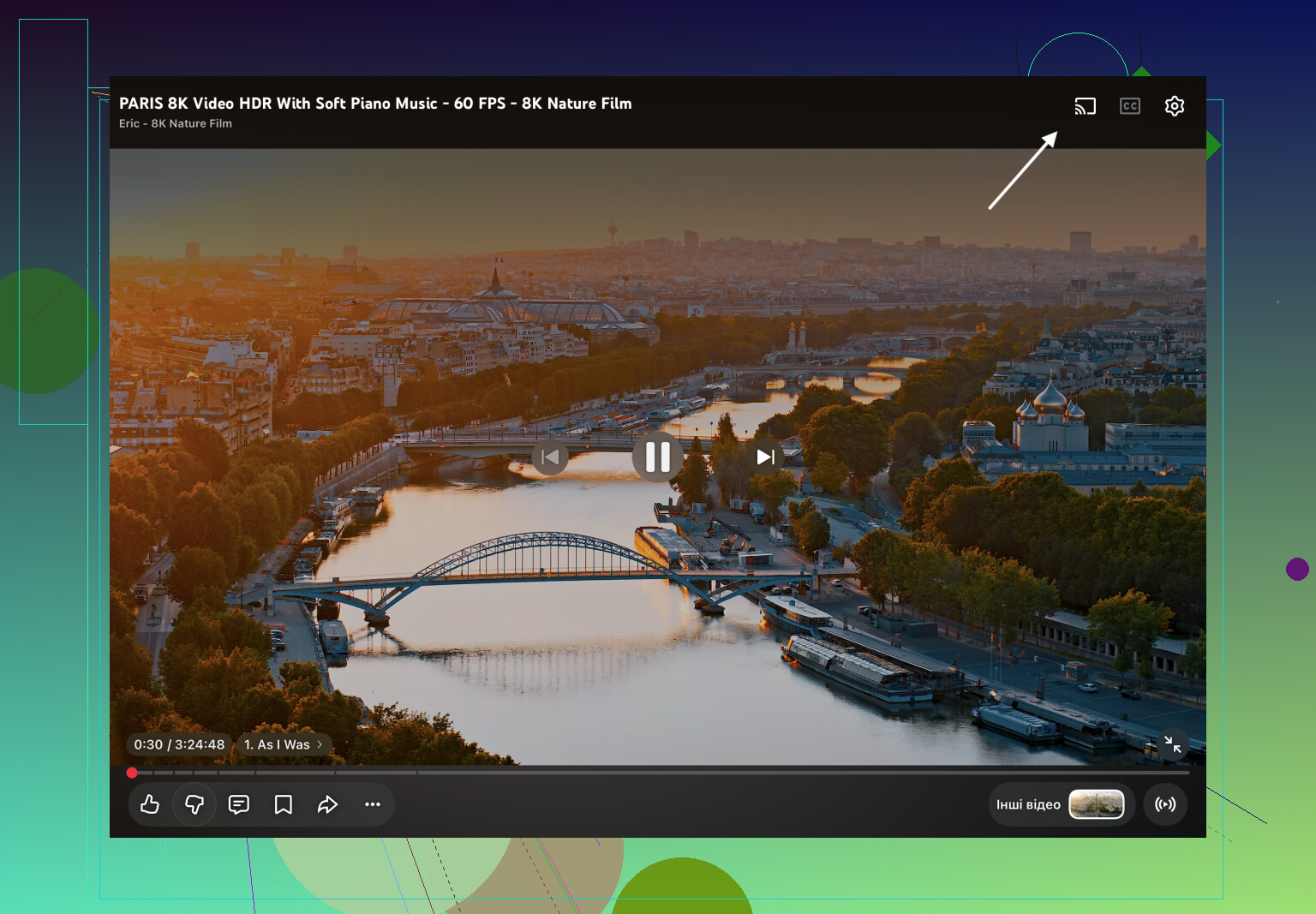
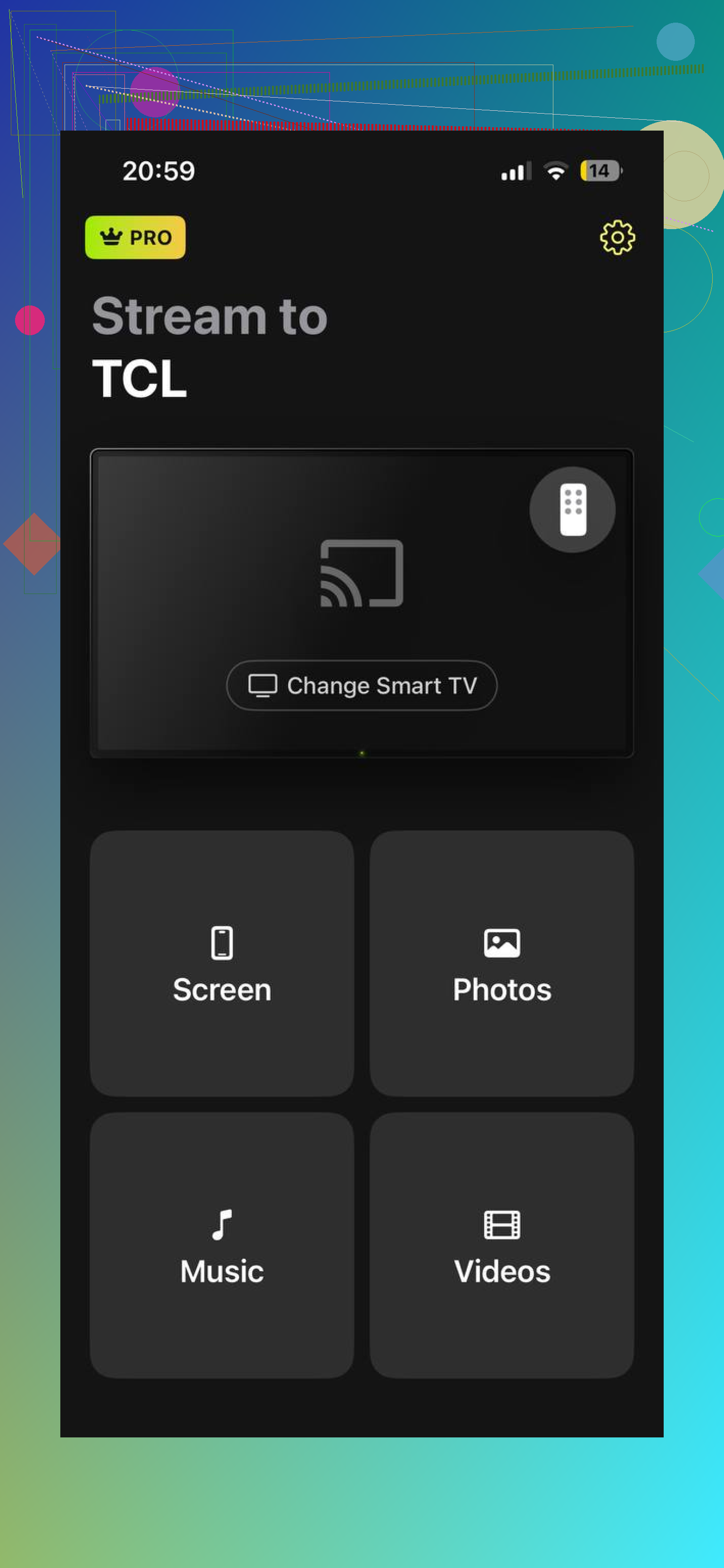
The mistake I would correct first is treating an empty iPhone Screen Mirroring list as evidence that Chromecast is broken. That list uses AirPlay, not Google Cast. I separate app casting from full-screen mirroring: supported apps have a Cast button; mirroring requires a third-party option such as the DoCast app. Restarting equipment cannot fix that protocol mismatch.


Check whether discovery is allowed

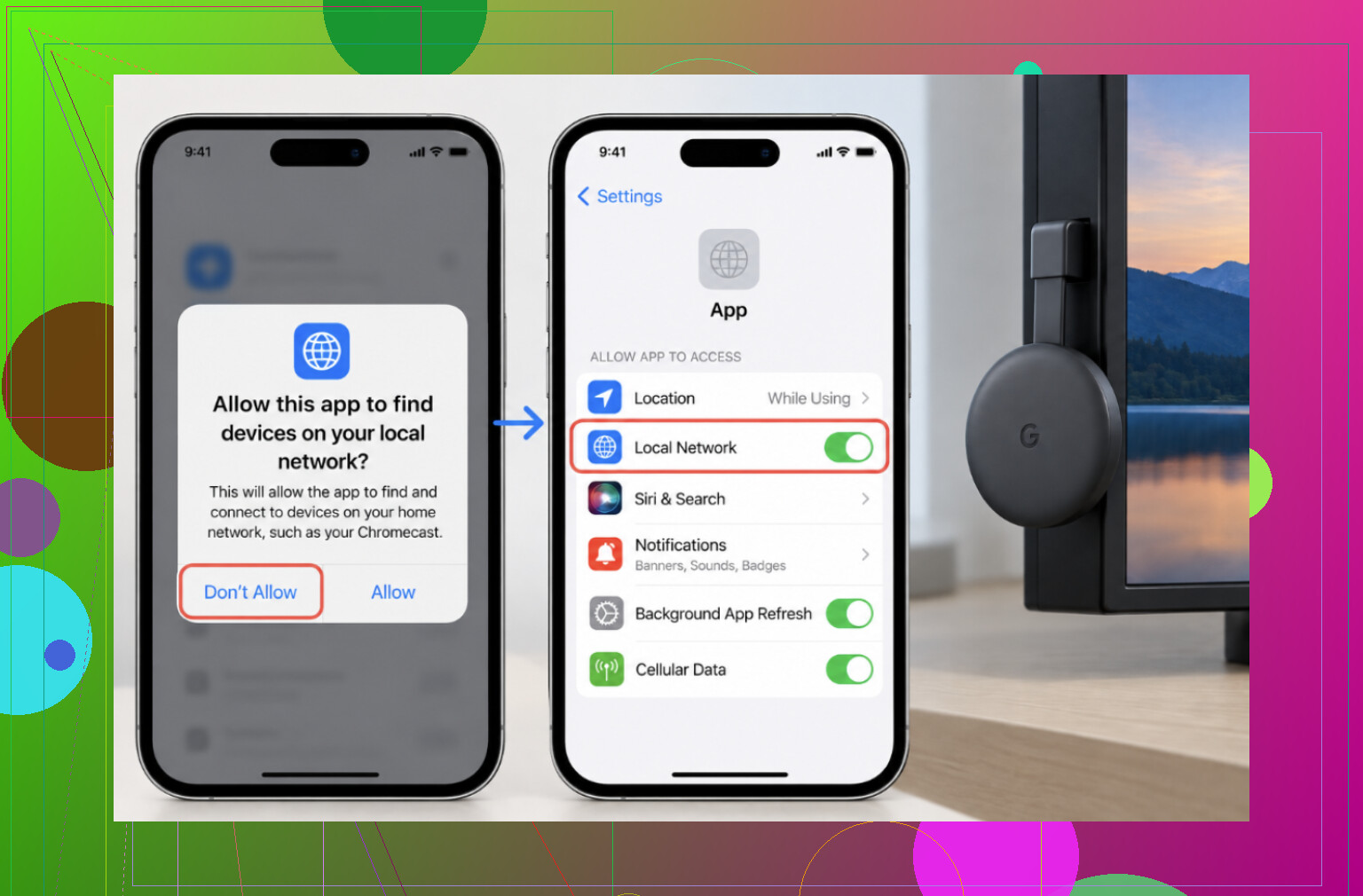
Once I am using a Cast-enabled app, I would check permissions before changing equipment. Under Settings → Privacy & Security → Local Network, enable access for the app doing the casting and for Google Home.

Then temporarily disable the VPN and retry. Compare the iPhone’s Wi-Fi network name with the Chromecast network shown in Google Home. Separate wireless bands can sometimes prevent discovery, so put both devices on the same network.

A matching name is not sufficient evidence on guest, hotel, or office Wi-Fi. Client isolation can block communication between devices. Use the main home network, and check whether router or mesh settings have AP isolation enabled.

Escalate without confusing the goal

I would next update iOS, Google Home, and the casting app. Chromecast normally updates while online; restarting it may prompt a pending update. Restart the iPhone and router, and disconnect Chromecast power for 30 seconds.

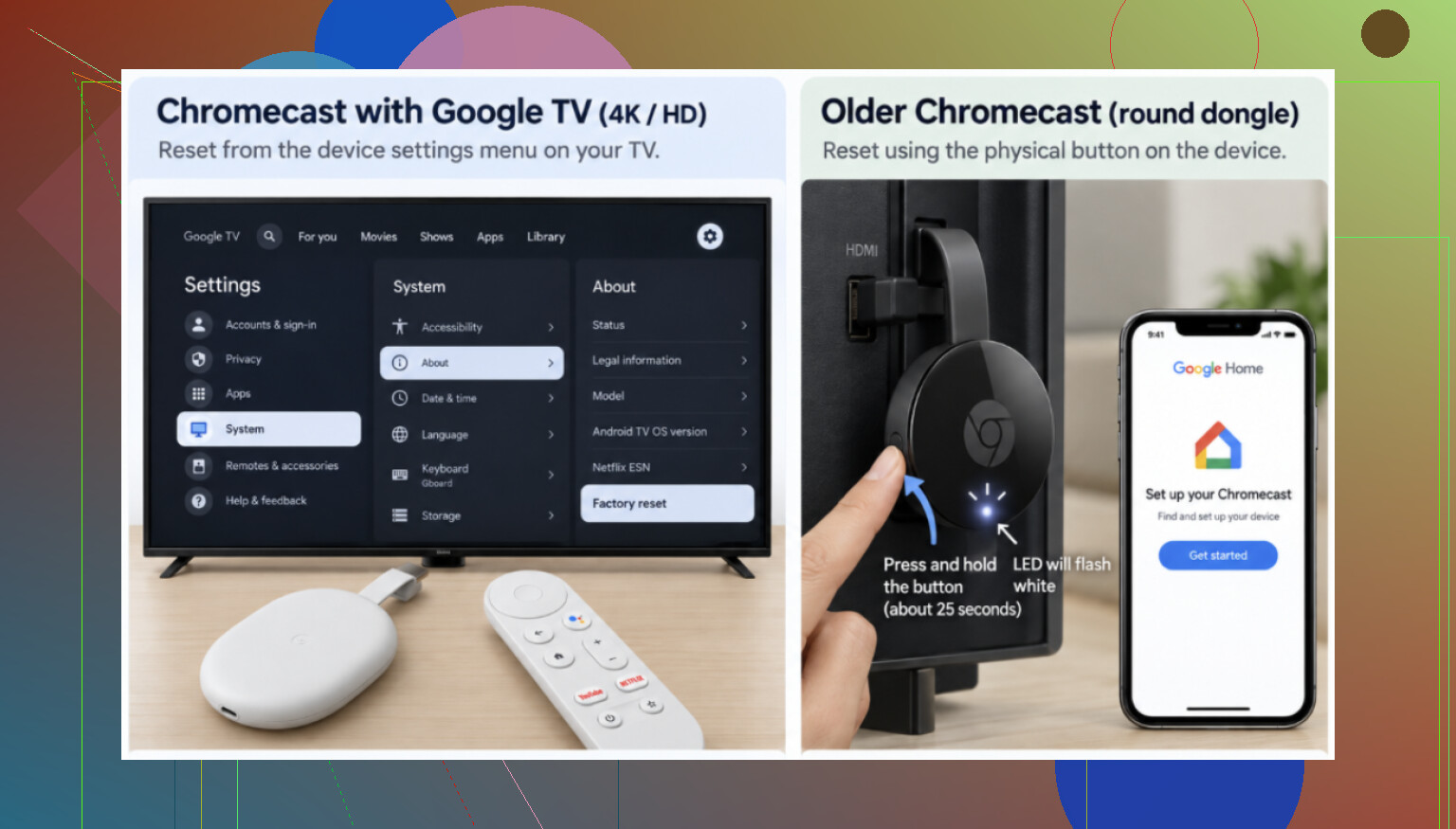
Factory reset comes last because it requires setup again in Google Home. Chromecast with Google TV has Settings → System → About → Factory reset. For older models, the source procedure is to hold the device button for about 25 seconds until its light flashes.

For screen mirroring, the DoCast overview describes support across Chromecast generations, Google TV Streamer, and TVs with Chromecast built-in. The DoCast streaming guide also covers sending personal videos, photos, and music, a different task from finding an AirPlay receiver.

I would reconsider this diagnosis if a supported casting app still failed with permissions enabled, both devices on an unrestricted shared network, the VPN disabled, and software updated.
13 Likes

Does another Cast-enabled application on that same iPhone see the Chromecast? That’s the info I would want to confirm before connecting to the office network. Local Network access is per-application, so allowing access to Google Home does not allow access to whatever app you’re using to play the video. Launch another casting application, hit the Cast button inside it, and allow access to Local Network if asked.

If the Chromecast shows up there, I would try focusing on the original application rather than re-starting up devices. This outcome would imply that your phone can reach the receiver over the network, just not the application that you are trying to use. If neither application can see your receiver with access granted to Local Network, I would get IT to look into it rather than wiping the device. I would agree with checking permissions, but for a work presentation I’d make this a quick comparison test rather than walking through the full factory reset checklist. Let IT know which applications you tried, and whether a colleague has visibility of the receiver. That may give them more information than the observation that ‘both applications see the same Wi-Fi network’

If the ‘casting’ applications already have Local Network access, I would try to avoid spending the rest of your prep time cross-checking Wi-Fi bands. Symmetric bands are not a problem per se if the network infrastructure allows for cross-communication. Moving devices between bands is more of a diagnostic procedure than anything else.

The more interesting question for the office IT department would be asking whether Google Cast discovery is allowed between employee smartphones and the meeting-room receiver. The protocol uses local mDNS discovery packets to communicate, which means that it needs physical network access to operate. This way, one can be certain that the Cast receiver is not blocked by the local network infrastructure. I would ask them to check this before requesting any specific actions from the Chromecast device.

For the presentation, I would request a deadline for troubleshooting and ask for the wired laptop connection in the room instead. I would ask to prepare the video on the laptop and check the sound before the attendees arrive. I would not make resetting shared equipment in the meeting room a part of the contingency plan.

“It worked last meeting” is a different clue from “my phone can see it right now.” For @cybertiger9625x’s colleague check, have them open their Cast list beside you on the same Wi-Fi, preferably using the same app, so you’re comparing today’s behavior rather than troubleshooting against someone’s memory.

If nobody has checked the contents of the meeting-room display, I would do that before changing anything else about the iPhone. The side-by-side phone test is nice but it presupposes that both parties have the right receiver in view and are prepared to use it, and with shared equipment I wouldn’t take either for granted.

Switch the display to the input connected to the Chromecast and see what it shows. Setup instructions, a connection error, an idle screen – different starting points give you different options. If the screen shows the name of a device, use that name when consulting the Cast list instead of the name you might think it’s using. Don’t unplug anything yet; you’re looking at the room’s current state, not reconstructing its setup.

I would be especially cautious about the point that both devices show the same Wi-Fi. Where are you seeing the Chromecast’s network information, and have you confirmed that that belongs to the receiver attached to this display? That’s a good point to establish before asking IT to investigate communication between those two specific devices.

This doesn’t negate the permission checks or the office-network explanation, but it covers another possible failure mode: troubleshooting your phone against the wrong receiver, or against one which needs some attention before any phone can use it. A photo of whatever the room’s screen shows, along with the name you expected to see in the Cast list, would give someone maintaining the room something to go on.

Turning off the work VPN may cross a security boundary if your employer requires that it be on. I think you’d want to qualify the suggested test with ‘on a company managed iPhone, ask the IT department if this test is allowed before making any changes’, and the same goes for getting an internal video on a personal device, or any unapproved network just to get the presentation up.

I think there’s two distinct permissions here. The Local Network permission allows the casting app to search for devices, but the office network still has to allow the application to communicate with the receiver. Granting the first does not necessarily provide the second, which is why just matching Wi-Fi names is not sufficient, and why toggling permissions of the app on and off again is a fruitless exercise after it’s been determined it is present.

In asking the permission on a managed phone, I think you’d want to narrow it down to ‘Is casting from this device to the meeting room receiver allowed while our required VPN is connected’, which provides them with the ability to check what configuration you’re using without asking you to turn off some other functionality. If they allow a brief experiment of turning the VPN off and back on again just for the sake of argument, you can toggle only the one parameter, run the test, and re-establish the connection. Finding a receiver present during the time the VPN is off would illustrate the connection path, but not necessarily a permission to leave it off.

In regard to the meeting itself, I would avoid any workaround that requires getting the video up on the display in any way that uninstalls a management profile, disables required protections, or uploads the video to a different location than what’s been approved by the company.

Which permission did you check: Local Network, Bluetooth, or access to photos and videos? The difference is what is confusing me here. Permission to open video sounds like permission to cast, but these are two different checkboxes in the replies. I would tell you the name of the app you have checked on your settings that enables that specific video. I’m not saying office-network explanation is wrong, but everyone is just going ahead assuming that specific Local Network permission has been set, and I can’t see that from the question.

Delete and reinstall the casting app before you start poking at the router. Here’s why that matters and why it ties into what @cosmic_admin flagged: iOS only throws the Local Network prompt the first time an app tries to discover something. If someone tapped Don’t Allow way back when, the app doesn’t ask again, and worse, flipping the toggle in Settings doesn’t always wake up discovery cleanly on that session. A fresh install forces a clean prompt, so you actually see the question instead of guessing which box got ticked.

On the confusion between permissions, @cosmic_admin is right that people are running past this. Photos access lets an app read your video. Local Network lets it find the Chromecast. They are unrelated. You can grant photo access, load your clip, hit Cast, and get an empty list purely because the network permission never fired. So the answer to ‘which one did you check’ is the whole ballgame here.

Where I’d push back a little on the thread: a lot of energy is going into bands, mDNS, and AP isolation, and that’s all valid, but it assumes the app you’re using even speaks Google Cast. Not every video app does. Some only do AirPlay. If your app has no Cast button at all, no permission or network fix will summon one. That’s a five second check before you escalate to IT.

Realistic take for the actual meeting: casting an internal work video from a personal phone through office Wi-Fi has too many failure points to trust on the day. @blueforge734 already nailed the VPN and managed-device risk, and I’d lean on that. Get the wired input in the room, load the file on a laptop, test audio the night before. Treat the iPhone cast as the thing you fix later when there’s no clock running, not the thing your presentation depends on.

Here’s a thought that doesn’t occur to many people: On many corporate networks, the SSID for the phone and the one for the meeting-room receiver are on different VLANs even if they have the same name. This is typically the case because employee devices and AV equipment need to be on different subnets for security reasons. Since mDNS discovery does not cross VLANs by default, even if your phone is fully updated with the latest security patches and has permissions to access the AV network, it will not see the Chromecast that is connected to the receiver on another VLAN, especially if the phone’s VPN is turned off.

The key question to ask your IT department is whether they have an mDNS reflector (also known as a Bonjour gateway or a service mirror) on the border between the employee and AV networks. If they do not, you will not be able to cast from your phone to the Chromecast receiver.

So @router3027 is closest to the mark asking IT about discovery, I’d just make the question sharper than ‘is Cast allowed.’ The reinstall trick @bluenode4179 described is genuinely worth doing first though, because it costs you nothing and it does force the permission prompt to fire clean instead of you squinting at a toggle that lies. Do that before you bother IT, just so you’re not wasting their time on something you could rule out in two minutes.

Where I’ll be blunt: for a work presentation, stop treating the cast as the plan. Segmented networks are the norm in offices and you often can’t see how they’re carved up, so you’ll burn your prep window guessing. Grab the HDMI cable in the room, drop the file on a laptop, done. Fix the phone casting on a quiet afternoon when the outcome doesn’t matter.