Oh, the horror of an accidentally formatted SD card!  But fear not, for hope is not lost. Here’s how you can potentially get those precious files back:
First off, DO NOT write any new data to the SD card. The more you use it after formatting, the less the chances of recovery because new data can overwrite the old files. Now, let’s get into the nitty-gritty.
Step-By-Step Guide to Recover Your Files:
-
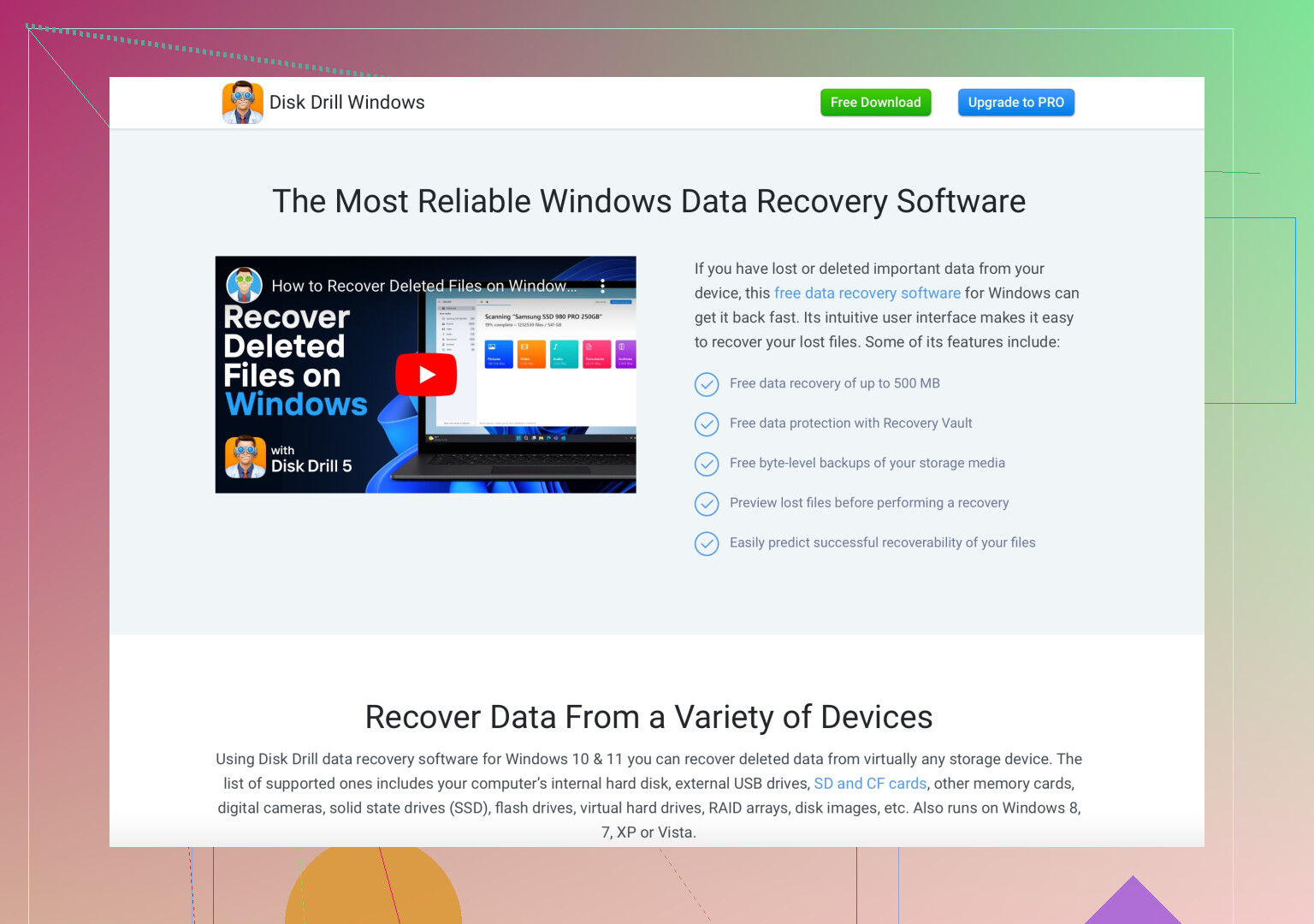
Use Recovery Software: One of the most reliable tools out there is Disk Drill Data Recovery. It’s designed to recover lost files from various storage media, including SD cards. Install this software on your computer.
-
Connect the SD Card: Use a card reader to connect the SD card to your computer. Make sure it’s visible in your file explorer or disk management tool.
-
Run Disk Drill: Launch Disk Drill and select your SD card from the list of available drives.
-
Scan for Lost Files: Start the scanning process. Disk Drill will comb through the formatted card to find recoverable files. The time taken may vary based on the size of your SD card.
-
Preview and Recover: Once the scan is complete, you’ll see a list of recoverable files. You can preview them to ensure you’re recovering the right files. Select the files you need and hit the ‘Recover’ button.
Alternatives (Just in case)
- Recuva: Another popular free option, though its success rate might not be as high as Disk Drill’s.
- Photorec: Great for photo recovery, but beware, it’s not very user-friendly.
Tips:
- Use Software ASAP: The quicker you try to recover, the better.
- Check for Hidden Files: Sometimes they don’t show up immediately.
- Backup Regularly: Easier to prevent than to cure.
Feel free to give these methods a shot and cross your fingers. Happy recovering!