Man, that sounds like a classic oh-no moment. So, here’s the deal real quick. You can sometimes recover files even after emptying the Recycle Bin on Windows 11. It’s all about acting swiftly before new data overwrites the space where your deleted files were stored.
First thing: Check Previous Versions. If you had File History enabled, you might be in luck. Here’s how you can do it:
- Go to the folder where the files were originally stored.
- Right-click on the folder and select “Restore Previous Versions”.
- If there are previous versions listed, click to view and restore the one with your missing files.
No luck there? Alright, no worries. Let’s get a bit more techie. You’d want to use data recovery software. There are several out there, but one of the popular ones is Disk Drill
. It’s straightforward and powerful enough to help you out in this situation. You can get it here: Disk Drill.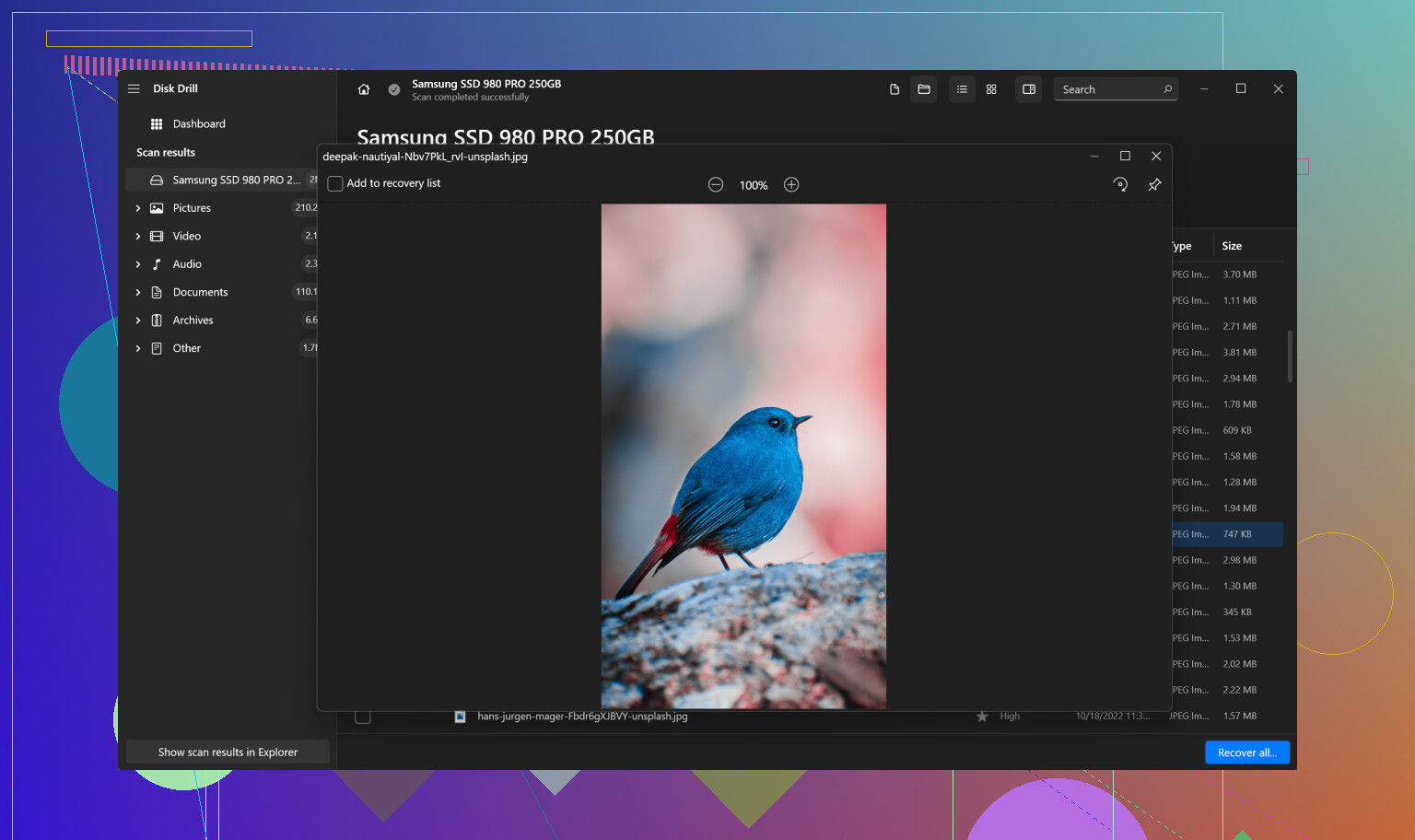
Here’s a quick way to use Disk Drill on Windows 11:
-
Download and Install Disk Drill:
Head over to the link: https://www.disk-drill.com/ and download the version for Windows. -
Launch Disk Drill:
Once installed, open Disk Drill. You should see your main drives listed. -
Scan the Drive:
Select the drive from which you deleted your files and click on the “Search for lost data” button. Disk Drill will perform a quick scan, and you’ll see files popping up. If the quick scan doesn’t do it, let it run a deep scan. This might take a bit longer, but it’ll dig deeper for your files. -
Preview and Recover Files:
Locate your lost files in the list that pops up after scanning. You can click and preview them to make sure they’re the right ones. Once confirmed, select the files and hit the recover button. You wanna make sure you save the recovered files to a different location to avoid overwriting other potentially lost files.
Also, you might want to explore System Restore if the above methods don’t net you the missing data. It’s a sort of Hail Mary but sometimes works wonders.
- Open System Restore:
Type “System Restore” in the Windows search bar and hit Enter. - Choose Restore Point:
Follow the prompts and choose a restore point that was created before you deleted the files. - Restore:
Let the system do its thing.
If all else fails, and you need military-grade techniques to recover those files, you might wanna consult a professional data recovery service. These services can get pricey but can be worth it if the data is super critical.
Good luck, and remember, always keep backups to avoid this sort of chaos in the future.