My iPhone found a lot of duplicate photos in the Photos app, but some look slightly different and I’m worried I’ll remove the wrong ones. I need help figuring out the safest way to merge duplicate photos on iPhone, keep the best quality image, and avoid losing important pictures.
I hit this too, and the wording threw me off at first. On iPhone, ‘Merge’ in Photos does not blend a bunch of similar pictures into one file. It removes duplicate copies and leaves one version behind, usually the one with the better attached info.
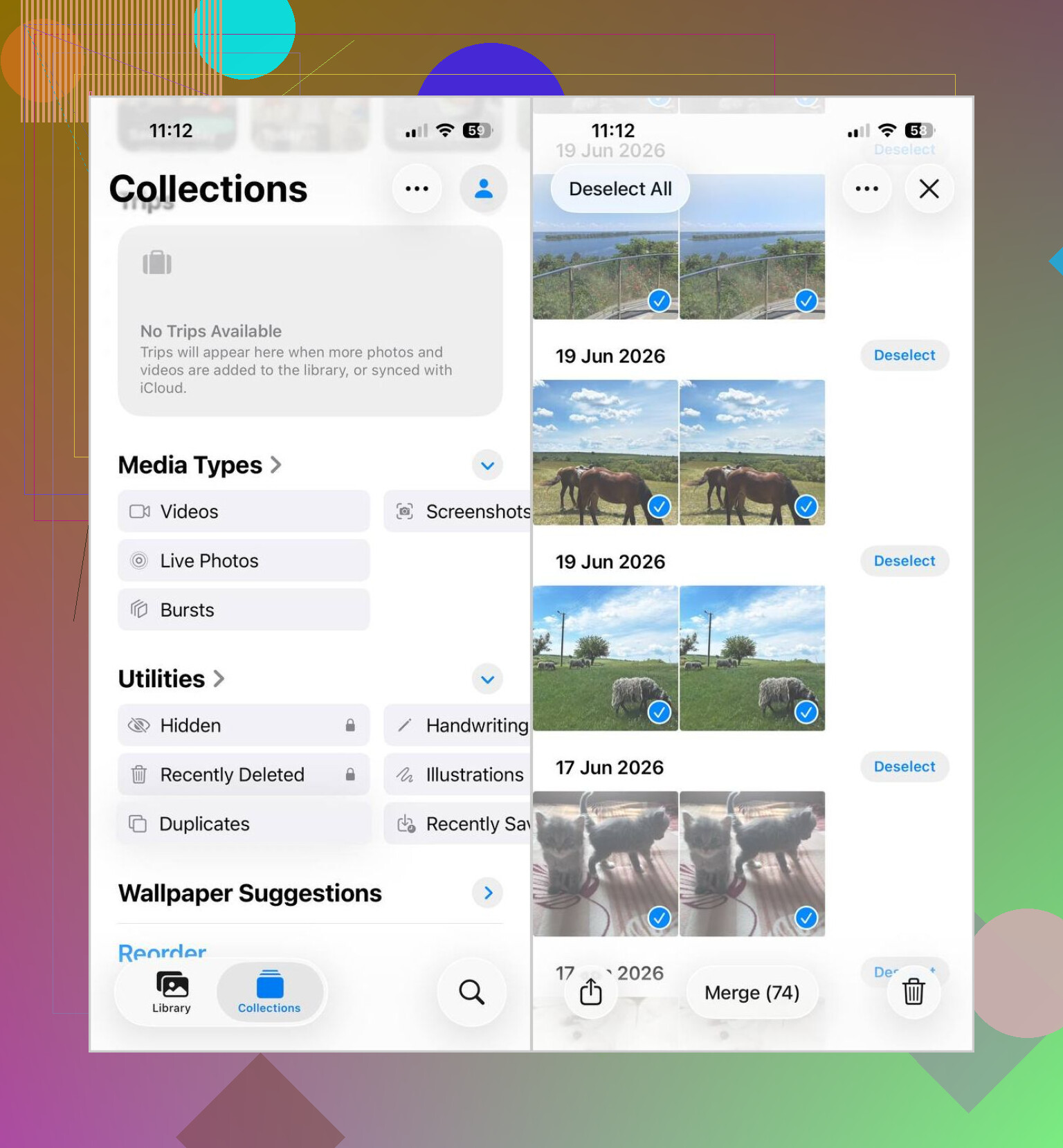
If you want to do the built in cleanup, this is the path I used:
- Open Photos.
- Scroll to Utilities.
- Tap Duplicates.
- Hit Select, then Select All, or pick groups one by one.
- Tap Merge and confirm it.
One gotcha. If the Duplicates album is missing, your phone might still be indexing the library. After I imported a big batch, mine took hours before anything showed up. I thought it was broken. It wasnt.
Also, this only catches exact duplicates. So if your camera roll has stuff like:
- five shots from the same second
- burst photos
- selfies with tiny angle changes
- near identical screenshots with one notification difference
those usually do not land in the Duplicates section.
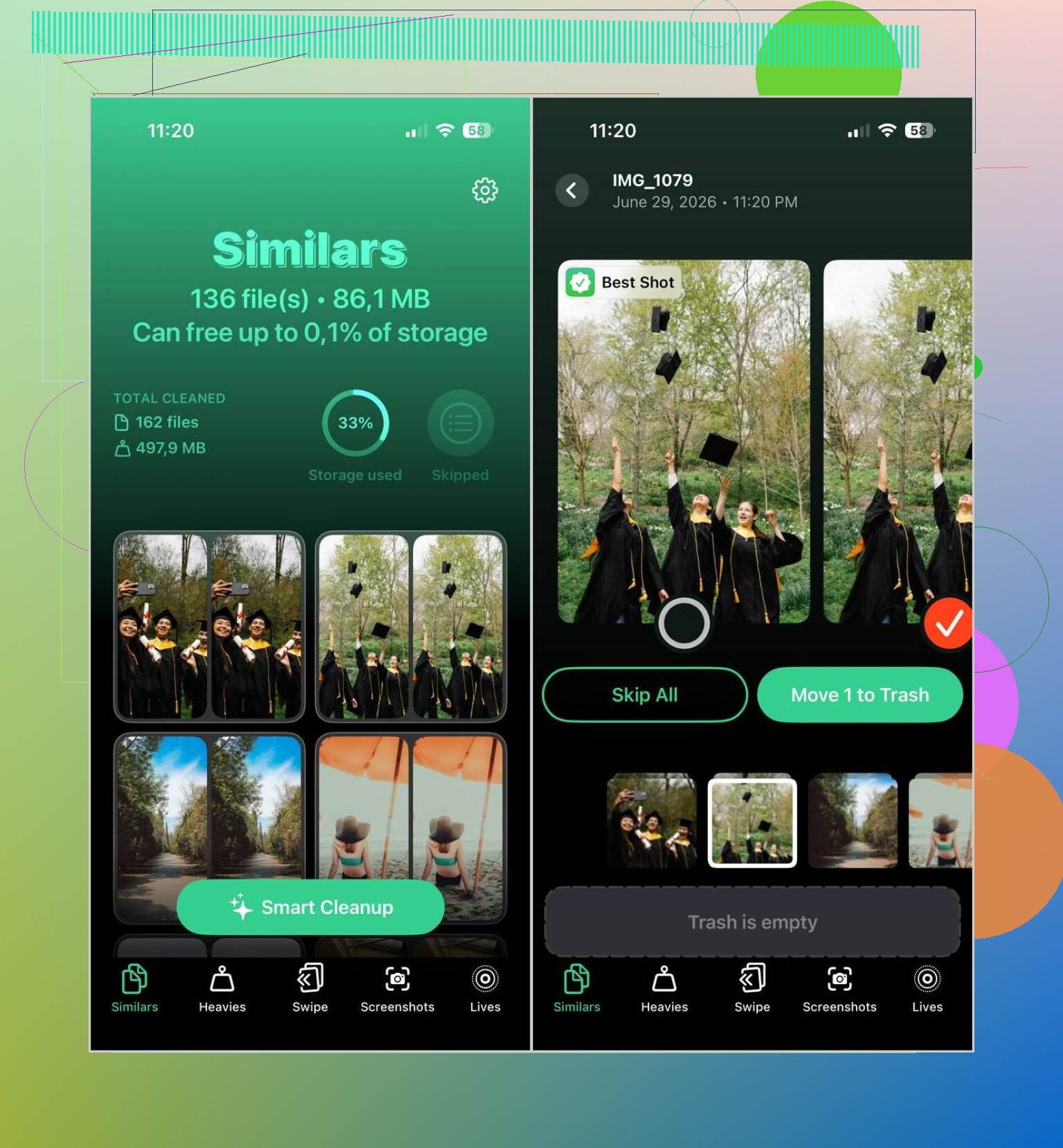
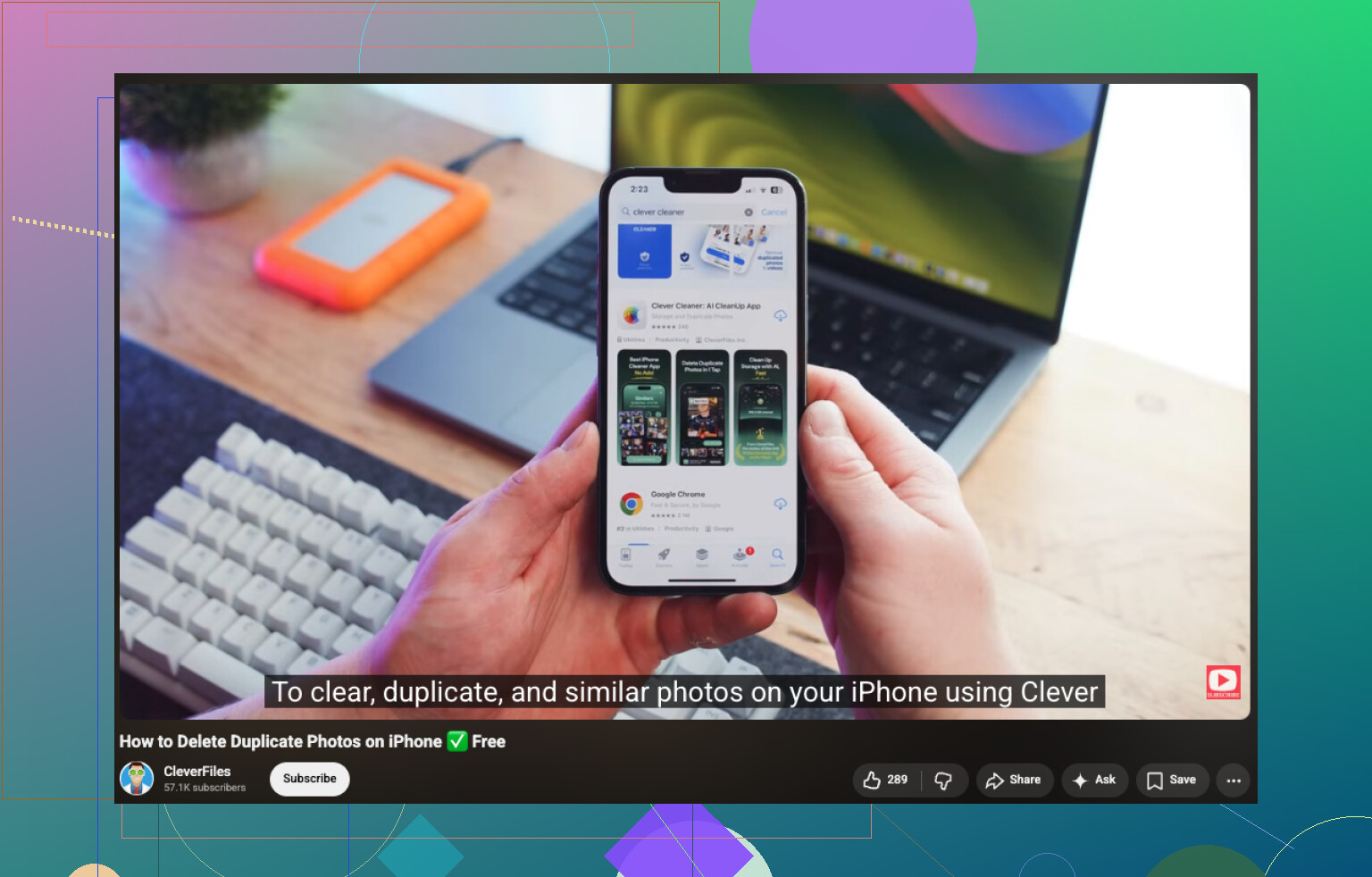
For that kind of mess, I used Clever Cleaner. What helped me was the Similars view, because it grouped photos that looked alike, not only byte for byte duplicates.
What I did there:
- Install it and let it scan the photo library.
- Open the Similars section.
- Use Smart Cleanup if you want automatic picks, or check each group yourself.
- Approve the cleanup.
- Go back to Photos and empty Recently Deleted if you want the storage space back right away.
Small warning from my own screwup. Before wiping a huge batch, scroll through the matches for a minute. Even decent photo cleaners miss sometimes, and I saw a few groups where I wanted to keep two near identical shots for different reasons.
17 Likes
I’d be a bit more careful than @mikeappsreviewer on one point. I do not merge every group in Apple Photos in one shot. If you care about slight edits, favorites, captions, or one version stored from Messages vs Camera, review in small batches.
Safest method for me:
- Sort your library first. Check Favorites, Edited, Screenshots, and bursts.
- In Duplicates, open each group and compare details. Look at resolution, file type, and edit badge.
- Keep the one with the highest quality or the one tied to an album you still use.
- Merge only 5 to 20 groups at a time.
- After each batch, check Recently Deleted.
One tip people skip. If two photos look the same, tap the info button. A HEIF image and a JPEG copy often look identical, but one takes less space. Live Photos also get messy here.
For similar shots, not exact duplicates, Apple Photos is weak. That’s where Clever Cleaner helps more, since it shows lookalikes and lets you review them before deletion. I would not trust auto-cleaning on a huge batch tho, I learned taht the hard way.
If you want a clean guide on safe iPhone photo cleanup, this helps:
best ways to merge duplicate photos on iPhone without deleting the wrong ones
Short version. Merge exact duplicates in Apple Photos. Review near-duplicates manually or with Clever Cleaner. Do it slowly, and you wont lose the shot you meant to keep.
I’d split this into two jobs, because “duplicates” and “looks almost the same” are not the same mess.
Where I kinda differ from @mikeappsreviewer and @nachtschatten is this: I would not obsess over every exact duplicate group forever. Apple’s duplicate detection is usually pretty conservative. The real danger is the near-duplicate stuff, not the true 1:1 copies.
Safest approach I use:
- First, protect anything important before cleanup. Make sure iCloud Photos has finished syncing, or back up to a Mac/PC.
- Next, filter out photos you know you never want touched yet, like edited pics, Live Photos, or images you still need for work/docs.
- Then deal with exact duplicates in Apple Photos, but only after opening the info panel on any group that looks suspicious. Sometimes one file has location data, a different format, or a Live Photo component you care about.
- After that, handle similars separately.
That last part is where Clever Cleaner is actually useful. Not for blind deletion, but because it surfaces lookalike shots faster than scrolling your camera roll for an hour like a caveman. I’d still review groups manually, esppecially if they’re portraits, pets, or screenshots with tiny differences.
One more thing people skip: after removing dupes, search your library by keyword like receipt, screenshot, WhatsApp, Instagram, or document. You’ll often catch the real storage hogs there faster than in the Duplicates album.
If you want a simple guide for fast iPhone photo cleanup, this is decent:
how to quickly delete duplicate photos on iPhone
Short version: back up first, trust Apple more with exact duplicates, trust yourself more with similars, and use Clever Cleaner as a review tool, not a delete-everything button.
One thing I’d add to what @nachtschatten, @himmelsjager, and @mikeappsreviewer said: check whether the photo is referenced in a shared album or Memories you actually care about. Merge usually keeps the best metadata, but it does not always keep the version you personally “recognize” from an album flow.
My rule is simple:
- If it is an exact duplicate, Apple Photos is fine.
- If I have to squint, I do not merge in Apple first.
A safer trick is to heart the version you want to keep before doing any cleanup. That gives you a fallback marker when reviewing batches later.
About Clever Cleaner, I’d use it as a sorting assistant more than a deletion machine.
Pros:
- surfaces similar-looking shots Apple misses
- faster for screenshot clutter and repeated selfies
- easier visual review than scrolling the whole library
Cons:
- similar groups are judgment calls
- auto picks can choose the wrong “best” shot
- you still need to verify Live Photos, edits, and tiny text differences
So yeah, I slightly disagree with the idea of chasing every duplicate immediately. Sometimes the smarter move is to leave uncertain groups alone until after you trim screenshots, memes, and app images. That cleanup is lower risk and often frees a surprising amount of space.