Hey, sorry to hear about your corrupted video file. It can be super frustrating when a video won’t play, especially if it’s important footage. Here are a few steps you can try to recover or fix that file:
-
Try VLC Media Player: This media player is pretty versatile and can sometimes play corrupted files, or even repair them. Open VLC, go to “Media” > “Convert / Save”, add your corrupted file, and follow the steps to convert it to another format. VLC will attempt to fix any issues during the conversion process.
-
Restore from a Backup: If you have any kind of backup service running, check to see if your video file might have been backed up before the corruption happened.
-
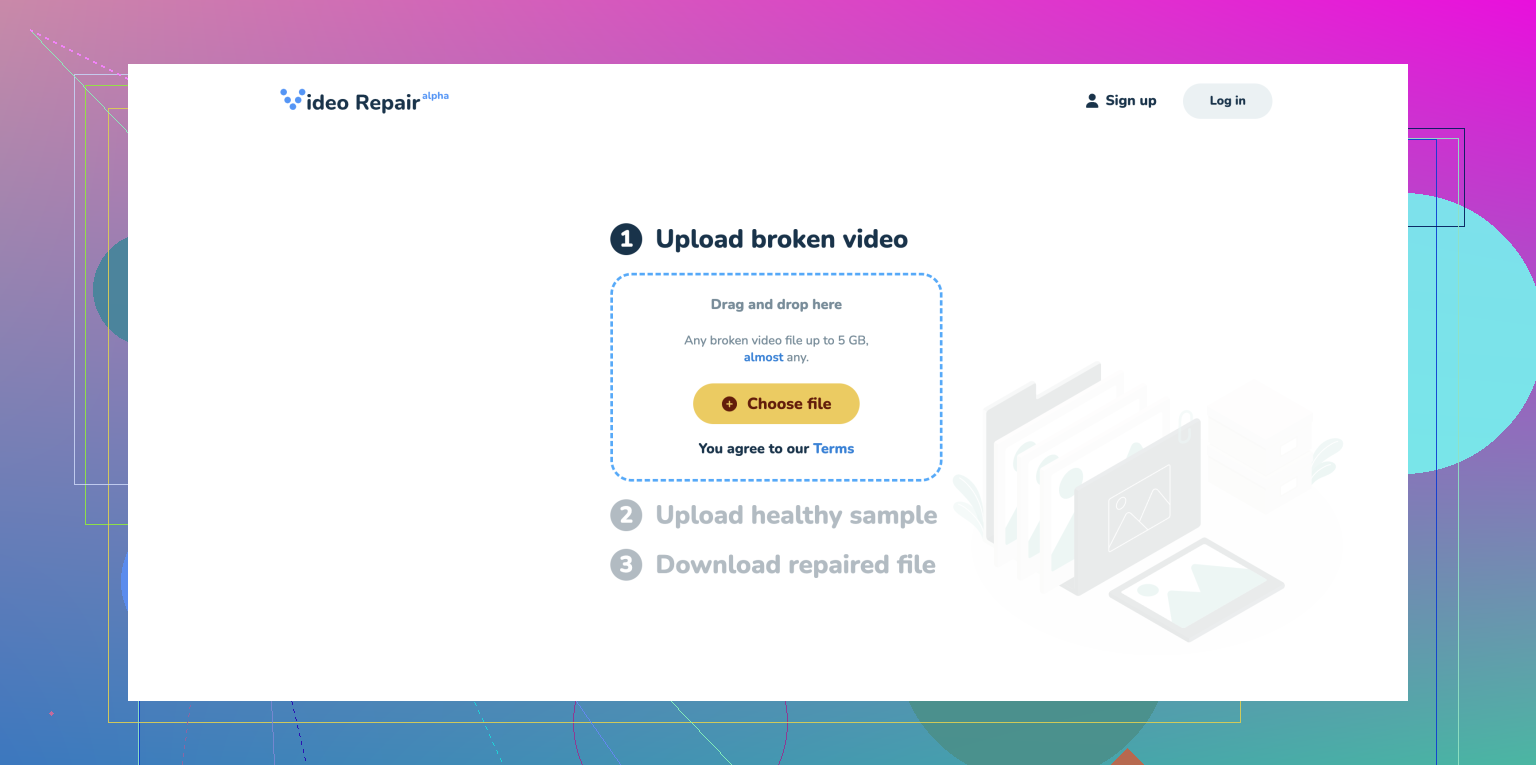
Use Video Repair Software: There are some dedicated tools out there specifically for fixing corrupted videos. A great free tool you can try is the Clever Online Video Repair
Tool available here: https://repair.cleverfiles.com. Just upload your corrupted file, and it will attempt to repair it. -
Hex Editing: If you’re up for a bit of a nerdier approach, you can use a hex editor to try and fix the metadata yourself. This method is a bit more advanced, but sometimes you can compare a working video file with your corrupted one to find differences in the headers or structure and make manual corrections.
-
Command Line Tools: Tools like FFmpeg are incredibly powerful and can often fix corrupt video files by re-multiplexing or copying streams without re-encoding. Here’s a simple command you might try:
ffmpeg -i corrupted_video.mp4 -c copy output_fixed.mp4This command attempts to copy the streams without re-encoding, which might fix minor corruption issues.
Remember, always try to keep backups of your important files, and best of luck with recovering your video!