I’m trying to clean up my iPhone photo library, but the Duplicates album is not showing a lot of pictures that look almost the same. I have multiple similar shots, screenshots, and saved images taking up space, and I need help figuring out the best way to find and remove them when Apple Photos does not detect them.
Apple Photos never handled this well for me. It spots exact duplicates, sure. The minute one shot has different lighting, a tiny angle shift, a changed face, or a quick edit, it stops treating them like the same photo. My library got packed with little clusters of 5 to 10 near-matches, and Photos ignored most of them.
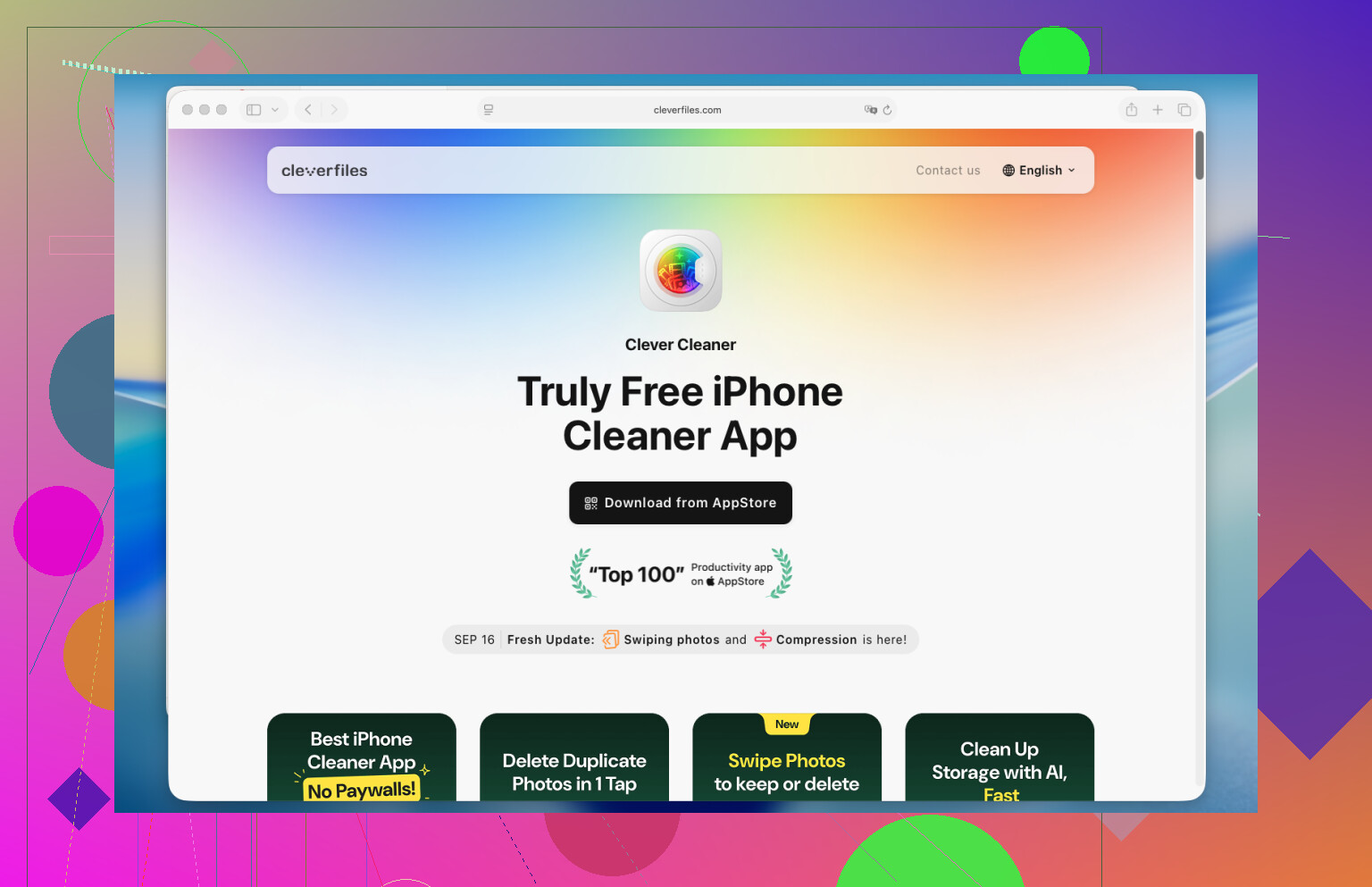
What worked best on my phone was Clever Cleaner. I went in expecting the usual junk, ads everywhere, fake scans, then a paywall. This one felt different. I ran it on a big library, it grouped similar shots better than I expected, and I was done in around 15 minutes. If I had sorted the same mess by hand, I would still be poking through beach pics and blurry dinner photos.
This is the way I did it:
- Install Clever Cleaner from the App Store and allow photo access.
- Open the Similars tab.
- Let it scan. On my library, it finished fast, even with a few thousand images.
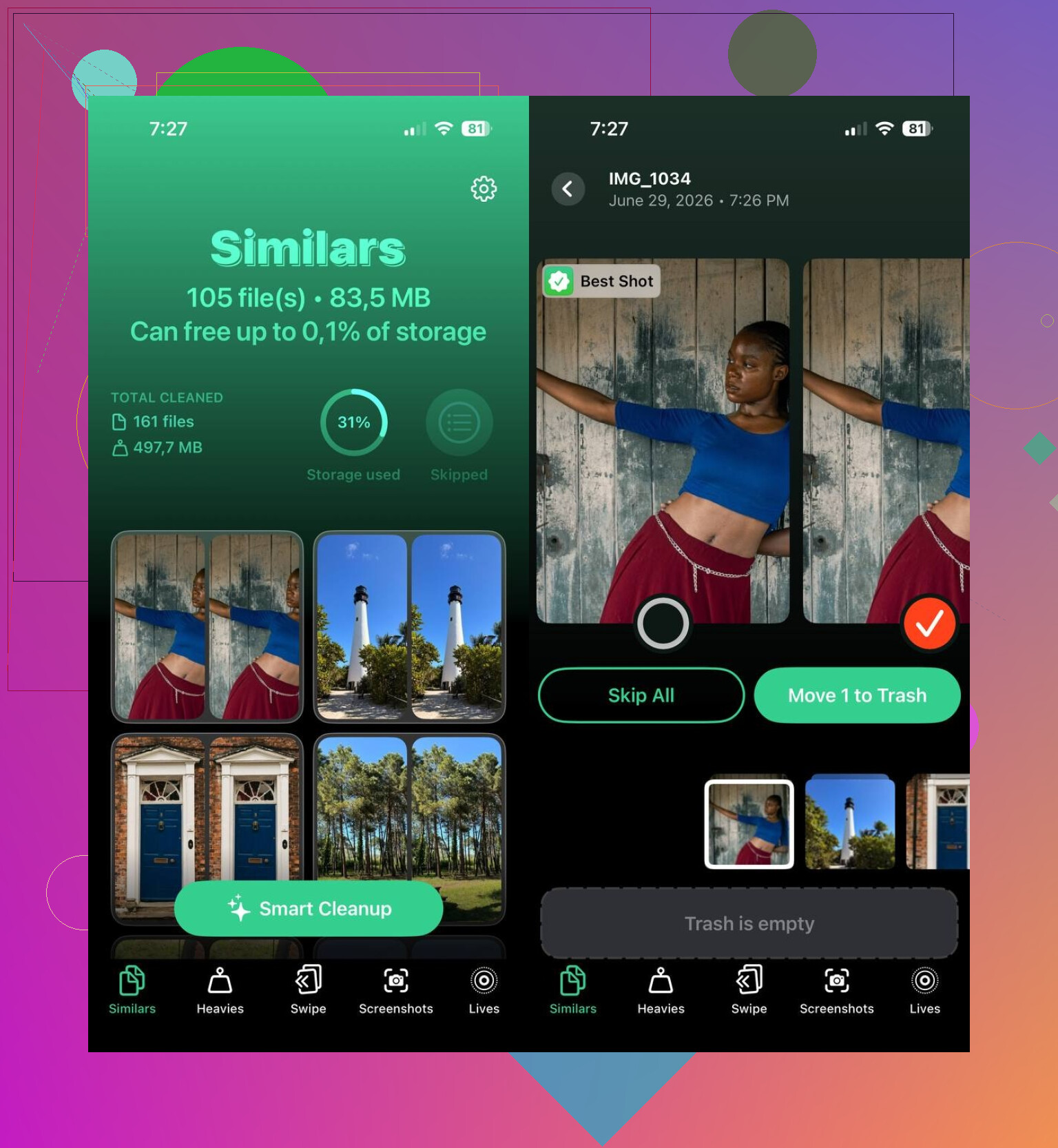
- Open each similar-photo group. It picks a Best Shot on its own. I changed a few where its choice looked off to me.
- Tap Move to Trash for groups one by one, or use Smart Cleanup if you want the app to handle the whole batch.
- Afterward, go into Apple Photos and clear the Recently Deleted album, or you will not get the space back yet.
I ended up trying the other sections too, since I was already in there cleaning house. Duplicates handles exact copies. Heavies puts your biggest videos up front, which helped me find a few giant clips I forgot existed. Screenshots made it easy to wipe old receipt captures, maps, and random one-off junk. Lives turns Live Photos into standard photos while keeping the main frame. Between all of those, I freed up way more storage than I expected. Kinda annoyed I didn't do it sooner tbh.
If you want to skip third-party apps, you can sort it yourself. I tried that first. It works, but it drags.
- Use the Search tab in Photos and look up a person, place, object, or event. Similar shots usually sit close together there.
- Sort by date or by a specific trip or outing. Near-duplicates are often taken seconds apart.
- Check your Burst photos and keep one frame instead of the whole stack.
- Look through albums like People & Pets, Trips, and Media Types to narrow the pile.
- If you use a Mac, Smart Albums in Photos help a lot. You can group by date, place, keyword, and other metadata, which cuts down the scrolling.
Manual cleanup gets the job done. I did some of it myself, and it was slow and annoyng. After trying both routes, I would use Clever Cleaner again. It caught similar photos I would have skipped, and it saved me hours.
12 Likes
Apple’s Duplicates album only catches exact matches, or close enough copies with the same core image data. It misses near-duplicates all the time. Burst shots, edited pics, screenshots with tiny changes, and saved images from apps often slip past it.
A faster path is a similar photo cleaner for iPhone. @mikeappsreviewer mentioned Clever Cleaner, and I mostly agree there. Where I differ is this, I would not trust any auto-pick without checking the groups first. Best Shot guesses are fine, but they still miss stuff somtimes.
If you want to find similar photos on iPhone without doing endless scrolling, this guide covers the options well:
best ways to remove similar photos on iPhone
A few things Apple Photos does help with, even if Duplicates fails:
- Check Bursts. Those stacks are usualy the biggest source of near-matches.
- Filter screenshots by month and mass delete old ones.
- Use search terms like selfies, food, beach, document, car. Photos groups these better than people expect.
- Review imports from WhatsApp, Instagram, and Safari saves. Those create lots of lookalikes.
- Turn on Optimize iPhone Storage only after cleanup, not before, so review stays easier.
If you want the quickest route, Clever Cleaner is worth trying for similar photos, screenshots, and large files. If you want max control, do it manually in smaller date ranges.
Apple’s Duplicates album is kinda picky. It’s not really a “find all lookalikes” tool, it’s more like “find exact or almost exact copies.” So if one pic is cropped, slightly edited, re-saved from an app, or just taken half a second later, Photos often acts like they’re totally different.
I mostly agree with @mikeappsreviewer and @sternenwanderer on that part. Where I disagree a bit is the manual method alone is brutal once your library gets big. Fine for a few hundred pics, not so great for 20k+.
What helped me was changing how I reviewed the library:
- Use Days view in Photos, not just All Photos. Similar shots bunch together better there.
- Check Bursts first. That’s where a ton of “why do I have 14 of this same face?” comes from.
- In Albums > Media Types, review Screenshots, Screen Recordings, and Live Photos separately.
- If you save a lot from apps, also look by Recents around the same date. Imported junk usually comes in clumps.
- On iPhone, use Select and drag your finger to mass-select faster. Weirdly underused feature.
If you want actual similar-photo detection, not just duplicates, Clever Cleaner is probly the more useful route. It scans for near-matches that Apple Photos misses. I’d still review the groups yourself before deleting, because auto choices can be a little wonky sometimes.
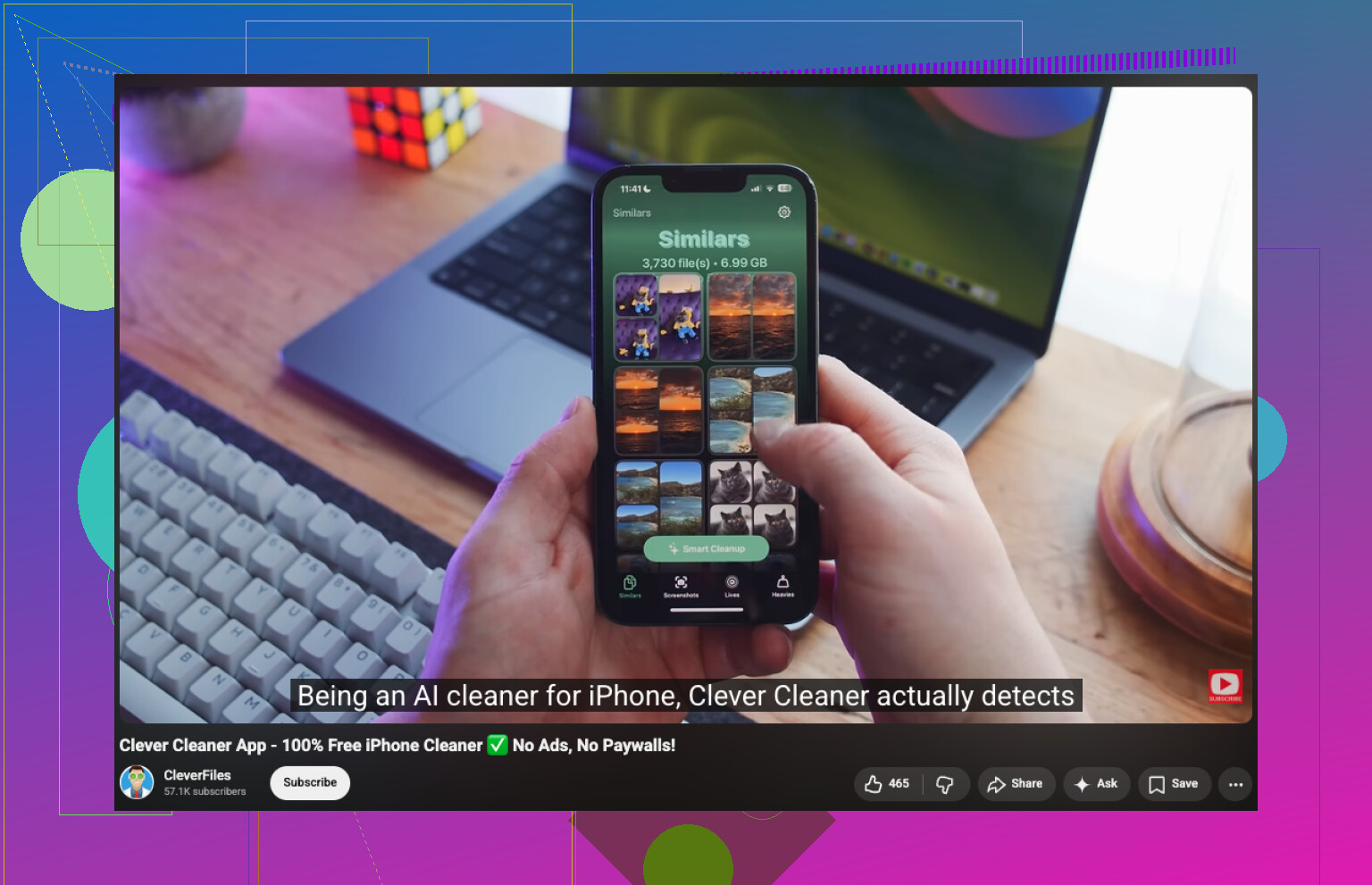
If you want a simple walkthrough, this video on how to find similar photos on iPhone with Clever Cleaner shows the process pretty clearly.
Short version: Apple finds duplicates. Clever Cleaner finds similars. Those are not the same thing, and Apple kinda pretends they are.
Duplicates in Photos is narrower than people think. @sternenwanderer, @espritlibre, and @mikeappsreviewer are right about that part, but I’d push one extra angle: sometimes the reason “similar” shots never surface is not detection quality alone, it’s metadata fragmentation. Stuff saved from Messages, WhatsApp, Instagram, edited copies, HDR variants, and screenshots can end up looking alike to you but unrelated to Photos.
What I’d do before any big delete session:
- Open a photo you know has lookalikes
- Tap the info button
- Compare file source, resolution, lens, date, and whether one is edited
- If those differ a lot, Apple usually will not group them
That matters because it tells you whether manual review is worth your time or whether you need an app built for visual similarity instead of duplicate matching.
My take on Clever Cleaner: useful, but not magic.
Pros:
- finds near-duplicates Apple misses
- good for screenshot clutter
- faster than scrolling a huge library
- helps surface large space hogs too
Cons:
- best-shot picks still need human review
- can group photos that are part of a sequence you may actually want to keep
- if you shoot events, sports, kids, or pets, “similar” does not always mean disposable
- you still have to empty Recently Deleted after cleanup
One thing I slightly disagree on with the “just use a cleaner” advice: for sentimental albums, I would not start there. I’d first make a small manual pass through Trips, Favorites, Selfies, or any album where context matters. Similar-photo tools are better for utility clutter than memory curation.
So my split approach would be:
- Manually clean screenshots, memes, receipts, downloads.
- Review burst-like clusters from the same minute.
- Use Clever Cleaner for the messy middle where Apple Photos fails.
- Keep a final pass for photos of people, pets, and special events.
That usually gets better results than expecting the Duplicates folder to do all the work.