I turned on Live Photos on my iPhone by accident, and now a lot of my pictures are saved with motion and sound. I want to remove the Live effect to save space, but I don’t want to lose the actual photos. What’s the safest way to delete Live Photos or convert them to still pictures without deleting anything important?
It’s not hard, I did this a while back.
If you want Live Photos gone completely and you do not care about keeping the image itself, open Photos, head to Media Types > Live Photos, pick what you want removed, and delete it. Then go clear Recently Deleted too. If you skip that part, your storage won’t come back right away, it sits there for up to 30 days.
If you want to keep the picture and lose only the motion part, the job is different. You need to turn each Live Photo into a normal still image first. Apple lets you do this by duplicating photos as stills inside Photos, and yeah, it works. I tried it. Fine for five photos. Annoying fast once your library gets big.
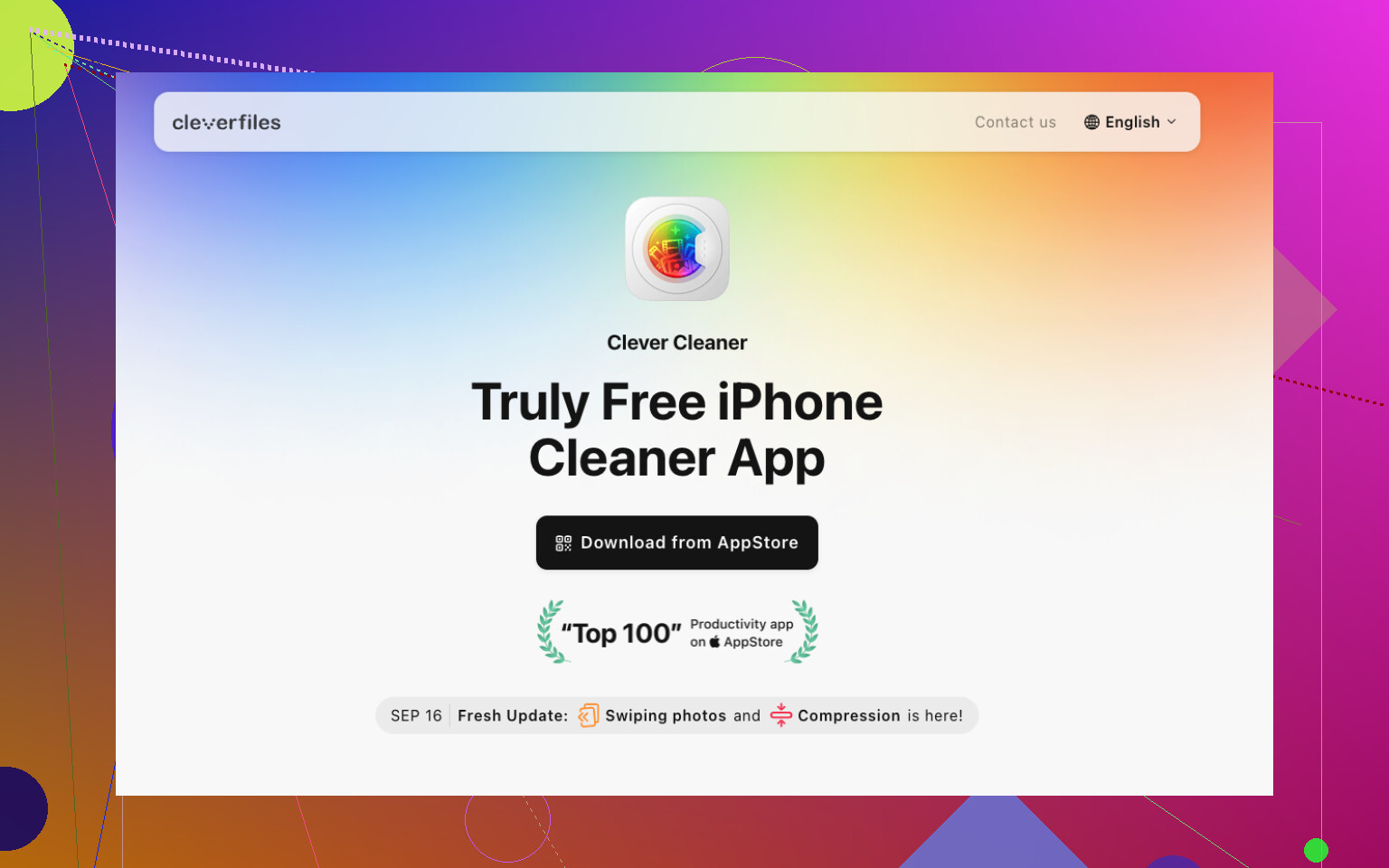
What saved me time was Clever Cleaner. I found all my Live Photos under its Lives tab instead of hunting through the library one by one. You sort by size or date, grab a few or grab all, then hit Compress. The label is a bit off, because what it did for me was turn them into standard still photos, then ask if I wanted to keep or remove the original Live versions.
Why I stuck with it:
- It handles batches, so you are not repeating the same step over and over.
- It shows the storage impact before you commit.
- You choose whether the old Live Photos stay or go.
- It took way less time than doing duplicates manually in Photos.
- It includes a few other cleanup tools, which helped when I was trimming storage in general.
I ended up using some of the other sections too. Similars grouped duplicate shots and near-duplicates. Heavies surfaced the big videos eating space, and it also helps shrink them. Screenshots put all the random screen grabs in one place. Swipe felt like a quick yes-no sorter for photo cleanup. Kinda dumb name, useful tool.
So the short version is this:
- If you want them fully gone, delete the Live Photos and empty Recently Deleted.
- If you want to keep the picture, first make still-photo copies, then remove the original Live versions.
- If you have a huge pile of Live Photos, doing it by hand gets old real fast. A bulk tool made more sense for me.
8 Likes
You do not need to delete the picture. You need to remove the Live part.
Fastest built-in way for a few photos:
- Open Photos.
- Tap a Live Photo.
- Tap LIVE at the top.
- Switch it to Live Off.
- Tap Done.
This keeps the image. It removes the motion effect for that item. If your iPhone recalculates storage slowly, give it a bit. iOS does taht.
Where I disagree a bit with @mikeappsreviewer, duplicating stills first is not always needed. If you turn off the Live setting on the photo itself, the main image stays. You are editing the asset, not throwing the photo away. For a small batch, this is the cleanest route.
For a big library, Photos is bad at bulk work. No batch toggle. That part is annoying. In that case, Clever Cleaner makes more sense because it works like a Live Photo to still photo converter for iPhone storage cleanup, which is easier to understand than ‘compress’ for most people. If you want a quick look at how people handle this stuff, see smart ways to clean up Live Photos on iPhone.
Also do this so it stops happening again:
Settings > Camera > Preserve Settings > Live Photo, turn it on.
Then open Camera and disable Live. Your phone will remember it.
If your goal is space, check your settings too:
Settings > General > iPhone Storage
That screen shows if Live Photos are even the main problem. Sometimes videos are the real storage hog, not the Live pics. I learned taht the hard way.

One thing I’d add to what @mikeappsreviewer and @shizuka said: if you use iCloud Photos, the space savings on the iPhone itself can be a little underwhelming at first. People delete or convert Live Photos and expect instant huge results, then iOS is like, nope, maybe later. It can take time to sync and recalculate. Kinda annoying, but normal.
Also, I slightly disagree with the idea that removing Live always makes a massive dent. Sometimes it does, sometimes the storage gain is pretty meh unless you have hundreds or thousands of them. Live Photos are bigger than stills, sure, but videos usually wreck storage way harder.
Safest mindset:
- do not bulk-delete first if you care about the shots
- confirm a few converted photos still look right
- then do the rest
If your library is big, manual editing gets old real fast. That’s where Clever Cleaner is actually useful, mostly because it helps isolate Live Photos and turn cleanup into a batch job instead of a one-by-one punishment. If you want a clearer breakdown of what it does for Live Photos, duplicates, and heavy files, this review explains it better: see how Clever Cleaner frees up iPhone storage without deleting the photos you want.
One more practical tip nobody mentions enough: after you finish, back out of Photos, reopen it, and check a few images before emptying anything from Recently Deleted. Sounds obvious, but I learned the hard way lol.
Small correction to what @codecrafter and @mikeappsreviewer implied: you do not always need to duplicate a still first. On newer iPhones, turning off the Live effect often just leaves the key photo as a normal image. What I’d do first is test on 2 or 3 shots, then check the file behavior in Photos and Storage before touching the rest.
What matters more is your goal:
- If you want less clutter, just disable the Live effect on the photos you care about.
- If you want actual storage back at scale, target the biggest Live Photos, not all of them blindly.
That’s where Clever Cleaner is useful, mostly for triage.
Pros
- batches Live Photos together
- shows likely space savings
- easier to review before deleting
- also catches duplicates and large files
Cons
- another app to grant photo access to
- “Compress” wording can be confusing
- savings may feel minor if Live Photos are not your main storage issue
I agree with @shizuka on one thing: check iPhone Storage first. Sometimes Live Photos are the decoy, and videos are the real problem.