I need help accessing FTP for my WordPress site after I got locked out of the admin area during a plugin update. I’m trying to reach my files to disable the plugin and fix the site, but I’m not sure where to find the FTP credentials or how to connect. Looking for simple steps to access WordPress files through FTP and recover the website.
I had to figure this out myself the first time I needed to fix a broken WordPress plugin, so here’s the simple version of how to access FTP WordPress.
First, “FTP into WordPress” really means connecting to your website’s server where the WordPress files are stored. Once connected, you can upload themes, remove plugins, edit files, back up folders, or fix problems when wp-admin is not accessible.
What you need before starting:
- FTP host/server name (often your domain or something like ftp.yoursite.com)
- Username
- Password
- Port (usually 21 for FTP, 22 for SFTP)
You can usually find these in your hosting control panel or welcome email.
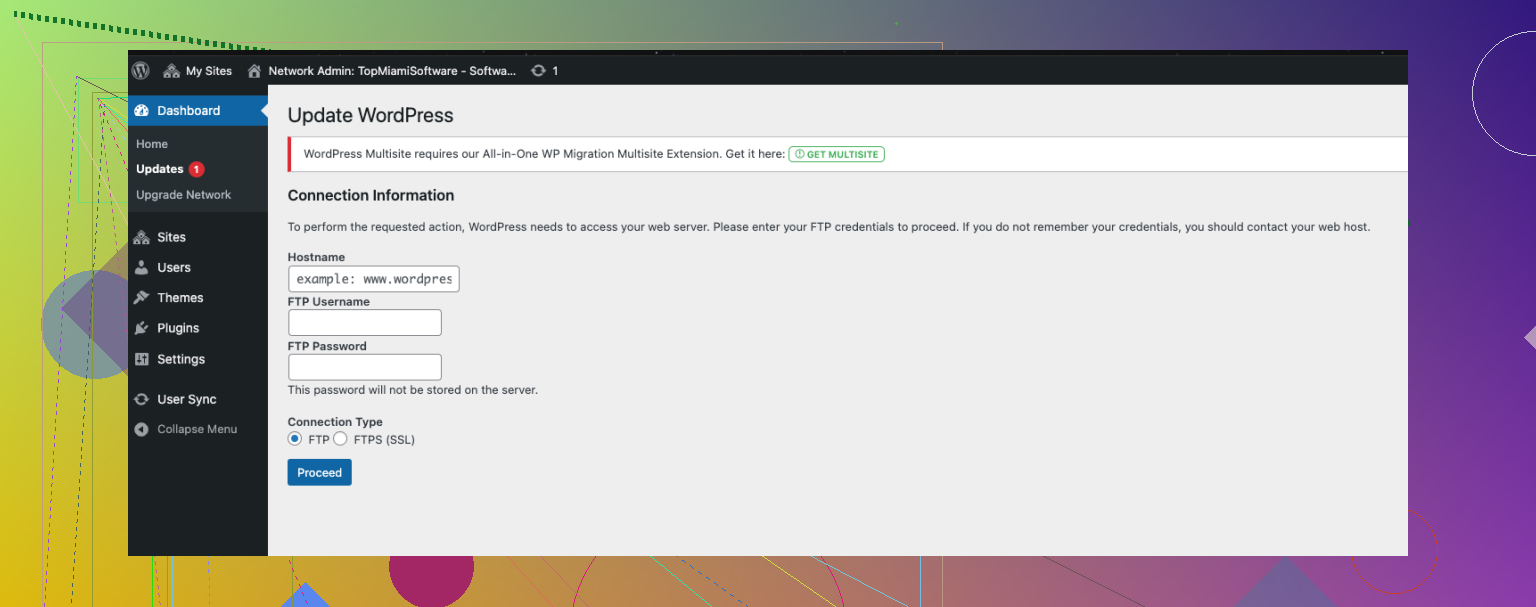
I strongly recommend using SFTP instead of regular FTP if your host supports it, because it’s more secure.
How I usually connect
- Install an FTP client on your computer.
- Open it and enter your login details.
- Click Connect.
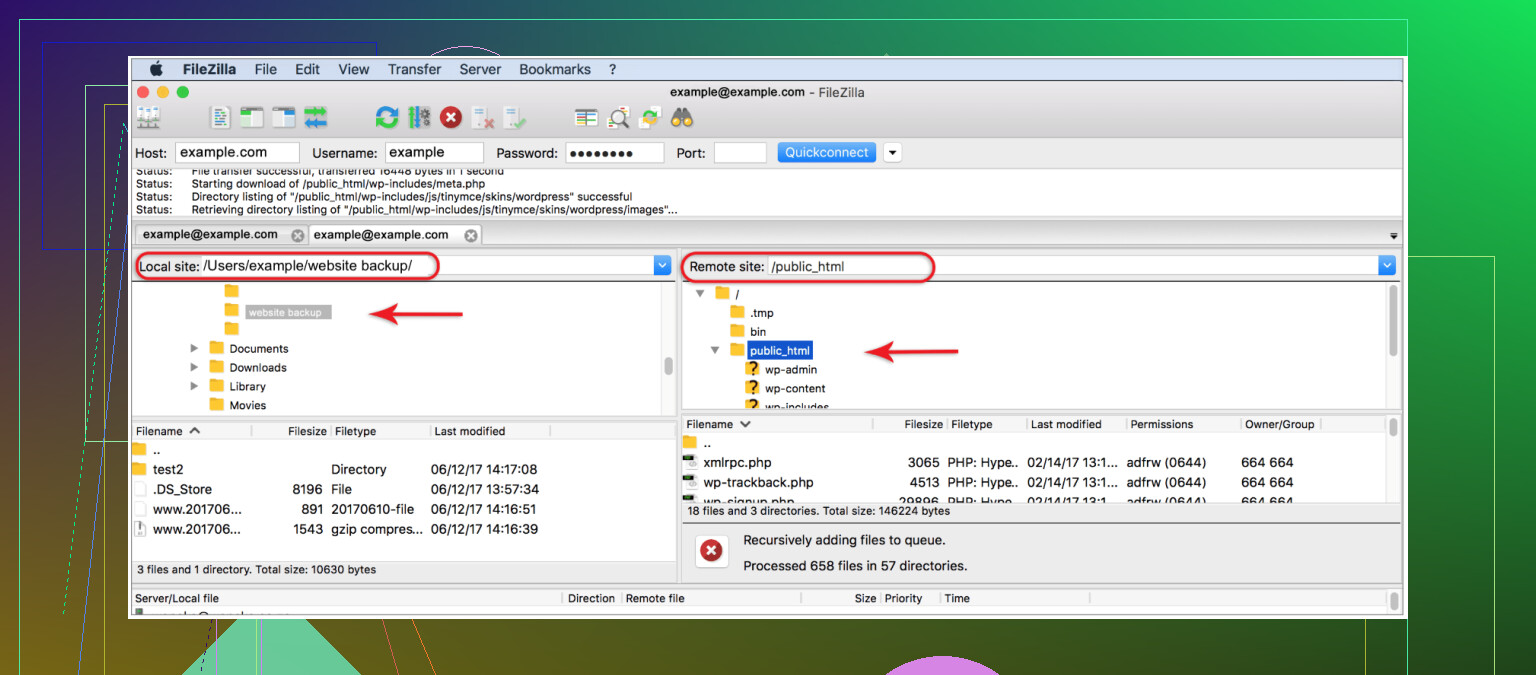
- Once connected, open the website folder, often called public_html, htdocs, or www.
- Inside that folder, you’ll see WordPress files like wp-admin, wp-content, and wp-includes.
That’s it. You are now “inside WordPress” through FTP.
Where most WordPress tasks happen
If you’re troubleshooting or updating things manually, you’ll mostly use:
- wp-content/plugins for plugins
- wp-content/themes for themes
- wp-content/uploads for media files
For example, if a plugin crashes your site, I usually rename its folder inside plugins, and WordPress disables it automatically.
FTP clients I’ve used or seen recommended
FileZilla
Probably the most common choice. It’s free, easy to find guides for, and works on Windows, Mac, and Linux. Good for general use. The downside is that when handling large files or many files at once, it can become slow and less responsive.
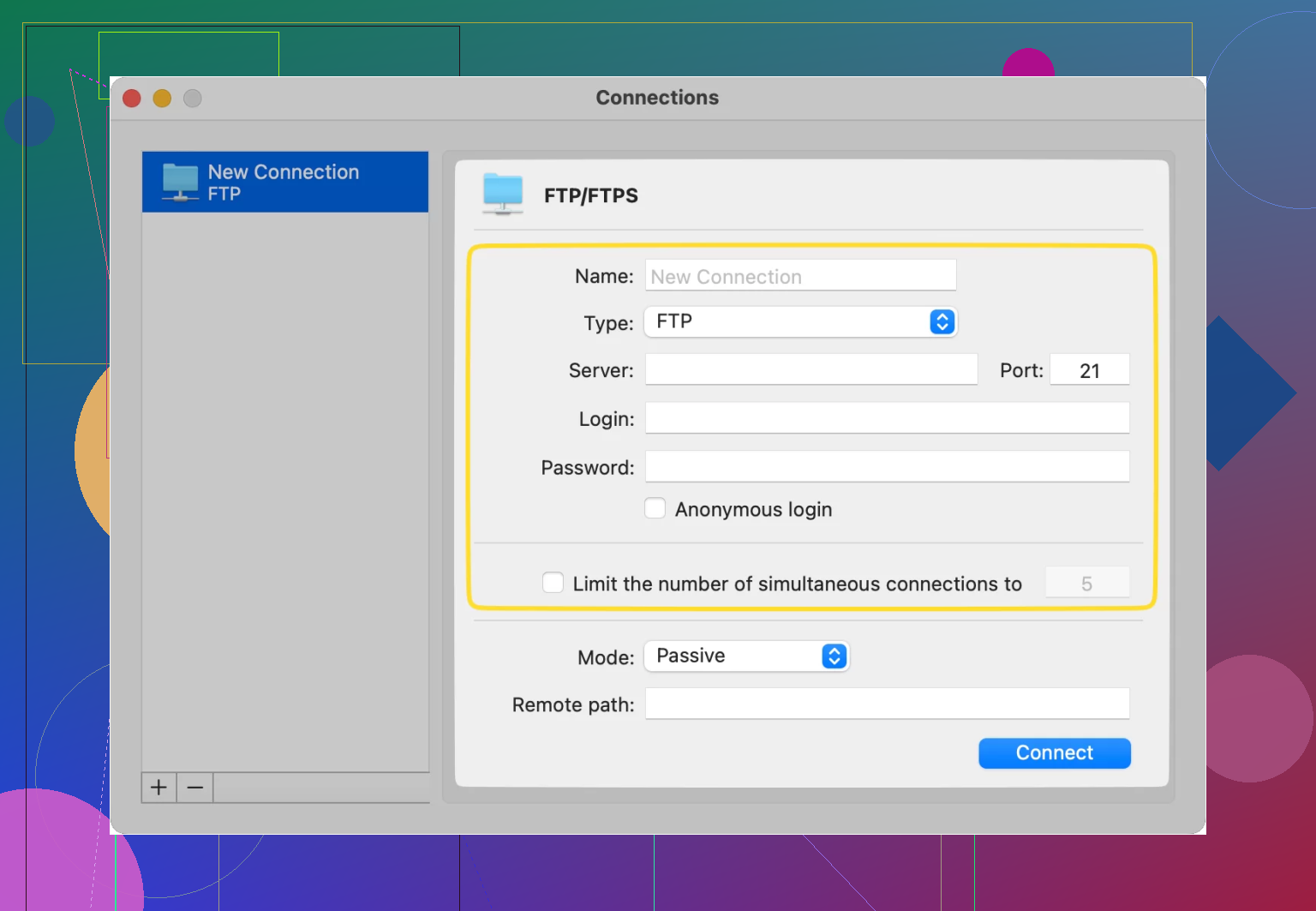
Commander One
If you’re on Mac, this is a strong option. It’s paid, but it gives more advanced tools for FTP/SFTP connections. It also supports archives, so you can compress files and move them to the server more easily. I find that especially useful for development work.
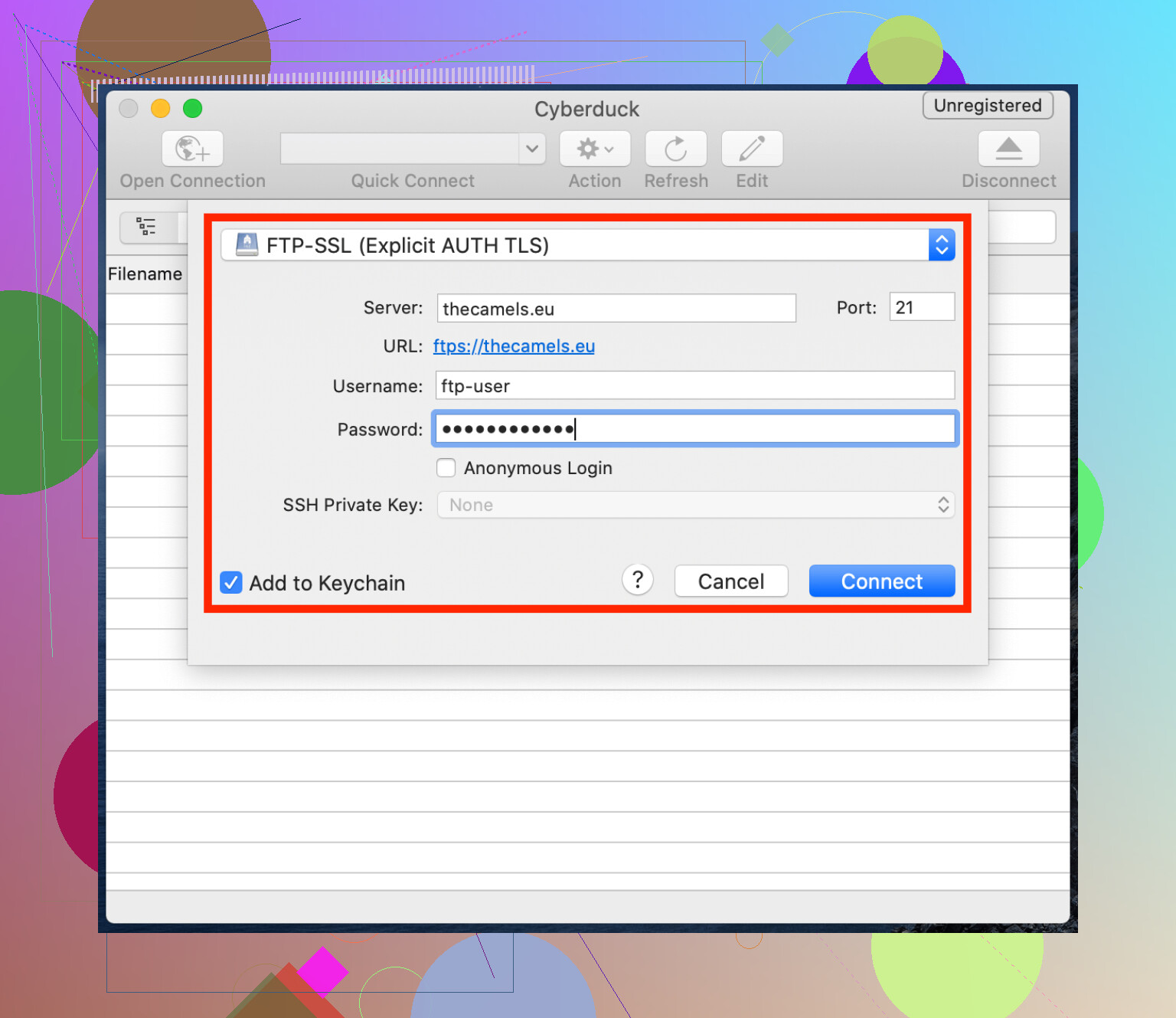
Cyberduck
Free and open-source, which many people like. Cyberduck supports several connection types and has a clean interface. That said, some users run into issues with basic file operations, which can be frustrating if you just want quick file transfers.
CloudMounter
Good choice for beginners on both Windows and Mac. What makes CloudMounter easy is that it mounts your FTP server directly inside File Explorer or Finder, so it feels like using a normal folder. That can make uploads and edits much simpler.
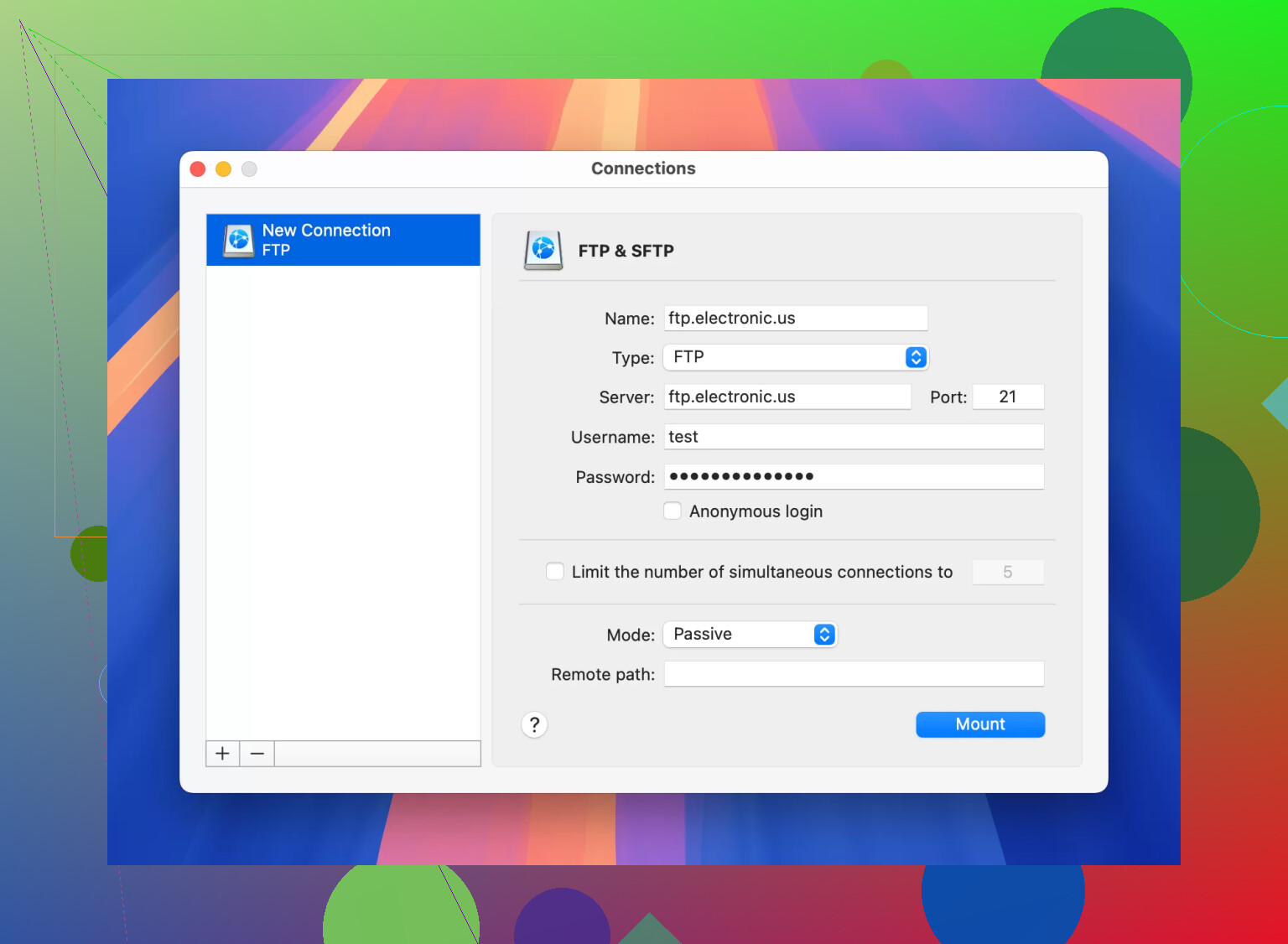
My honest advice
If you’re new, try CloudMounter because it feels familiar. If you want a free classic FTP tool, use FileZilla. If you’re on Mac and need more power, Commander One is worth a look. If you prefer open-source tools, Cyberduck is still an option.
One quick warning
Always download a backup before deleting or replacing WordPress files. A small mistake in FTP can take a site offline fast.
17 Likes
Skip FTP first and check your host’s File Manager. It’s faster when wp-admin is dead. cPanel, Plesk, Site Tools, or a custom host panel usually has it. Log in to hosting, open your site root, then go to wp-content, plugins, and rename the problem plugin folder. Add .off to the folder name. WordPress will disable it.
If you still need FTP, the login details are usually under FTP Accounts, SFTP, SSH Access, or Hosting Details in your host dashboard. Sometimes the host puts SFTP under SSH, which is annoyng.
I differ a bit from @mikeappsreviewer on one point. I would not use plain FTP unless your host leaves you no choice. Use SFTP or the host file manager.
If you’re on Mac and want a clean file tool, Commander One is solid for WordPress FTP access. Less clutter than some other clients.
If you do not know your site root, look for wp-config.php. That file marks the right folder.
Don’t get too hung up on “FTP” specifically. A lot of hosts now want you to use SFTP, SSH, or their browser File Manager instead, so the real question is: where are your server access creds.
What I’d check first:
- Hosting dashboard, not WordPress
- Sections called Hosting, Advanced, SSH/SFTP, FTP Accounts, or File Manager
- Your original hosting welcome email
- If managed WordPress hosting, the access is often under “Site Info” or “Credentials”
Small disagreement with @mikeappsreviewer and kinda with @sterrenkijker too: renaming the whole plugin folder works, but if the update died halfway through, sometimes the cleaner fix is deleting just that plugin folder and re-uploading a fresh copy later. Renaming can leave junk behind and confuse people when they forget what changed.
Once you’re in the site files, go here:
/wp-content/plugins/
Then either:
- rename the broken plugin folder, or
- remove that plugin folder if you’re sure it’s the culprit
If you can’t tell which folder is your actual WordPress install, look for:
wp-config.phpwp-adminwp-contentwp-includes
That’s the correct root.
Also check /.maintenance in the site root. Failed updates sometimes leave that file behind and lock things in a weird half-updated state. Deleting it can bring the site back.
If you’re on Mac, Commander One is honestly a nice option for WordPress FTP access because it makes browsing the server less clunky than some old-school clients. But for a one-time rescue, the host’s File Manager is usualy faster.
If you want, post your host name and I can tell you exactly where they tend to hide the FTP/SFTP details.
I’d add one angle the others only touched lightly: check whether your host disabled FTP entirely and only allows SFTP over SSH keys. A lot of newer managed WordPress setups do that, so if username/password keeps failing, it may not be the wrong folder at all, just the wrong auth method.
Also, I slightly disagree with the “just delete the plugin folder” advice from @cazadordeestrellas unless you already have a local copy or know exactly what broke. For a rescue job, I prefer moving the plugin folder out of plugins into something like plugins-disabled if the file manager allows it. Safer than hard delete.
Another thing worth checking after a failed plugin update:
wp-content/upgrade/wp-content/plugins/- site root for
.maintenance
Sometimes the updater leaves partial files in upgrade, and clearing that plus removing .maintenance fixes the lockout without touching much else.
If FTP access itself is the blocker, your hosting panel may label it as:
- Connection Info
- Access Details
- Dev Tools
- SSH Users
- SFTP Accounts
Not always “FTP.”
For apps, if you are on Mac, Commander One is a solid middle ground. Pros: cleaner dual-pane layout, easier drag-and-drop, supports SFTP, less clunky for browsing WordPress files. Cons: not the default free choice, some features are paid, and for a one-time emergency your host file manager is still faster.
Compared with what @sterrenkijker, @mikeappsreviewer, and @cazadordeestrellas mentioned, I’d treat a desktop client as plan B, not plan A. But if you do need one, Commander One, Cyberduck, and FileZilla are the usual shortlist.
Quick sanity check for the right folder: if you do not see wp-config.php, you are not in the actual WordPress root yet.