I realized a lot of my iPhone pictures were saved as Live Photos, and now they’re taking up more space than I expected. I need help finding the fastest way to convert all Live Photos to still photos at once without losing the original images or important details.
Live Photos ate more space on my phone than I expected. Each one is a still image plus a short video clip with audio, so the file size usually lands at 2x or 3x what a normal photo takes. If your library has a few thousand of them, the storage loss gets ugly fast.
If your goal is to turn existing Live Photos into regular still images, I found three workable paths. The right one depends on how many photos you’re dealing with and how much manual cleanup you can stand.
Built-in Photos app, fine for small batches
If you only need to fix a small group, the Photos app already has a way to make still copies.
- Open your Live Photos album.
- Tap Select.
- Pick the photos.
- Tap the three-dot menu.
- Choose Duplicate.
- Tap Duplicate as Still Photo.
This works, but there’s a catch. It makes a new still photo and leaves the original Live Photo in place. So your storage goes up first, not down. You still need to delete the original Live versions yourself. After that, clear Recently Deleted too, or those files sit there for 30 days and keep using space. I forgot this once and thought nothing changed. Dumb, but easy mistake.
Shortcuts app, faster in bulk but easier to mess up
I tried the automation route too. In Shortcuts, you can build something to find Live Photos, convert them to HEIF or JPEG, save the still versions, then remove the originals.
On paper, this is good for big libraries. In practice, setup is annoyng. One bad filter or one wrong action and your photo library turns into a cleanup job. If you already know Shortcuts well, this route makes sense. If not, I’d skip it unless you like testing workflows for an hour.
Cleaner apps, easiest route for huge libraries
For a large photo library, I had better luck with a dedicated cleaner app. Manual duplication got old fast. Shortcuts took more setup than I wanted. Cleaner apps are built for this exact thing, scan the library, save stills, and handle the old Live files in the same flow.
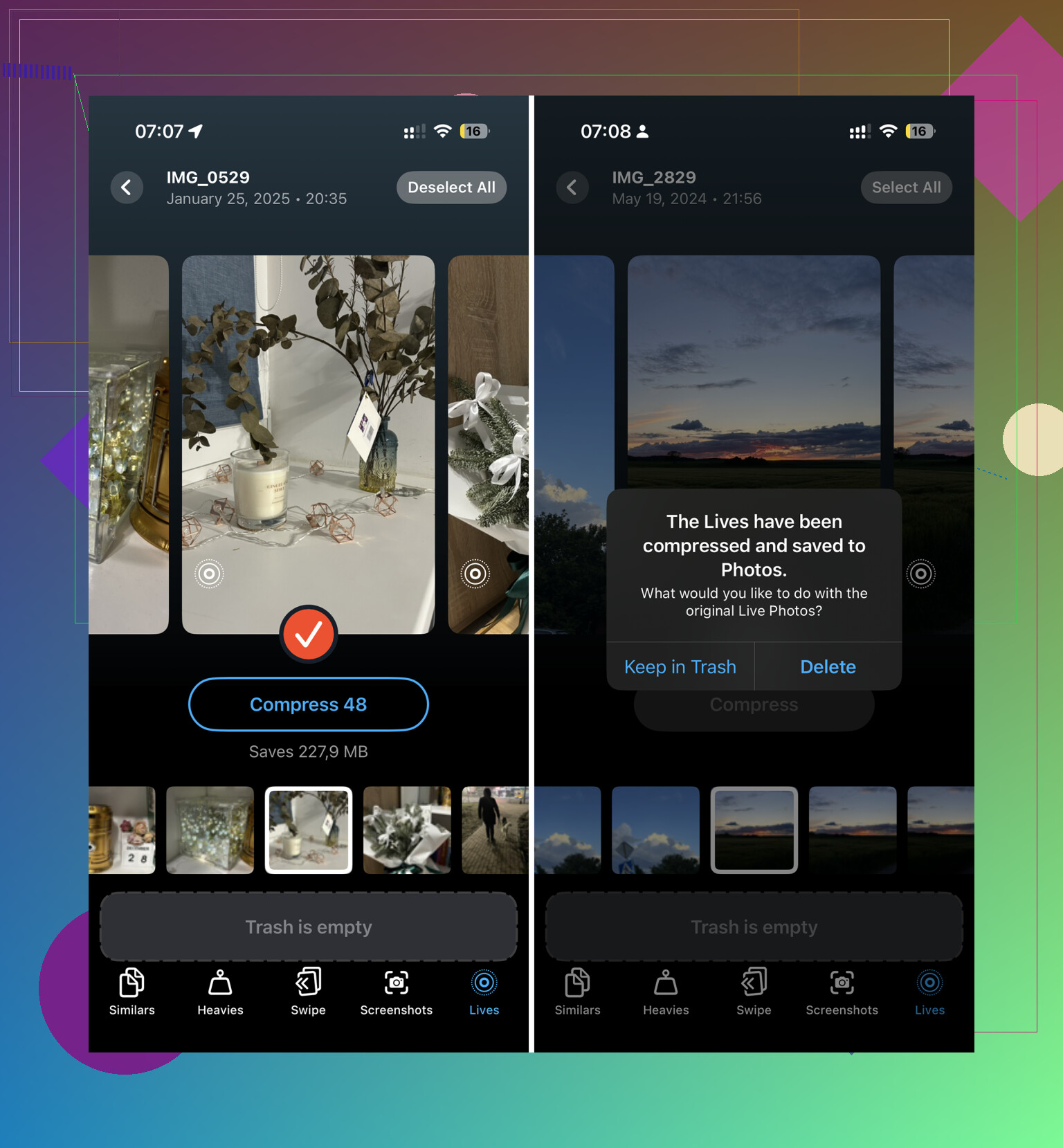
I tested a few. Clever Cleaner stood out for one simple reason. It didn’t bury the useful part behind ads or paywalls. It has a Lives section, and you can sort by date or file size, which helped when I wanted to clean the worst offenders first.
What the process looked like:
- Tap Select All.
- Tap Compress.
- The app converts them into still images.
- It asks whether you want to delete the original Live versions or move them to trash.
- It shows how much storage you’ll free up before you confirm.
For me, this was the least irritating option. It moved quicker than the duplicate method because the cleanup step was part of the process instead of being dumped back on me after.
Stop your iPhone from taking Live Photos again
This part matters. If you only switch Live Photos off inside the Camera app, the setting often comes back later.
Here’s what fixed it for me:
- Open Settings > Camera > Preserve Settings.
- Turn the Live Photo setting on there.
- Then open Camera and tap the Live Photo icon, the concentric circles, so it’s off.
After I did this, the camera stopped defaulting back to Live. Way less cleanup later.
One thing people forget
After deleting the original Live Photos, go empty Recently Deleted. If you skip this, the storage does not come back right away. Those files remain there for 30 days unless you remove them yourself.
Do check the folder before wiping it. I found one photo in there I still wanted, so it’s worth a quick look.
8 Likes
If you mean all existing Live Photos at once, iPhone still does not give you one clean built-in switch for bulk conversion. That’s the annoying part. I agree with @mikeappsreviewer on the storage issue, but I disagree a bit on Shortcuts. For huge libraries, Shortcuts is often more trouble than it’s worth unless you already mess with automation a lot.
Fastest path for most people is a cleaner app with Live Photo handling built in. Clever Cleaner is the one I’d look at first. It’s simple, and it targets this exact cleanup job. If you want a quick explainer on bulk iPhone photo cleanup, this thread is useful, best free iPhone cleaner app for deleting Live Photos.
What matters is the workflow:
- Scan your library for Live Photos.
- Convert them into stills in bulk.
- Review a sample first, dont mass-delete blind.
- Remove the original Live versions.
- Empty Recently Deleted.
One more thing people miss. If your Photos are syncing with iCloud, storage savings on the phone alone might look smaller at first if Optimize iPhone Storage is on. The bigger win is usually in iCloud storage over time.
Then stop new Live Photos from piling up. Go to Camera settings and make sure the Live Photo preference stays off. Otherwise you’ll be doing this agian next month.
There still isn’t a true Apple one-tap “convert every Live Photo to still and replace the originals” button, which is kinda wild in 2026. So I mostly agree with @mikeappsreviewer and @sognonotturno on that part. Where I differ is this: if you care about not losing metadata, albums, dates, and the original organization, be careful with any mass-convert workflow. Fast can get messy realy fast.
What I’d do first:
- Open Photos
- Search:
is:livephoto - See how many you’re dealing with
That tells you whether this is a 15-minute cleanup or an afternoon mistake lol.
My take:
- Small library: use Apple’s tools manually
- Huge library: use a cleaner app, but test on 20 to 30 photos first
- If iCloud Photos is on: expect storage changes to lag a bit
One practical option is Clever Cleaner, since it’s built around bulk photo cleanup and Live Photo management instead of making you cobble together a workaround. Just don’t mass-delete without checking a sample batch. That’s how people nuke stuff they meant to keep.
Also, before doing any of this, make a backup. Seriously. Not exciting advice, but it beats posting “how do I recover 4,000 deleted Live Photos” tomorrow.
If you want a broader walkthrough of what the app can do beyond Live Photos, this overview is decent: full Clever Cleaner features walkthrough for iPhone storage cleanup.
And yeah, turn Live Photo off in Camera after cleanup or this whole circus starts again.