I accidentally deleted photos from my CF card during a shoot and realized too late that I still need those images for a client project. I stopped using the card right away, but I’m not sure what recovery steps are safest or which CF card recovery tools actually work. I need help figuring out the best way to recover deleted photos without making things worse.
# CF card recovery, what I’d do first
Sorry you’re stuck with this. I’ve had CF cards go sideways with wedding photos on them, and the stress hits fast.
The first move is simple. Stop using the card.
When files vanish from a CF card, the data is often still sitting there for a while. What goes missing first is the file table, the part telling your camera or computer where each file lives. If you keep shooting, copy new stuff onto it, or format it, you raise the odds of overwriting the old data. Once that happens, recovery gets ugly or flat out fails.
So, right away:
1. Pull the CF card out of the camera.
2. Do not take test shots.
3. Do not copy files onto it.
4. Do not format it to 'see if it comes back.'
## Check the obvious stuff before you do anything fancy
I’d rule out the reader first, because those fail more often than people think.
Try this:
- Use another USB port
- Try a different CF card reader
- Plug it into another computer if you have one
- Check whether the card appears in Disk Management on Windows
- Check Disk Utility on Mac
Sometimes the card won’t open in File Explorer or Finder, but the system still sees it. If your computer detects it at all, recovery software still has a shot.
## If the card shows up, scan it
If the CF card is visible to the system, I’d go straight to recovery software. Disk Drill is one option people use for CF cards, especially for FAT32 and exFAT cards from cameras. It tends to pick up deleted photos, video clips, and RAW files if the card hasn’t been written over too much.
The preview part matters more than people say. I always check previews first, because a list of filenames means nothing if the files are damaged.
## The basic recovery flow
Here’s the short version:
1. Remove the CF card from the camera.
2. Connect it with a proper CF card reader.
3. Install the recovery app on your computer, not on the CF card.
4. Select the CF card and run a scan.
5. Look through the found files and preview the ones you care about.
6. Save recovered files to your computer or an external drive.
Do not recover files back onto the same CF card. I’ve seen people do this once, then wonder why half the second batch is gone too. You’d be writing over the same space you’re trying to rescue.
## If the card is unstable, clone it first
This part gets skipped a lot.
If the card disconnects, throws read errors, freezes mid-scan, or behaves strange, make a disk image first and work from that copy.
A disk image gives you a full copy of the card, including empty-looking areas where lost files often still sit. It’s safer than hammering the original card over and over. If the card is degrading, repeated scans are a bad idea. I learned this one the hard way on an old SanDisk card years ago. Second scan was worse than the first. Kinda sickening.
## Stuff I would not run first
Skip repair tools at the start.
That means:
- CHKDSK
- First Aid
- Any 'repair card' button
- Any prompt asking to fix or format the card
Those tools aim to make the file system usable again. Fine later, bad first move when the files matter. They change data on the card. Recovery comes first, cleanup later.
## When software is not the right move
If the card:
- is not detected anywhere
- has bent pins
- gets hot
- keeps disconnecting every few seconds
stop pushing it.
At that point I’d look at a professional recovery service instead of repeating scans and reconnect attempts. Software won’t help much if the issue is physical, and repeated tries sometimes make it worse. Also, yeah, bent CF pins are a mess.
## Short version
If your card still shows up, your odds are still decent.
Do this:
- stop using the card
- connect it through a reader
- scan it
- preview the results
- recover files to a different drive
That’s the safest path I know.
You did the most important part already. You stopped using the card.
I agree with @mikeappsreviewer on avoiding writes to the CF card, but I’d add one thing first. Check whether your camera made sidecar files or backup copies during import. Lightroom, Photo Mechanic, Capture One, and some ingest tools leave previews, cache files, or partial copies on your laptop. I’ve seen people spend an hour on recovery, then find the RAWs were already copied into a dated folder. Sounds dumb, but it happends a lot.
My order would be:
1. Search your computer before scanning the card.
Search by file type, CR2, NEF, ARW, DNG, JPG.
Check recent imports, temp folders, catalog backups, cloud sync folders.
2. Put the CF card on a write blocker if you have one.
Most people don’t, and that’s fine. A good reader is still ok. A write blocker lowers risk if the OS tries to “help.”
3. Make an image of the card first if the files matter for paid work.
Not everyone agrees this is step one for a normal delete case. I think for client jobs, it is worth the extra 10 minutes. Work from the image, not the original.
4. Then scan the image with Disk Drill.
Disk Drill is solid for deleted photo recovery from CF cards, especially when you need RAW preview support and an easy file-type sort. Recovery from the image is safer than rescanning the physical card over and over.
5. Sort results by file type and date, not filename.
Deleted card recoveries often return generic names. Date stamps and file size help you spot the real set faster.
One more thing. If the card was deleted in-camera, recovery rates are often decent. If it was quick-formatted after deletion, odds drop but are still not zero on many CF cards.
If you want a visual walkthrough, this CF card photo recovery guide for deleted images is easier to follow than most text posts.
Big thing is, don’t let Finder or Windows “repair” anything yet. That’s where people mess it up.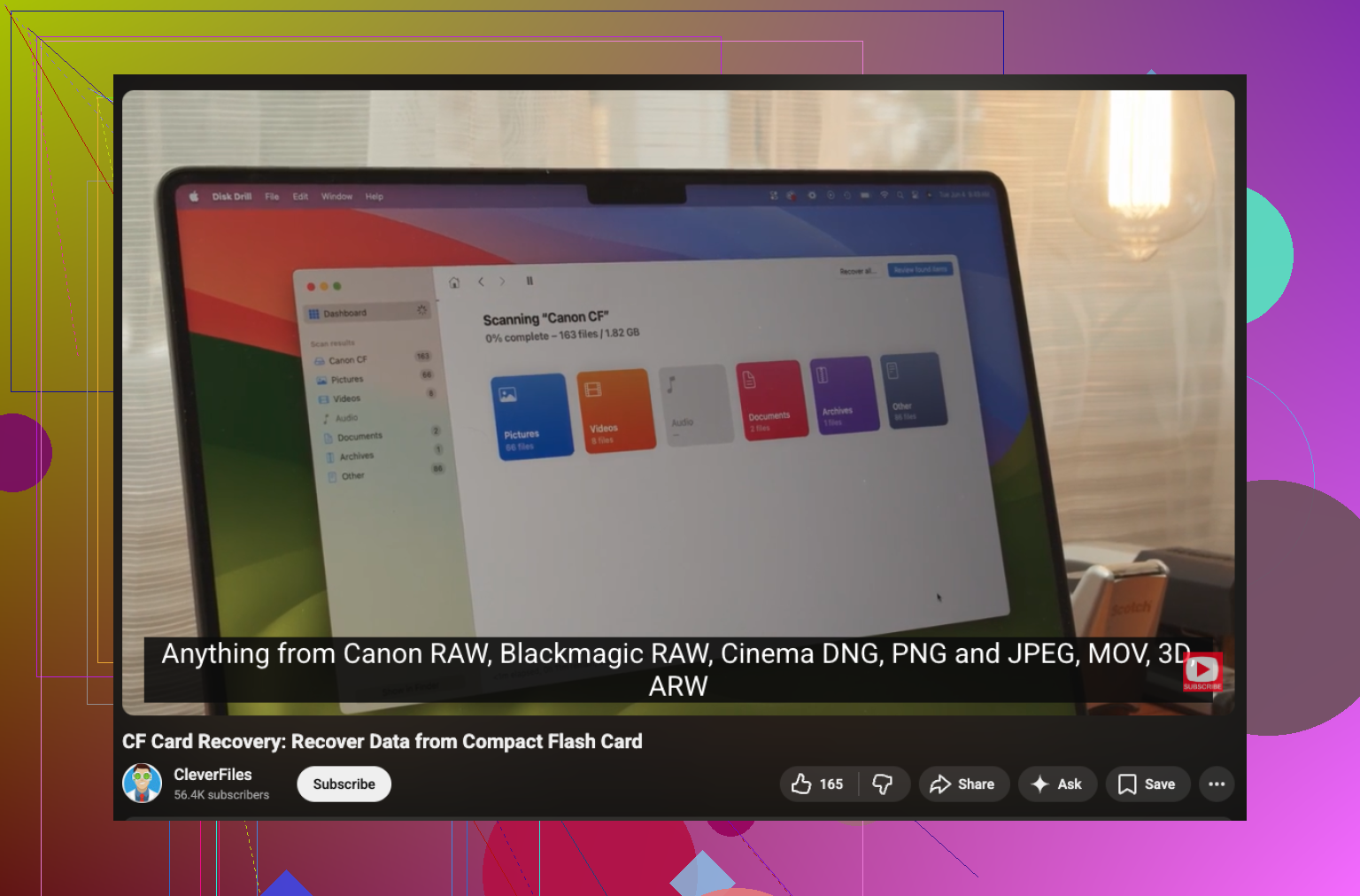
One thing I’d do before following the usual scan flow from @mikeappsreviewer or the image-first route from @sterrenkijker: check the camera brand’s own recovery behavior. Some bodies only mark entries deleted, others rewrite folder metadata more agressively after bursts, dual-slot ops, or in-camera “delete all.” That affects what recovery app finds.
So my order would be:
- leave the CF card out of the camera
- lock it if your card has a physical switch or use a reader that won’t try anything weird
- note the camera model, file type, and whether deletion happened in-camera or on computer
- connect once, confirm capacity looks normal
- if capacity is wrong or it mounts super slow, image it first
- if it mounts cleanly and this was just a normal delete, I *might* scan first to save time
Slightly disagree with the “always image first” crowd. For paid work, yeah, imaging is safer. But on a healthy card with a simple delete, a single read-only style scan in Disk Drill is usually fine and faster. The key is not doing five differnt scans with five tools.
Also, after recovery, verify the files in an actual RAW editor, not just thumbnails. Thumbnails can fake you out.
If you need extra reading, this CF card photo recovery discussion with practical recovery tips is worth a look too.
Main thing: recover to another drive, then don’t trust that CF card for client work again until you’ve fully tested it.