My old iPad has become really slow after the last few updates. Apps take forever to open, videos buffer, and even basic browsing feels laggy. I’m trying to avoid buying a new tablet right now, so I need help with the best ways to improve old iPad performance, free up storage, and make it usable again.
My old iPad got to the point where opening Notes felt slow, and Safari would sit there like it was thinking too hard. I thought the hardware was done. It wasn’t, at least not yet. A few boring fixes helped more than I expected.
First thing I did, restart it
Yeah, obvious. I still skipped it for way too long. If your iPad stays on for days or weeks, little junk builds up in memory and random background tasks keep hanging around. A full shutdown and boot clears that out. I’d do this before touching anything else.
Three changes I noticed right away
-
Turn off Background App Refresh. Go to Settings > General > Background App Refresh and switch it off. A lot of apps keep pulling data when you are not even using them. On older iPads, that adds up. Notifications still showed up for me, but the device stopped doing busywork in the background.
-
Turn on Reduce Motion. Path is Settings > Accessibility > Motion > Reduce Motion. This cuts down the zoom-heavy animations and replaces them with simpler transitions. On older hardware, the whole UI felt less sluggish after I did it. Not prettier, maybe, but faster-feeling.
-
Clear Safari data. Go to Settings > Safari > Clear History and Website Data. If web pages are the main thing dragging, this one matters. Old cookies, cached files, and site junk pile up over time. I cleared mine and a few problem sites stopped hanging.
Then I checked for updates
Settings > General > Software Update. I’ve seen weird lag stick around after one iPadOS version, then get fixed in the next patch. So I’d rule this out early. If Apple already patched the bug, no point chasing ghosts.
Storage was the bigger problem on mine
This is the one people miss. When storage gets close to full, iPadOS loses breathing room for temp files, caches, and routine system tasks. The slowdown creeps in. You don’t notice it in one day. Then a month later the thing feels old overnight.
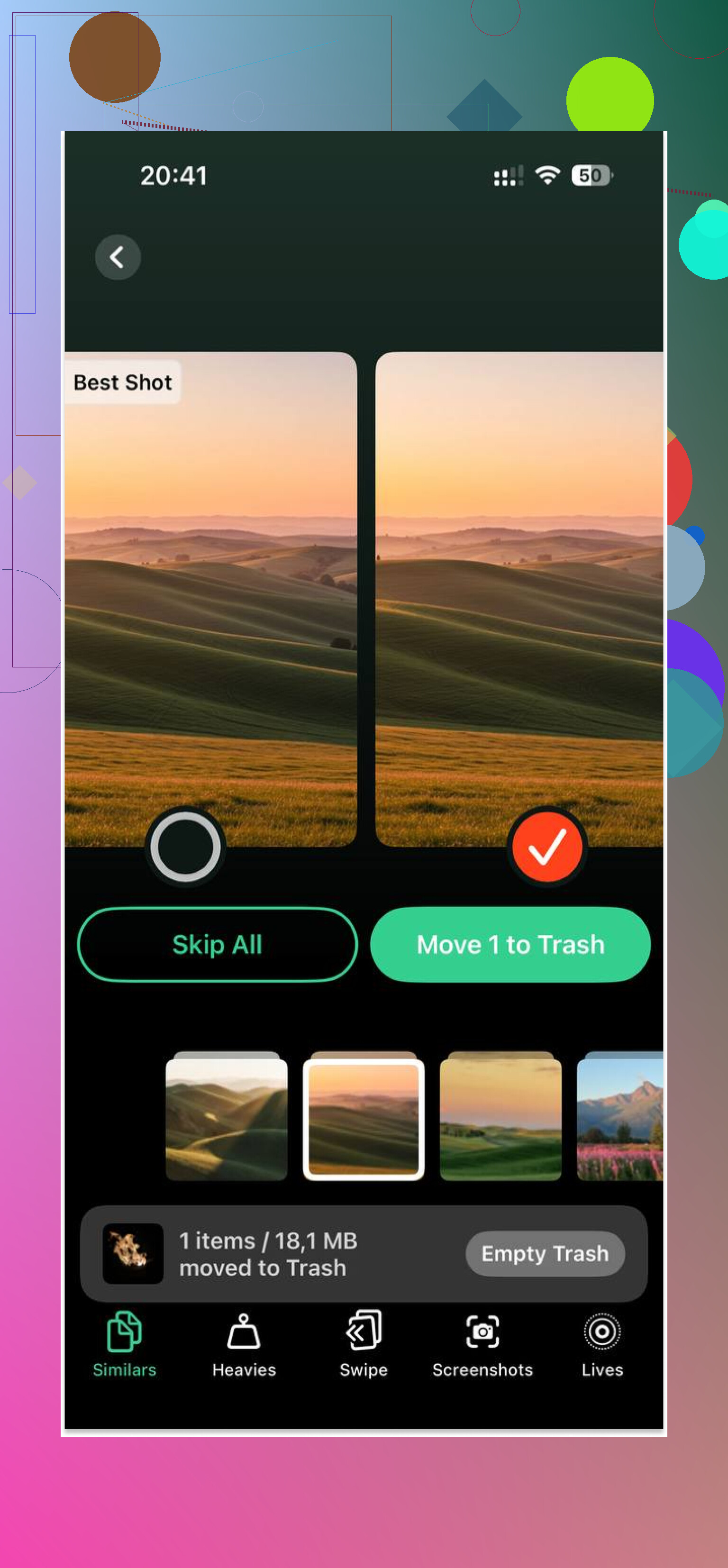
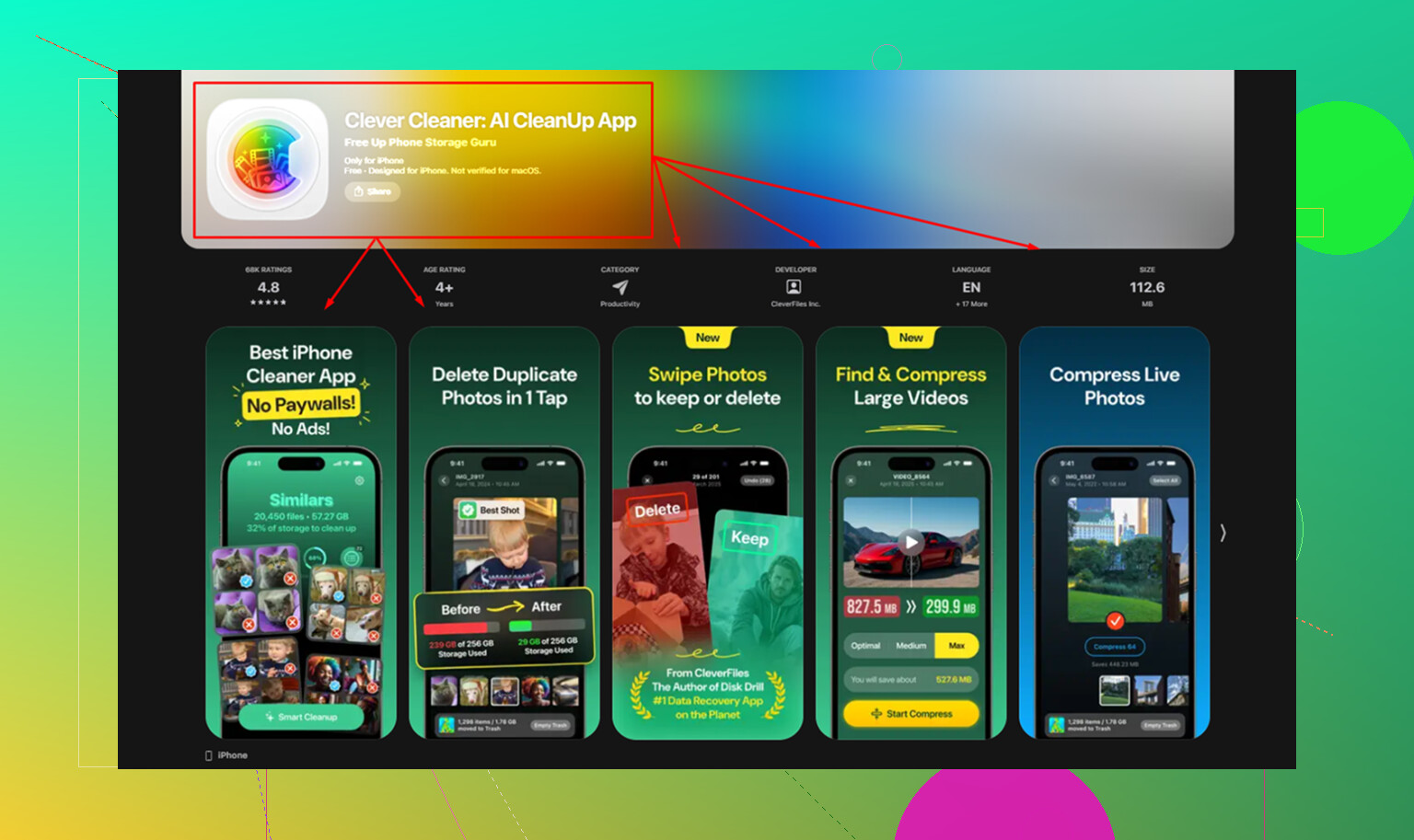
I tried cleaning it by hand first. Screenshots, duplicate pics, random videos from years ago. It worked, but it took forever. Then I used Clever Cleaner. What helped me most was the Heavies section, because it puts the biggest files at the top with exact sizes. I found a couple giant videos I forgot existed. The Similars section grouped near-duplicate photos and picked a Best Shot, which saved me from sorting through burst-photo mess manually. It runs on-device, so nothing gets uploaded. I cleared about 5GB, maybe a bit more, and the iPad stopped feeling so clogged up.
Replace it or keep messing with it?
I’d try all of the above before buying anything. The settings tweaks take a few minutes. Storage cleanup tends to fix the deeper issue if your iPad has been filling up for years. If it still runs badly after that, the last step is a factory reset. Go to Settings > General > Transfer or Reset iPad > Erase All Content and Settings. Back it up to iCloud first. Setup afterward is annoyng, but this got one of my older iPads close to how it felt when I first bought it.
If your tablet is old but not broken, there’s a decent chance it still has some life left. Mine did.
64 Likes
I’d skip a couple of the usual tips and check the battery first. Slow older iPads often throttle when battery health drops, even if the battery still “works.” Apple hides battery health on many iPads, so the easiest path is Settings > Privacy & Security > Analytics & Improvements > Analytics Data, then look for panic logs or heavy thermal entries. If it runs hot while doing simple stuff, performance drops fast.
Also, video buffering is not always an iPad speed issue. Test your Wi-Fi. Run a speed test next to the router and again where you use the iPad. If speeds dip hard, your tablet is waiting on signal, not processing power. Turning off Low Data Mode, forgetting the network, then reconnecting fixed this on mine.
One thing I disagree with a bit from @mikeappsreviewer, full wipes are not my first pick. On old flash storage, reinstalling years of apps and media is a pain, and if the battery or network is the main problem, you wasted an hour.
What helped me more:
- Remove widget-heavy home screens.
- Cut down Safari tabs. Old iPads choke on 30 plus tabs.
- Disable location for junk apps, Settings > Privacy & Security > Location Services.
- Turn off Mail Push, set fetch manually.
- Delete and reinstall the worst apps, esp Netflix, YouTube, Facebook. App caches get bloated.
If storage is tight, Clever Cleaner is worth a look for finding large files and duplicate photos fast. I also found this Clever Cleaner review and guide for freeing up iPhone and iPad storage useful.
If your iPad is on one of the last supported iPadOS versions for its chip, some lag is normal tbh. Newer apps target newer hardware. Keeping 8GB to 10GB free made the biggest diff on mine.
A thing I’d add that @mikeappsreviewer and @sternenwanderer didn’t really hit enough is this: sometimes the slowdown is from system features you don’t actually need, not just storage or app junk.
A few settings that helped my older iPad more than the usual “restart it” advice:
- Turn off Siri Suggestions in Search and on the Home Screen.
Settings > Siri & Search. Those suggestions constantly index stuff in the background. - Disable automatic downloads for apps, books, and updates. If your iPad is old, it does not need surprise chores.
- Limit Spotlight indexing by turning off Search for apps you never search for.
- Turn off unnecessary iCloud syncing like Notes, Safari, or Photos on that device if it’s mostly a media tablet. Sync can get weirdly heavy.
- Use Safari content blockers if browsing is laggy. A lot of “slow web” is really ad-heavy pages crushing old hardware.
I kinda disagree with the “just update first” angle a little. Sometimes the newest iPadOS patch makes an older model feel worse, not better. If you’re already on the latest version, focus on trimming background activity instead of chasing another update.
Also, check battery saver behavior. Low Power Mode can help sometimes, but if the battery is degraded badly, the iPad may still feel like it’s moving through peanut butter.
For cleanup, yeah, Clever Cleaner makes sense if storage is packed. The main value is quickly finding big files and duplicate photos without digging forever. If you want extra reading, this thread on how Clever Cleaner helps free up iPhone and iPad storage is worth a skim.
My order would be:
- Kill indexing/sync extras
- Reduce web bloat
- Free 8GB+ space
- Test Wi-Fi separately
- Only then think about reset
Old iPads can still be usable, but you have to be kinda ruthless tbh.
One angle the others only brushed past is accessibility overhead. Sounds weird, but older iPads can bog down if too many assistive features got enabled over time. Check:
- Settings > Accessibility > Touch
- Settings > Accessibility > Display & Text Size
- Settings > Accessibility > Spoken Content
If you do not use features like Speak Screen, Back Tap, or extra contrast filters, shut them off. I’ve seen iPads feel noticeably less janky after trimming that stuff.
I also would not jump to “battery throttling” first like @sternenwanderer suggests unless the iPad is getting hot or draining fast at idle. Sometimes it’s simpler: one bad app update can tank the whole device. Look in Settings > Battery and see what app is eating background time. If one app is way out of line, delete it for a day and test.
Another underrated fix: reset only system settings, not the whole iPad.
Settings > General > Transfer or Reset iPad > Reset > Reset All Settings
That clears broken network, keyboard, privacy, and display settings without deleting your apps and files. It’s less annoying than a full erase and often fixes lag that started right after an update.
For videos specifically, try this too:
- Turn off VPN if you use one
- Disable Private Relay temporarily
- Test in another browser or app
- Reboot your router, not just the iPad
On storage cleanup, sure, Clever Cleaner is useful if your Photos app is a mess.
Pros:
- quick at finding duplicates and huge files
- easier than manual cleanup
- helps recover working space fast
Cons:
- mostly a storage helper, not a magic performance fix
- less useful if your iPad is already fairly clean
- you still need to decide what to delete
So yeah, I’d combine bits from @stellacadente, @mikeappsreviewer, and @sternenwanderer, but I’d try Reset All Settings before a full wipe. That’s the sweet spot people skip.
Try Reset All Settings before a factory wipe.
Go to Settings > General > Transfer or Reset iPad > Reset > Reset All Settings.
This keeps your apps, photos, and files. It clears old network, privacy, keyboard, and system settings left behind after updates. The process takes around 10 minutes.
Reconnect Wi-Fi afterward and test the iPad before changing anything else. It’s less annoying than rebuilding the whole device, and often fixes odd lag after an iPadOS update.
Nobody’s asked which iPad you actually have, and that changes everything. An iPad Air 2 or a mini 4 stuck on its last supported iPadOS is a totally different situation than, say, a 6th gen that could still take newer patches. If you tell us the model and the iPadOS version, half the guesswork disappears. Some of the advice above is solid but it assumes your hardware still has headroom, and on the really old stuff it just doesn’t.
The battery angle from @sternenwanderer is the one I’d take most seriously, but with a caveat. Digging through Analytics Data for panic logs is a pain and honestly kind of unreliable for reading battery health. If your iPad is old enough that you suspect the battery, a cheap replacement from a decent repair shop often does more for day to day snappiness than any settings tweak, and it’s way less money than a new tablet. That’s the option people skip because they assume battery only affects runtime, not speed. On throttled devices it affects both.
Where I’d push back gently is on the pile of settings toggles. Turning off Siri Suggestions, Spotlight indexing, Background App Refresh, accessibility features, all of it. Sure, each one saves a little, but stacked together you end up with a crippled iPad that still feels slow, and now you can’t search or get notifications properly. I’d do the restart, clear Safari, and free up space first, then actually use it for a few days before nuking every background feature. Chances are two or three changes do most of the work and the rest is just noise.
On storage, @mikeappsreviewer had the right instinct. That’s usually the real bottleneck on old iPads, not the CPU. Clever Cleaner is fine for what it is, finding the big videos and near-duplicate photos without you scrolling for an hour. Just don’t expect it to fix lag on its own. It frees space, and free space is what gives iPadOS room to breathe. If your slowdown isn’t storage related, no cleaner will touch it.
My honest take on the reset debate: @byterunner9370 is right that Reset All Settings is the smarter first move over a full wipe. Keeps your stuff, clears the junk that updates leave behind, ten minutes, done. But be realistic about the ceiling. If you’re on the final iPadOS your chip will ever get, and modern apps keep getting heavier, some lag is baked in and no amount of tweaking reverses it. At that point the cheapest real fix is either living with a leaner setup or grabbing a used newer model rather than a brand new one. Tell us the model though, seriously, it’ll save you trying five fixes that were never going to help.