To scan for WiFi networks and troubleshoot connecting issues, follow these steps based on the kind of device you’re using, be it a laptop, smartphone, or tablet. This process is essential to identify available networks and connect to the right one.
For Windows PC
- Click on the network icon in the system tray. This is usually found at the bottom-right corner of the screen.
- You’ll see a list of available networks. Select the WiFi network you want to connect to.
- Click “Connect”. If it’s a secured network, you’ll be prompted to enter a password. Type it in and hit “Next”.
- Sometimes, issues can arise due to drivers. Update your network drivers by:
- Opening Device Manager.
- Finding your WiFi adapter under “Network adapters”.
- Right-clicking it and selecting “Update driver”.
For macOS
- Click on the WiFi icon in the menu bar at the top-right of the screen.
- A dropdown menu with available WiFi networks will appear. Select the desired network.
- Enter the password if prompted and hit “Join”.
For iPhone/iPad (iOS)
- Open “Settings”.
- Tap on “WiFi”.
- A list of available networks will show up. Tap on the one you want to connect to and enter the password if needed.
For Android devices
- Open “Settings”.
- Navigate to “Network & Internet” and select “WiFi”.
- Choose your network from the list of available networks and enter the password to connect.
Troubleshooting Tips:
- Restart your device: Sometimes a simple restart can resolve connectivity issues.
- Reset the network settings: This can be done via your device settings, but keep in mind you’ll lose all saved WiFi networks & passwords.
- Check for interference: Make sure there are no obstructions or electronic devices causing interference to the WiFi signal.
- Router reboot: Rebooting your router can often resolve network issues.
- Manual entry: Try manually entering the network name (SSID) and password if it doesn’t show up in the list.
If you need to dive deeper into network analysis and troubleshooting, especially for environments with multiple networks, consider using a dedicated tool. NetSpot
is a good option. It provides detailed insights into network configurations, helping you identify issues like signal overlap or weak spots. You can get it at NetSpot Website. This tool can help visualize your WiFi network and improve overall connectivity.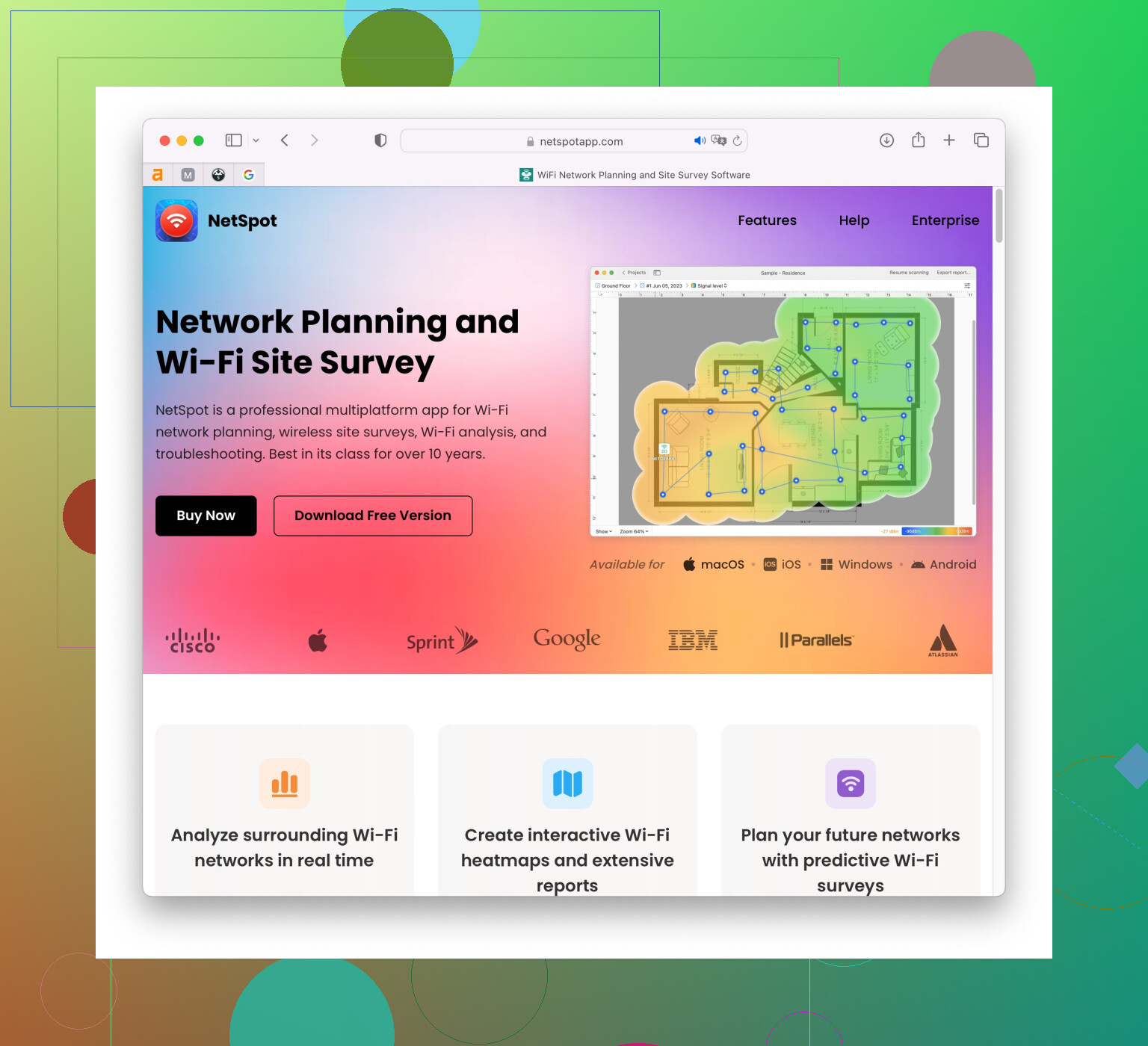
Alternative Steps Using Command Line (Windows)
For those comfortable with PowerShell or Command Prompt:
- Open Command Prompt as an Administrator.
- Type
netsh wlan show networksand press Enter. This will display all available WiFi networks.
If all else fails, consider resetting your network hardware to factory settings and reconfigure them. For continuous issues, contacting your ISP for support might be necessary. They can check for broader issues on their end.