Big thing nobody mentions enough: check whether the files were ever *moved* instead of deleted. Windows Explorer on USB sticks can lag or fail mid-drag, and I’ve seen folders end up in the wrong directory with weird shortened names. Use search on the USB for part of the filename or file extension like `.jpg`, `.docx`, `.pdf` before doing anything fancy.
I mostly agree with @mikeappsreviewer and @sterrenkijker, but I’m a little less sold on spending too much time hunting hidden/system folders if the files are super important. I’d verify the drive is readable, then go straight to recovery or imaging.
Also, if the USB is physically acting weird, slow reads, disconnect sounds, asks to format, file list freezes, stop plugging it in over and over. That’s where people make it worse real fast.
What I’d add:
- If possible, use a write blocker or at least flip the physical lock switch if your USB has one
- Check Event Viewer or Disk Management only to confirm the drive status, not to “fix” it
- Sort recovered files by type first, because photos/docs often come back even when folder structure is toast
- For docs, previewing file size helps. A 0 KB recovery is junk, obviosuly
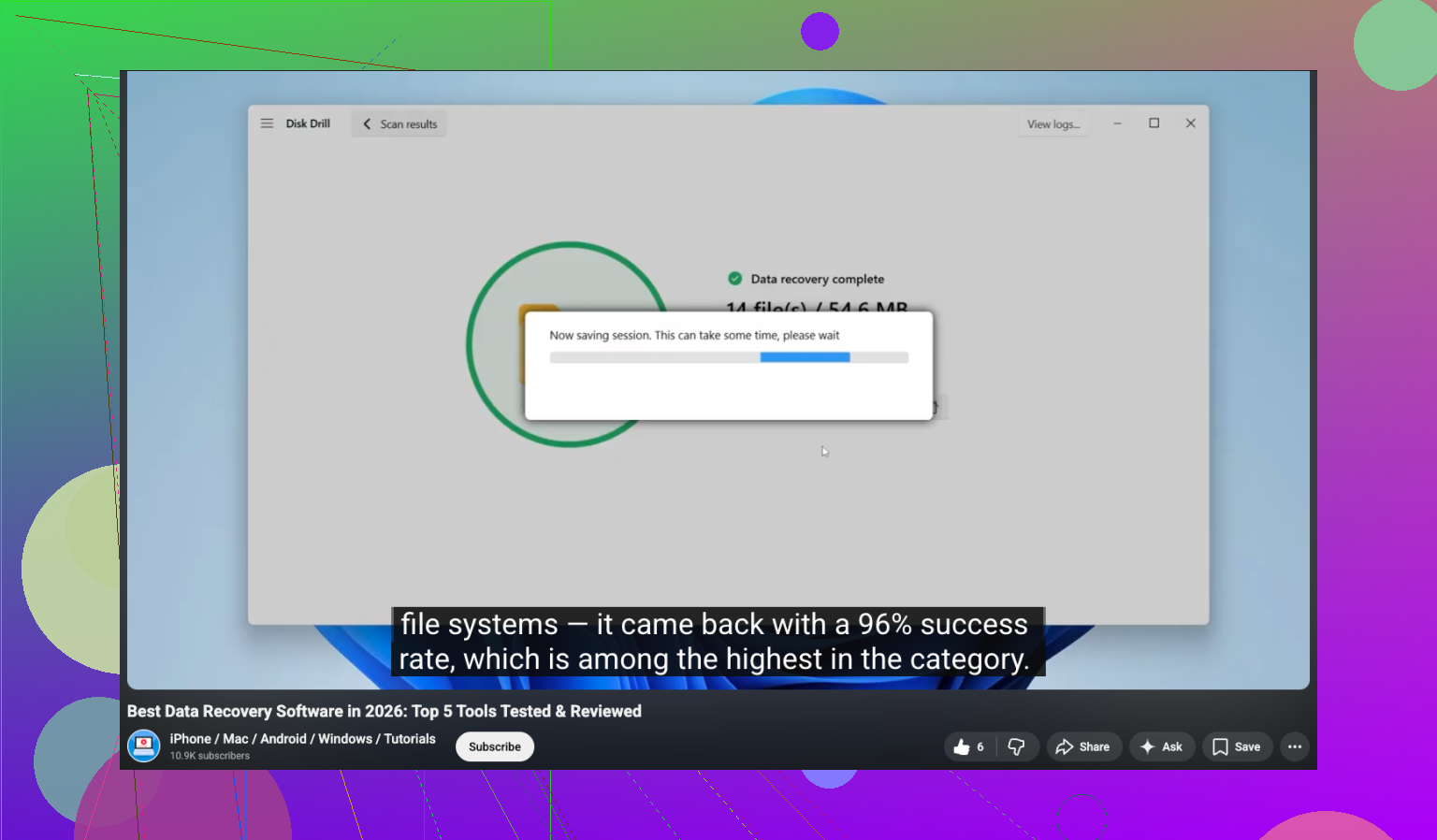
If you want an easy option, Disk Drill is still probably the most user-friendly USB recovery app for deleted files on flash drives. I’d call it a solid choice if you’re looking for reliable data recovery software for USB drives and deleted documents, not just “the best data recovery software” in generic terms.
If you want a visual guide, this one is decent:
watch this USB file recovery walkthrough
One last thing: if the files were deleted a while ago and you kept using the stick, be realistic. Some stuff may be gone for good. But if you stopped quickly, you’ve still got a shot.