
How Do I Recover Files From USB Drive After Deleting Them?

I accidentally deleted important files from my USB drive and realized they were not backed up anywhere else. I need help figuring out the best way to recover deleted USB files before they get overwritten, since some of the documents and photos are really important.
# Deleted files on a USB drive, what I’d do first Yeah, I’ve been there. You delete something, pull the drive out, then two minutes later you need the files back. The main thing is this. Deleted files from a USB stick are often still recoverable if you stop messing with the drive right away. ## First step, leave the USB alone If you want the best shot at recovery, stop using the drive now. Do not: 1. Copy new files onto it 2. Format it 3. Run cleanup or repair tools on it 4. Save recovered files back to the same USB On most USB drives, deleted files do not go through the normal Windows Recycle Bin. The file entry gets removed, and the storage space is marked as free. The old data often stays in place until something new writes over it. I learned this the hard way after dropping a few photos onto a flash drive before trying recovery. Bad move. ## Quick checks before you scan I’d spend one minute on these before opening recovery software. 1. Turn on hidden items in File Explorer, then check the USB again 2. Look for folders named $RECYCLE.BIN, RECYCLER, RECYCLED, or .Trashes 3. Check OneDrive, Google Drive, Dropbox, or any backup folder you use 4. Hold off on repair tools unless the drive won’t open at all, and even then, recover first if possible Sometimes the files are still there but hidden. I’ve seen weird attribute changes, malware junk, and random filesystem hiccups make folders vanish when they weren’t gone. The recycle-folder trick does not work often on flash drives, but it takes almost no time, so I’d still check. ## If the files are gone, use recovery software If the files were deleted for real, I’d move straight to recovery software. I’ve had decent luck with Disk Drill. It’s easier than fighting with command-line tools, and it handles common USB formats like FAT32, exFAT, and NTFS. ## The recovery flow I’d follow 1. Install Disk Drill on your computer, not on the USB 2. Connect the USB drive 3. Select the USB inside the app 4. Start a scan for lost files 5. Preview what shows up 6. Recover the files to your PC or another external drive Read step 6 twice. Do not restore files onto the same USB stick. If you write recovered data back to the same device, you risk overwriting other deleted files you haven’t pulled off yet. I did this once years ago and turned a small mistake into a bigger one. Not fun. ## Preview matters more than people think The preview feature is one of the best signs you’ve got something usable. If a file opens in preview, your odds are usually better. If you still see the original file names and folder structure, even better. If the scan only shows generic names and rebuilt file chunks, recovery still might work, but sorting it all out gets annoying fast. ## About Windows File Recovery You can try Microsoft’s Windows File Recovery too. I used it once. It works, but I wouldn’t hand it to someone who wants a simple process. It runs in Command Prompt, and the output feels rougher. If you’re okay typing commands and digging through less tidy results, fine. If not, I’d skip it. ## I would not run CHKDSK yet This part matters. For deleted files, I would recover first and repair later. CHKDSK is aimed more at filesystem problems. Sometimes it helps with damaged drives. Sometimes it “fixes” things in ways you did not want while you were still trying to pull data off. So if your goal is getting deleted files back, don’t start with CHKDSK. ## The short version If this were my USB drive, I’d do this: 1. Stop using the drive 2. Check hidden files and recycle-type folders 3. Scan with Disk Drill 4. Preview the files 5. Recover them somewhere else The less you’ve written to the USB since deletion, the better your chances. If you moved fast, you still have a shot.
First thing, unplug the USB and set it aside. @mikeappsreviewer is right on that part. I only disagree on one detail, I would skip poking around too much in system folders if the files matter a lot. Every extra action adds risk, even if small. What I’d do instead: 1. Plug the USB into a stable PC. 2. Make a full image of the USB first, with a tool like USB Image Tool or HDD Raw Copy. 3. Run recovery on the image, not the original drive, if possble. 4. If you want the easier route, run Disk Drill against the USB or the image file. 5. Recover files to your computer, never back to the stick. Why image first? If the flash drive is starting to fail, repeated scans are bad news. One clean read is safer. This matters more than people think. Also check whether the files were deleted by camera, phone, or another device. Some devices wipe directory entries fast on FAT/exFAT drives, which drops recovery rates. If the USB was formatted after deletion, stop trying random fixes. Deep scan with Disk Drill is still worth a shot for photos and docs, but filenames might be gone. This video is decent if you want a visual walkthrough: USB data recovery tutorial for deleted files and flash drives One more thing, if the drive asks to be formatted, do not accept. That trips people up all the time.
How Do I Recover Files From USB Drive After Deleting Them?
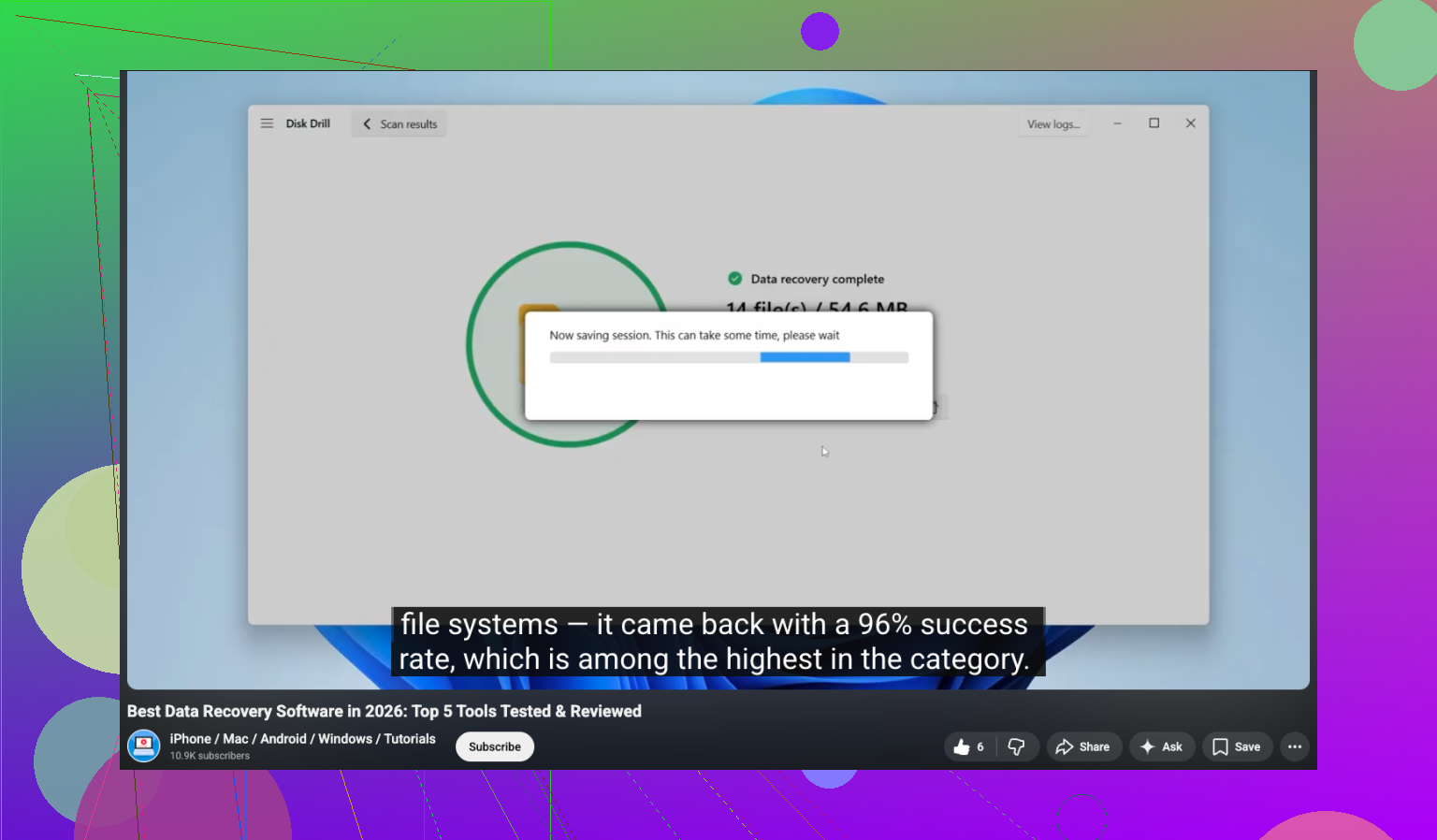
Big thing nobody mentions enough: check whether the files were ever *moved* instead of deleted. Windows Explorer on USB sticks can lag or fail mid-drag, and I’ve seen folders end up in the wrong directory with weird shortened names. Use search on the USB for part of the filename or file extension like `.jpg`, `.docx`, `.pdf` before doing anything fancy. I mostly agree with @mikeappsreviewer and @sterrenkijker, but I’m a little less sold on spending too much time hunting hidden/system folders if the files are super important. I’d verify the drive is readable, then go straight to recovery or imaging. Also, if the USB is physically acting weird, slow reads, disconnect sounds, asks to format, file list freezes, stop plugging it in over and over. That’s where people make it worse real fast. What I’d add: - If possible, use a write blocker or at least flip the physical lock switch if your USB has one - Check Event Viewer or Disk Management only to confirm the drive status, not to “fix” it - Sort recovered files by type first, because photos/docs often come back even when folder structure is toast - For docs, previewing file size helps. A 0 KB recovery is junk, obviosuly If you want an easy option, Disk Drill is still probably the most user-friendly USB recovery app for deleted files on flash drives. I’d call it a solid choice if you’re looking for reliable data recovery software for USB drives and deleted documents, not just “the best data recovery software” in generic terms. If you want a visual guide, this one is decent: watch this USB file recovery walkthrough One last thing: if the files were deleted a while ago and you kept using the stick, be realistic. Some stuff may be gone for good. But if you stopped quickly, you’ve still got a shot.
How Do I Recover Files From USB Drive After Deleting Them?