I accidentally deleted important photos from my Nikon camera while clearing space on the memory card, and I need help figuring out the best way to recover them before they’re overwritten. I’m looking for safe Nikon photo recovery tips, memory card recovery advice, or software recommendations that actually work.
I went through this once with a Nikon card, and the short version is yes, deleted photos are often recoverable.
What tripped me up at first was thinking Delete meant the files were gone on the spot. On most cameras, it does not work like that. The camera usually marks the space as free and waits until new data lands there. If you keep shooting, old photo data starts getting replaced. When that happens, recovery drops off fast.
First thing, stop using the camera. Right away. I would not take a test shot. I did that years ago on another card and regretted it.
Then pull the SD card and plug it into your computer with a card reader. I would skip connecting the Nikon over USB if you have a choice. A lot of Nikon bodies show up in MTP or PTP mode, and recovery apps tend to work better when they can read the card more directly.
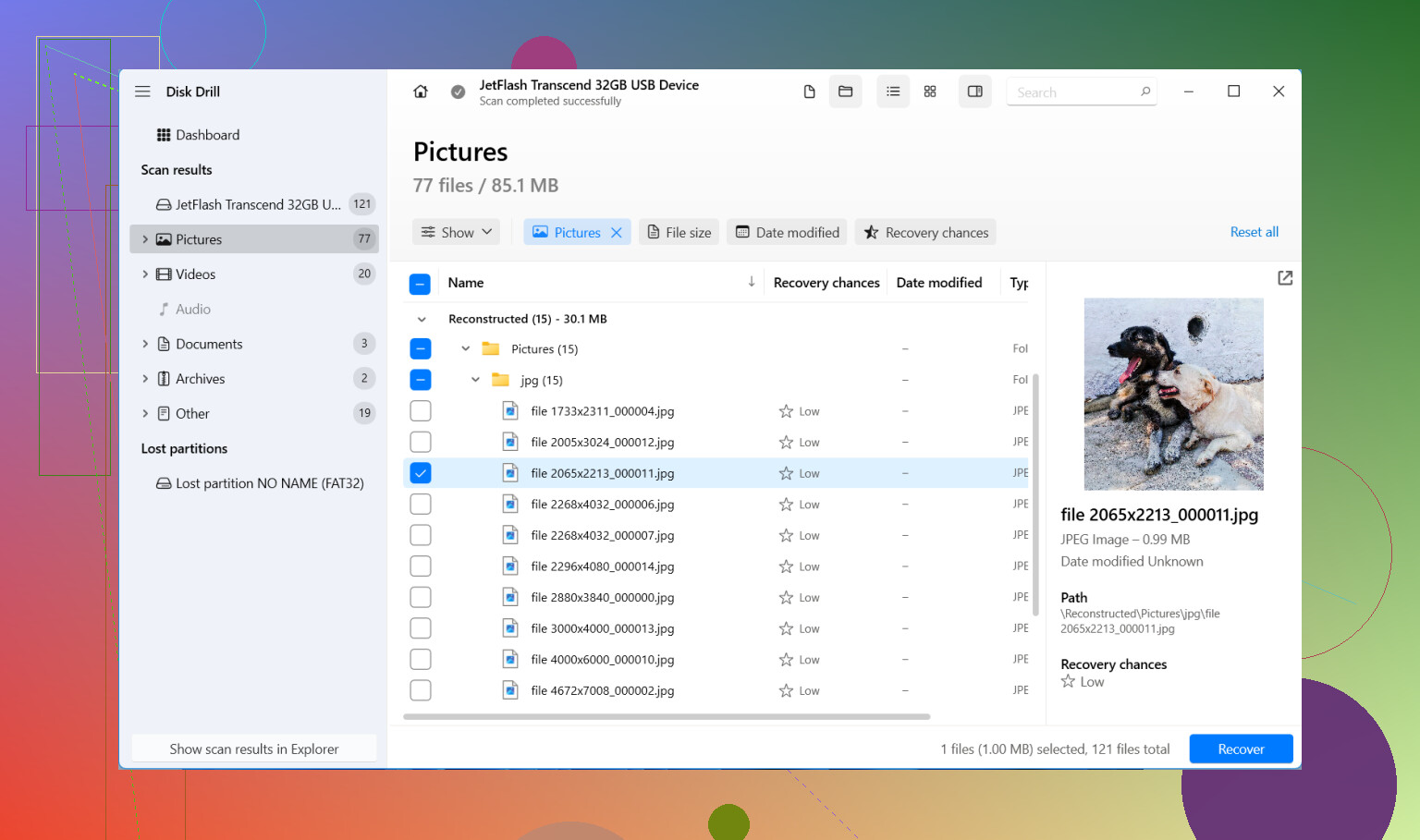
If you do not already have the files somewhere else, recovery software is the next move. I’ve used a few, and Disk Drill was the easiest one for me to get through without fumbling around. It reads Nikon RAW files like NEF, plus JPGs.
Here’s the basic flow I’d use:
- Install Disk Drill on your computer. Do not install anything onto the SD card.
- Put the Nikon SD card into a card reader.
- Open the program and pick the card.
- Run Universal Scan. For deleted photos, that’s usually the first pass worth doing.
- Wait for the scan to finish, then preview what it found. If a photo preview opens cleanly, I usually take that as a good sign.
- Recover the files to your computer or another drive. Do not write them back to the same SD card.
One detail I liked, on Windows it lets you recover up to 100 MB free. That won’t save a huge shoot, but it’s enough to see if your files are there before spending money.
If videos are part of the mess, there’s also an Advanced Camera Recovery mode. I would leave that for later. Universal Scan is faster and often pulls the photos you want without the extra wait. If clips are still missing after that, then I’d try the camera-focused scan.
A weird thing people notice after recovery is the filenames. You might get stuff named file000123.nef, and the original folders might be gone. Annoying, yes. Normal too. Recovery tools often pull files by signature, not by the old folder map, so the image data survives while the names do not.
Same deal with NEF files that look broken at first. I’ve seen Windows refuse to preview them, then the exact same files open fine in RAW software. So if a recovered NEF won’t open in Photos or Explorer, I would test it in software with Nikon RAW support before writing it off.
Before you spend an hour scanning, I’d check the boring places too:
- Your computer, if you usually import after every shoot.
- SnapBridge, if you had it set up.
- Any cloud backup or sync folder.
- External drives you forgot about.
Quick format does not always kill recovery either. Accidental delete and quick format often leave enough behind for software to pull files back. The bigger issue is what happened after. If the card sat untouched, odds are better. If you filled it with a few hundred new shots, yeah, things get rough.
I would not mess with DIY recovery if the card is cracked, bent, failing to mount, or invisible to the computer. That’s where I’d stop poking it. A dying card tends to get worse with repeated attempts.
So, plain version:
- Stop using the card.
- Remove it from the camera.
- Check your backups first.
- Scan it with recovery software, starting with Universal Scan.
- Save recovered files somewhere else.
If all you did was hit Delete and the card hasn’t seen much use since, you still have a decent shot at getting most of the photos back.

1 Like
Stop using the card. That part matters most.
If you deleted photos on a Nikon, recovery odds stay decent until new data hits the same blocks. One burst of RAW shots after the mistake can wipe out chunks of old files fast. NEF files are big, so overwrite risk climbs quick.
I agree with @mikeappsreviewer on pulling the card out first. I disagree a bit on one thing though. I would make a full image of the SD card before scanning if the photos matter a lot. It takes longer, but it gives you one clean working copy. If the card starts acting flaky during scans, you still have the image. Some recovery apps support scanning disk images, and Disk Drill does a solid job here too.
My order would be:
- Lock the SD card if it has a write switch.
- Put it in a card reader.
- Check if the card shows the right size and mounts cleanly.
- If yes, create a byte-for-byte backup image first.
- Scan the image, or the card, with Disk Drill.
- Recover to your computer, not back to the SD card.
Extra Nikon-specific stuff people miss:
- Look for hidden DCIM folders and sidecar files.
- NEF + JPG pairs often recover with odd names.
- If you used dual-card Nikon bodies, check the second card. Some cameras were set to backup or overflow and people forget.
- If photos were ‘deleted’ in-camera after transfer, Nikon NX Studio imports or old Lightroom catalogs sometimes still point to cached previews. Not full res, but beter than nothing.
Also check this Nikon photo recovery discussion, it covers deleted SD card image recovery in plain english:
best ways to recover deleted photos from an SD card
If the card asks to be formatted, stop there. Don’t approve it. If the card disconnects, shows 0 bytes, or gets hot, skip DIY and move to a pro lab. Repeated reads on a failing card can make things worse.
One thing I’d add to what @mikeappsreviewer and @ombrasilente said: check whether the photos were actually deleted from the card, or just hidden behind Nikon’s folder structure getting weird. I’ve seen Nikon cards where the camera showed fewer images, but the files were still sitting in DCIM or MISC and only looked “gone” because the index got messed up. So before running a deep recovery, turn on hidden files in Windows or use Finder properly on Mac and poke around the card manually.
I also would not spend too long doing repeated rescans with 5 different apps. That can waste time if the card is unstable. Pick one solid tool and stick with it. Disk Drill is fine for this because it handles JPG and NEF pretty well, and the preview is useful for sorting out what’s real vs junk. Recover to your computer, then back everything up twice.
If the card was in a Nikon that writes RAW+JPEG, look for both versions. People recover one and think the other is gone forever. Also check if your Nikon was set to record to a second slot, if your body has one. Sounds obvious, but it gets missed allll the time.
If you want a simple guide on how to recover files from a digital camera SD card, that walk-through is pretty easy to follow.
My cutoff is this: if the card mounts normally, DIY recovery is worth trying. If it clicks, disappears, asks to be formatted over and over, or reads 0 bytes, stop messing with it and go pro. That’s the point where “just one more try” turns into “welp, now it’s worse.”

Small disagreement with @ombrasilente, @viajantedoceu, and @mikeappsreviewer: I would check Nikon’s in-camera Retouch or playback options only once before doing anything else, because sometimes people mistake filtered playback for deleted files. If they are truly gone, stop there and do not power the camera back up again.
What I’d add is this: file system damage and deletion are not always the same problem. On Nikon cards, if only some shots vanished, especially after battery loss or a card error, recovery by folder reconstruction can work better than just signature carving. That is where Disk Drill is useful because it can find both normal deleted entries and orphaned image data.
A couple Nikon-specific checks that get overlooked:
- If you shot RAW + JPEG, compare file counts. Missing JPEGs with surviving NEFs usually means partial overwrite, not total loss.
- If the missing photos were from a long burst, recover in date-sorted batches. Burst sequences often fragment, so previewing every result is worth it.
- If the camera used XQD or CFexpress instead of SD, use a proper reader. Cheap adapters cause weird read issues.
Disk Drill pros:
- Handles NEF and common Nikon card setups well
- Preview helps separate valid photos from garbage
- Can scan mounted media and image backups
Disk Drill cons:
- Free recovery limit on Windows is small
- Deep scans can return messy filenames
- On damaged cards, scanning can take a while
My approach would be: inspect manually, then image the card if possible, then scan with Disk Drill, and recover only to another drive. If recovered NEFs look broken, try Nikon software before assuming they are dead. Sometimes the thumbnail is gone but RAW data is fine.