I accidentally deleted some important files from an HFS-formatted drive on my Mac and need help with safe HFS recovery options. I haven’t written much new data to the drive, but I’m not sure what steps or tools to use to get the files back without making things worse.
First thing I’d do is stop using that drive. Don’t copy anything to it, don’t reformat it again, and don’t run random repair tools just to see what happens. With HFS/HFS+ recovery, the files may still be there after deletion or even a quick format, but new writes can overwrite the data you’re trying to get back.
Check the easy stuff first: Trash, then Time Machine if you had backups enabled. If that doesn’t turn anything up, I’d go straight to recovery software.
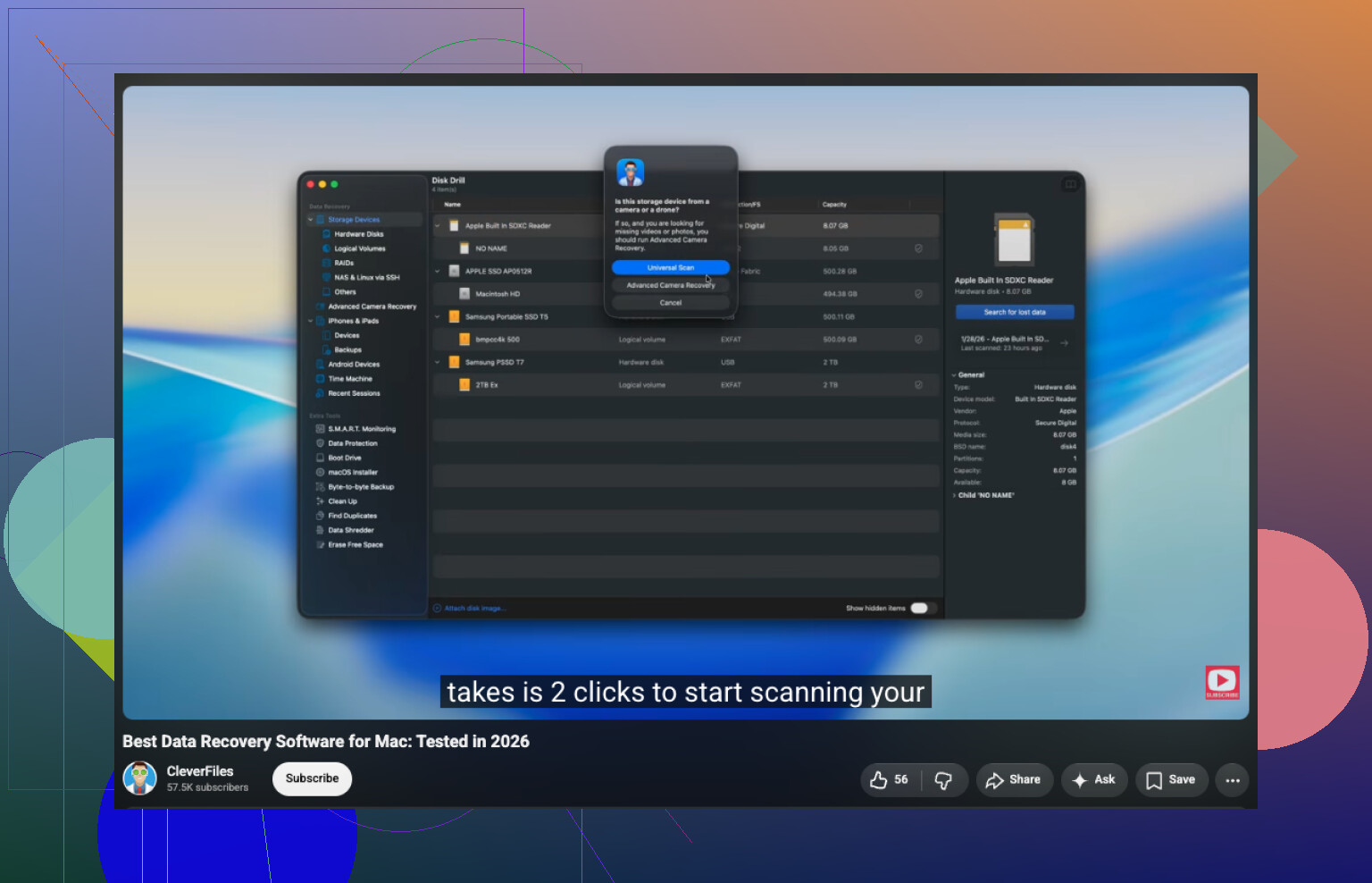
I used Disk Drill a few months ago after deleting a bunch of files from an old external Mac drive, and it recovered most of what I needed. The process was pretty simple:
- Install Disk Drill.
- Choose the HFS/HFS+ drive.
- Click Search for Lost Data.
- For an external drive, leave it on Universal Scan so it checks with all available recovery methods.
- When the scan finishes, open Review Found Items.
- Preview the files before recovering them, if possible.
- Select what you want back and click Recover.
- Save the recovered files to another drive, not the original one.
If the drive was formatted, it still may be recoverable, especially if it was just a quick format and you haven’t written much new data since. The sooner you scan it, the better the odds.
For an external drive that seems flaky, like random disconnects, read errors, or weird behavior, make a disk image first if the software gives you that option. Then scan the image instead of hammering the physical drive over and over.
I’d skip DIY attempts and look at a professional recovery service if the drive doesn’t show up in Disk Utility, makes clicking or grinding sounds, keeps disconnecting, or the scan can’t finish because of bad read errors. At that point, more software attempts can make things worse.
12 Likes
An external spinning HFS+ drive is a very different recovery case from an internal SSD, because SSD/TRIM can make deleted files disappear much faster. If this was an SSD, I’d stop booting from it and scan from another Mac or an external boot drive; if it’s a regular external drive, Disk Drill or a similar tool is fine, but recover to a separate disk only.
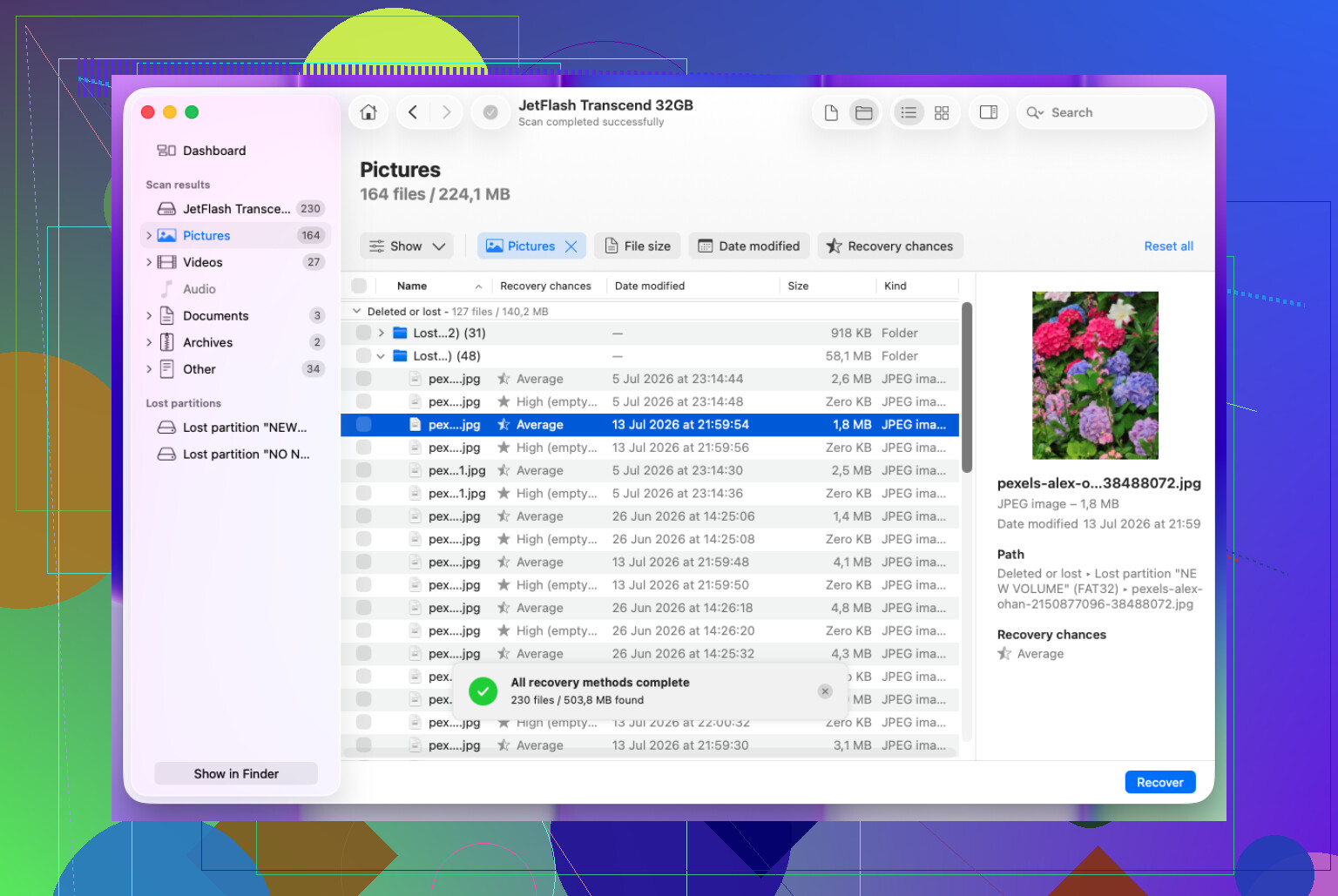
Expect some mess, even if the actual data is recoverable. HFS+ recovery can bring back files with missing folder paths, weird names, duplicates, or partial versions, so don’t judge success only by whether the original folder structure appears perfectly.
The point I’d be strict about is cloning or imaging before doing anything if the files really matter. Not “copy the visible files in Finder,” but a block-level image of the whole drive to another disk with enough space. Then run Disk Drill or whatever recovery app against the image. That way, if the scan crashes, the drive starts acting flaky, or you pick the wrong recovery option, you still have the original untouched. Disk Utility can create images in some cases, but if the drive has read errors, a recovery tool with a byte-to-byte backup option is usually safer.
I’d avoid running First Aid until after you’ve recovered what you can. It sounds harmless, but repair tools are trying to fix the filesystem, not preserve deleted file records for recovery. Same with mounting and browsing the disk over and over. Make the image, scan the image, recover to a completely different drive, then sort through the recovered files afterward. The sorting part is boring, but it’s better than accidentally “cleaning up” the very metadata the recovery scan needs.