My iPhone says there isn’t enough storage to install the latest iOS update, even after I deleted some apps and photos. I need help figuring out what else I can clear safely so I can update my iPhone without losing important data.
I hit this wall more than once. iPhone says you still have a few gigabytes left, then the update fails with the storage warning anyway. Annoying, yep.
The part Apple does not spell out clearly is simple. The update size shown in Settings is not the full space you need. If the update says 2 GB, your phone usually needs a lot more free room while it downloads the file, unpacks it, and shuffles system data during install. From what I saw on bigger version jumps, you want about twice the listed size at minimum. For a major jump like iOS 26, I would try to get 20 GB to 30 GB free first. Less than that, and it gets sketchy fast.
Here’s what I’d remove first, based on what worked for me.
Use a cleaner app first
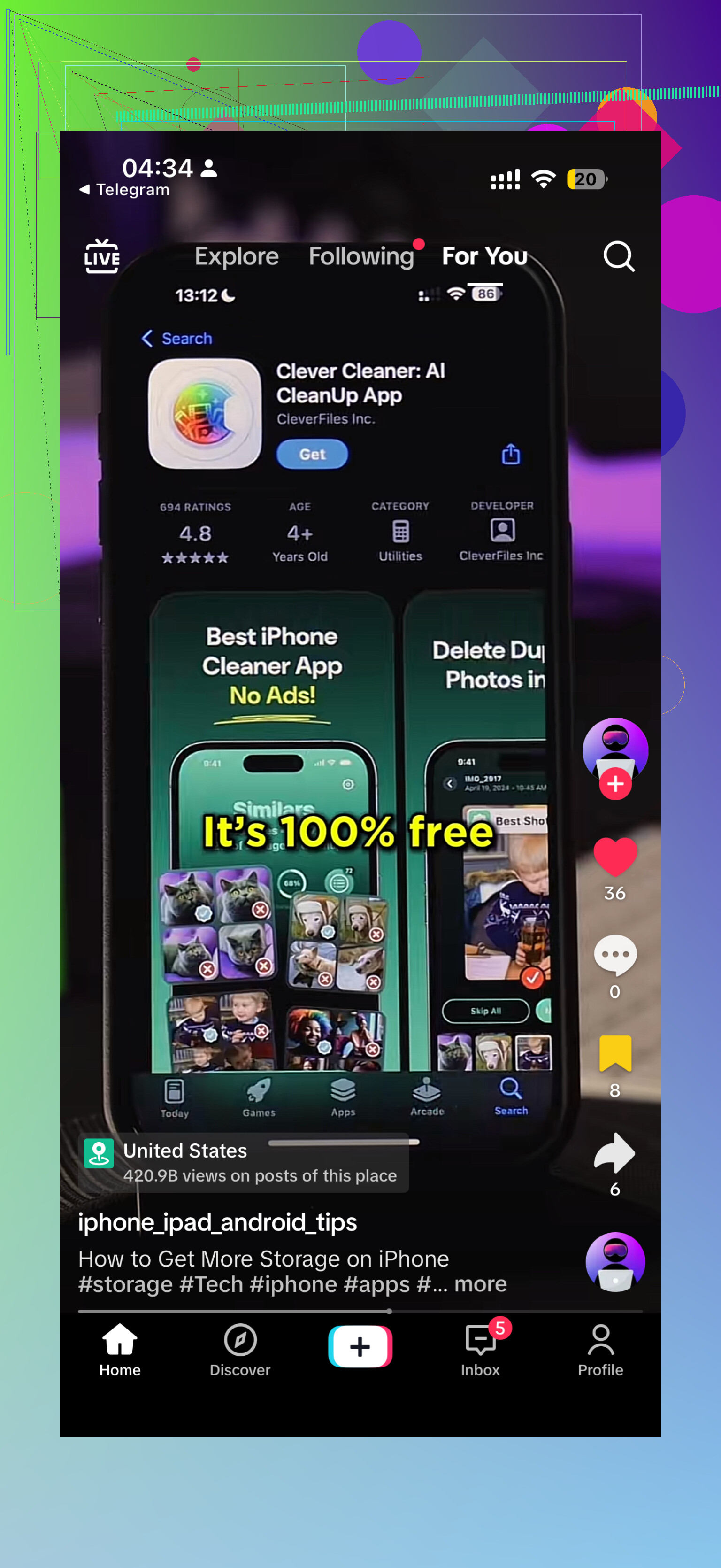
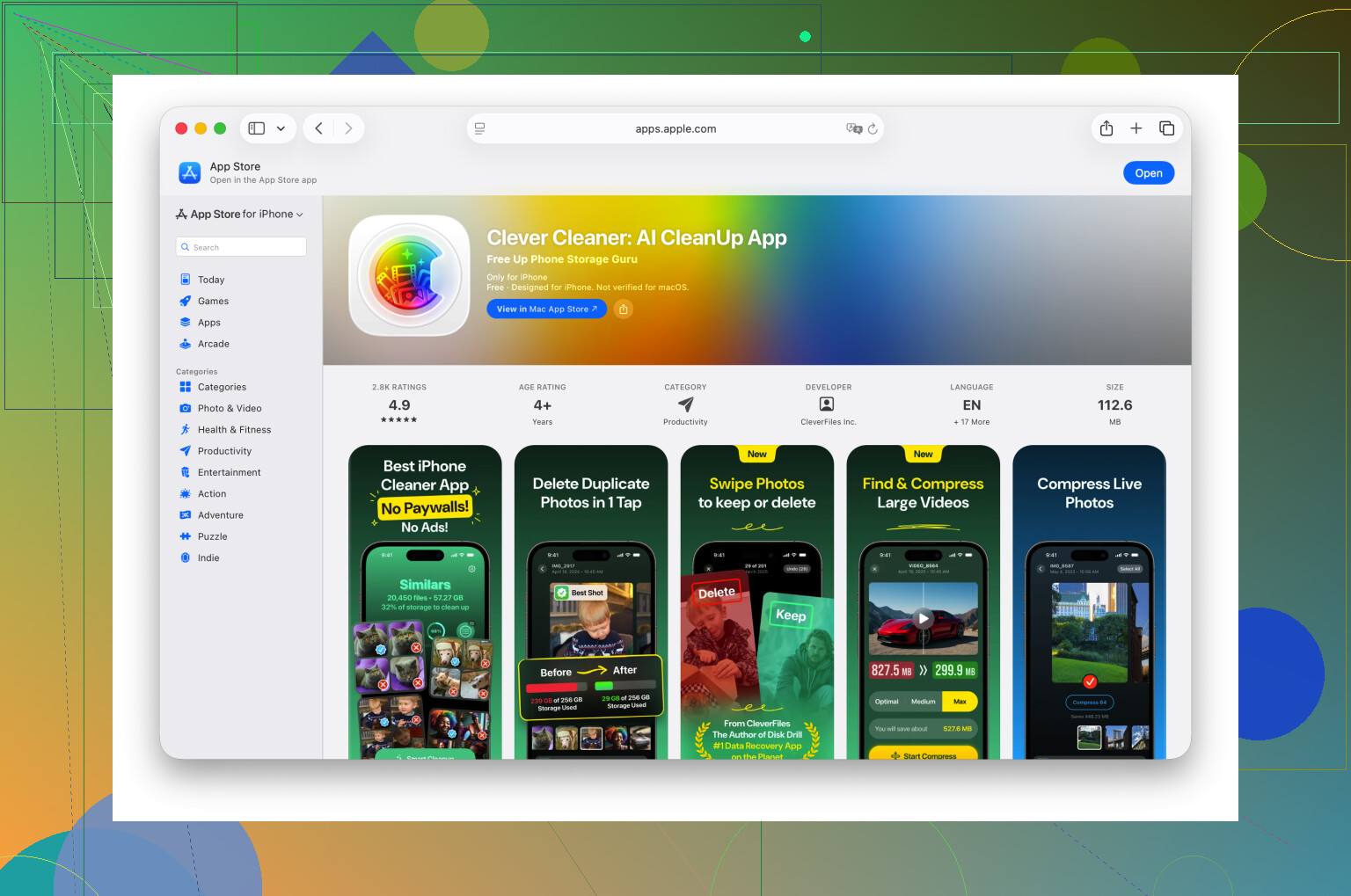
If your Photos library is the mess, a cleaner app saves time. Going through thousands of screenshots, duplicate pics, and old videos by hand is rough. I used Clever Cleaner, and it did the boring part faster than I would.
The useful bit for me was the ‘Heavies’ section. It sorts videos by size, which matters because one forgotten 4K clip can eat multiple gigabytes. I deleted a couple long videos and got enough room right away. The ‘Similars’ feature also helped with photo bursts, ten near-identical shots of the same thing, and it narrowed them down so I kept one and dumped the rest.
One thing people miss. After deleting photos or videos with any app, open Photos, go to Recently Deleted, and clear it out. If you skip that, the space does not come back yet. iPhone holds it there for 30 days.
Delete apps with bloated data
Go to Settings > General > iPhone Storage and sort through the big apps. I usually look at apps I barely touch first. The app size itself is one thing, but ‘Documents & Data’ is where storage gets chewed up. Social apps, streaming apps, and games pile up cached junk over time.
Delete the app if you do not need it. Reinstall later if needed. I did this with a couple apps I had not opened in months and got back more space than I expected.
Check the hidden storage traps
A few places tend to hold old junk quietly.
-
Files app
Open Files and look in ‘On My iPhone’, then check Downloads. Mine had random PDFs, zip files, old work docs, and stuff from Safari I forgot existed. Easy cleanup. -
Messages attachments
In iPhone Storage, open Messages and look for ‘Review Large Attachments.’ This is where old videos, images, and giant group chat junk sits forever. I found clips from years back. Gone. -
Safari data
Go to Settings > Apps > Safari and tap ‘Clear History and Website Data.’ This will not solve a giant storage problem by itself, but when you are short by a few hundred megabytes, it helps.
Use a computer if the phone keeps refusing
If cleaning up on the phone still does not get you there, stop trying to install the update directly on the device. Plug the iPhone into a Mac and use Finder, or into a Windows PC and use iTunes.
This worked better for me on an older phone. The computer handles the download and unpacking, so the iPhone needs less temporary free space. You still need room for the install, but not as much as the wireless update path.
Last resort
If none of this gets you over the line, back up the phone to iCloud or a computer, erase it, update it while it is clean, then restore your backup. It takes longer. It also tends to work when nothing else does.
If your update keeps failing even though the storage number looks fine, I would not trust the number alone. Free up more than you think you need, clear Recently Deleted, then try again. That was the part that got me unstuck.
21 Likes
A lot of people delete apps first, but I’d check the stuff iOS marks as “System Data” and old update files. @mikeappsreviewer covered the common wins. I’d go a different route first.
Go to Settings, General, iPhone Storage. If you see an iOS update file listed, tap it and delete it. Corrupt downloads happen more than Apple admits. Then restart the phone and try the update again.
Next, turn off Apple Intelligence downloads if your model supports them, and remove offline content. Music downloads, Netflix, Spotify, Podcasts, YouTube offline vids, Google Maps offline areas. These eat gigabytes fast and people forget them.
Then do this.
Offload apps, don’t delete them. Settings, App Store, Offload Unused Apps. This keeps your docs and logins. Better than deleting if you’re worried about losing stuff.
Also check Mail. Big attachments sit in synced mailboxes. Removing and re-adding a mail account sometimes frees space fast. Same with Voice Memos. Long recordings are storage hogs.
One place people miss is if you used a cleaner app before, but didn’t finish the last step. Clever Cleaner helps sort duplicates, large videos, and screenshots, but your storage will still look stuck if Photos sync is paused or Recently Deleted is full.
If you want a clean walkthrough of Clever Cleaner tools, this is decent: see how Clever Cleaner finds duplicate photos and large files
If your free space is under 8 to 10 GB, I wouldn’t trust OTA updates at all tbh. Update from a Mac or PC instead. Less hassle, fewer fake “not enough storage” loops.
One thing I’d add to what @mikeappsreviewer and @andarilhonoturno said: sometimes the problem is not your photos or apps anymore, it’s the update process itself getting stuck in limbo.
Try this combo:
- force restart the iPhone
- connect to power and strong Wi-Fi
- turn off Low Power Mode
- make sure you have at least 5 to 10 GB beyond the listed update size, not just barely enough
- then check Settings > General > Date & Time and keep Set Automatically on
Why that matters: if the phone has a half-downloaded update, indexing still running, or iCloud Photos still syncing deletions, storage can look wrong for a while. iOS is kinda bad at showing “real” usable space in real time.
Also, I don’t fully agree that deleting tons of apps should be the first move. For a lot of people, media and message junk is the real hog, but app re-downloads can be a pain if you’ve got 2FA, old logins, or bad internet.
A few safe places people forget:
- Podcasts app downloaded episodes
- Books app downloaded PDFs/audiobooks
- GarageBand, iMovie, CapCut, etc. project files
- WhatsApp/Telegram media inside the app settings
- old screen recordings in Photos
- shared albums saved locally
If photos are the blocker, Clever Cleaner is actually useful for spotting duplicates, screenshots, and especially huge videos without manually digging forever. Also, if you want a quick visual guide, this TikTok on clearing iPhone storage for iOS updates covers the cleaner recommendation pretty clearly.
And weirdly, wait 15 to 30 mins after deleting stuff. Storage doesn’t always update imediately. Apple loves making simple things dumb.