My iPhone storage is completely full, and I’m trying to find a way to free up space without deleting photos, apps, or messages I still need. I started getting storage warnings, and now my phone is slowing down and won’t update properly. I need help figuring out the best way to get more iPhone storage without losing anything important.
I went through the same mess with the iPhone storage warning. Mine got so full I stopped trusting the phone for anything time sensitive. I’d try to grab a quick video, save a file from email, even update one app, and the phone would throw the storage alert again. After a while it wasn’t only annoying. The whole thing started dragging.
When my storage was packed, I saw the phone slow down in small ugly ways first. Apps opened late. The keyboard lagged. Photos hung for a second before loading. A few times the screen froze long enough for me to think it crashed. Later I learned why. iOS needs free space for temp files, indexing, updates, cache, all the background junk you never see. When there’s no room left, the phone feels older than it is.
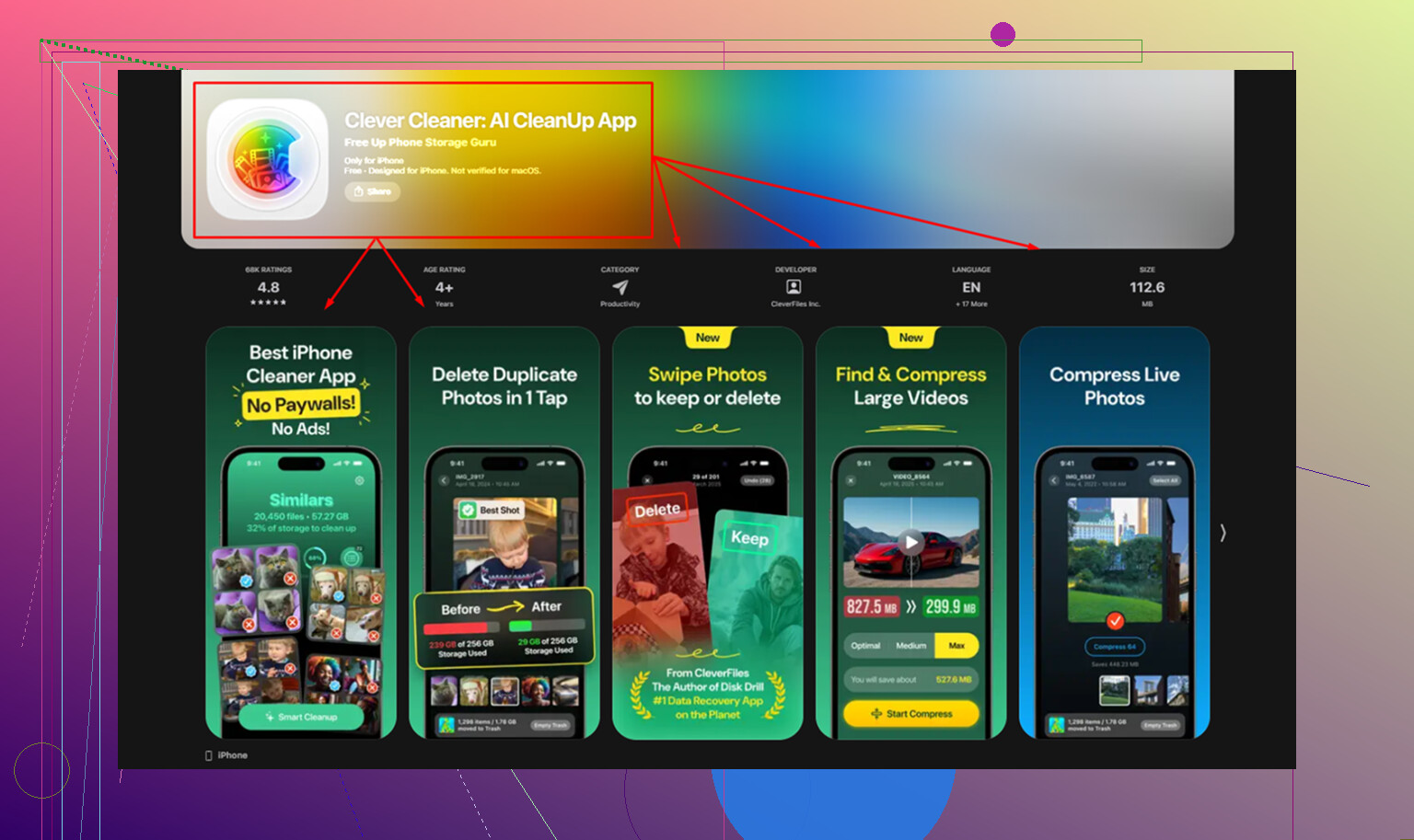
I tried cleaning it by hand for a couple weeks. Deleted random screenshots, old memes, a few giant videos. It barely mattered. The first thing that moved the needle for me was Clever Cleaner.
I don’t trust most cleaner apps on iPhone. A lot of them are stuffed with ads or hit you with a subscription wall fast. This one was different when I used it. Free, no ads, no paywall I ran into.
What helped me inside the app:
-
Similars
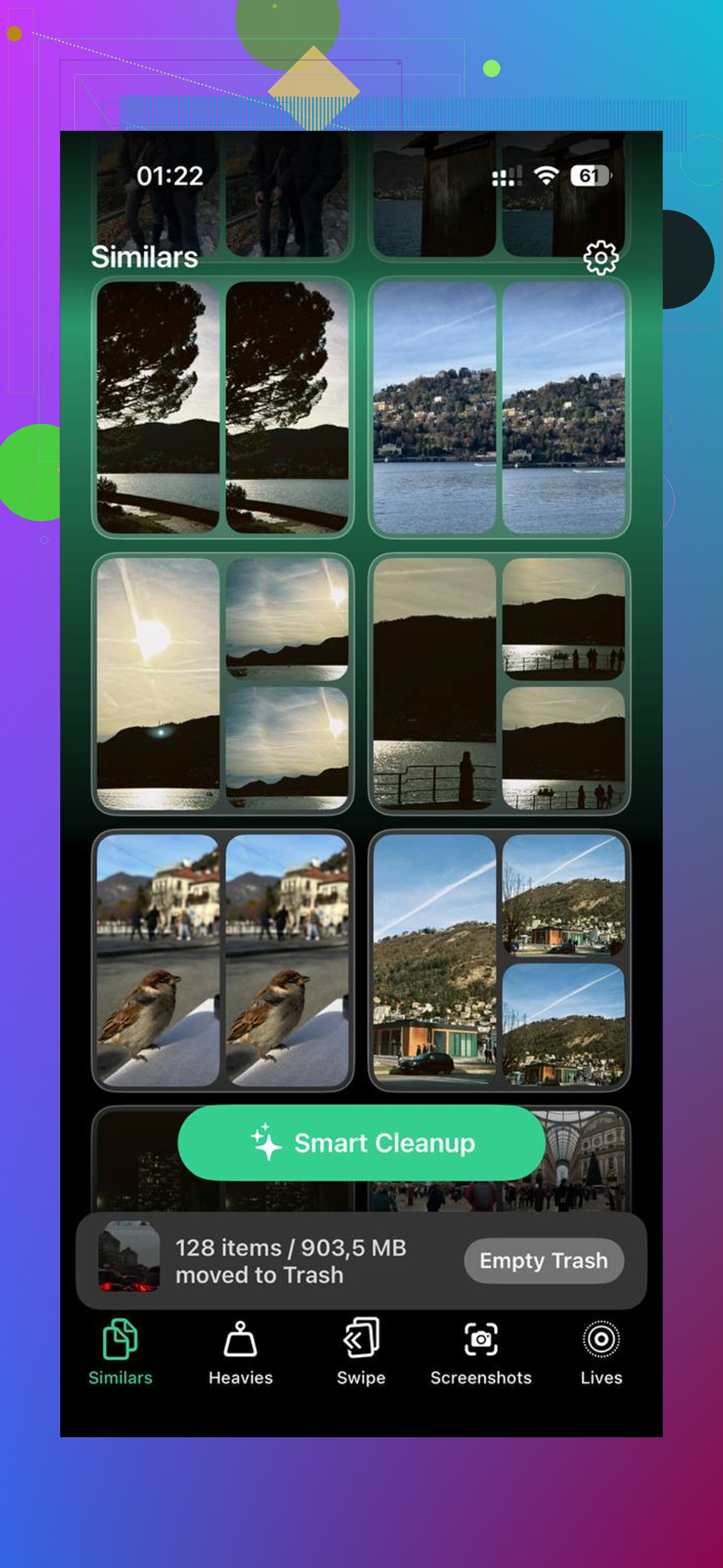
It found near-duplicate photos fast. Stuff like 12 shots of the same receipt, pet photo bursts, repeat selfies with no real difference. It picked a best shot and I dumped the rest. -
Heavies
This one saved me the most space. Apple’s Photos app still makes it weirdly hard to spot the biggest files fast. This sorted videos and images by size, so I could see which old 4K clip was eating 1GB or 2GB by itself. -
Screenshot sizes
It showed exact file sizes, which made cleanup less random. I stopped guessing and started deleting the junk with the biggest payoff first. -
On-device processing
This mattered to me more than I expected. My photos stayed on the phone. They weren’t getting shipped off to some server for analysis.
If you want to fix storage without deleting everything you care about, these built-in moves did the most for me.
1. Turn on iCloud photo optimization
Path: Settings > Photos > Optimize iPhone Storage
This is the cleanest fix if your photo library is the main problem. The full resolution versions stay in iCloud. Your phone keeps smaller copies locally. You still see your whole library, and if you open something older, the full file downloads again.
On one family phone I helped with, photo storage dropped from around 40GB to a few GB after it finished syncing. It wasn’t instant, but it was a huge difference.
2. Offload apps you barely use
Path: Settings > General > iPhone Storage > Offload Unused Apps
I like this more than deleting apps outright. Offloading removes the app itself but leaves your documents, login info, and settings behind. If you reinstall later, it comes back close to where you left it.
Good for airline apps, shopping apps, travel junk, old games, school portals, stuff you use twice a year.
3. Reinstall social apps with bloated cache
TikTok, Instagram, Facebook, and a few others were the worst offenders on my phone. They pile up cached videos and images over time. Some of them grow into multiple GB and give you no proper clear-cache button on iPhone.
So I deleted the app, reinstalled it, logged back in, and watched the size drop hard. I saw one app go from a few GB down to a few hundred MB. Annoying fix, yes. It worked.
4. Clear Safari website data
Path: Settings > Safari > Clear History and Website Data
If you browse a lot, Safari hoards data. Mine had way more stored junk than I expected. Clearing it signed me out of some websites, so be ready for that. Still worth it if you need space fast.
This one usually frees MBs to a few GB, depending on how long it’s been.
5. Kill off Live Photos if you don’t care about motion
Live Photos take more room than plain stills because they include motion and audio data. If you never use the live effect, they’re low hanging fruit.
Doing this one by one is a pain. The app above has a Lives tool for it, which made it easier when I tried it. If you skip the app route, at least check whether your library is full of Live Photos from years ago. Mine was.
One thing people forget
Empty the Recently Deleted folder in Photos.
Path: Photos > Albums > Recently Deleted
Deleted items stay there for 30 days unless you remove them yourself. So people clean out 5GB of videos, then wonder why the storage number barely changes. I made this mistake once. Felt dumb after.
Once I cleared enough room, the phone felt normal again. Less lag, fewer storage pop-ups, fewer weird pauses. If your iPhone is acting old, storage is one of the first things I’d check.
17 Likes
Yes, but only to a point. If your iPhone is full, there is no secret extra storage switch in iOS. You either move data off the phone, shrink what stays local, or clear temp junk.
I agree with some of what @mikeappsreviewer said, but I think people focus too much on deleting files one by one. That is slow and usualy gives weak results.
Better options if you want to keep your stuff:
-
Move messages storage off the device
Settings > Messages > Keep Messages > 1 Year or 30 Days if you are storing years of media.
Also check Settings > General > iPhone Storage > Messages. You’ll see Photos, Videos, GIFs, Stickers, and huge attachments. You keep the convo thread, but trim the bloated files first. -
Remove downloaded media, not the app
Spotify, Apple Music, Netflix, YouTube, Podcasts, Audible. Downloads pile up fast. One offline season of a show can eat several GB. Remove downloads inside each app. Your account and library stay intact. -
Files app is often the hidden problem
Open Files > On My iPhone > Downloads.
PDFs, ZIPs, email attachments, exported videos, and duplicate docs sit there forever. Most people forget this folder exists. -
Mail attachments and old accounts
The Mail app stores local data from synced accounts. If you have multiple mailboxes with giant attachments, remove and re-add the account. I freed almost 3GB doing this once. Annoying, but it worked. -
System Data needs breathing room
If System Data is huge, restart the phone, update iOS, then connect it to a Mac or PC and sync once. This sometimes shrinks caches and logs. Not flashy, but solid.
If photos are the issue, Clever Cleaner is still worth a look for sorting duplicates and oversized media. Also, this review of Clever Cleaner on NY Weekly gives a decent breakdown: see how NY Weekly tested Clever Cleaner for iPhone storage cleanup.
Hard truth, if you refuse to remove or offload anything at all, your only real path is buying more iCloud storage or moving files to a computer. iPhones do not bend the laws of storage, lol.
Short version: not really. You can’t magically add physical storage to an iPhone without either moving stuff elsewhere, compressing what stays local, or clearing space iOS is wasting.
I mostly agree with @mikeappsreviewer and @mike34, but I’d push back on one thing. People jump straight to deleting apps and media, when sometimes the faster win is stopping your iPhone from storing local copies in the first place.
A few things they didn’t really hit:
- Turn off automatic downloads in apps like WhatsApp, Telegram, Podcasts, and Apple TV. Those apps quietly hoard files.
- Check Books, Voice Memos, GarageBand, iMovie, and CapCut. These are sneaky storage pigs.
- If you use iCloud Drive, make sure big files are not marked “Keep Downloaded.” Remove local downloads but keep them in iCloud.
- In Photos, shared albums and edited video exports can create more local storage use than people expect.
- Restart after cleanup. Sounds dumb, but iOS sometimes doesn’t recalculate storage right away.
Also, if your phone is totally jammed, trying a cleaner app first is less painful than manually hunting through 9000 files. Clever Cleaner is one of the few iPhone cleaner apps people keep mentioning without the usual scammy vibe. If your issue is duplicate photos or giant media files, it’s probly the easiest starting point.
And if you want a decent outside breakdown, this article is more readable than most: why Clever Cleaner stands out as a truly free iPhone storage cleanup app
If your goal is “more storage without deleting anything at all,” then the honest answer is: buy more iCloud storage, move files to a computer, or live with the warning. Physics is being kinda rude here lol.