My external hard drive suddenly won’t open in Windows and shows the error “The parameter is incorrect.” It has important files on it, so I’m trying to figure out how to fix the external hard drive error without losing data. What should I try first?
This usually isn’t the end of the drive, but don’t treat it like a normal Windows error either. A lot of the time, “The parameter is incorrect” just means Windows can see the device but can’t properly read the file system. The data may still be there.
What I wouldn’t do first is run CHKDSK or format it. Those are common suggestions, but if the file system is damaged, or the drive is starting to die, they can make recovery messier. Get the files off first if they matter, then try to fix the drive.
Start with the boring stuff:
- Swap the USB cable.
- Plug it straight into a different USB port, not through a hub.
- Try the drive on another computer.
- Check Disk Management and see whether it shows up with the right size.
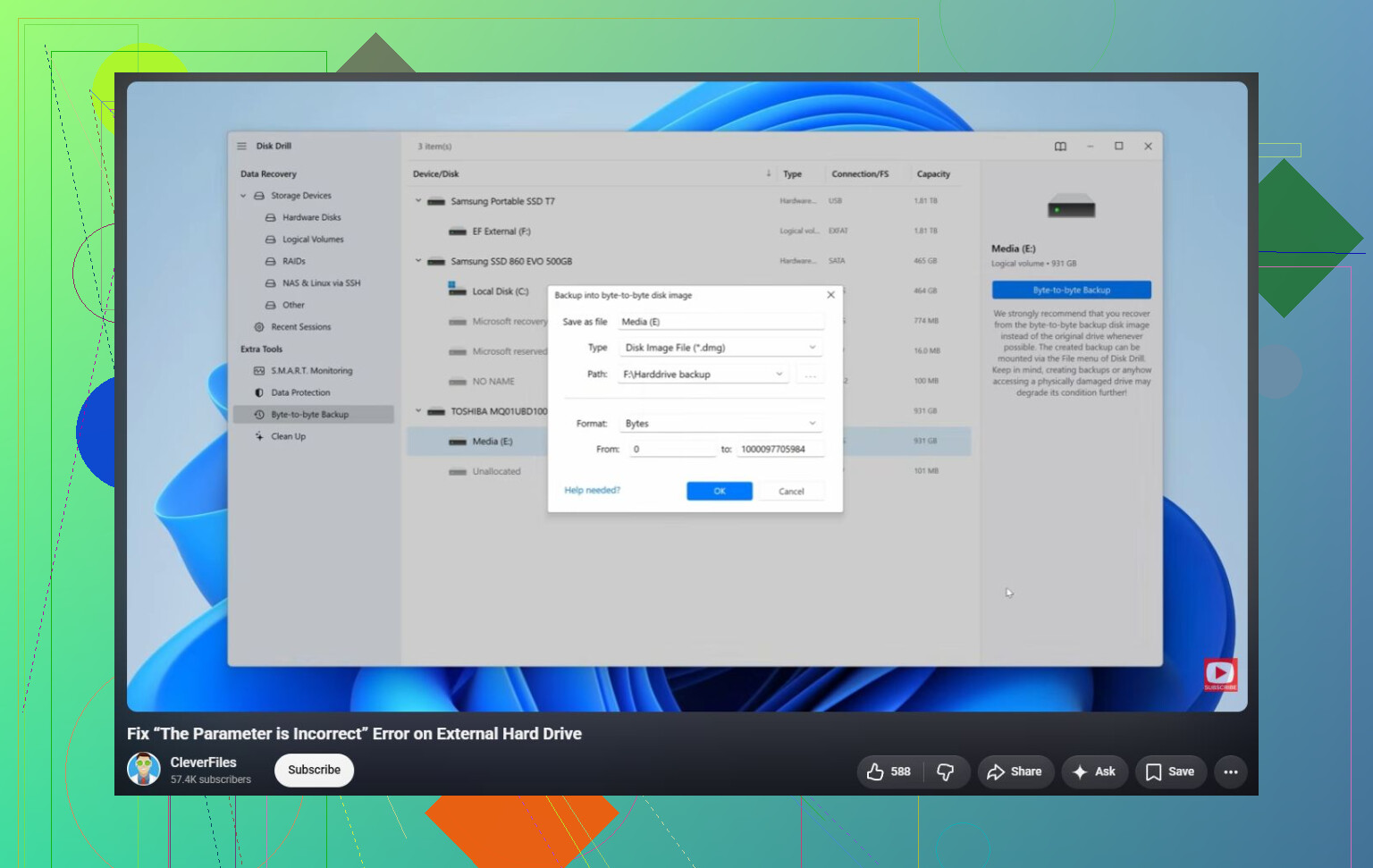
If Windows still detects it, recovery software is the safer next step. Disk Drill is a decent option for this because it can sometimes read a drive even when Windows refuses to open it with that parameter error. If the drive seems flaky, image it first and scan the image instead of scanning the physical drive directly. That gives you a better shot if the drive is getting worse.
After the important files are recovered, then you can try repairing it:
- Use
chkdsk X: /rif Windows still recognizes the file system. - If the partition shows as RAW, or CHKDSK won’t run, try TestDisk. In some cases it can repair the partition without formatting.
- If recovery is done and repair still fails, a quick format usually clears logical file system corruption by making a new file system.
There’s also one weird Windows setting worth checking. If this started right after changing regional settings, make sure the decimal separator is set to a period (.). It’s uncommon, but it can cause this error on some systems.
If the drive clicks, drops connection, vanishes from Disk Management, or SMART data shows a lot of reallocated or pending sectors, stop messing with it. That points more toward hardware failure, and a recovery lab is probably the safest route if the files are important.
5 Likes
Try to rule out the USB enclosure before you start repairing the file system. With external hard drives, the little USB-to-SATA bridge inside the case can be the thing acting up, and Windows may throw “The parameter is incorrect” even though the actual disk is still readable. If it is a desktop-style external drive, try another power adapter if you have the correct one. If it is a portable drive and you are comfortable doing it, testing the bare drive in another enclosure or USB dock can tell you a lot. Don’t force this if the drive is sealed, under warranty, encrypted by the enclosure, or you are not sure what type it is.
I agree with the warning about not formatting it first. Windows will make formatting sound like the next logical step, but that is only a fix for the drive, not for your files. If the drive appears with the correct capacity in Disk Management, I would focus on copying or recovering the data before “repairing” anything. Recovery tools like Disk Drill can be useful here, but scan only after you’ve made sure the drive is not disconnecting every few minutes. If it keeps dropping out, even a good recovery scan can turn into hours of the drive getting worse.
Once the files are somewhere else, then repair attempts are fair game. At that point CHKDSK, deleting and recreating the partition, or formatting are much less risky because you are no longer gambling with the only copy of the data. If the drive makes clicking sounds, spins up and down repeatedly, or shows the wrong size, stop treating it like a Windows problem. That is when software fixes are mostly just wishful thinking.
There may not be a clean “fix” for this until the files are copied somewhere else. That error can be a Windows access problem, but it can also mean the directory/index info on the disk is scrambled. If you keep trying random fixes, every repair attempt is writing to the same drive you’re trying to save.
A low-effort thing I’d try before paid recovery software is booting from a Linux live USB, like Ubuntu, and seeing if the drive will mount there. Don’t install Linux and don’t let it “repair” the drive. Just use the trial/live mode, plug in the external drive, and try copying the important folders to a different disk. Sometimes Windows refuses to open a volume that Linux can still read well enough to copy from. It is not magic, and if the drive is physically failing it may still hang or disconnect, but it’s a decent read-only-ish check before doing heavier stuff.
If you go the software route, make sure you have another drive with enough free space. Disk Drill or similar tools are much safer if you create an image/backup of the bad drive first and scan that, instead of hammering the original for hours. After the files are recovered, then I’d be fine with CHKDSK, reformatting, changing the partition, or whatever Windows needs. Before that, I’d treat the external drive as evidence, not as something to “fix.”
If Windows is asking you to “initialize” the disk, stop there and cancel it. That is a different situation than a normal drive-letter error, and clicking through those prompts can overwrite partition info. Same goes for “format before use.” Those prompts are Windows saying it does not understand the volume, not that formatting is a safe recovery step.
A small detail people forget: check whether the drive is showing the right capacity. Open Disk Management and look at the size, not just the drive letter. If your 2 TB drive shows as 2 TB, that leans toward file system or partition damage. If it shows as 0 bytes, 32 MB, “No Media,” or some nonsense size, software recovery is much less promising because the USB bridge or the drive hardware may be failing.
I’d be more cautious with chkdsk X: /r than some guides online make it sound. It can be useful after you have a copy of the files, but /r is a long surface scan and it writes changes while it works. On a dying external drive, that can turn a readable mess into a less readable mess. If the data matters, the order should be: stabilize the connection, copy or image, recover files, then repair or reformat.
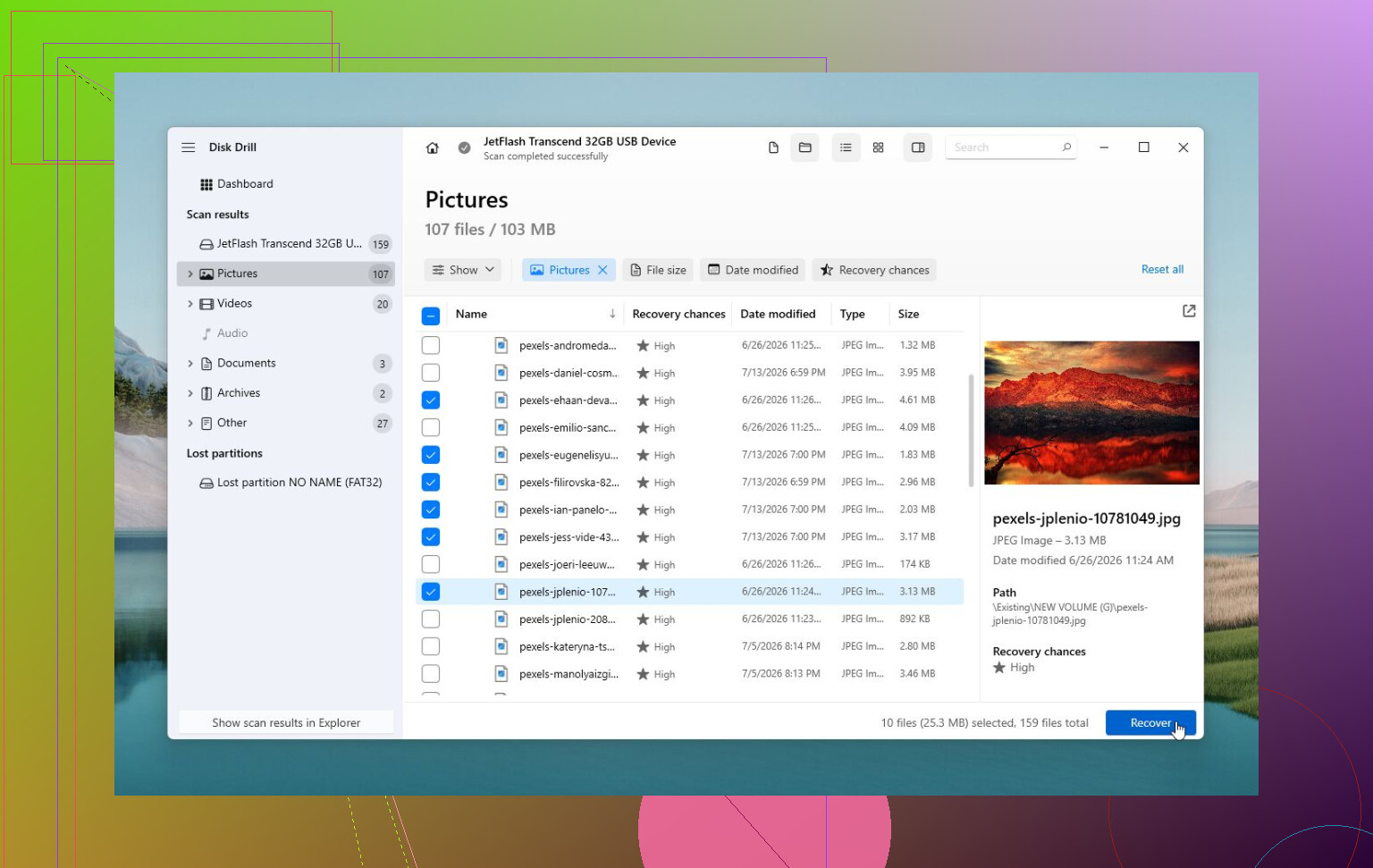
Disk Drill is fine to try if the drive stays connected and reports the correct size, but don’t judge success by whether Windows Explorer can open it. Explorer often fails first. A recovery tool may still list folders or recover files by scanning the file system. Save recovered files to your internal drive or another external drive, never back onto the broken one.
If you want a quick cheap check before running recovery software, try a different cable and port, then look at SMART health with something like CrystalDiskInfo. If it shows caution/bad health, pending sectors, or the drive keeps disconnecting, I’d skip “fixes” and either clone it first or go to a recovery shop. If SMART looks normal and the drive is stable, then recovery software or a Linux live USB is a reasonable next move. Only after the files are safe would I bother making the external drive usable again.