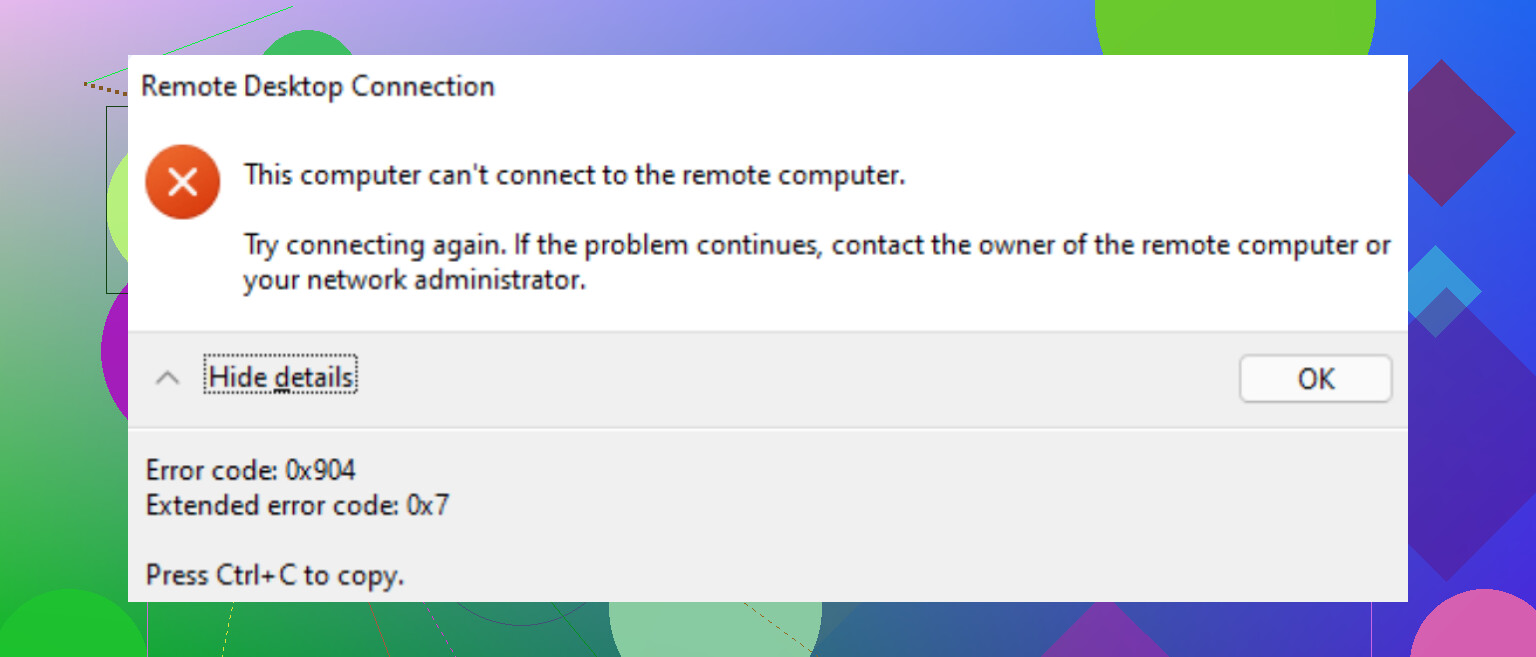
I keep getting RDP error code 0x904 whenever I try to connect to a remote Windows machine over my home network. It was working fine before, and I haven’t changed anything obvious in my settings. Now the connection fails every time with this same 0x904 error. What usually causes this and what are the steps I should follow to troubleshoot and fix it?
This error has tricked me more than once. It looks like a network issue, but every time it was licensing on the RDS side or cached junk on the client.
Here’s what I do now, step by step, when RDP starts throwing licensing errors out of nowhere.
RDP client quick fix I try first
On Windows clients, I almost always start with the local license cache. When RDP worked yesterday and today it throws some random licensing error, this has fixed it for me a lot of times.
What I do:
- Close all RDP sessions.
- Open Registry Editor as admin.
- Go to:
HKEY_LOCAL_MACHINE\SOFTWARE\Microsoft\MSLicensing
- Delete the whole MSLicensing key.
- Important part, launch mstsc.exe by right clicking and choosing “Run as administrator”.
- Connect again.
Running it once as admin lets it recreate the MSLicensing key and pull a fresh RDS license from the server.
If that fixes it, you had a bad client cache. I usually export the original key before deleting if it is a production machine, but I have not needed the backup so far.
If that does nothing, I stop blaming the client
When the registry trick does nothing, I move straight to the RDS server and start poking at licensing.
I have been burned by each of these at least once.
Step 1: Check the CALs for real, not from memory
On the RDS license server:
- Open “Remote Desktop Licensing Manager”.
- Look at:
- Do you see any installed license packs at all.
- Total number of CALs.
- Number of issued CALs.
- Expiration date if they are temporary.
Things I have seen in the wild:
- Someone thought they had Per User licenses, but only Per Device were installed.
- All temporary CALs used, nothing permanent installed.
- License server was replaced or rebuilt, but no one reinstalled the CALs.
Step 2: Grace period silently died
This one hits test servers and “temporary” RDS hosts that never got a license server configured.
If the Remote Desktop Session Host role is installed and there is no valid license server configured, Windows gives you a grace period. About 120 days. Then it stops accepting new client connections.
To see what is left on the grace period, run this on the RDS host in an elevated command prompt:
wmic /namespace:\root\CIMV2 PATH Win32_TerminalServiceSetting WHERE (__CLASS !=') CALL GetGracePeriodDays
If that returns 0, the grace period is over and the host expects a real license server.
At that point you need:
- A valid RDS license server somewhere.
- CALs installed on that server.
- The Session Host pointed at that server.
Step 3: Group Policy licensing settings are wrong or missing
I have seen GPOs override good local settings and break a working setup overnight after someone “cleaned up” policies.
On the RDS Session Host, check the policy here:
Computer Configuration
→ Administrative Templates
→ Windows Components
→ Remote Desktop Services
→ RD Session Host
→ Licensing
Look at these settings in particular:
- “Use the specified Remote Desktop license servers”
- Enabled.
- License server name(s) correct.
- “Set the Remote Desktop licensing mode”
- Set to either Per User or Per Device, matching what you bought and what you installed in RD Licensing Manager.
After changing policy, run:
gpupdate /force
then log off and back on the server or restart the Remote Desktop Services service.
If you have multiple domain GPOs, confirm nothing else is also configuring those same settings. I have seen two different GPOs set different license modes and Windows behaved badly.
Stuff I avoid in production
Yes, there are a bunch of “registry reset the grace period” tricks floating around blogs and StackOverflow. People delete the GracePeriod key under:
HKEY_LOCAL_MACHINE\SYSTEM\CurrentControlSet\Control\Terminal Server\RCM\GracePeriod
and mess with permissions etc.
I only did that once in a lab to test behavior. I do not touch that in production because:
- It is not supported by Microsoft.
- It makes license audits miserable.
- It tends to come back to haunt you when someone upgrades the host or moves licenses.
If you care about compliance or stability, fix the licensing properly instead of trying to squeeze extra days from the grace timer.
Quick checklist I keep around
When someone says “RDP licensing error” on a Windows box, this is what I run through:
Client side:
- Delete HKLM\SOFTWARE\Microsoft\MSLicensing.
- Start mstsc.exe as admin one time.
- Test from a second client to see if it is a single machine or all clients.
Server side:
- Open RD Licensing Manager.
- Confirm CAL packs exist.
- Confirm not all consumed.
- Confirm correct type, Per User vs Per Device.
- Check grace period with the wmic command.
- Review GPO under RD Session Host → Licensing.
- Confirm license mode matches CAL type.
- Confirm license server name is correct and reachable.
- Make sure the Session Host knows who the license server is, either through GPO or through RD Session Host Configuration (on older versions) or the RD Deployment configuration.
If you want a more traditional guide with screenshots and a slower run through of the steps, this page helped someone on my team a while back:
82 Likes
I see 0x904 a lot when things look like “licensing” but the root cause is something else on a small or home setup.
Since @mikeappsreviewer already covered the classic RDS licensing side, I will focus on the stuff that bites home networks and “it worked yesterday” setups.
Try this order.
- Confirm it is not one bad client
• From another PC on your network, run mstsc and try to connect.
• From your phone, use Microsoft Remote Desktop app and test.
If the second client works, your first client is the problem.
If nothing works, focus on the target PC and the network.
- Check the target Windows box did not flip off RDP
On the remote machine, locally:
• Win + R, type
SystemPropertiesRemote.exe
• Under “Remote Desktop”, make sure “Allow remote connections to this computer” is still selected.
• If it is a Windows 10/11 Home system, RDP server is not supported. If you recently reinstalled or “repaired” Windows, you might have lost any hacks you used before.
I have seen a feature update reset this setting silently.
- Verify the target firewall rule did not change
On the remote PC:
• Open Windows Defender Firewall.
• Left side, click “Allow an app or feature through Windows Defender Firewall”.
• Make sure “Remote Desktop” is allowed on Private network.
• If you switched your home network from Private to Public after a router change, RDP will suddenly stop.
You can also test by temporarily turning the firewall off on the remote PC.
If RDP connects with firewall off, you know what broke.
- Check IP and name resolution
Home routers love to renumber stuff.
On the remote PC:
• Win + R, type cmd
• Run:
ipconfig
Note the IPv4 address.
On your client, in mstsc, connect directly to that IP instead of hostname.
If IP works and hostname fails, your local name resolution is off.
Reboot the router and both PCs.
If you use a VPN client like Nord, OpenVPN, Cisco, disable it and try again.
- Look at RDP logs on the target
On the remote machine:
• Open Event Viewer.
• Go to
Applications and Services Logs
Microsoft
Windows
RemoteDesktopServices-RdpCoreTS
Operational
Look for recent errors around your connection attempts.
For 0x904 I often see extra detail there, like TLS problems or authentication complaints.
If you see TLS or CredSSP messages:
- Tweak security layer and NLA once to test
On the remote machine:
• Run:
SystemPropertiesRemote.exe
• Under “Remote Desktop”, uncheck “Allow connections only from computers running Remote Desktop with Network Level Authentication”.
• Apply.
Then on the client, try again.
If it works now, the problem is in security negotiation, not pure licensing.
You can also change the security layer through Local Group Policy on the target:
• gpedit.msc
• Computer Configuration
Administrative Templates
Windows Components
Remote Desktop Services
Remote Desktop Session Host
Security
Check:
• “Require user authentication for remote connections by using Network Level Authentication”
• “Require use of specific security layer for remote (RDP) connections”
Set the security layer to “RDP Security Layer” temporarily and test.
If this fixes it, something in TLS or certificate handling broke.
- Check for CredSSP patch mismatch
If one system is old and the other is fully patched, CredSSP hardening can break RDP.
On both client and server:
• Run Windows Update. Install all important and security updates. Reboot both sides.
Microsoft hardened CredSSP years ago, and I still see old Windows 7 or early 10 builds throw weird RDP errors until patched.
- Confirm you are not hitting a limit of concurrent sessions
On home systems you get 1 interactive console session.
If you are already logged in physically and a third party RDP wrapper was in use before, a Windows update can remove it and you go back to 1 session only.
If someone else is logged in on that box with RDP, try logging them out locally and then connect.
- Quick test of RDP port reachability
From your client:
• Win + R, cmd
• Run:
telnet <remote_IP> 3389
If telnet connects and the screen goes blank, port 3389 is reachable.
If it fails, something blocks connections. Router, firewall, or the RDP service itself.
You can also check RDP service on the target:
• On the remote PC, run services.msc
• Confirm “Remote Desktop Services” is running and set to Automatic.
- When it is a true RDS licensing setup
Here I slightly disagree with @mikeappsreviewer on one thing. I have seen client cache reset fix nothing when the CAL assignment on the server got stuck to a specific MAC or device ID. In those cases, removing the offending device entry in RD Licensing Manager or revoking CALs made the error go away without touching the client registry.
So on the license server:
• In Remote Desktop Licensing Manager, right click the issued CAL for your device.
• Revoke it, then reconnect from the client.
This is safer than random grace period registry tricks and gives you a clean audit trail.
If you run through:
• second client test
• RDP enable check
• firewall rule
• IP vs hostname
• NLA and security layer
• Windows updates
you will narrow it down fast. Most home 0x904 threads I see end up being either a firewall profile change or a security layer mismatch after an update.
Had this same thing bite me on a “simple” home setup that was secretly a mess under the hood. Since @mikeappsreviewer and @ombrasilente already covered licensing and basic network / NLA tweaks, here’s what I’d add from the “why is Windows like this” pile.
I’d look at these in particular:
1. Check what 0x904 actually is on your box
The same hex code can be thrown for slightly different reasons. On the remote machine:
- Open Event Viewer
- Go to:
Applications and Services Logs
Microsoft
Windows
TerminalServices-LocalSessionManager→ Operational
and
RemoteDesktopServices-RdpCoreTS→ Operational
Look for events around the time you connect. The text inside those events is more important than the 0x904 itself. If it mentions:
- “The client cannot connect due to a configuration error” → think policy or encryption.
- “An authentication error has occurred” → CredSSP / NLA / TLS.
- “The number of connections to this computer is limited” → session limit.
I know folks love jumping straight to registry hacks, but reading these logs has saved me a few hours more often than the hacks did.
2. Confirm you are not hitting the single-session wall
On a home box, you only get 1 interactive RDP session. Some things that cause very weird 0x904 behavior:
- Someone is already logged in over RDP and disconnected instead of logging off.
- Fast User Switching or a local console login is “holding” the session in a weird state.
- A third party “RDP wrapper” that used to allow multiple sessions got killed by an update.
Try this on the remote PC locally:
- Press Ctrl + Shift + Esc
- Go to the Users tab
- Log off any active or disconnected users.
Then try connecting again. I’ve seen 0x904 thrown instead of the nicer “another user is signed in” message when some RDP wrappers were half broken after an update.
I slightly disagree with @ombrasilente here: it is not always just “security layer mismatch.” Single-session limits + broken wrappers can absolutely trigger the same error and look like network / TLS.
3. Check if the RDP port or encryption level got overridden by policy
Sometimes a random security hardening guide gets half applied and forgotten.
On the remote machine run:
gpedit.msc
Go to:
Computer Configuration
Administrative Templates
Windows Components
Remote Desktop Services
Remote Desktop Session Host
Connections
Look at:
- “Limit number of connections”
- If it is Enabled with “1” in there, you can easily hit this and see weird behavior.
- “Allow users to connect remotely using Remote Desktop Services”
- Make sure this is Not Configured or Enabled.
Then under:
... RD Session Host → Security
Check:
- “Set client connection encryption level”
- If someone forced “High” or “FIPS compliant” and your home client is older or behind some weird router/VPN, that can cause negotiation failures that show as 0x904.
Try setting it to Not Configured (or at most “Client compatible”), run:
gpupdate /force
and then retry.
I’m not a fan of @mikeappsreviewer’s “client registry first every time” approach if there’s any chance a GPO changed. Policies will just re-break it the moment they refresh.
4. Confirm the RDP port and service are what you think
On the remote PC:
- Run PowerShell as admin and check the listener:
Get-ItemProperty -Path 'HKLM:\SYSTEM\CurrentControlSet\Control\Terminal Server\WinStations\RDP-Tcp' -Name PortNumber
Make sure the value is 3389 or that you are actually connecting to the custom port you set ages ago and forgot about.
- Confirm it is listening:
netstat -ano | findstr 3389
You should see something like:
TCP 0.0.0.0:3389 LISTENING <PID>
If it is not listening, but the service is “Running” in services.msc, I’ve seen two culprits:
- Some VPN / security software hooks RDP and breaks the listener. Temporarily uninstall (not just disable) any “secure remote / VPN / endpoint protection” tools and test again.
- Broken upgrade from older Windows build left RDP config corrupt. Toggling RDP off and on in
SystemPropertiesRemote.exesometimes rebuilds things.
5. Check for NIC / network profile weirdness after router or adapter changes
Home setup + “I didn’t change anything” often means Windows changed stuff for you.
On the remote machine:
- Settings → Network & Internet → check if your network is Private or Public.
- If it’s Public, the Remote Desktop firewall rule for Public may be disabled even while Private is allowed.
- In Windows Defender Firewall, instead of just “Allow an app,” go into Advanced settings → Inbound Rules:
- Find Remote Desktop (TCP-In).
- Double click it → Scope and Advanced tabs:
- Make sure it’s enabled for the active profile (Private/Public) and not restricted to an old subnet.
I slightly disagree with the “just toggle firewall off to test” advice. On a home machine with random software installed, disabling the firewall can expose it instantly. Better verify the specific rule profiles instead of flipping the global kill switch, unless this is a very short, controlled test.
6. If you are using any router port forwarding or “remote access” feature
Since you said “home network,” if you ever forwarded RDP over the router or used its “remote access” presets:
- Make sure the router is not doing clever stuff like:
- UPnP auto rules that changed after a reboot
- Double NAT if your ISP modem was changed
- For LAN-only connections, bypass DNS and router tricks:
- Connect from the client to the remote machine’s actual LAN IP
- Try both
mstscto that IP andpingit. - If ping works but RDP fails and telnet to
IP:3389fails, it is local firewall/RDP service, not router.
7. Last resort: reset RDP config without touching licensing or grace period
If the event logs hint at configuration corruption but not licensing, I’ll sometimes do this on the remote PC:
-
In Registry Editor (export keys before touching, just in case):
-
Go to
HKEY_LOCAL_MACHINE\SYSTEM\CurrentControlSet\Control\Terminal Server\WinStations\RDP-Tcp -
Export that key to a file.
-
Then delete the RDP-Tcp key.
-
-
Disable RDP in
SystemPropertiesRemote.exe, Apply, then re-enable it.
Windows will recreate the RDP-Tcp entry with default values. This can clear out ancient encryption / bitmap cache / color depth settings that some old RDP-tweaking tools messed with.
I’d do this instead of deleting the GracePeriod key. The grace-period nuking that @mikeappsreviewer mentioned as “lab only” is a really good way to turn one weird error into three new ones.
If you post the exact text from one or two of the RDP-related events in Event Viewer around your 0x904 attempts, it’s usually possible to point at the exact setting rather than randomly carpet-bombing registry keys and policies.
For a simpler workaround, use Chrome Remote Desktop instead of RDP.
Install Chrome Remote Desktop on both PCs. Enable Remote Access on the target PC, set a PIN, then connect through your Google account. It works across your home network without RDS licensing, port 3389, NLA, firewall rules, or registry edits.
This gets you access fast while you troubleshoot RDP later. Keep the target PC awake and online. Also confirm sleep mode is disabled, or the connection will fail after awhile. Setup takes around five minutes and avoids most Windows RDP config issues.
Realistically, if this is one plain Windows Pro machine at home that you remote into, the entire licensing thread from @mikeappsreviewer probably doesn’t apply to you. CALs, grace periods, RD Licensing Manager, all of that only matters when you’ve actually stood up an RDS host with the Session Host role. A normal Pro desktop you connect to for personal use never touches that machinery. So before you go deleting MSLicensing keys or hunting for a license server, ask yourself if you ever installed the RDS role. If the answer is no, skip that whole section.
The advice I’d actually start with is buried down in @ombrasilente and @sonhadordobosque’s replies: read the RdpCoreTS Operational log and confirm the network profile. 0x904 on its own is close to useless as a diagnostic. It’s a generic disconnect code, and the real reason lives in the event text. The Public vs Private profile flip after a router swap is by far the most common ‘it worked yesterday’ cause I’ve seen mentioned for home setups, and it costs you thirty seconds to check.
One correction to the port-check step. telnet is fine, but the client isn’t installed by default on modern Windows anymore, so it’ll just say command not found and confuse people. Use Test-NetConnection remoteIP -Port 3389 in PowerShell instead. Same result, nothing to install, and it tells you plainly whether the port is open.
On the Chrome Remote Desktop suggestion from @stealth_script, it’s a legitimate escape hatch and I wouldn’t dismiss it. Just know it isn’t really RDP, so it won’t help you diagnose the actual failure, and it leans on Chrome staying open, a Google account, and the machine not sleeping. Good for getting in today while the real box is broken, not a fix. If you want people here to point at the exact setting instead of guessing, paste the event text from one failed attempt. That single detail usually ends these threads faster than any checklist.