My drive suddenly changed to RAW after a restart, and now I can’t open the partition or access important files stored on it. Disk Management shows the partition as RAW, and Windows keeps asking me to format it. I need help figuring out how to repair a RAW partition and recover data without making things worse.
A RAW partition hit me once, and for a minute I thought the drive was cooked. Turned out the files were still there. Windows had lost track of the file system, so it treated the partition like gibberish and stopped reading it.
This usually happens after something messy. Sudden shutdown. Power loss. Bad sectors. Malware. A damaged partition table. I’ve even seen it after someone yanked an external drive without ejecting it first. The cause matters less at the start. First thing is simple. Do not format it yet.
What I’d do, in order:
- Stop writing anything to the drive.
- Pull off the important files.
- Fix the partition, or wipe and rebuild it.
- Put the recovered files back.
Recover the files first
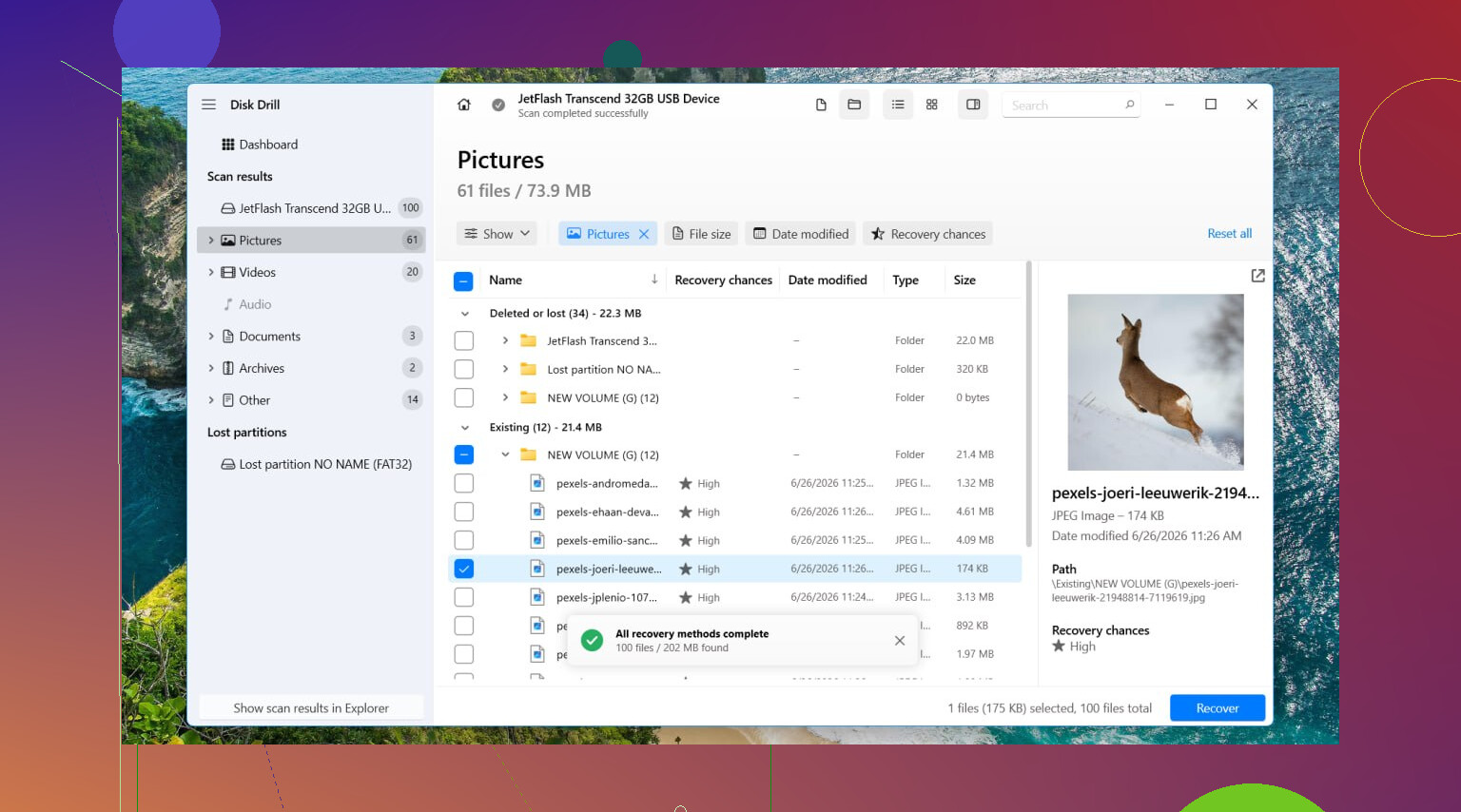
I’d start with Disk Drill. I used it on a RAW volume before, and it worked because it read the disk directly instead of trusting the broken file system. Windows kept pushing me toward formatting. Disk Drill ignored all of tht and scanned the data anyway.
Steps:
- Install Disk Drill on a different drive, not the damaged one.
- Open it and pick the RAW partition or the full disk.
- Click Search for Lost Data.
- If it asks for a recovery mode on an external drive, pick Universal Scan in most cases.
- If the source is a camera card or drone footage, Advanced Camera Recovery tends to do better with video files.
- Let the scan finish. Don’t rush it.
- Open Review found items.
- Preview some files first. I always test a few photos, docs, or videos before I trust the results.
- Mark what you need and hit Recover.
- Save everything to another drive.
Do not restore recovered files back onto the RAW partition. That’s where people make it worse.
If the drive is acting flaky, like slow reads, random disconnects, weird pauses, I’d make a full byte for byte image first and scan the image instead. Less stress on the original disk.
Repair the RAW partition
After your files are safe, then I’d mess with repair.
TestDisk is the tool I’d try first if the goal is to bring the old partition back.
Steps:
- Download TestDisk and extract it.
- Run testdisk_win.
- Choose Create.
- Select the affected disk.
- Leave the detected partition table type as is, if it looks right.
- Go to Analyse.
- Run Quick Search.
- If it finds nothing useful, run Deeper Search.
- If your lost partition shows up, select it and choose Write.
- Reboot the PC.
Sometimes this works cleanly. Sometimes it doesn’t. I’ve had both.
If you don’t care about restoring the old partition structure, or TestDisk fails, then rebuilding it is faster.
Recreate the partition
- Open Disk Management.
- Delete the RAW partition, if needed.
- Create a New Simple Volume.
- Format it as NTFS, or another file system you need.
- Copy your recovered files back.
One thing I would skip is CHKDSK on a RAW partition. Windows often refuses anyway. And if a repair tool does manage to write changes, it’s touching the file system before your data is secured. I don’t like doing surgery before making a backup.
When I’d stop and not push further
If the drive clicks, drops offline, vanishes from Disk Management, or only shows up once in a while, I’d stop using it. No more scans. No more retries. Those signs lean hardware, not file system. Every extra spin-up is a gamble.
If the files matter, this is the point where I’d hand it off to a recovery lab instead of stacking more software on top of a failing drive.
10 Likes
Do not format it. That part from @mikeappsreviewer is dead on.
My add-on would be this. Check the drive health before you try any repair. A RAW partition after a restart sometimes points to file system damage, but it also shows up when the drive starts failing. If SMART health shows lots of reallocated sectors, pending sectors, or read errors, stop trying to repair the partition first. Copy data off or clone the disk.
Use CrystalDiskInfo or the drive maker’s tool. If health is bad, work from a clone. If health looks normal, then data recovery software like Disk Drill makes sense first, because it reads past the broken file system and often finds your files on a RAW drive without needing a format.
I disagree a bit on one point. TestDisk is great, but writing a found partition back to disk is not my first move unless the drive health is clean and your recovered files are already safe. One bad write to a weak disk and stuff gets worse fast.
Also, skip random “RAW to NTFS converter” junk. Most of those tools are trash.
Simple path:
- Check SMART health.
- If bad, clone the drive.
- Recover files to another disk, Disk Drill is a solid pick.
- After files are safe, either repair or wipe the RAW partition.
- Run a full surface test later, becuase if bad sectors caused this, it will happen agian.
For people searching this later, a better phrase is fix RAW partition without losing data, or recover files from RAW drive in Windows.
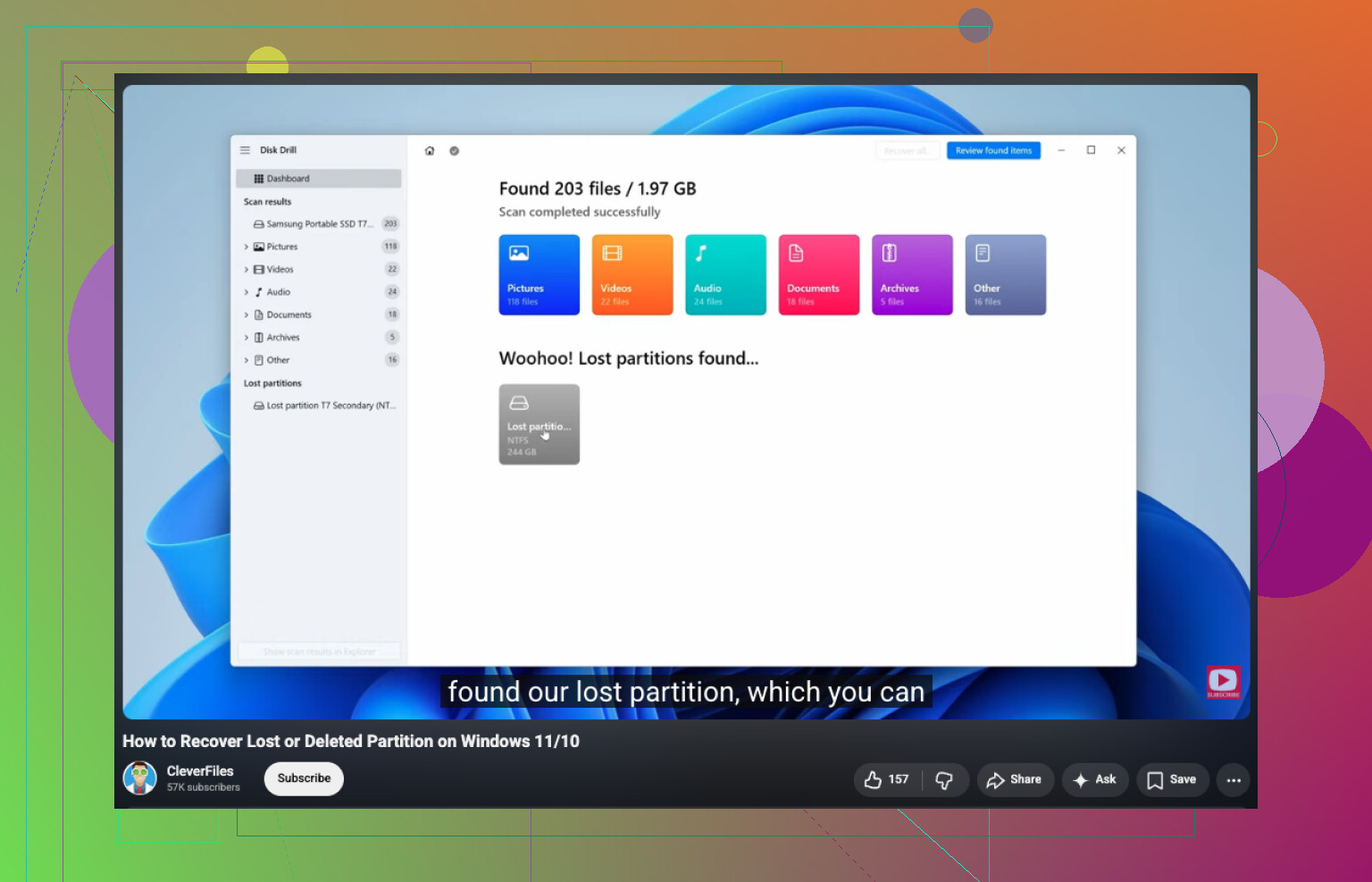
If you want a visual walk-through, this video on recovering a RAW partition is decent:
watch this RAW partition recovery guide
Do not “fix” it first. That’s the part where people turn a recoverable mess into an actual disaster.
I mostly agree with @mikeappsreviewer and @viajantedoceu, but I’m a little less eager to do any partition writing at all, even with TestDisk, unless the data is already somewhere safe. RAW can mean busted file system, sure, but it can also mean the drive is starting to go sideways and acting normal for just long enough to trick you.
What I’d add:
- Check Event Viewer for disk errors like bad blocks, controller resets, I/O errors
- Try a different USB cable / port / enclosure if it’s an external drive
- If it’s an HDD, listen for clicking or spin-up weirdness
- Boot from a Linux live USB and see if the partition mounts read-only there. Sometimes Windows throws up its hands faster than Linux does
If the files matter, recover first to another disk. Disk Drill is a solid option for RAW partition recovery because it scans the device directly instead of relying on Windows recognizing the file system. I’d scan, preview, and copy off the must-have files before touching the partition table. That order matters alot.
One thing I def would not do is use “convert RAW to NTFS without data loss” junkware. Most of that stuff is sketchy at best.
After recovery, then test repair or just delete/recreate/format the partition. Also, this Reddit thread on recovering files from an external hard drive that turned RAW is worth a read.
I’m with @mikeappsreviewer on the big rule: don’t format. But I’ll push one extra angle that @viajantedoceu and @stellacadente only touched lightly. Before recovery software or partition repair, check whether the partition size and start offset still look correct in Disk Management or DiskPart. If the size is suddenly wrong, shows unallocated chunks, or the disk signature changed, this can be partition table damage more than pure file system corruption. In that case, blind “repair” attempts are riskier.
A couple of things I’d try that don’t write much to the disk:
- Run
diskpartthenlist disk,list volume,detail disk - Compare the reported size to what it should be
- Check if the RAW volume still has the expected capacity
- If external, test the drive in another enclosure or SATA port
Small disagreement with the usual advice: Linux read-only mounting is worth trying pretty early if you’re comfortable with it. Sometimes ntfs-3g can read enough for a quick copy when Windows just calls it RAW.
For recovery, Disk Drill is reasonable here.
Pros:
- Good at scanning RAW volumes directly
- File preview helps judge recoverability
- Easier than TestDisk for most people
Cons:
- Deep scans can lose original folder structure
- Large recoveries can take a long time
- Not magic if the drive has serious hardware issues
If Disk Drill finds your important files with good previews, recover them elsewhere first. After that, repair or rebuild the partition. If it finds mostly corrupted garbage, stop and reassess drive health before hammering the disk more.