My iPhone storage is almost full, so I deleted photos, videos, and files, but the available space barely changed. I’m trying to figure out how to empty trash or Recently Deleted on iPhone and actually recover storage without losing anything important. Any steps I should check?
Yeah, this is one of those iPhone things that feels weird if you’re used to a normal computer trash/recycle bin. There isn’t one main trash can sitting somewhere on iOS. Apple handles deleted stuff separately inside each app, which is why you can delete a bunch of files and still not get the storage back right away.
The big thing to check is all the different “Recently Deleted” folders. Most of them keep deleted items around for about 30 days, and Messages can hold them for up to 40. So if your phone is yelling about storage, the stuff you already “deleted” may still be sitting there.
Photos is usually the first place to look. Open Photos, go to Albums or Collections, then scroll down to Utilities and open Recently Deleted. On newer iOS versions it’ll ask for Face ID or your passcode. Once you’re in there, tap Select, hit the three dots, then choose Delete All. If you skip that step, those deleted videos and photos are still taking up space.
Messages has its own hidden cleanup spot too. Open Messages, tap Edit in the top left, then choose Show Recently Deleted. This can get huge if you’ve had long text threads with photos, videos, and other attachments. Select what you want gone and delete it from there.
Files and Notes are worth checking as well. In Files, go to Browse and look under Locations for Recently Deleted. In Notes, back out to the main Folders screen and look for Recently Deleted there. Same basic deal: deleted doesn’t really mean gone until you clear that folder.
I ran into this a few months ago on my iPhone 13 Pro. It was lagging, apps were crashing, and the camera was taking forever to open. Turned out the phone was just way too full. iOS needs some free space for temporary files and normal background stuff, and once you’re down to almost nothing, the whole phone starts dragging.
I tried cleaning it up manually at first, but bouncing between Photos, Messages, Files, Notes, and everything else got old fast. It felt like I’d clear one thing and then find another “Recently Deleted” folder somewhere else.
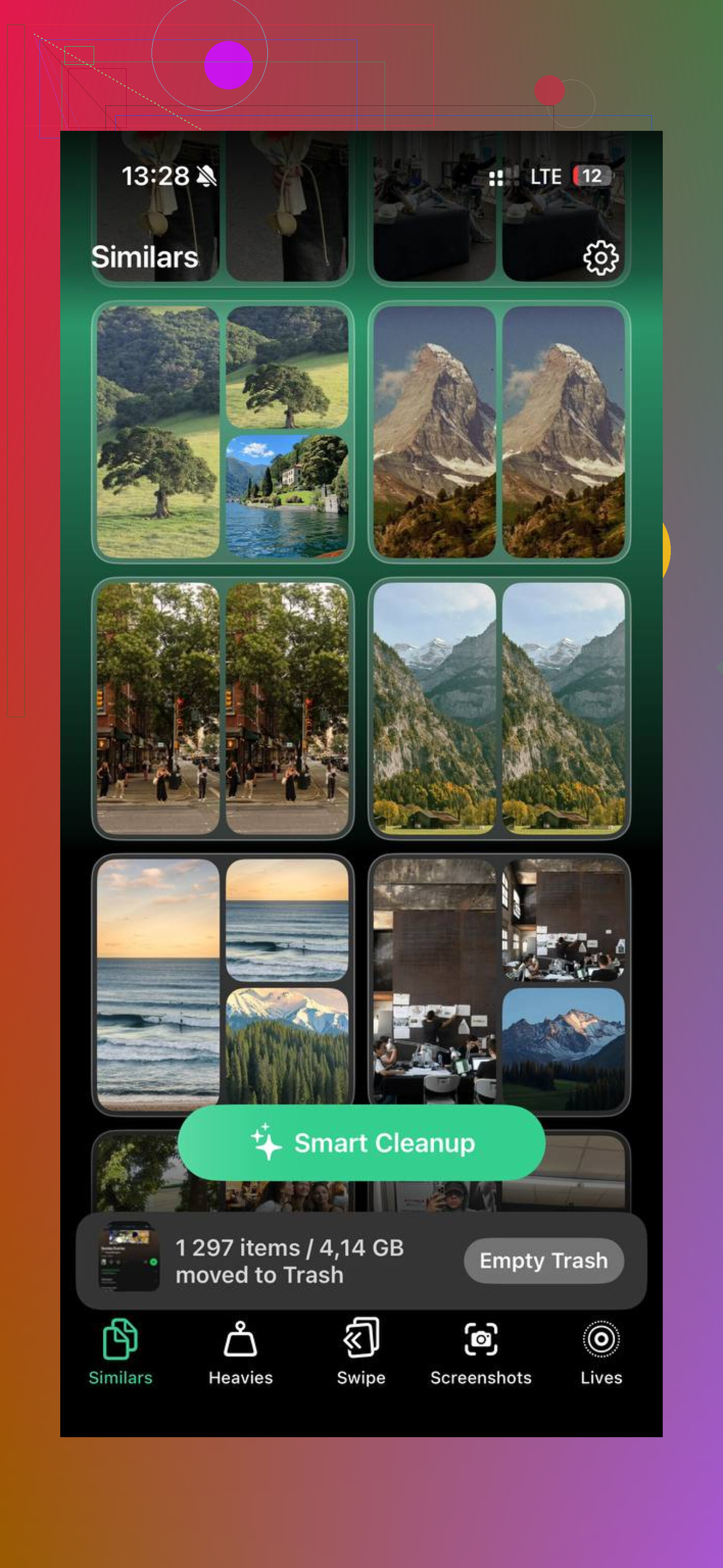
If you don’t want to dig through a bunch of menus, Clever Cleaner is the free cleanup app I ended up using. No ads, no subscription, no paywall. The useful part is that it shows the file sizes for screenshots and videos, so you can see what is actually worth deleting.
The “Heavies” tab is good for finding the biggest media files first, which is usually where the easy storage wins are. The “Similars” tab is also handy if you take a bunch of almost-identical photos and only need to keep the best one. It also processes everything on the phone instead of uploading your photos somewhere, which mattered to me.
After clearing around 15GB, my phone felt normal again. If you only need to delete a few things, the built-in Recently Deleted folders are fine. But if your storage is a mess, using a cleanup app is a lot less painful.
One more thing: if System Data still looks huge after you’ve emptied everything, force restart the phone. Sometimes iOS just needs a reboot before old cache files and logs clear out properly. Hope that gets you some space back.
21 Likes
Check Settings > General > iPhone Storage before deleting more, because it tells you what is actually eating the space. If Photos is huge, then yeah, Mike’s advice about emptying Recently Deleted is the right move. But if the big number is Apps, Messages, or System Data, clearing the Photos trash may barely move the needle.
A lot of people miss downloaded stuff inside apps. Netflix, Spotify, YouTube, Podcasts, Kindle, Maps, and even Safari downloads can sit there without looking like “trash.” For those, you usually need to open the app and remove downloads from inside the app, or go to iPhone Storage, tap the app, and either Offload App or Delete App. Offload keeps documents and data, so it may not free as much as you expect. Delete App is more aggressive, but only do that if you know your data is backed up or synced.
Be careful with iCloud Photos too. If it’s turned on, deleting and then emptying Recently Deleted is permanent across iCloud and your other Apple devices, not just this phone. If you only want local space back, check Settings > Photos and turn on Optimize iPhone Storage instead of mass-deleting everything. And after clearing things out, give the phone a restart and a few minutes. The storage graph can lag and make it look like nothing happened right away.
Restart the phone after emptying Recently Deleted, then leave it unlocked on Wi-Fi for a bit before judging the storage number. iOS does not always update the storage graph instantly, especially after removing a lot of photos or videos. If it still looks full after that, check the actual breakdown in Settings > General > iPhone Storage instead of chasing every trash folder.
A spot people overlook is Files/iCloud Drive. In the Files app, “Delete” and “Remove Download” are not the same thing. If a file is stored in iCloud and just downloaded locally, you can long-press it and choose Remove Download to free phone storage without deleting the cloud copy. If you delete it instead, then empty Recently Deleted, that file may be gone everywhere depending on how it was stored.
I’d be a little careful with cleanup apps too. They can be useful for finding big videos, duplicates, screenshots, and similar clutter, but they are not magic storage buttons. They usually can’t clear app caches, System Data, or every hidden download inside streaming/social apps. For those, the fastest boring fix is often deleting and reinstalling the worst app from the iPhone Storage list, assuming the account data is backed up or synced. If TikTok, Instagram, YouTube, Spotify, Podcasts, or Messages is the big number, Photos trash probably was never the main problem.

When the phone is down to fumes, deleting a pile of stuff can fail halfway and still look like you did nothing. iOS needs a little working room to update the photo library, purge caches, and recalculate storage. So if you have something like 200 MB free, don’t start by hunting every tiny trash folder. Make a quick chunk of space first.
The fastest ugly fix is to delete or offload one large app you can easily get back, or remove a big downloaded playlist/movie/podcast episode. Then go empty Recently Deleted in Photos, Files, Notes, and Messages like the others said. After that, restart and check again. I agree with Mike that the storage screen can lag, but if the phone is critically full, I’d give it some breathing room before expecting the numbers to change.
A spot that gets missed is Settings > General > iPhone Storage > Messages. Don’t only check the Messages Recently Deleted folder. In iPhone Storage, Apple often shows categories like Large Attachments, Photos, Videos, GIFs, and Conversations. That can be a much cleaner way to remove the actual storage hogs without deleting whole text threads blindly.
For Photos, be careful about what problem you’re solving. Emptying Recently Deleted frees space, but it permanently deletes those items if iCloud Photos is on. If your goal is “keep my photos but stop them filling this phone,” Optimize iPhone Storage is the safer setting. If your goal is “I truly do not want these videos anymore,” then yes, delete them and clear Recently Deleted.
And if iPhone Storage says the space is mostly “Apps” or “System Data,” there may not be a magic trash can to empty. In that case, deleting and reinstalling the worst cache-heavy app is usually more effective than cleaning Photos for the tenth time. Annoying, but that is often where the missing storage is hiding.