My drive suddenly shows a missing or damaged GPT partition, and I’m worried about losing important files. I need help with safe GPT partition recovery steps or tools that can restore the partition without formatting or overwriting data.
If the drive suddenly shows as “Unallocated,” “RAW,” or something weird like a GPT Protective Partition, the main thing is: don’t write anything to that disk. Don’t create a new partition, don’t format it, don’t run Diskpart “clean,” and don’t keep experimenting on the original drive. The data may still be there, but every write gives you a chance to overwrite something you’re trying to recover.
GPT has a bit of built-in safety because it keeps backup partition information at the end of the disk. So if the partition table is damaged, it’s not automatically a lost cause. But you still want to treat the drive like it’s fragile until your files are copied somewhere else.
The safest first move is to make a sector-by-sector image of the drive. Tools like dd or ddrescue are commonly used for that. The idea is simple: make a full clone image, then do recovery work on the image instead of the physical disk. If a recovery attempt goes badly on the image, you can start over. If you make a bad write to the real drive, you may not get a second shot.
For most people, though, manually rebuilding GPT entries is more trouble than it’s worth at the start. A better first pass is using recovery software that scans the disk read-only and looks for old partitions and file signatures.
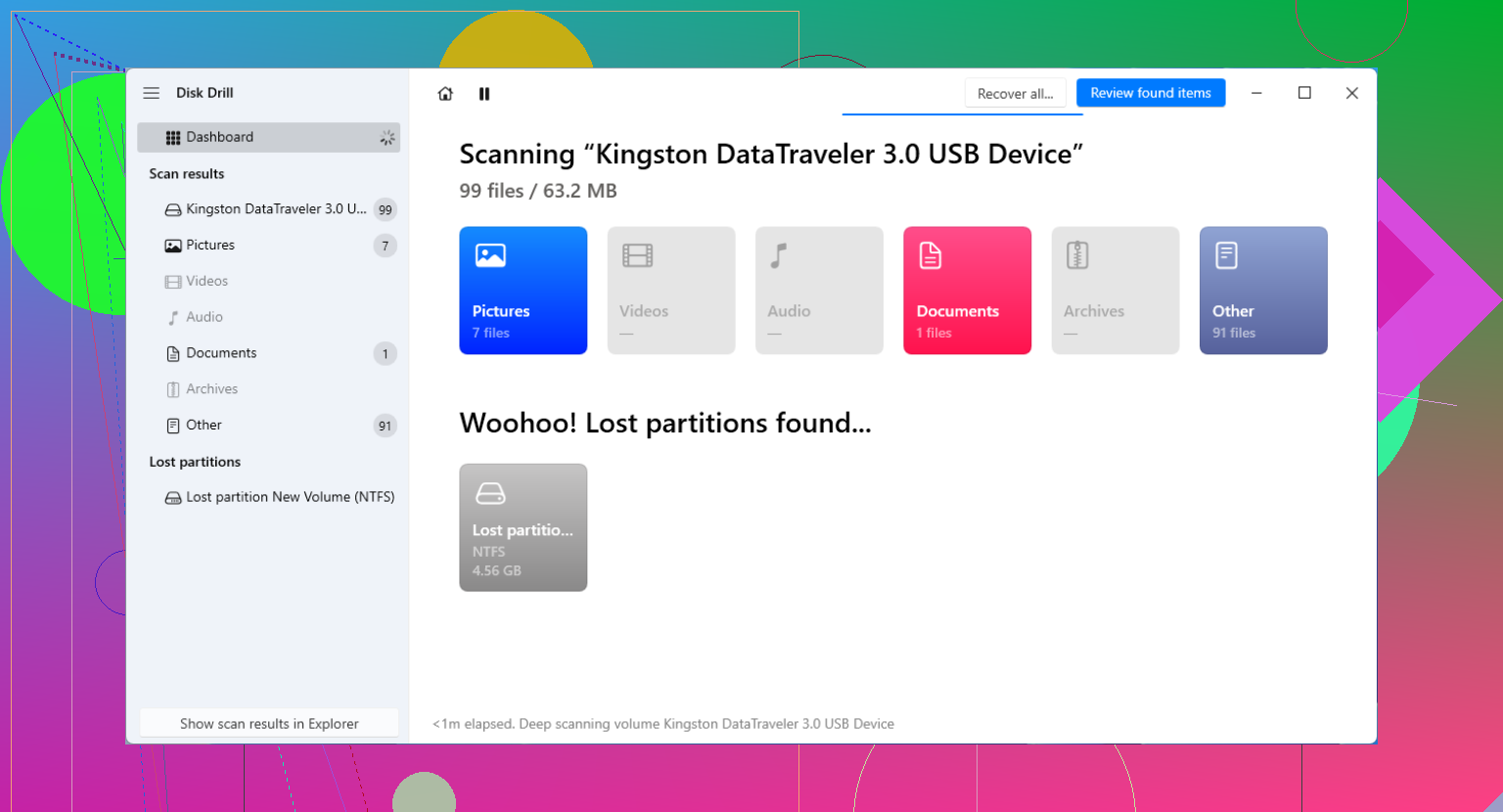
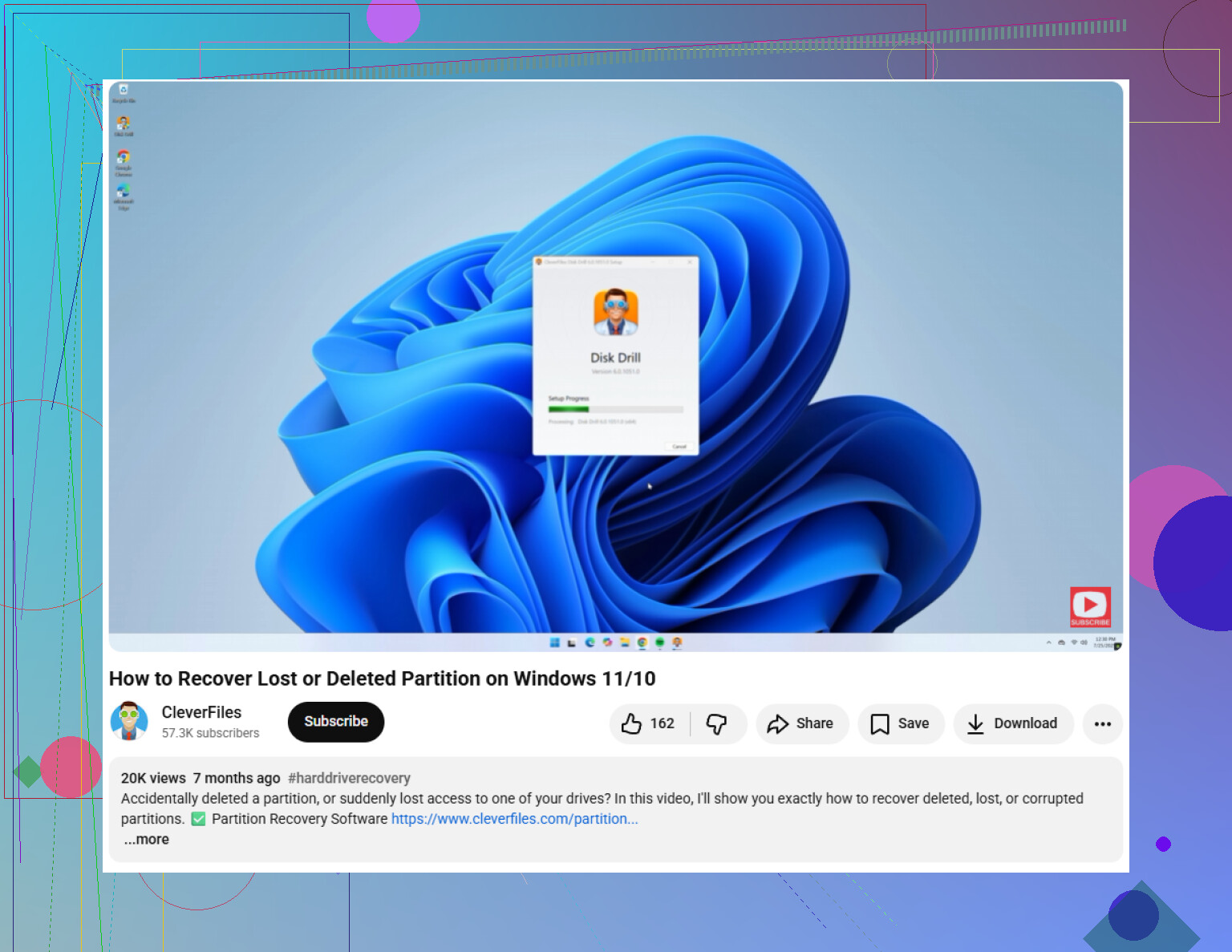
Disk Drill is a good fit for this kind of situation because it’s pretty straightforward and doesn’t require you to know command-line recovery tools. Run a scan, preview what it finds, and if your files show up, recover them to a different drive. That last part matters. Don’t recover files back onto the damaged disk.
Once your important files are safely copied elsewhere, then you can think about repairing the partition table itself.
- TestDisk is the usual go-to for finding lost partitions and writing the partition table back. It works well, but you need to pay attention before choosing “Write.” Pick the wrong partition and you can make the mess worse.
- gdisk can help when the main GPT header is corrupt but the backup GPT header at the end of the disk is still usable. In that case, it may be able to rebuild the primary GPT data from the backup.
If Windows shows the disk as a GPT Protective Partition, be extra careful. That can happen with older systems, drive docks, adapters, or partition table weirdness. It does not mean you should immediately wipe or clean the disk. Check whether recovery software can see the files first, because often the files are still accessible even when Windows Disk Management is not showing the partition normally.
14 Likes
Don’t run CHKDSK on it just because Windows asks to “fix” the drive. That can be fine for a normal file system error, but with a lost GPT entry or a RAW-looking partition it may change metadata before you’ve copied anything off. I’d treat “restore the partition” as step two, not step one. First see whether a recovery tool can read the files and save them to another disk. Disk Drill is okay for that if you want a visual scan and file preview, but don’t use any tool’s repair/write option until the important stuff is already somewhere safe. After that, TestDisk or gdisk makes more sense for rebuilding the GPT. The annoying part is that a restored partition table can look successful and still leave some files damaged, so file recovery first is the safer bet.
If this is an external drive in a USB dock or enclosure, check the connection path before you try to rebuild anything. Some docks, cheap USB adapters, and older enclosures can present the disk with different sector sizing or odd translation, and that can make a GPT disk look broken even when the partition table is fine. If the drive came out of a desktop, NAS, or old enclosure, try reading it through the original enclosure or a direct SATA connection before writing a repaired GPT.
I agree with the “copy first, repair later” advice, but I’d be careful about assuming this is definitely a partition-table problem. If the disk is clicking, dropping offline, scanning extremely slowly, or showing lots of read errors, partition tools are the wrong first stop. In that case, image it with something that can skip bad areas and retry later, then recover from the image. A normal file recovery program like Disk Drill can be fine if the drive is stable and you just need to pull files out, but if the hardware is failing, a long scan can make the situation worse.
After your files are on another disk, then TestDisk/gdisk-style repair makes sense. Before pressing any “write” or “repair” button, take a screenshot or photo of the current partition layout and note the disk size. If the tool finds several similar partitions, don’t just pick the first green-looking one. The correct entry should usually match the old size, filesystem, and start/end positions. Restoring the wrong GPT entry may make Windows show a drive letter again, but that does not mean the file contents are actually safe.
Check whether the disk is encrypted before you spend hours scanning it. If it was a Windows system drive or backup drive, BitLocker may be involved, and a lot of recovery tools will only show nonsense or “lost files” unless the volume is unlocked with the recovery key first. Same goes for drives from NAS boxes or RAID setups: a single disk pulled from an array may look like a bad GPT problem when the real issue is that you’re not viewing the full volume.
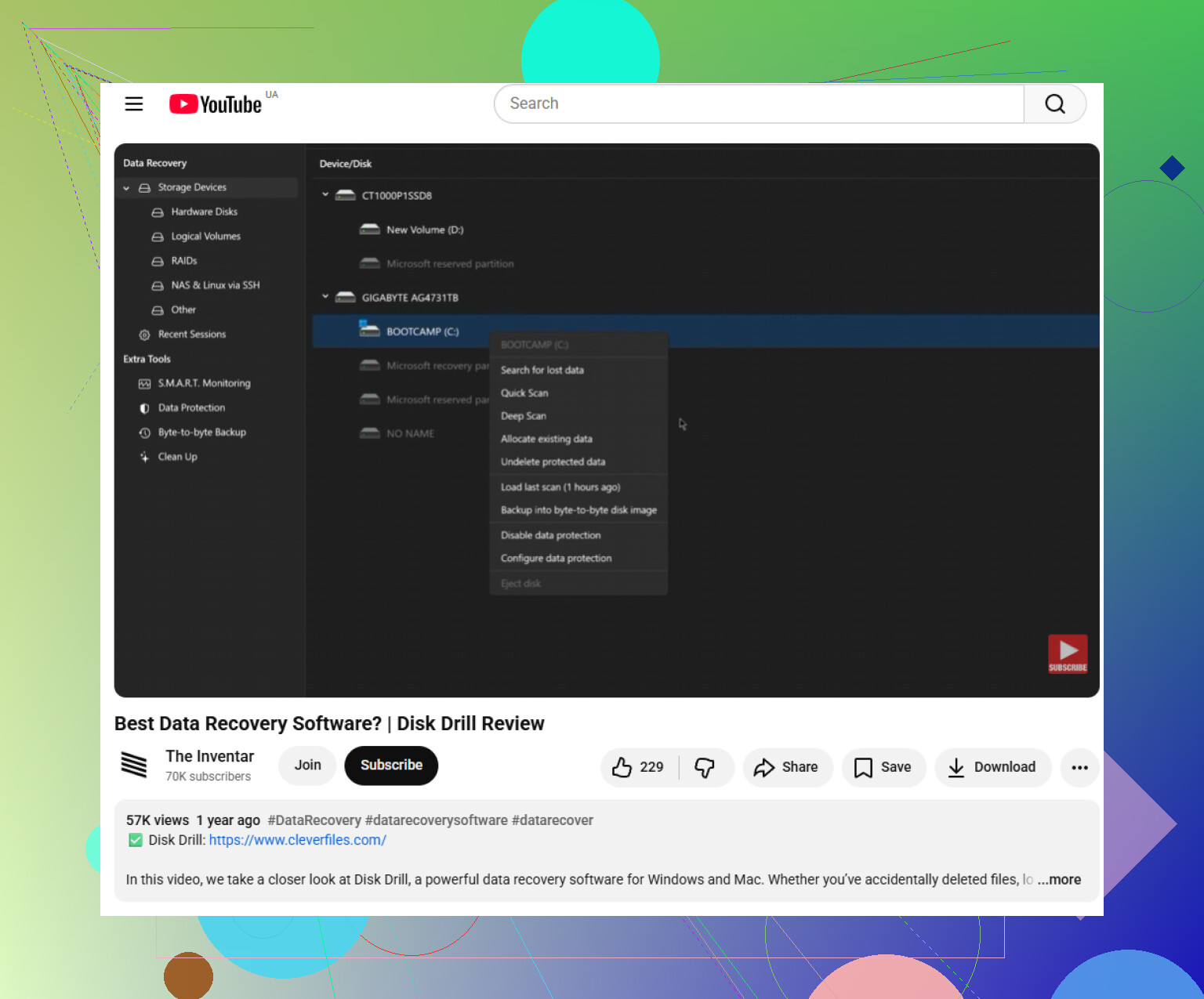
I’d be a little skeptical of “repair partition” buttons until you know what kind of volume you’re dealing with. If Windows asks to initialize the disk, cancel it. If Disk Management shows the right physical disk size but no usable partition, then scanning read-only with something like Disk Drill is reasonable for checking whether your folders are visible. If it shows your folder names and previews normal files, recover those to a different drive first. That is safer than trying to make the old partition reappear immediately.
After the files are copied, then partition repair is less stressful. At that point TestDisk or gdisk can be used to compare the found GPT entries with what the disk should have had. But if the recovered data matters more than the drive itself, don’t treat “getting the drive letter back” as the goal. The goal is getting the files onto another healthy disk. The partition table can be fixed, rebuilt, or wiped later.