My iPhone storage is almost full, and I think temporary files and cached data are taking up a lot of space. I need help clearing temp files on my iPhone without deleting apps, photos, or important data because some apps are running slow and I don’t want to lose anything important.
I went into this thinking there would be one obvious trash bin for temp files on iPhone. There isn’t. iOS hides the mess in a bunch of places, so cleanup is more like hitting three or four pressure points than flipping one switch.
Does this speed up the phone?
From what I saw, yes. The reason is plain. iOS needs open storage for background work, cache writes, app swaps, and other short-term system stuff. When your free space gets squeezed, the phone starts feeling off. Apps hang on launch. Scrolling gets choppy. Keyboard delay shows up. Clearing junk frees up working room, so the change tends to show up right away, not over a week or two.
Where the temp stuff ends up
It’s spread out. No master folder, no clean little drawer.
- Safari and Chrome keep cached site files, images, and scripts so pages reload faster later
- Apps like Instagram and TikTok stash feed data and video chunks locally so you don’t get constant buffering
- System Data in iPhone Storage grows from app cache, Siri files, logs, and background leftovers
- Each app keeps its own temp data, and iOS gives you no single button to wipe all of it
iOS does some cleanup on its own when storage runs low. In my expereince, it misses stuff. If an app freezes, crashes, or leaves a broken cache behind, those files tend to stick around way longer than they should.
What I’d do first if you want space back without deleting your apps
- Restart the iPhone. This is the low-effort step people skip. A reboot clears some temporary system cache and refreshes memory without touching your settings or app data. If the buttons aren’t cooperating, go through Settings, General, Shut Down. I started doing this weekly and it cut down on the slow creep.
- Clear your browser cache. For Safari, open Settings, Apps, Safari, then tap Clear History and Website Data. Heads up, this logs you out of a lot of sites. Chrome does it inside the app under Privacy and Security.
- Turn on Offload Unused Apps. Path is Settings, General, iPhone Storage. This removes the app binary but leaves your docs, saved data, and settings in place. The icon stays there with the cloud symbol, and one tap brings it back. If your goal is free space without wiping your life, this is the cleanest built-in option.
What fooled me the first time
I kept staring at cache and System Data like they were the whole problem. They weren’t. The real storage sink was my photo library. Duplicate shots, ten versions of the same receipt, bursts I forgot about, and a few giant videos. Once storage gets low from media, every temp-file issue feels worse.
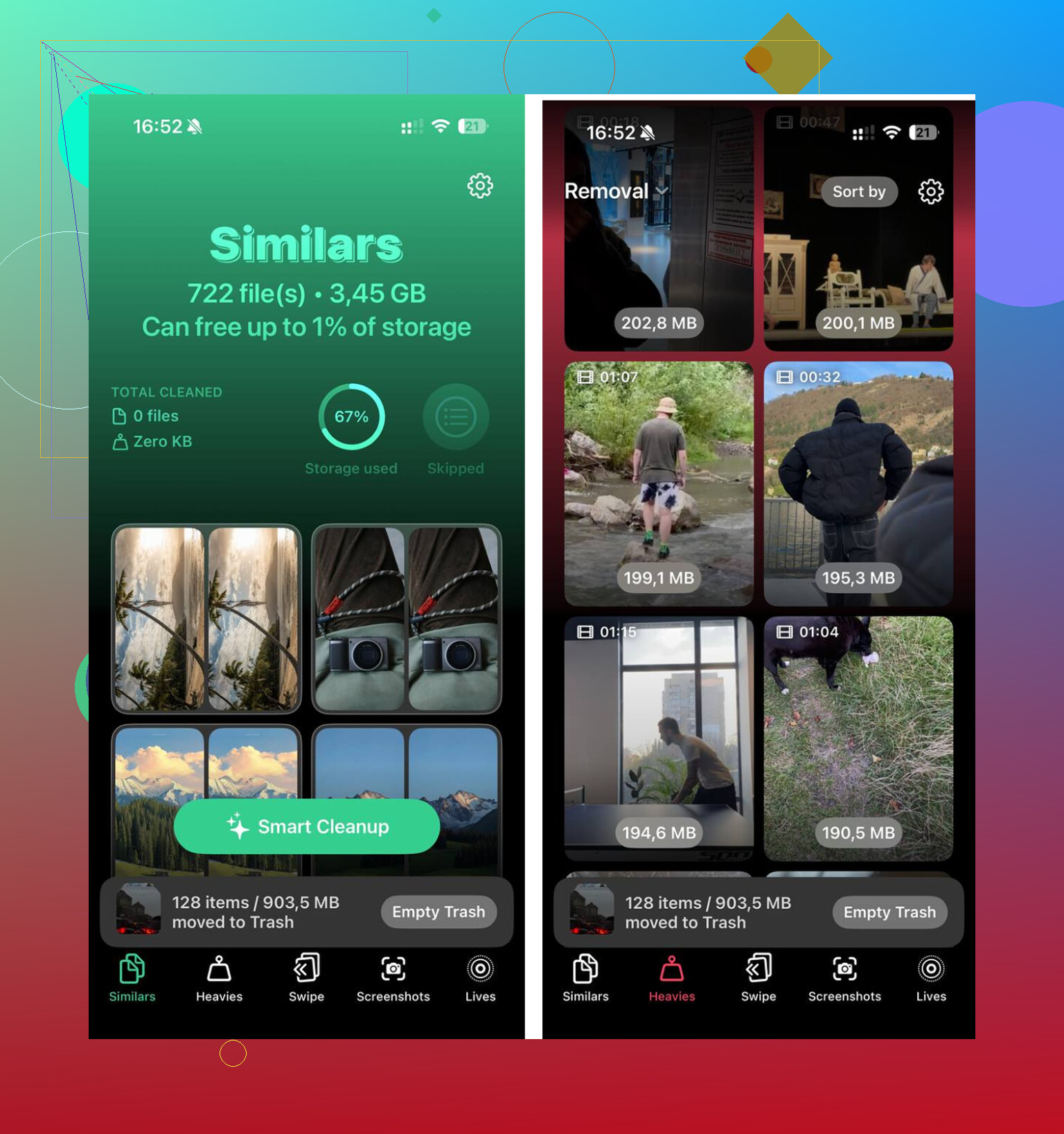
If your library is huge, sorting it by hand gets old fast. I used Clever Cleaner for the photo and video side. What stood out to me was the sorting. The Heavies section puts the biggest files first, so you see the worst offenders fast. The Similars section groups near-duplicates and marks a Best Shot, which helped with bursts and repeated tries of the same pic. It shows file sizes before deletion, and the processing stays on the phone.
After I cleared about 12GB between media cleanup and the manual steps above, the lag stopped. Not fully magic, but enough where the phone felt normal agian.
One last check people miss
Open Settings, General, iPhone Storage, then wait a minute. The storage bar often lags behind reality. If System Data still looks bloated after a restart, I’d look at the apps using the most space, usually social apps, then delete and reinstall the worst ones. Doing this forces them to rebuild local cache from scratch instead of dragging along old junk from previous installs.
If your iPhone feels slow and storage is tight, I’d treat temp files as part of the issue, not the whole issue. Reboot first. Clear browser data. Offload unused apps. Then check photos and videos, because thsoe usually eat the space that starts the whole problem.
22 Likes
iPhone temp files are annoying because Apple gives you no single clear-cache button. @mikeappsreviewer covered the common stuff. I’d skip repeating thsoe and focus on what tends to work when storage is full but you do not want to lose apps or personal data.
First, check Messages. This gets missed a lot. Go to Settings, General, iPhone Storage, Messages. Review large attachments. Old videos, GIFs, and photos inside texts eat gigabytes fast. Deleting those does not remove your apps.
Next, clean downloaded offline content inside apps. Spotify, Netflix, YouTube, Podcasts, Google Maps, and similar apps store files locally. Open each app and remove downloads you do not need. This is one of the fastest ways to free space, and people forget it becuse it does not show up as ‘temp files.’
I also disagree a bit with the idea that temp files are usually the main problem. On most iPhones, the biggest hidden storage hog is app media, not temp cache. Social apps keep drafts, watched clips, and downloaded assets. If one app is huge in iPhone Storage and has no clear cache option, offloading helps, but deleting and reinstalling that one app is often cleaner. Your account data stays on the service side for apps like Instagram, TikTok, and Facebook. Check before you do it if you have local drafts.
Another useful step is changing message retention. Settings, Apps, Messages, Keep Messages, set it to 1 Year or 30 Days if you do not need old threads. Same idea for Voice Memos if you store lots of recordings.
For photos, use the built-in review tools first. Photos, Utilities, Duplicates. Merge what you do not need. If your library is a mess, Clever Cleaner is worth a look for finding duplicate photos, similar shots, and large videos without wiping apps.
If you want a visual walkthrough, this iPhone storage cleanup video for clearing cache and temp files lays it out pretty well.
Biggest wins, in order, are usually Messages attachments, offline downloads, bloated social apps, then duplicate media. That’s where I’d start.
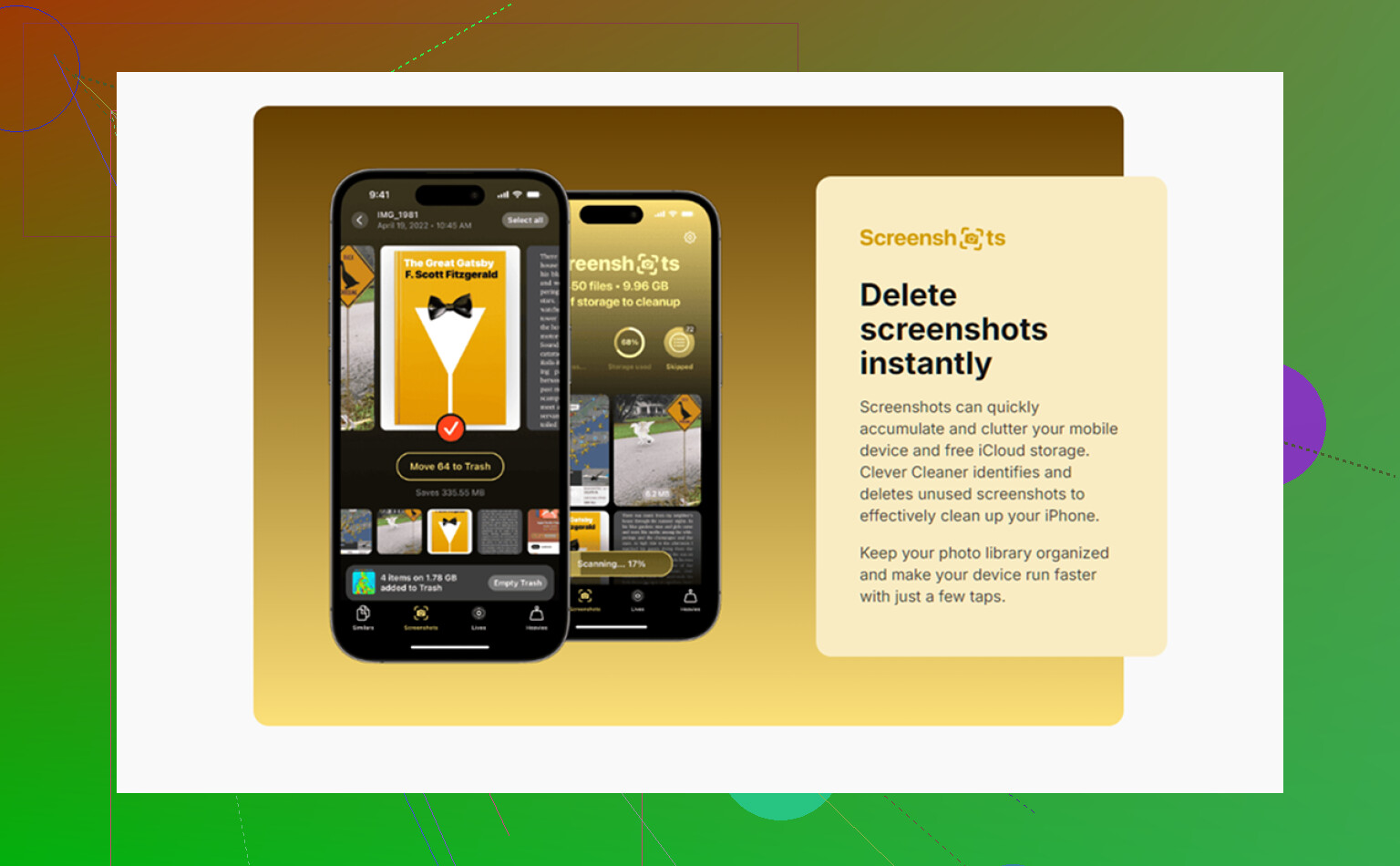
I’d add one thing neither @mikeappsreviewer nor @stellacadente really leaned on enough: sometimes the fastest way to kill temp junk is to force iOS to recalculate storage, not just hunt cache manually.
Try this:
- Make sure iPhone is updated to the latest iOS version. Some older builds let System Data balloon for no good reason.
- Sync once with Finder on Mac or iTunes on Windows. Weirdly, this can shrink “System Data” or “Other” storage because iOS reindexes stuff.
- Turn off and back on iCloud Photos only if your photos are fully synced and backed up. That can flush local optimization issues, but I would only do this if you know what you’re doing.
- Check Mail app accounts. If you have huge email attachments cached locally, removing and re-adding the mail account can clear a lot without touching apps.
- Delete old iOS update files if one is stuck. Go to Settings > General > iPhone Storage and see if an iOS update is sitting there.
One thing I kinda disagree with is the idea that offloading is always the best “safe” move. It is safe-ish, but some apps are dumb about local downloads, drafts, or offline files. I’ve seen people lose podcast downloads, editing drafts, and app-specific files they forgot were local. So before offloading, open the app and check.
Also, if Safari cache is tiny but System Data is huge, don’t obsess over browser cleanup. That’s often not where the real bloat is. The nastiest storage creeep I’ve seen usually comes from Mail, Files downloads, streaming app leftovers, and failed updates.
Check Files app too:
- On My iPhone
- Downloads folder
- Recently Deleted
That part gets ignored a lot.
If the problem is really photos/videos mixed in with “temp” clutter, Clever Cleaner is actually useful for spotting large media and duplicate junk fast. Also this review is a decent breakdown if you want to see how it works for iPhone cleanup: see why Clever Cleaner helps free up iPhone storage faster
If storage still looks broken after all that, backup the phone and do a restore. Annoying, yes. But that’s the nuclear fix for corrupted cache and bloated System Data when iOS refuses to clean up after itself. Sometimes Apple just makes you do extra homework for no reson.
One angle I think @stellacadente, @reveurdenuit, and @mikeappsreviewer only partly touched: app in-app caches that can be cleared without deleting the app.
A lot of iPhone apps have their own cleanup option buried inside settings:
- Telegram: local database / cache size controls
- WhatsApp: Manage Storage
- Slack, Discord, Dropbox, OneDrive: cache reset or local file cleanup
- Podcast and reading apps: auto-downloaded episodes, saved articles, image cache
That matters because deleting/reinstalling is not always the safest move. I actually disagree a bit with the “just reinstall the bloated app” advice for note apps, editors, or anything with local drafts. Some apps are terrible about preserving unsynced work.
Also check:
- Music app downloaded songs
- Books app offline files / PDFs
- Files app app-specific folders
- Voice notes inside third-party recording apps
- Maps apps with offline regions
For media clutter, Clever Cleaner is useful if the real problem turns out to be duplicate photos and giant videos instead of true temp files.
Pros of Clever Cleaner
- fast at finding duplicates/similar shots
- highlights large videos well
- easier than doing manual photo cleanup
Cons of Clever Cleaner
- won’t clear every app cache
- you still need to review before deleting
- less useful if your storage issue is mostly System Data
So my order would be:
- Check app-specific cache settings
- Remove offline downloads
- Review Files app local folders
- Only then consider offloading or reinstalling specific apps
That approach usually frees space without risking your app data.