I’m trying to clean up my iPhone storage and delete a lot of old screenshots, but I don’t want to remove my regular photos by mistake. I’m not sure if there’s a safe way to delete only screenshots in the Photos app. I need help finding the quickest way to remove screenshots without affecting the rest of my photo library.
If your photo library feels clogged with screenshots, receipts, random QR codes, and old memes, I get it. I cleaned mine out a while back and most of what was sitting in “All Photos” was junk I never meant to keep. Trying to find one real photo in there felt awful.
Apple did make this less annoying in newer iOS versions, but there are still a few spots where people mess up and delete stuff they meant to keep.
The safe way
Do not start from “All Photos” if your goal is screenshots only.
Open Photos, then go to Albums, or Collections on newer versions. Scroll down to Media Types. There’s a Screenshots album there. Use that. If you delete from this section, you’re only dealing with screenshots, not your normal camera shots.
If you only have a small pile, tap Select and drag across the thumbnails. It’s faster than tapping one by one. If your phone is packed with thousands, hit Select and look for Select All in the top left. Easiest route.
If you’re on iOS 18 or newer
Apple changed the layout a bit.
Inside the library view, tap the filter button, the one with the two arrows near the bottom. Pick Filter, then choose Screenshots. After that, the library view shows screenshots only. From there, tap Select, then do the press-and-swipe move across the grid to grab a big range fast, then tap the trash icon.
Do large deletions in chunks
I learned this the annoying way. Deleting a few thousand at once made Photos hang on me. Once it froze long enough that I thought the phone had bricked, lol. It came back, but still.
If you have a huge backlog, do 500 to 1,000 at a time. It sounds slower. It wasn’t, at least for me. The app kept responding and the deletions finished cleanly.
If you want a repeatable fix
Shortcuts works well if screenshots keep piling up.
Open the Shortcuts app.
Create a new shortcut.
Add the “Find Photos” action.
Set the filter to “Is a Screenshot.”
Then add “Delete Photos.”
One setting matters or the shortcut fails on first run.
Go to Settings > Apps > Shortcuts > Advanced.
Turn on “Allow Deleting Large Amounts of Data.”
After that, you can tell Siri to run your shortcut and clear them out without digging through Photos each time.
When built-in tools feel too thin
The Photos app doesn’t tell you much beyond type and date. If you’re trying to recover storage fast, file size matters. I hit this when my phone was nearly full and I didn’t want to waste time deleting tiny screenshots while huge ones sat there untouched.
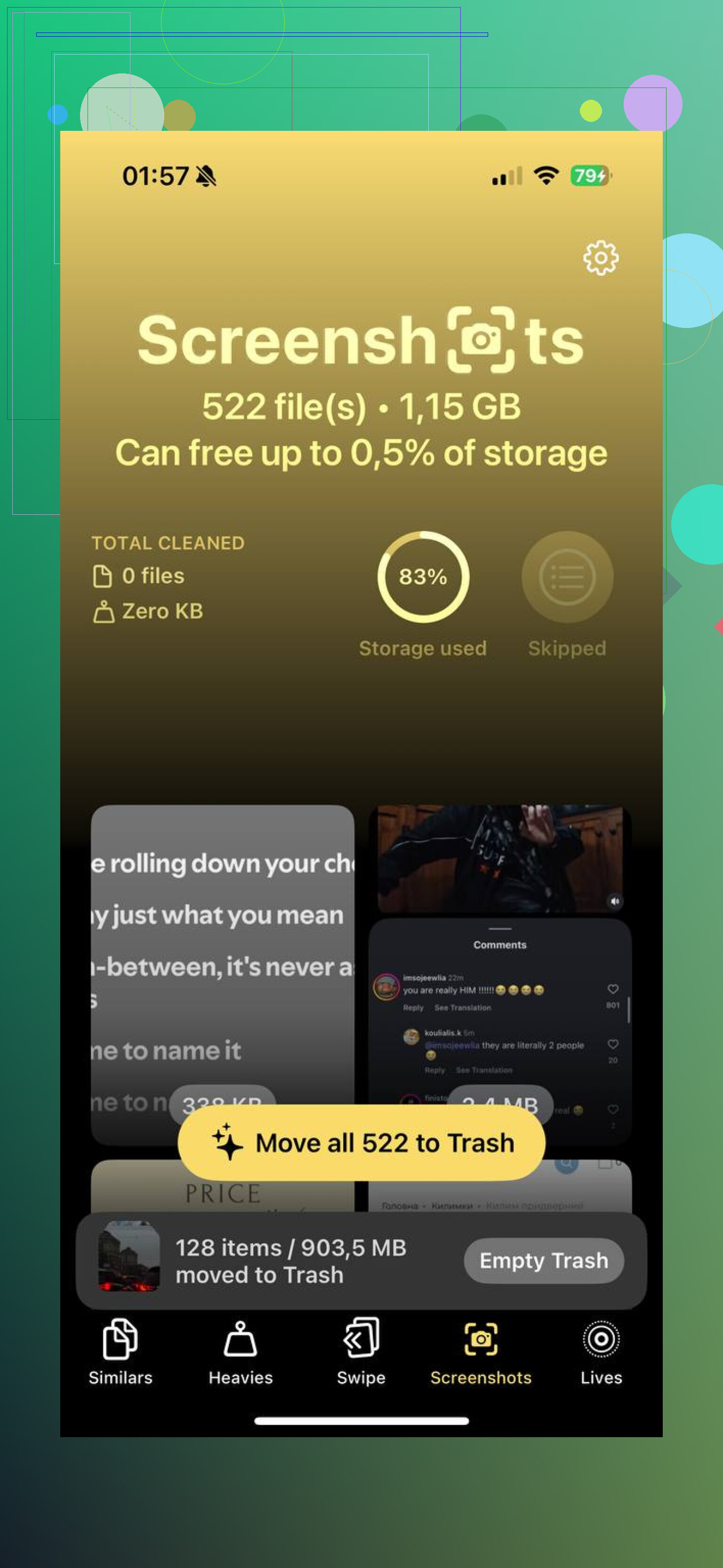
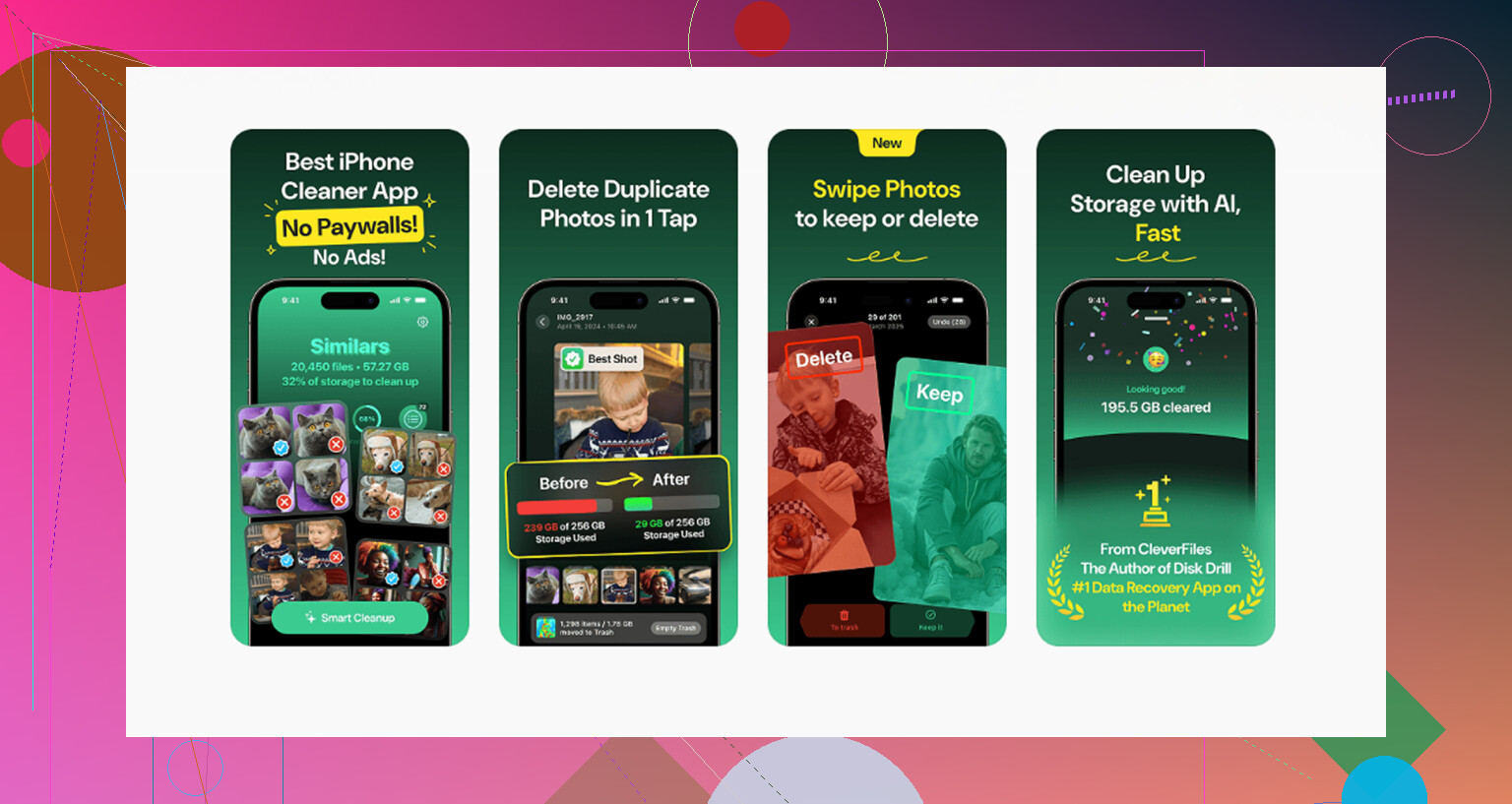
After testing a bunch of cleanup apps, Clever Cleaner was the one I kept. A few reasons:
- It’s free. No ads popping up every two taps. No subscription wall halfway through cleanup.
- The “Heavies” section sorts by file size, so you can remove the biggest files first.
- Its similar-photo tool catches duplicate or near-duplicate screenshots, which happens a lot when you retry a capture.
- Processing stays on the device, so your photo library isn’t being uploaded somewhere else.
If your storage is tight, sorting by size saves time. I wish Apple had built this in.
Watch out for iCloud
This part trips people up.
If iCloud Photos is on, deleting a screenshot on your iPhone also removes it from your other Apple devices and from iCloud. Usually fast, sometimes within seconds. So if you thought you were only cleaning one device, nope.
If the trash icon is gray and the screenshot won’t delete, it was often synced from a computer a long time ago. Those older synced items are read-only on the phone. To remove them, you usually need to reconnect the phone to the same computer and remove them from there. Dumb system, but yep, still a thing.
The step people forget
Deleting photos does not free space right away.
They go into Recently Deleted for 30 days. If you need storage now, go to Utilities, open Recently Deleted, tap Select, then Delete All. That’s what clears the space for real.
On the flip side, if you nuke something by mistake, this folder is your safety net. You get a month to recover it before it’s gone for good. After that, or if a sync messes things up, recovery software is your next shot.
Anyway, if your screenshot count is out of control, start with the Screenshots album or the new filter view, delete in batches, then empty Recently Deleted. That combo fixed it for me. Huge diff once the junk was gone.
36 Likes
Use the built-in search instead of starting in your full library.
Open Photos.
Tap Search.
Type screenshot.
iPhone groups screenshot images as a category. Open it, tap Select, then remove what you want. Your regular camera photos stay out of the list unless you saved them as screenshots too.
I slightly disagree with @mikeappsreviewer on one part. Shortcuts is fine, but for most people it adds one more thing to maintain. Search or the Screenshots media group is safer and faster if you only do this once in a while.
Best cleanup flow for storage:
- Search for screenshots.
- Sort by oldest first if you want to kill years of junk.
- Delete in smaller batches if Photos gets laggy.
- Go to Recently Deleted and clear it, or the space wont come back yet.
If you want more control, use Clever Cleaner. It helps when screenshots are mixed with large files, duplicates, and screen recordings. Better for bulk cleanup than poking around Photos for an hour.
If you’re comparing tools, this roundup is useful too:
best cleaner apps for iPhone storage cleanup
One last thing, if iCloud Photos is on, deleting screenshots on your iPhone removes them from your iPad and Mac too. Thats the part people miss.
Yes, there’s a safe way, and the main thing is this: screenshots are their own media type in Photos, so deleting from that category does not wipe out your regular camera photos.
One extra tip I’d add beyond what @mikeappsreviewer and @himmelsjager said: use smart filtering by date before deleting. A lot of people panic-delete recent screenshots they still need for logins, order confirmations, maps, etc. I’d start with the oldest year or month first and work forward. That makes mistakes way less likely.
Also, slight disagree with the “just use Search” idea. Search works, but in my experience it can feel a little messier than going straight into the dedicated screenshot grouping, especially if your library is huge.
What I usually do:
- open Photos
- go to the Screenshots section
- sort or scroll to older stuff first
- delete in rounds
- then check Recently Deleted after
If you’re nervous, favorite anything important before cleanup. That gives you a quick safety marker.
And yeah, if your goal is storage cleanup, Clever Cleaner is actually useful for this kind of job because screenshots are often mixed with duplicates, giant videos, and random junk. Apple’s Photos app is fine for basic deletion, but not great for seeing what’s really eating space.
For a related comparison on safer cleanup tools, this thread is worth a look:
which iPhone cleaner app is safer for storage cleanup
Short version: yes, you can delete screenshots without deleting normal photos, just make sure you’re deleting from the screenshot-specific view and not blindly from the full library. And def dont forget Recently Deleted or the storage won’t come back right away.
One angle I’d add to what @himmelsjager, @nachtschatten, and @mikeappsreviewer said: after you isolate screenshots, use the little info panel on a few of them before mass deleting. Swipe up on a screenshot or tap the info button and check the date, app source, and whether it’s something like a boarding pass, verification code, receipt, or medical chart you forgot you saved. That saves you from deleting useful “not really photos” by accident.
I also slightly disagree with the idea of automating deletion unless screenshots are a constant habit. Shortcuts is fine, but auto-style cleanup can be overkill for people who only do this every few months.
My safer routine is:
- review oldest utility screenshots first
- keep anything tied to purchases, travel, or IDs
- delete batches
- empty Recently Deleted only after a quick second check
If your library is a total mess, Clever Cleaner is decent for triage.
Pros
- easier to spot bulky junk beyond screenshots
- can help surface duplicates and large media fast
- simpler for bulk cleanup than bouncing around Photos
Cons
- still another app to grant photo access to
- built-in Photos is enough if screenshots are your only problem
- bulk suggestions always need a manual sanity check
So yes, you can delete screenshots without touching normal photos, but the real mistake-proof move is reviewing them as a document pile, not as “just junk.”
A simpler option is Siri.
Say, “Siri, show me screenshots from 2023,” or name a month. Photos opens the matching screenshots. Tap Select, review them, then tap the trash icon.
Work one month at a time if you have alot. This keeps the list small and helps you spot receipts or tickets you dont want to lose. Regular camera photos stay outside the results.
The Screenshots album and the search category both lean on metadata, and that’s where this quietly breaks. A screenshot you took on your own phone gets tagged as a screenshot. One someone AirDropped you, or one you saved out of Messages or a chat app, usually lands in your library as a regular image. So if half your ‘screenshots’ came from other people, they won’t show up in that filtered view at all, and you’ll think you cleared them when you didn’t.
Same trap with edited ones. Crop or mark up a screenshot and depending on how it saves, it can drop out of the screenshot grouping. Not always, but I’ve seen enough people confused about why their count doesn’t match. So the advice from @himmelsjager and @nachtschatten about deleting from the dedicated screenshot view is correct and safe, it just won’t be complete if your junk came from mixed sources.
For the stuff that slips past the filter, sorting by file size is honestly the faster way to find it, since a random saved image and a real screenshot look identical in a grid but not by size. That’s the one spot Clever Cleaner earns its place here, catching the near-duplicate retries and the transferred images the built-in filter ignores. I wouldn’t lean on it for the whole job though. Run the Screenshots view first for the obvious pile, then use a size sort to mop up whatever didn’t get tagged.