I imported my iPhone photos to my computer and confirmed they were saved, but they’re still taking up space on my phone. I’m not sure of the safest way to remove the imported photos without deleting them from my computer too. I need help figuring out how to free up storage and avoid losing anything.
I hit this mess on my own iPhone, and yeah, it was annoyng in a way only Apple stuff manages to be. You copy your photos to a computer, think the job is done, then the phone keeps whining about storage like nothing changed. No clean “remove imported photos” flow, no obvious button, no straight answer.
The part I wish someone had told me first is this. Backup and sync are not the same thing. If iCloud Photos is on, your iPhone is tied to iCloud like a mirror. Delete a photo on the phone, and it often disappears from iCloud and your other Apple devices too. So before you start deleting anything, make sure your photos are sitting in a folder on your Mac or PC that does not sync back to iCloud. Or turn off iCloud Photos first, then do the cleanup.
On Mac, Apple wants you to use Photos. Sometimes it works fine. Sometimes the option you need is gone. When you plug in the iPhone, Photos is supposed to show a checkbox in the upper right, “Delete items after import.” On my setup, it vanished. From what I saw, this tends to happen when iCloud Photos is enabled.
What worked better for me was Image Capture. It is already on the Mac, buried in Applications. Plug the phone in, open Image Capture, pick your iPhone under Devices, and you get a plain list of photos and videos. No fluff. No weird syncing behavior in the way. After I confirmed my files were copied over, I selected batches and used the red delete button. Much easier.
Windows felt more direct, though still a little flaky. My iPhone showed up in This PC, then inside DCIM. From there I deleted files like I would from a camera card. A couple times Windows threw “device is busy” or “device unreachable.” When it did, the fix was on the iPhone itself. Settings, Photos, then “Transfer to Mac or PC,” and switch it to “Keep Originals.” After I changed that, transfers and deletes stopped failing as often.
If you want to do the cleanup on the phone, check the Imports album in Photos. Open Albums, scroll down to Utilities, and you should see it there. It groups stuff you brought in, which helps when you want to clear imported batches without hunting all over your library. One catch. Deleting from there only sends items to Recently Deleted. They sit there for 30 days unless you empty it yourself. If you need space right now, go into Recently Deleted and remove everything again. I forgot this once and thought iOS was lying to me. It kind of was, but still.
I started chasing all this because my iPhone 13 got slow in a way I could feel every day. Camera opened late. Keyboard lagged. Apps hesitated. I had less than 1 GB free, and iPhones do not handle low storage well. Once free space gets squeezed, normal stuff starts dragging.
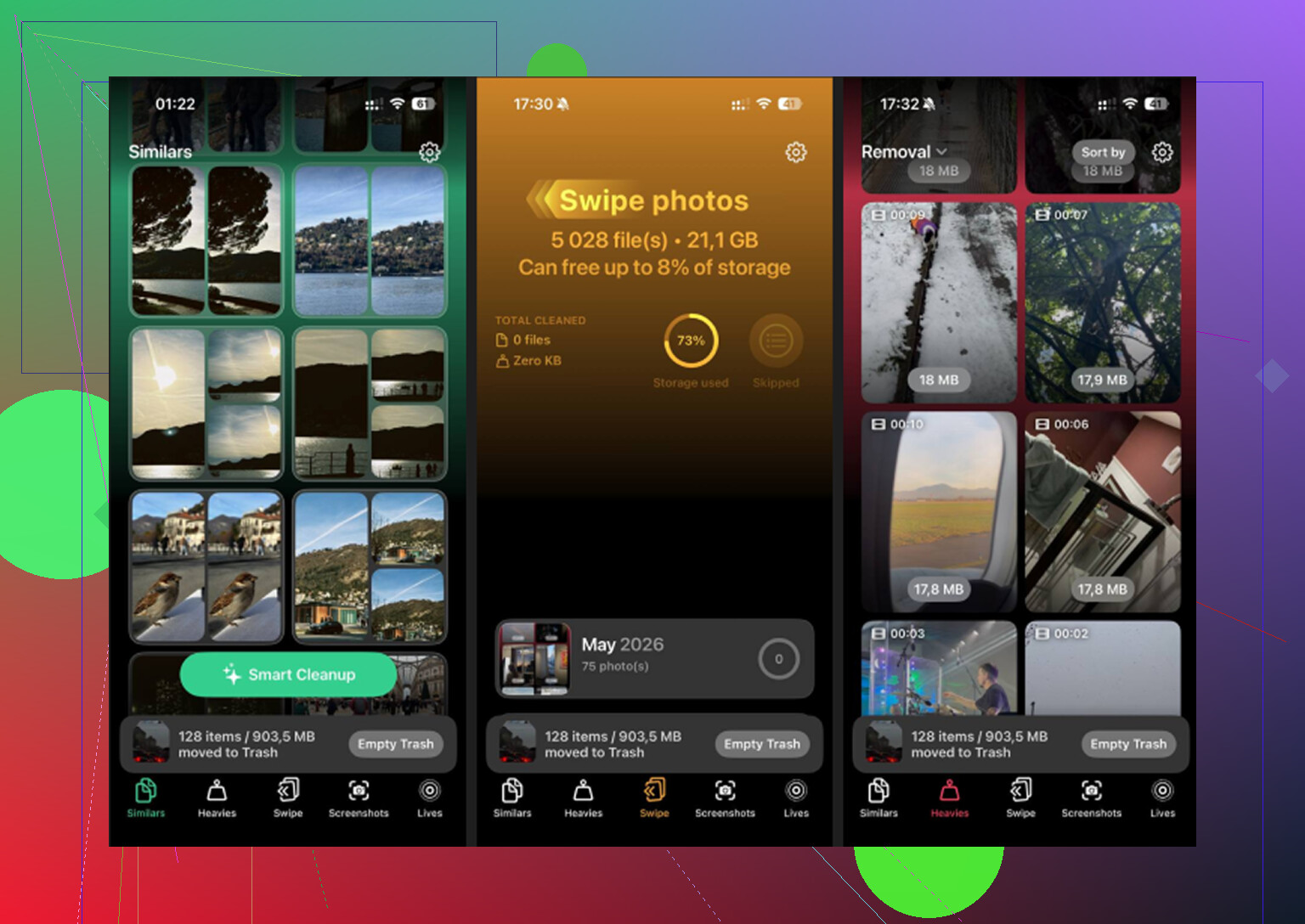
After I moved the main photo library off, I still had junk everywhere. Near-duplicates. Screenshots from receipts, maps, random text threads, all the usual junk pile. I used Clever Cleaner afterward because doing the rest by hand was taking forever.
The part I ended up using most was the Heavies section. It sorted photos and videos by file size, which made the worst storage hogs easy to spot. In my case, it was old 4K clips and a bunch of long screen recordings I forgot existed. The Similars section helped too. It grouped almost identical shots, the kind you take five or ten times in a row and never review later. I liked seeing file sizes before deleting anything, because some screenshots were tiny and not worth caring about, while some videos were absurdly large.
One thing I did like, and I do pay attention to this stuff, is that the processing happens on the device. My photo library was not getting shipped off to some server. After clearing around 15 GB, the phone stopped feeling clogged up. Not a subtle change either. It felt normal again.
If your goal is to free space after importing photos, the short version is this.
First, check whether iCloud Photos is on.
Second, make sure your copies on computer are stored somewhere safe and separate.
Third, delete through Image Capture on Mac, DCIM on Windows, or the Imports album on iPhone.
Fourth, empty Recently Deleted, or the storage number will barely move.
That last step got me once. Don’t skip it.
2 Likes
First thing, make sure your computer copy is in a normal folder, not inside a Photos app library that still syncs with iCloud. This is where people get burned. If iCloud Photos is on, deleting on the iPhone removes it from iCloud too. Your PC folder stays safe, but your Mac Photos library might not.
I’d skip deleting from DCIM by hand unless you like random Apple error msgs. I disagree a bit with @mikeappsreviewer there. It works, but it gets flaky fast.
Safer route:
- Turn off iCloud Photos on the iPhone if you use it.
- On Windows, use the Apple Devices app or old iTunes sync tools to remove synced photo folders.
- On Mac, if photos were synced from Finder or old iTunes, connect the phone, open Finder, go to Photos tab, and untick synced albums.
- If these are normal camera shots, delete them in the Photos app on the iPhone, then empty Recently Deleted.
Also check Settings, General, iPhone Storage, Photos. If storage does not drop right away, restart the phone. iOS sometiems hangs onto the storage calc for a bit.
If your library is messy after the import, Clever Cleaner helps clean dupes, large videos, and leftover junk fast. This review explains it well and keeps it simple, see how Clever Cleaner helps free up iPhone storage.
If the photos were imported from the iPhone camera roll to your computer, deleting them from the iPhone will not delete the copies already sitting in a regular folder on your PC or Mac. That part scares ppl, but the computer copy is separate once imported.
Where I kinda disagree with @mikeappsreviewer a bit: I would not make a habit of deleting straight from DCIM unless you only want a quick one-time purge. It can leave things messy, and sometimes the Photos app on iPhone still has to “catch up.”
Safer way in my opinion:
- verify the files open on your computer
- copy that folder to a second place if the pics matter
- on iPhone, open Photos and delete in batches
- then go to Recently Deleted and wipe that too
That last step is the one everybody misses and then wonders why storage diddn’t change.
Also worth checking:
- Settings > Photos > iCloud Photos
- if that is ON, deleting from iPhone also deletes from iCloud and other Apple devices
If you want to free up more space after the main export, Clever Cleaner is actually useful for finding duplicate shots, large videos, and random junk screenshots. And for extra reading, this thread has real iPhone cleaner app experiences from Reddit users.
So short version: delete on the phone, empty Recently Deleted, be careful with iCloud sync.

One angle the others barely touched: if the photos were imported with a Mac and ended up inside the Photos app library, that is not the same as dumping them into a normal Finder folder. I slightly disagree with @boswandelaar on one point here, because “saved to computer” is still vague until you confirm where they were saved.
Quick sanity check:
- Mac Photos library = managed library, may still be tied to iCloud behavior
- Regular folder in Finder or File Explorer = standalone files, safest for long-term archive
- External drive backup = even better before mass deletion
If you want the safest possible cleanup, I’d do this first:
- Open a few imported photos from the computer copy while the iPhone is unplugged.
- Copy that imported folder to another location or external drive.
- Only then remove photos from the iPhone.
Also, if your goal is purely space, check Settings > General > iPhone Storage and see whether Photos is actually the problem. Sometimes Messages attachments or downloaded media are the real hog, and people start deleting camera shots for nothing.
One more thing people miss: if you use Optimize iPhone Storage, your phone may already hold smaller local versions. Deleting originals from the phone still affects your synced library if iCloud Photos is active, so don’t treat optimization as backup.
For cleanup after the main export, Clever Cleaner can help sort duplicates and big videos.
Pros:
- easy to spot large files fast
- useful for duplicate and similar photo cleanup
- simpler than digging manually through years of junk
Cons:
- not a replacement for a real backup
- you still need to understand iCloud sync first
- auto-clean suggestions can make some people nervous
So my take: verify the computer copy is truly independent, make a second backup, then delete from the iPhone in Photos. That is less clever than hacky cable methods, but way harder to regret later.